Optimize your restaurant's delivery process with the pre-installed DoorDash Drive app on your site. DoorDash orders appear with a DoorDash icon, making it easy to track and manage them directly from your site's dashboard.
Important:
DoorDash Drive is available only in the United States.
Managing orders with DoorDash Drive
Accept and manage DoorDash Drive orders through your site’s dashboard or Wix app. Track deliveries in real-time, view order details, print, modify, or cancel orders as needed.
Dashboard
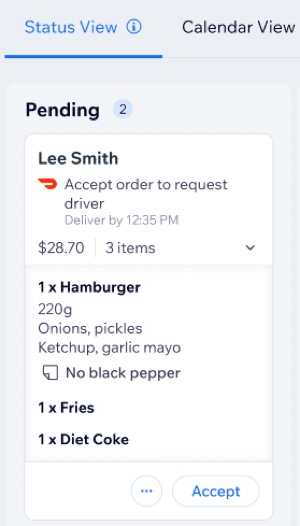
Go to Restaurant Orders in your site's dashboard.
Choose the relevant option:
Accept an order
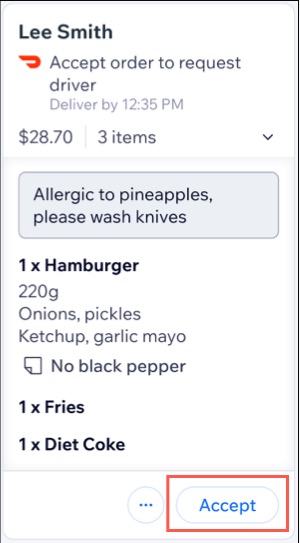
Accept online orders automatically assigned to DoorDash Drive for delivery.
Click Accept on a DoorDash Drive order

.
Enter a delivery time:
For delivery times under 2 hours, enter the arrival time in minutes.
For delivery times over 2 hours, enter the courier's arrival time in hours.
Click Submit.
Manage an order
Manage an order with DoorDash Drive.
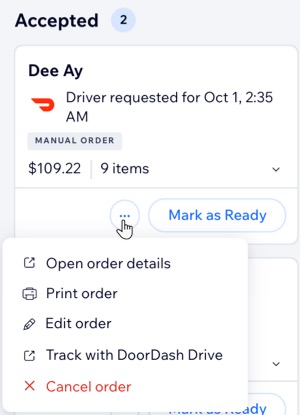
Click the More Actions icon

on a DoorDash order
and choose what you want to do:
Open order details: View the full information of an order, such as customer details, items ordered, and delivery status.
Print order: Generate a printable version of the order, usually for kitchen staff or record-keeping purposes.
Edit order: Make changes to the existing order, such as adjusting items, quantities, or customer details.
Track with DoorDash Drive: Monitor the progress of an order being delivered by DoorDash, including real-time updates on its status.
Cancel order: Stop an order from being processed.
Note: You may be charged a delivery fee.
Click the link to cancel the order on DoorDash's dashboard.
Click Continue to send a cancellation email to the customer.
(Optional) Enter a note for the customer.
Click Continue.
Wix app
Go to your site in the Wix app.
Tap Manage

at the bottom.
Tap Sales.
Tap Restaurant Orders (New).
Choose the relevant option:
Accept an order
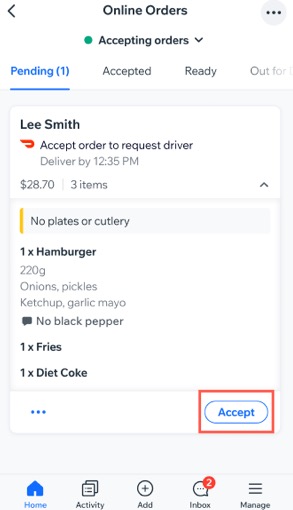
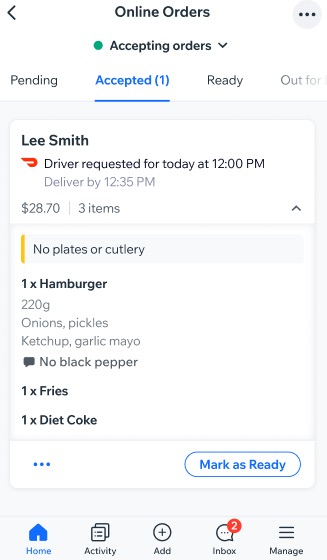
Tap Accept on an order marked with the DoorDash badge
.
Enter a delivery time:
For delivery times under 2 hours, enter the arrival time in minutes.
For delivery times over 2 hours, enter the courier's arrival time in hours.
Tap Submit.
Manage
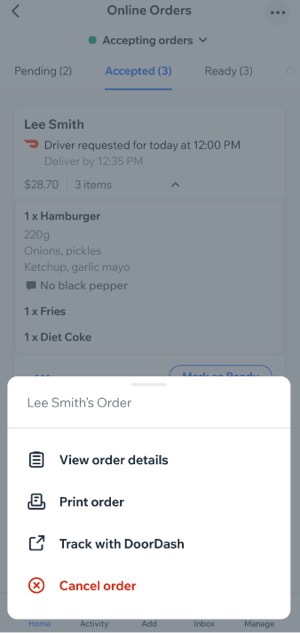
Tap the More Actions icon
on a DoorDash order
and choose what you want to do:
View order details: View the full information of an order, such as customer details, items ordered, and delivery status.
Print order: Generate a printable version of the order, usually for kitchen staff or record-keeping purposes.
Track with DoorDash: Monitor the progress of an order being delivered by DoorDash, including real-time updates on its status.
Cancel order: Stop an order from being processed.
Note: You may be charged a delivery fee.
Tap the link to cancel the order on DoorDash's dashboard.
Tap Continue to send a cancellation email to the customer.
(Optional) Enter a note for the customer.
Tap Continue.
Important:
DoorDash may reject the order even after initially accepting it due to reasons such as driver availability. In such cases, you can either recreate the order for delivery through another method or cancel it altogether.
FAQs
Click on a question below to learn more about managing orders with DoorDash Drive.
How do I know if DoorDash accepted an order?
DoorDash approves orders on the spot, and a timestamp is added to the order for confirmation.
Can I accept DoorDash Drive orders from the calendar view?
Yes. You can accept orders from the calendar view by selecting the order, clicking the More Actions
icon, and choosing Accept order.
What should I do if DoorDash rejects an order?
If DoorDash rejects an order, you can either recreate it for delivery through another method or cancel the order altogether.
Will I be charged a fee if I cancel a DoorDash order?
You may be charged a delivery fee if you cancel a DoorDash order.
What happens if both my restaurant and DoorDash deliver to the same area?
By default, orders will be assigned to your restaurant for delivery, but you can always assign them to DoorDash Drive for delivery instead.
This article is credited to the Wix team - https://support.wix.com/ and we thank them for that!