Notifications are essential for every restaurant, providing customers with timely updates about their orders. You can use our pre-installed notifications or create your own.
As a restaurant owner, you can manage the notifications sent to customers and the ones you receive to stay on top of order details. Send real-time push notifications via SMS, WhatsApp and email.
Setting up personal notification preferences
You can manage all your site notifications in one place, choosing which updates to receive from both your dashboard and the Wix app. This includes important order notifications, such as when a new order is submitted.
Notes:
All notifications are turned on automatically, but you can toggle off the ones you don't need.
Notification preferences affect only your site and account, not site collaborators.
To set up your notification preferences:
Dashboard
Go to Restaurant Orders Settings in your site's dashboard.
Click Order Updates and Notifications next to Order Management.
Click the More Actions dropdown and select Personal notification preferences.
(If disabled) Click the Enable notifications for this site toggle to receive notifications for your site.
Set your notifications by channel:
Desktop
Click Turn On next to Enable desktop notifications to get updates directly in your web browser. This means you get notified about your site activity while browsing other sites, not just Wix.com.
Dashboard
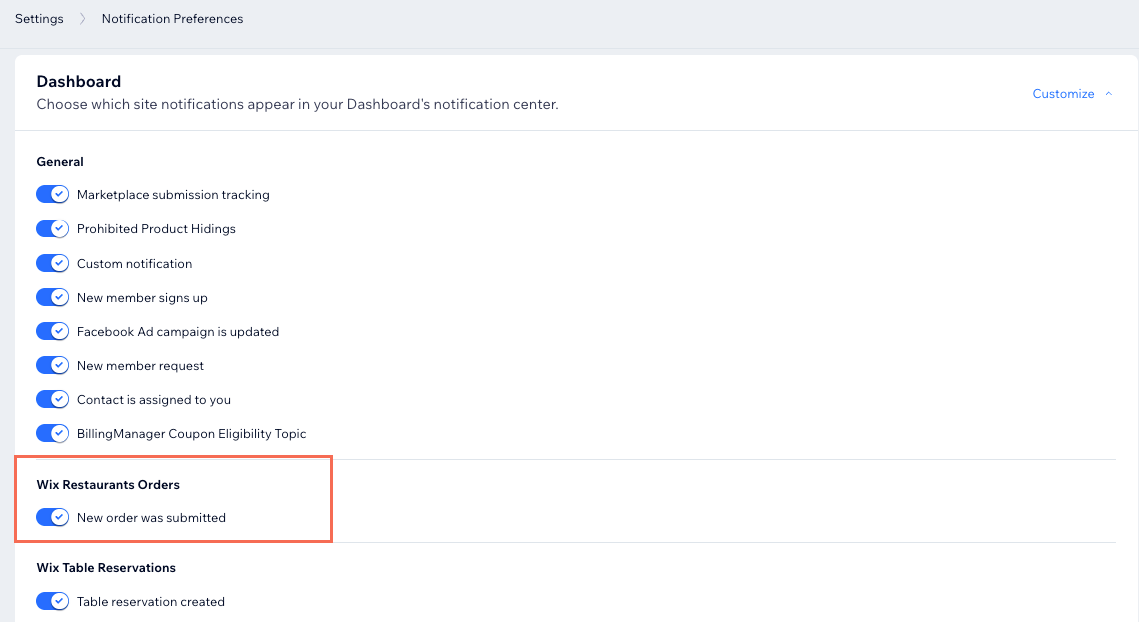
Click Customize next to Dashboard and enable the notifications you want to receive in your Wix dashboard.
Note: By default, "New order was submitted" is enabled under Wix Restaurants Orders.
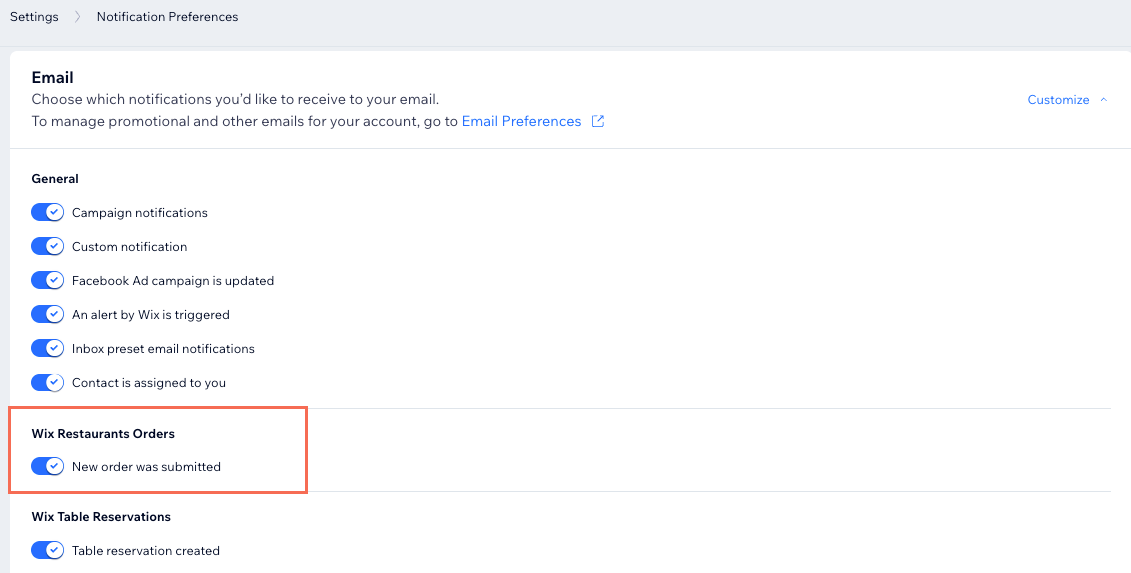
Click Customize next to Email and enable the notifications you want to receive to your email.
Notes:
By default, "New order was submitted" is enabled under Wix Restaurants Orders.
Email notifications are sent to your Wix account email address and not the business email set in your business info. If you'd like others to also receive these notifications, you can invite them to manage your restaurant.
Wix app
Go to your site in the Wix app.
Set how you want to receive notifications:
Push notifications
Manage the push notifications you want to receive, including when a new order is placed.
Tap the Notifications icon

at the top.
Tap the More Actions icon

at the top.
Tap Manage notifications.
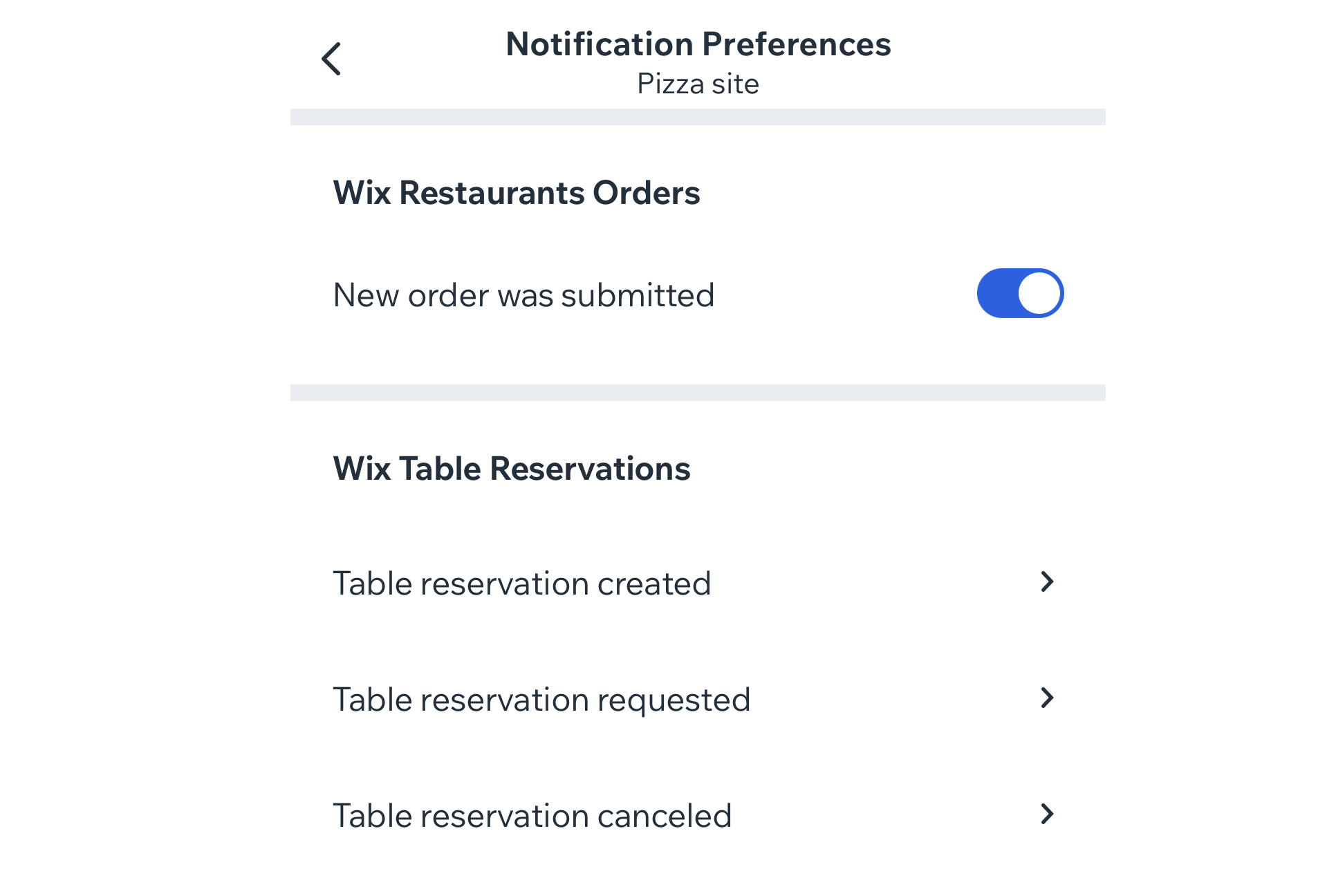
Scroll down to Wix Restaurants Orders and tap the toggle to enable or disable the push notification when a new order is submitted.
Sound alerts
Enable reminder sounds when an order is pending approval and when a new order is placed.
Tap Manage

at the bottom.
Tap Sales, then tap Restaurant Orders.
Tap the More Actions icon
at the top.
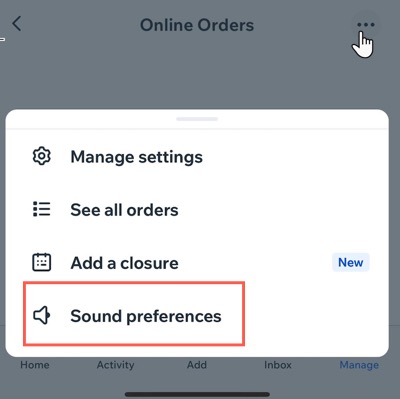
Tap Sound preferences.
Tap the toggle next to each alert you want to receive:
Pending approval orders alerts: Plays a sound when there are orders waiting for your approval.
New order alert: Plays a sound when a new order is placed.
Receiving sound alerts for new restaurant orders
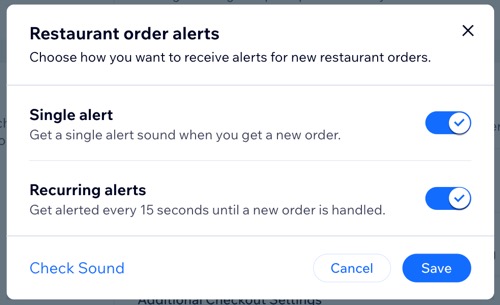
Customize how you receive sound notifications for new restaurant orders. Opt for a single alert sound for each new order or choose to receive repeated alerts every 15 seconds until the order is acknowledged.
To receive a sound notification:
Go to Restaurant Orders in your site's dashboard.
Click the Manage sound alerts icon

at the top right.
Enable the relevant toggle to set your notification preferences:
Single alert: Receive one sound for each new order.
Recurring alerts: Get notified every 15 seconds until the new order is handled.
Click Save.
Tip:
Click Check Sound to preview the alert tone for new orders.
Managing pre-installed restaurant order notifications
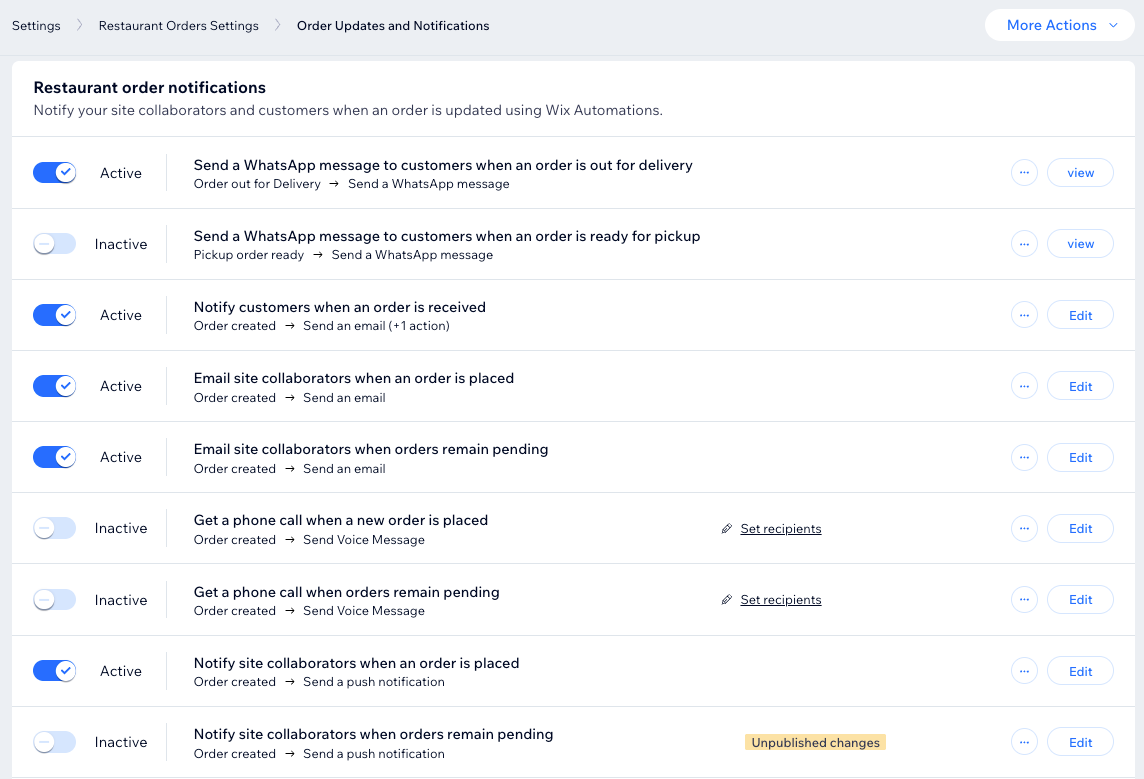
The Wix Restaurants Orders app includes pre-installed automations that notify customers about their orders and keep site collaborators—like kitchen staff—informed. You can manage, edit, and duplicate these notifications, including any custom ones you create.
Notifications are automatically sent to specific roles - Owner, Admin (Co-owner), Website Manager, Back Office Manager, Restaurant Manager, and Front Desk Staff to keep your team aligned. You can also add custom roles to ensure the right people stay informed.
Pre-installed notifications for your customers
Notify customers when an order is received: Send an email / SMS confirmation to customers when their order is placed.
Update customer when an order is created for them: Notify customers via email or SMS when an order is created for them.
Update customer when an order is out for delivery: Send an update via email or SMS when their order is on its way.
Send a WhatsApp message to customers when an order is out for delivery: Update customers via WhatsApp that their order is on its way.
Notify customers when an order is updated: Update customers with an email when there are changes to their order.
Update customer when a pickup order is ready: Send an email or SMS to let customers know their order is ready for pickup.
Send a WhatsApp message to customers when an order is ready for pickup: Update customers via WhatsApp that they can come pick up their order.
Remind customer about an upcoming order: Notify customers via email or SMS about their upcoming orders.
Important: SMS and WhatsApp notifications use the same SMS quota. If you enable both SMS and WhatsApp for the same notification, it will deduct 2 messages from your quota.
Pre-installed notifications for you and your collaborators (e.g. staff members)
There are several pre-installed automations to notify you and your staff about online orders, divided by communication method. For example, some automations trigger notifications via email, phone call, or a push notification on the site's dashboard and Wix mobile app.
Get a phone call when a new order is placed: Receive a real-time phone call to make you never miss an order.
Get a phone call when orders remain pending: Receive a real-time phone call if an order remains pending for too long. You can edit the delay based on the maximum time an order can "wait" from the moment it's placed.
Email site collaborators when an order is placed: Send an email to your collaborators when a new order comes in.
Email site collaborators when orders remain pending: Send an email to your collaborators if an order remains pending for too long. You can edit the delay based on the maximum time an order can "wait" from the moment it's placed.
Notify site collaborators when an order is placed: Send a push notification to your collaborators when a new order is received.
Notify site collaborators when orders remain pending: Send a push notification to your collaborators if an order remains pending for too long. You can edit the delay based on the maximum time an order can "wait" from the moment it's placed.
Tip:
The notifications you receive are managed using Wix Automations.
To manage pre-installed notifications:
Go to Restaurant Orders Settings in your site's dashboard.
Click Order Updates and Notifications next to Order Management.
Choose how to manage your notifications under Restaurant order notifications:
Activate / Deactivate: Click the Active / Inactive toggle next to the relevant notification to turn it on or off.
Edit: Make changes to the email content, subject line, or recipients as needed:
Click Edit next to the relevant notification.
Update the necessary details.
Click Save.
Note: Currently, you can edit email notifications, but SMS and WhatsApp messages cannot be edited.
Tip:
You can also customize the email notifications that you send out.
Adding multiple recipients to a phone call notification
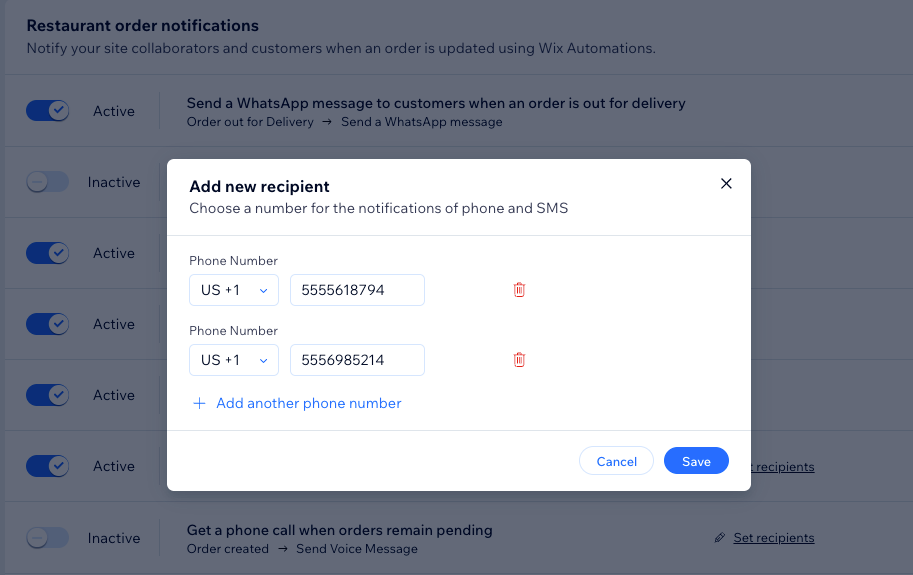
Stay informed about your orders by receiving notifications when an order is placed or remains pending. You can add multiple phone numbers so all recipients get updates via both SMS and phone calls.
To add a recipient:
Go to Restaurant Orders Settings in your site's dashboard.
Click Order Updates and Notifications next to Order Management.
Click Set recipients next to the relevant phone call notification (e.g. 'Get a phone call when a new order is placed').
Enter the phone number, including country code.
(Optional) Click Add another phone number to add more recipients.
Click Save.
Remove existing recipients:
You can always change the recipients for your phone call notifications. Follow steps 1-3 above and click the Remove icon

next to the phone number that should no longer be notified.
Managing all automations
Create additional notifications to automate your online orders efficiently. Each automation starts with a trigger, such as sending an email when an order is ready for pickup, and can include multiple actions to suit your requirements.
For example, when a customer places an order, you can send a confirmation email, update the kitchen staff, and notify the customer when the order is out for delivery.
Tip:
Make sure to assign your site collaborators a role (e.g. kitchen staff) in your dashboard. Then, include their role when adding recipients in the relevant automation email.
To manage an automation:
Go to Restaurant Orders Settings in your site's dashboard.
Click Order Updates and Notifications next to Order Management.
Click the More Actions drop-down and select Manage all automations.
Choose what you want to do:
Create a new automation
Click + Create Automation.
Click + Start from Scratch.
Choose the relevant trigger under Wix Restaurant Orders app in the Select a trigger section.
Set up the trigger.
Note: Based on the trigger you choose, you will see different settings to finish configuring the trigger.
(Optional) Enable the Trigger once per person toggle to limit trigger frequency:
Select the person from the trigger data: Decide how often the automation can be triggered for the same person (e.g. Contact ID, Post Author Contact ID, Visitor ID etc.).
Tip: Useful for triggers that might occur repeatedly.
Trigger once per person every: Select this checkbox if you want to set a specific amount of time that should pass before the automation can be triggered again for the same person.
Choose what to do with your new automation (add a delay, condition, action).
Activate your automation.
Edit an existing automation
Click the More Actions icon

next to the relevant notification.
Click Edit.
Make changes as needed.
Click Apply.
Duplicate an existing automation
Click the More Actions icon
next to the relevant notification.
Click Duplicate.
Edit the relevant details and update your duplicated automation's name, or it will remain 'Copy of...'.
Click Activate.
Note: Currently, you can duplicate email notifications, but SMS messages cannot be duplicated.
Rename
Click the More Actions icon
next to the relevant notification.
Click Rename.
Update the automation's name.
Click Save.
Note: It is not possible to rename App automations.
Delete
Tip: If you want to use an automation at a later time, consider deactivating it instead of deleting it.
To delete an automation:
Click Delete.
Click Delete to confirm.
Note: It is not possible to delete App automations, but you can deactivate them.
FAQs
Click on a question to learn more about notifications for online orders.
Can I add custom roles to receive email notifications from an automation?
Yes. When setting up an automation, you can choose which collaborator roles to include.
Go to Restaurant Orders Settings in your site's dashboard.
Click Order Updates and Notifications next to Order Management.
Click the More Actions drop-down and select Manage all automations.
Click the More Actions icon
next to the relevant notification.
Click Edit.
Click Send an email under Action.
Scroll down on the left panel and click Set recipients.
Select the custom role(s) to the automation:
Click + Add Recipients.
Select Collaborator roles.
Select the checkbox(es) next to the relevant custom roles.
Click Save.
Click Apply.
Click Publish Changes at the top right.
How can I make sure my site collaborators receive the relevant notifications?
The Wix Restaurants Orders app includes a pre-installed notification for informing site collaborators when an order is placed.
First, you must assign them a role, such as kitchen staff, then add them as a recipient to receive these notifications.
Do app automations count towards my monthly email limit?
No, app automations are not deducted from your monthly email balance.
You can monitor your quotas on your Automations page to keep track of usage and know when it's time to upgrade. Certain automation actions, like "Send an email," count toward your site's email marketing plan quotas.
Which pre-installed SMS automations are included in my quota?
When an order is received, out for delivery, or ready for pickup, notifications are sent to keep customers informed.
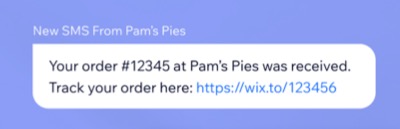
You can check your SMS quota to see how many messages you've sent this month and how many are still available.
Where can I see all of my site's automations?
Go to Automations in your site's dashboard.
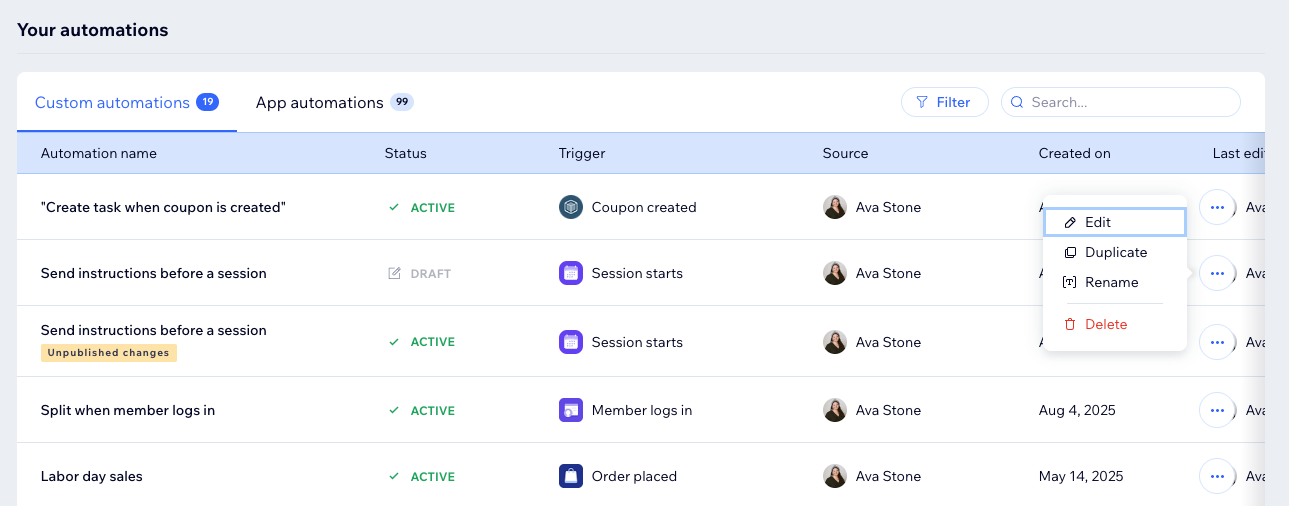
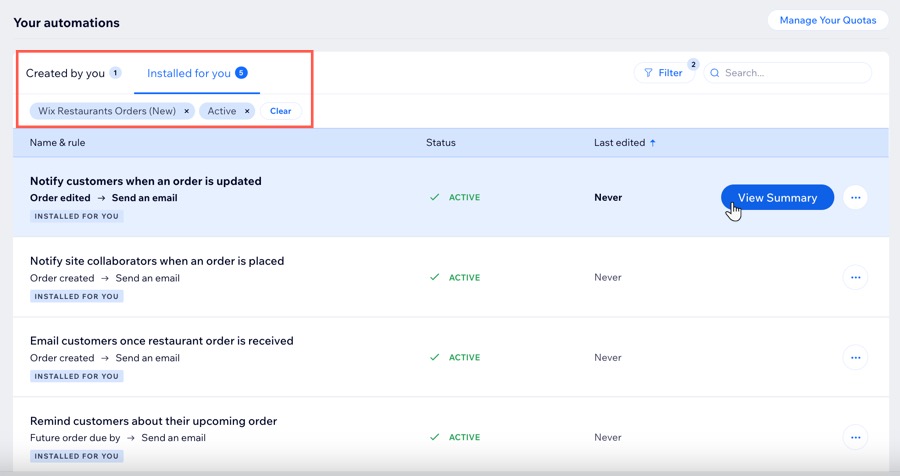
Scroll down to the Your automations section to view all of your automations:
Custom automations: Active and inactive automations you've created here or directly through an app.
App automations: Active and inactive automations created automatically when you've installed apps.
(Optional) Hover over an automation to View Summary, including the last trigger date and the total times triggered.
Tip: Click Filters to view only active or inactive automations, or those with specific triggers or actions.
This article is credited to the Wix team - https://support.wix.com/ and we thank them for that!