Collect a prepayment to secure a guest's payment details during the reservation process. Depending on your approval settings, you can charge guests immediately or after reviewing their request:
Automatic approval: Guests pay the prepayment amount during checkout to confirm the reservation.
Manual approval: Guests enter their payment details at checkout, but you choose when and how to charge them—after you approve the request. You can collect the prepayment by charging the provided credit card, sending a payment link, issuing an invoice, or charging in person.
Before you begin:
Make sure you choose automatic or manual approval for online reservations .
Collecting prepayment for reservations
When you choose to approve your reservations manually, you review the request first and only then charge the guest. This approach also lets you customize your messaging about payment timing, guest requirements, and refund policies.
Note:
Make sure to update your Policy settings on the table reservations form (e.g. Guest requirements, prepayment conditions, your refund policies).
To collect payment for reservations:
Go to Table Reservations in your site's dashboard.
Click the Requests tab.
Hover over the relevant reservation.
Click the Collect Payment drop-down and select the relevant option:
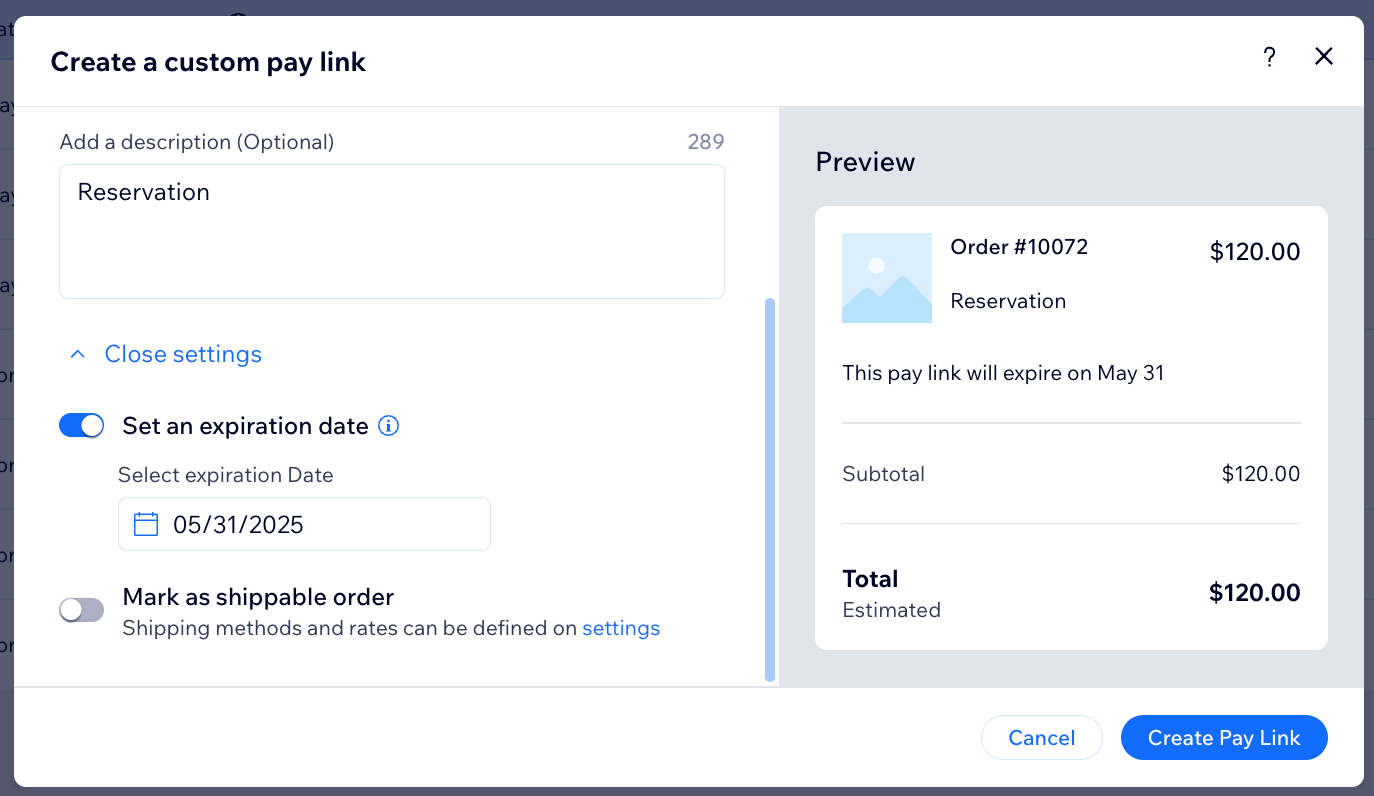
Charge with pay link
Send a secure payment link to the customer so they can enter their own payment details and complete the transaction online.
Click Charge with pay link.
(Optional) Add a tip or continue without a tip.
(Optional) Edit the request description.
(Optional) Customize the link design and button text:
Click +Open settings.
Select a button background color.
Edit the button text.
Add an image (e.g. your company's logo).
Click Create Pay link.
Share the link with your customer using one of the available methods.
Tip: You'll be notified when you receive payment.
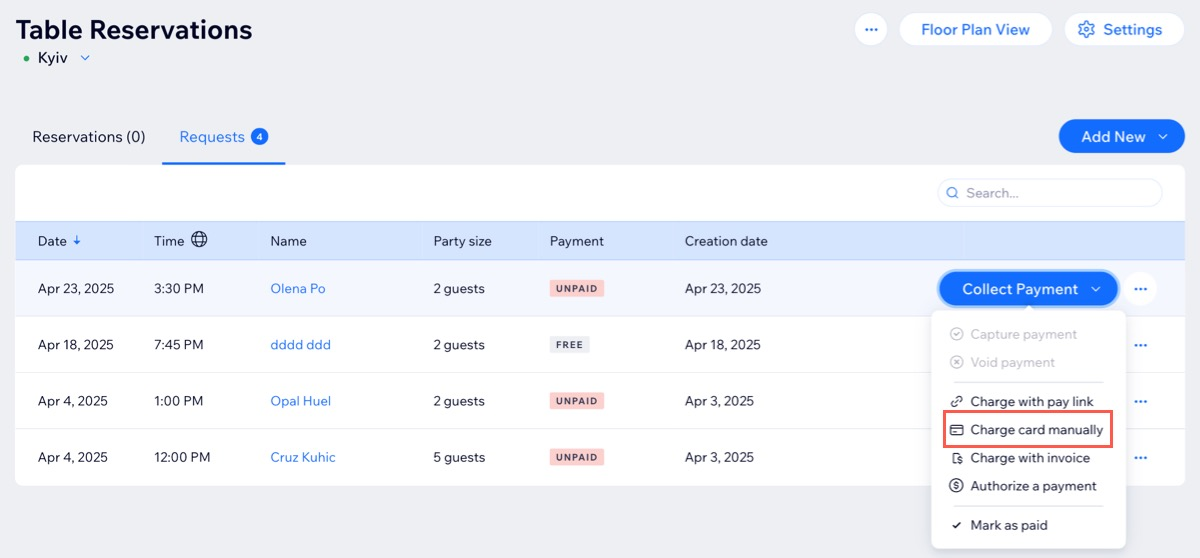
Charge card manually
Guests' prepayments are only charged once you approve their reservation after they provide their payment details.
Click Charge card manually.
(Optional) Add a tip or continue without a tip.
Choose how you want to charge your customer:
Charge a custom amount: Enter the relevant amount, then click Charge.
Note: The custom amount cannot exceed the original prepayment amount.
Charge the prepayment amount: Click Charge.
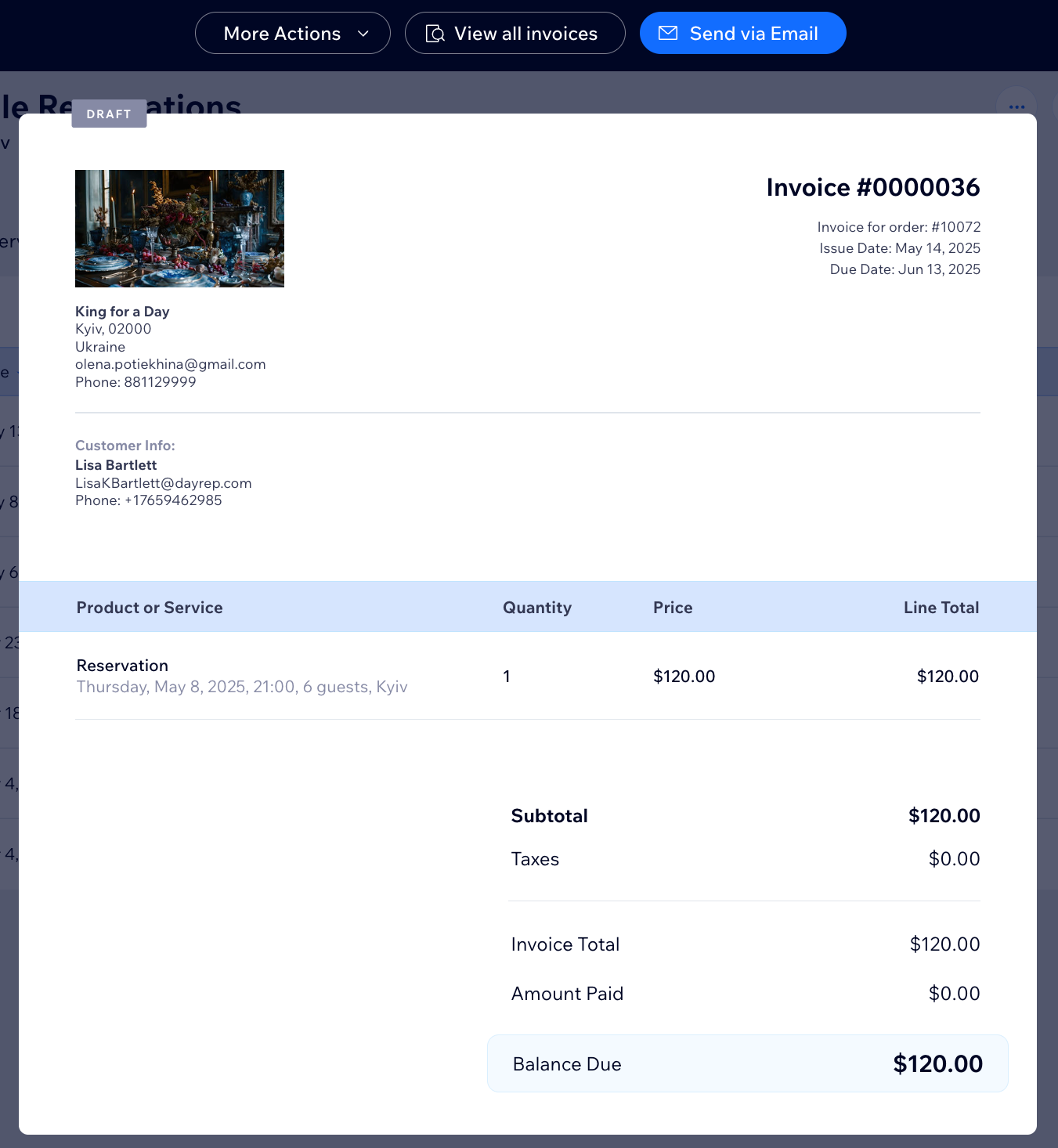
Charge with invoice
Send an invoice to the customer that includes payment instructions and a link to pay online.
Click Charge with invoice.
(Optional) Add a tip or continue without a tip.
Click Create Invoice.
Tip: This creates a saved draft of your invoice.
Choose what you want to do next (e.g. send the invoice to your customer, collect payment).
Authorize a payment
Place a hold on the customer’s card for a specific amount without capturing it immediately. You can capture the funds later when you're ready.
Click Authorize a payment.
(Optional) Add a tip or continue without a tip.
Select or deselect the Automatically capture payments before the authorization period ends checkbox:
Selected: The payment is automatically sent to you at the end of the 7-day period, if you haven't taken any action till then.
Deselected: The payment is automatically voided at the end of the 7-day period. This means that the hold on the payment is released from your customer's account, if you haven't taken any action.
Click Authorize.
FAQs
Click a question below to learn more about collecting payments for table reservations.
When do I collect a customer's credit card details?
After a guest selects an available time slot and submits a reservation request if manual approval is enabled, they must enter their credit card details
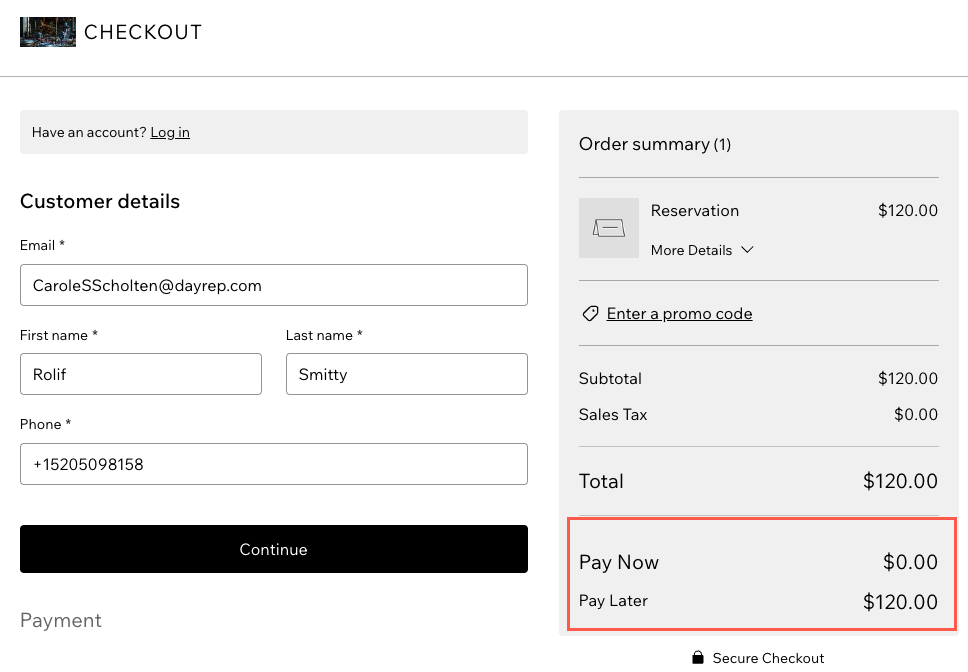
When is a guest charged for their reservation request?
Guests are charged at different times depending on whether the reservation is automatically or manually approved:
Automatic approval: Guests pay the required prepayment amount right at checkout to confirm the reservation.
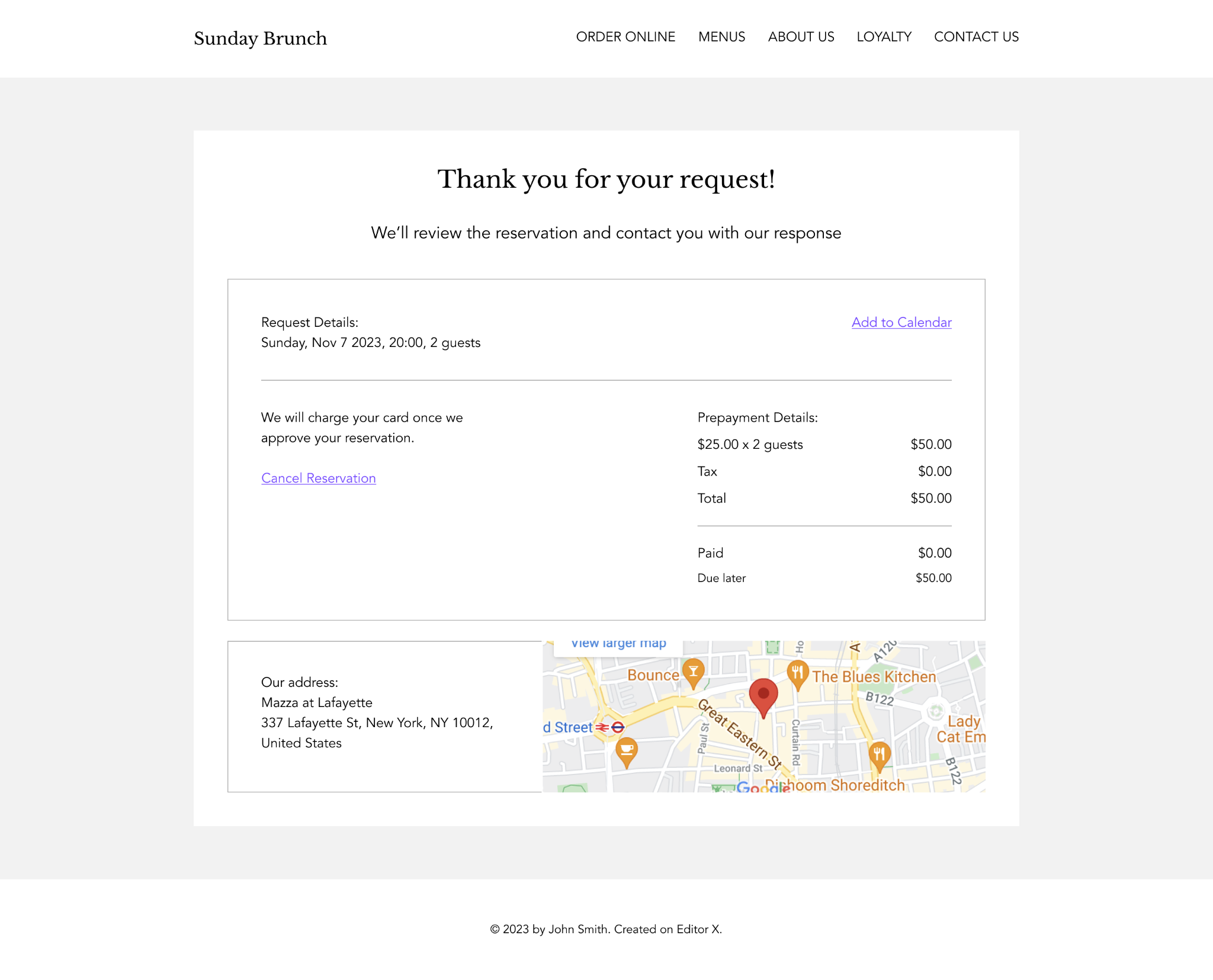
Manual approval: Guests are told during the request process that their card will only be charged if the host approves the request. Once the request is approved and payment is collected, the guest receives a confirmation email with all the reservation details.
How do I refund my customers?
Go to Orders in your site's dashboard.
Click the relevant order.
Click More Actions at the top right.
Select Refund.
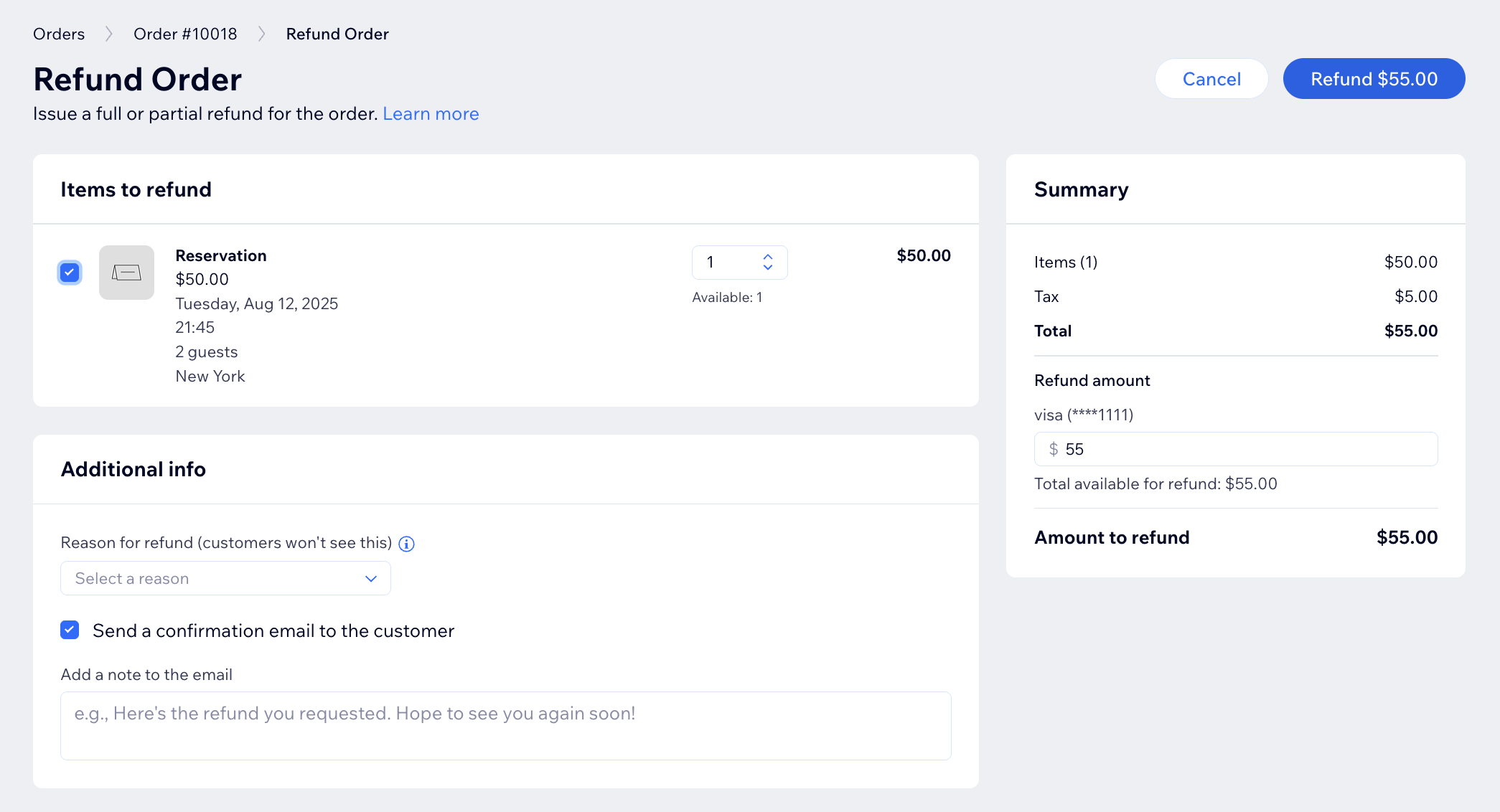
Select the checkboxes next to items you want to refund.
Tip: If there are more than 1 of the same item, use the arrows to select how many to refund.
(Optional) Provide a partial refund by entering the partial amount on the right, under Summary.
(Optional) Fill out the relevant Additional info:
Click the Reason for refund (customers won't see this) drop-down and select or add the relevant reason.
Select the Send a confirmation email to customer checkbox and enter a personal note to your customer.
Note: Customers may also receive a notification from the payment provider.
Click Refund.
Click Issue Refund.
Note: This cannot be undone.
Can I save a guest's card instead of charging a prepayment?
Yes. A credit card hold saves a guest's card details without charging them, and only charges a fee if they cancel late or don't show up. It's a good fit if you want to reduce no shows without asking guests to pay upfront.
Set up payment protection to compare the two methods or switch between them.
This article is credited to the Wix team - https://support.wix.com/ and we thank them for that!