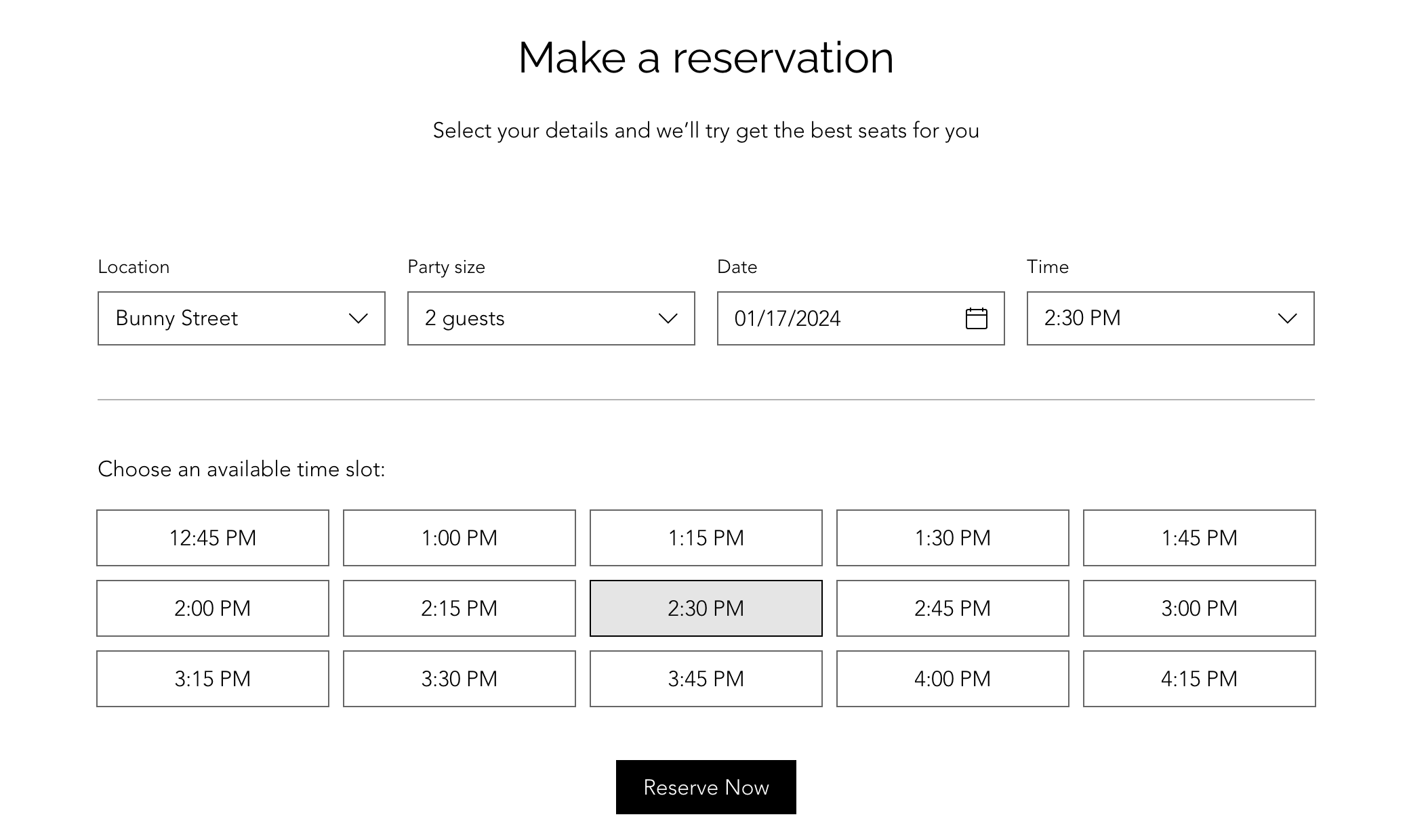
Let guests book tables at your restaurant, through your site, using the Wix Table Reservations app.
Set up tables according to your restaurant's layout, manage the party sizes you accept, and customize booking times to fit your needs. For example, you can keep things organized by limiting the number of bookings every 15 minutes - It’s an easy way to ensure everything is running smoothly.
Before you begin:
You need to upgrade your site to use Wix Table Reservations. Without a plan, customers won't be able to book a table on your site themselves – you'll only be able to add reservations manually.
Make sure to add your business info, including your restaurant's name, location and contact info.
Step 1 | Add the Wix Table Reservations app to your site
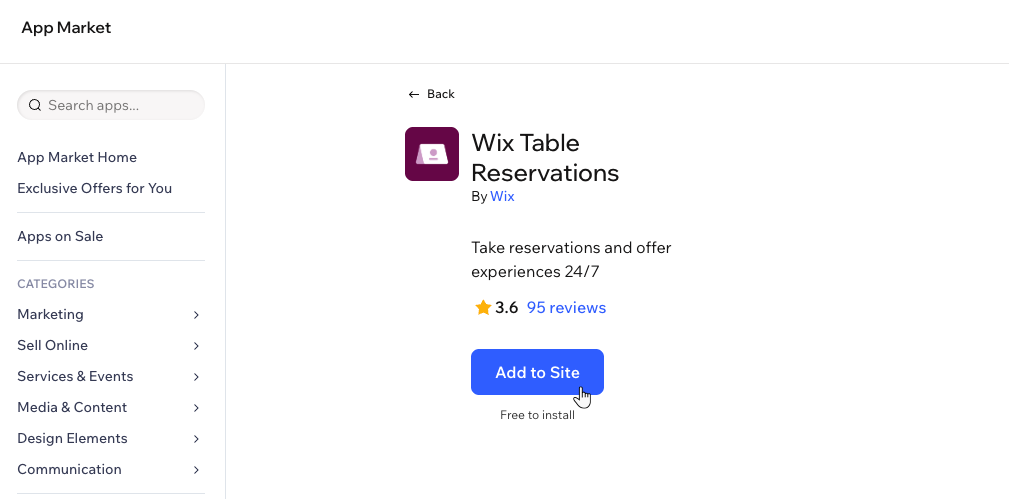
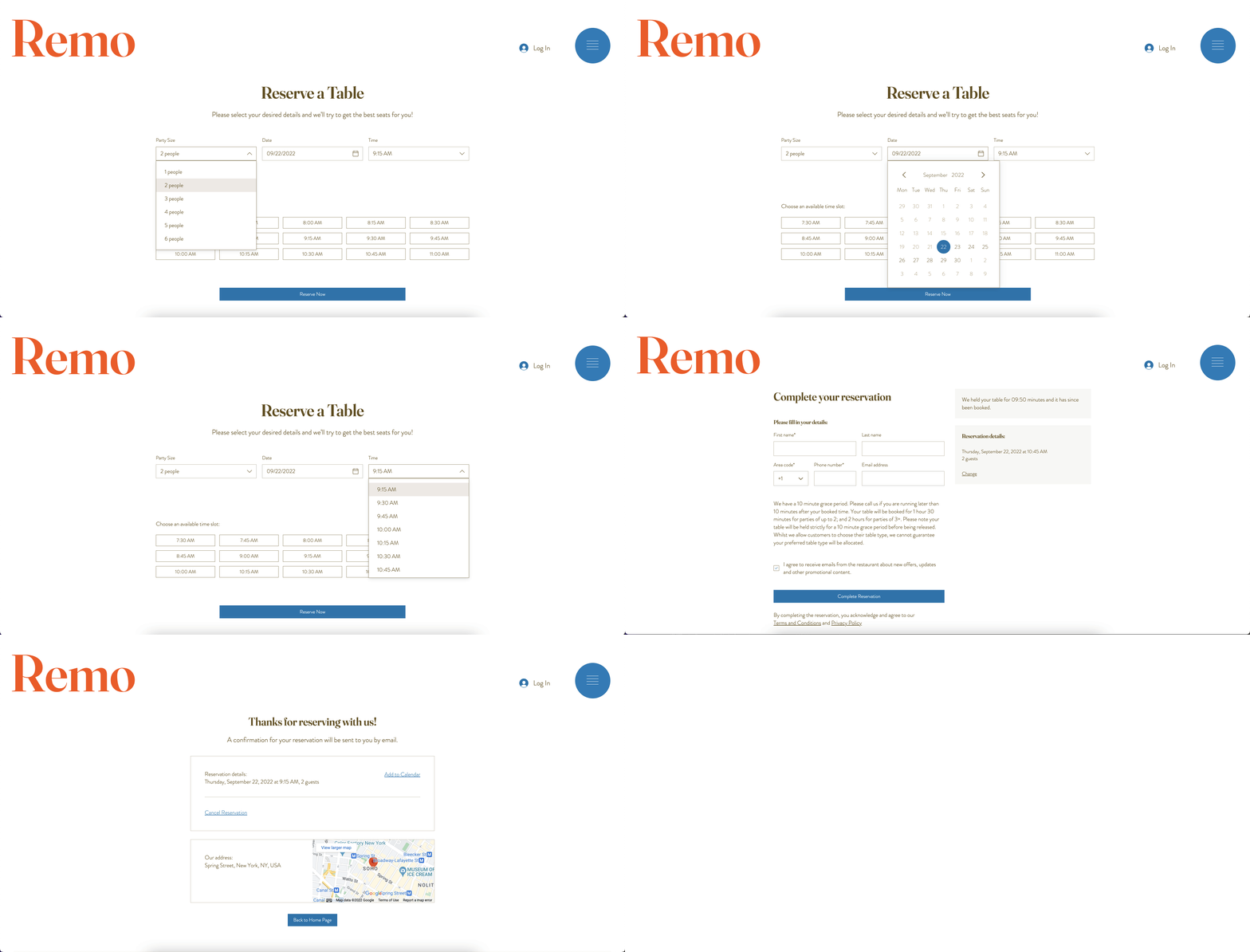
Head over to the app market to add the Wix Table Reservations app to your site. This adds the Table Reservations tab to your site's dashboard, in addition to 3 customizable pages in your editor:
Reservations: The page customers see when they fill out the reservation form.
Reservation Details: The page where customers review and finalize their booking.
Reservation Confirmation: The page where customers see the confirmation of their reservation. At this point they can add the reservation to their calendar, cancel it or return to the homepage.
To add Wix Table Reservations:
Wix Editor
Click Add Apps

on the left side of the editor.
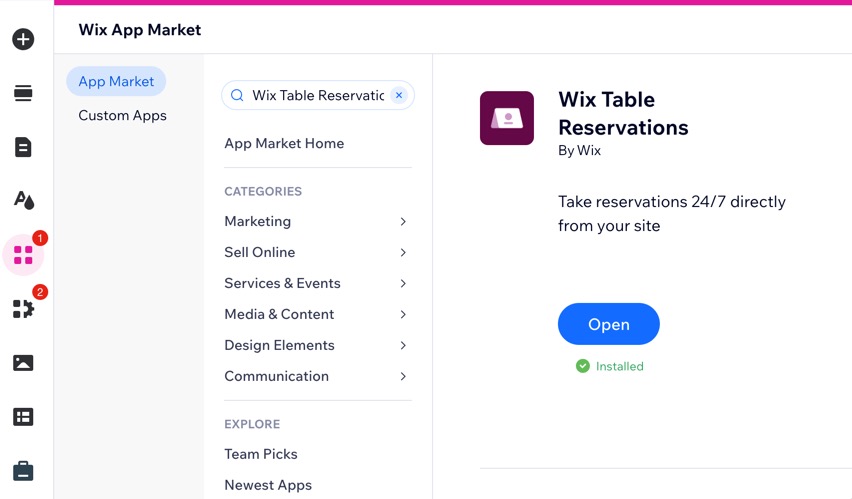
Use the search bar to find Wix Table Reservations.
Click Add to Site.
Studio Editor
Click App Market

on the left side of the editor.
Click App Market.
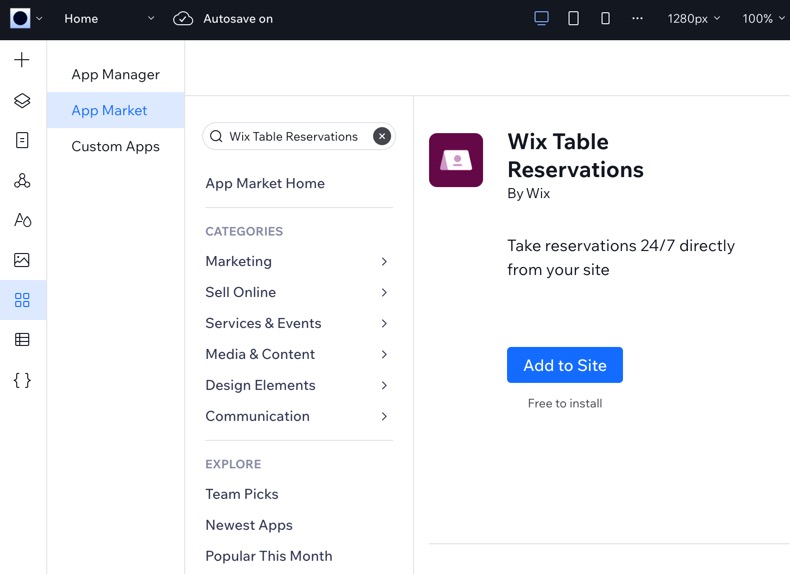
Use the search bar to find Wix Table Reservations.
Click Add to Site.
Wix app
Go to your site in the Wix app.
Tap Manage

at the bottom.
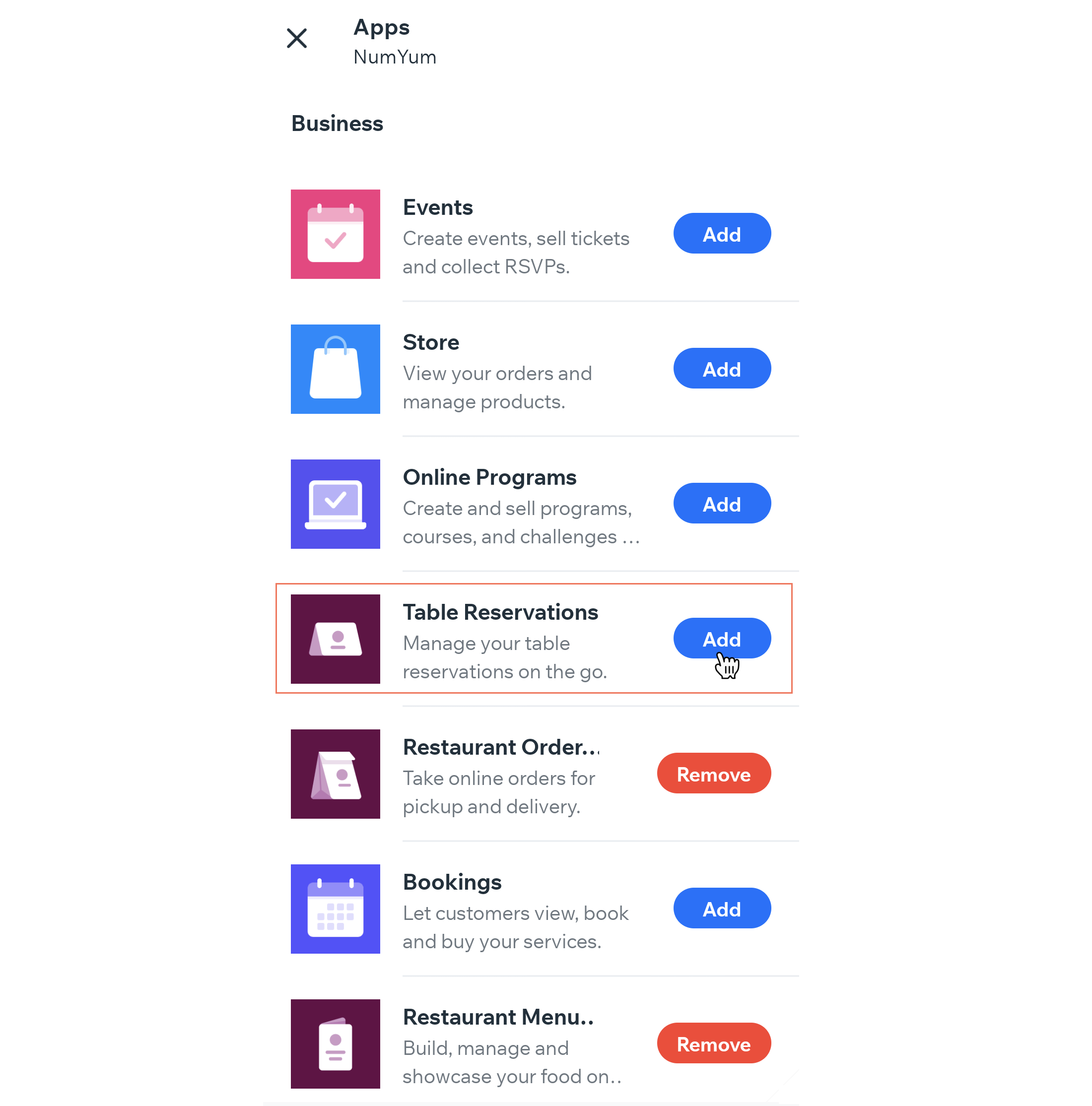
Tap Manage Apps.
Tap Add next to Table Reservations.
Harmony Editor
Click + Add at the top left of the editor.
Click the Arrow icon

to navigate to the Apps category.
Click Wix App Market at the bottom left.

Search for the Wix Table Reservations app, then select the app.
Click Add to Site.
Step 2 | Set up Wix Table Reservations in your dashboard
Once you've added Wix Table Reservations, go to your site's dashboard to add your tables, availability hours, party sizes and turnover times. Set your reservation form, policies, and notifications, and connect Reserve with Google so guests can book directly from Google Search and Maps.
Tip:
Watch our Table Reservations webinar for expert tips and insights on efficiently setting up and managing your table reservations.
To set up Table Reservations in your site's dashboard:
Go to Table Reservations in your site's dashboard.
Click Settings at the top right.
Click the Online reservations are toggle to enable or disable online reservations:
Online reservations are on: Customers can book a table on your site.
Online reservations are off: The reservations app appears on your site, but customers won't be able to book a table.
Set the following details:
Reservation schedule
Set your weekly schedule and define special days to manage reservation availability.
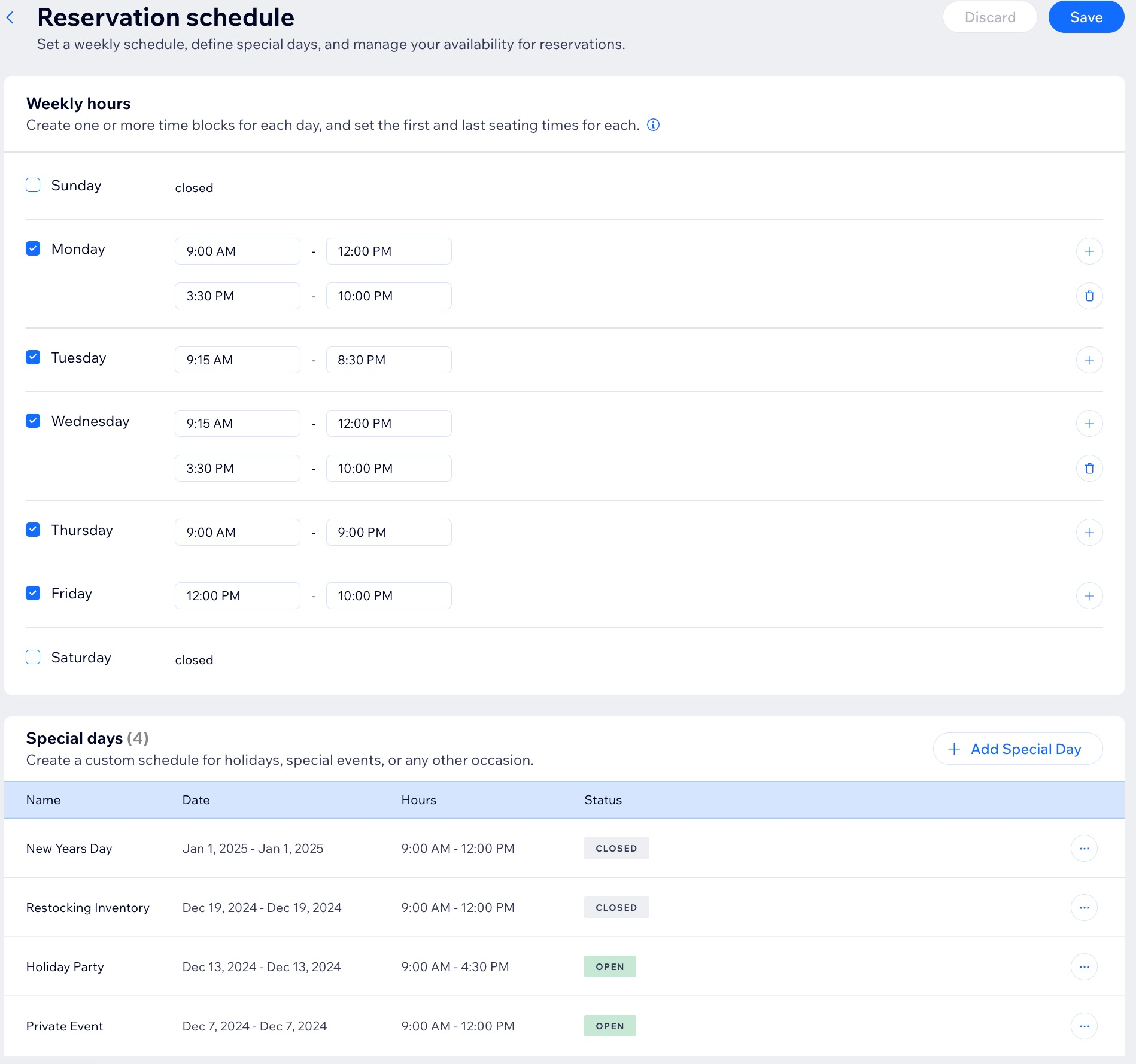
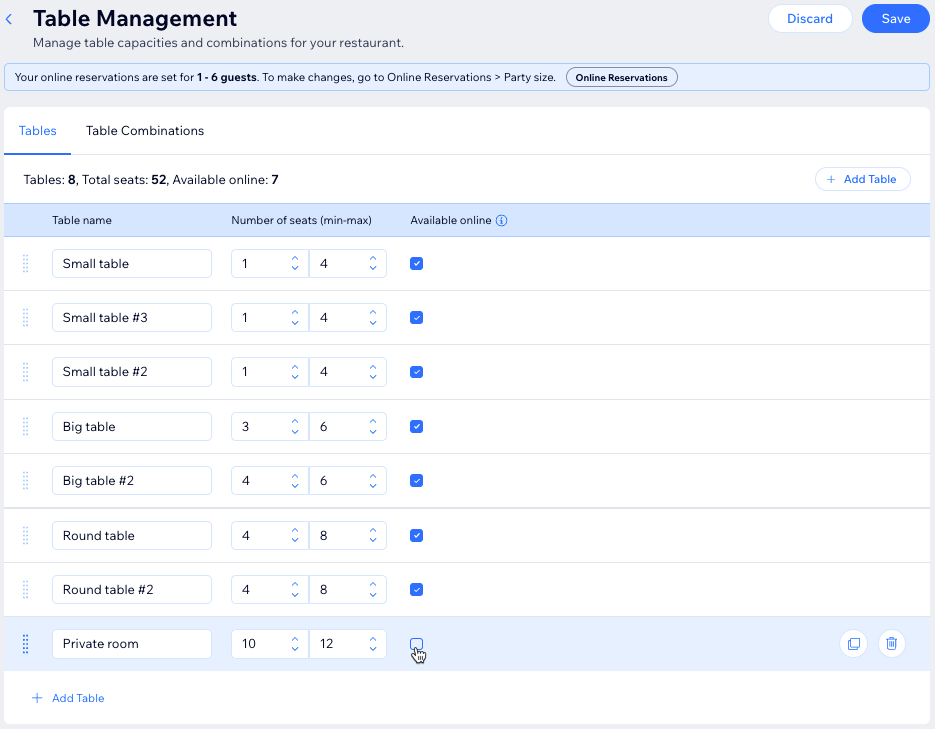
Table capacities and combinations
Click Table Management to set up the available tables according to your restaurant's floor plan. You can add, remove or update tables and the number of seats they hold at any point.
Under Table Combinations, you can choose which tables can be combined to accommodate larger parties of guests.
Create separate seating areas for your restaurant, such as indoor, outdoor, or bar seating, to organize where guests can be seated.
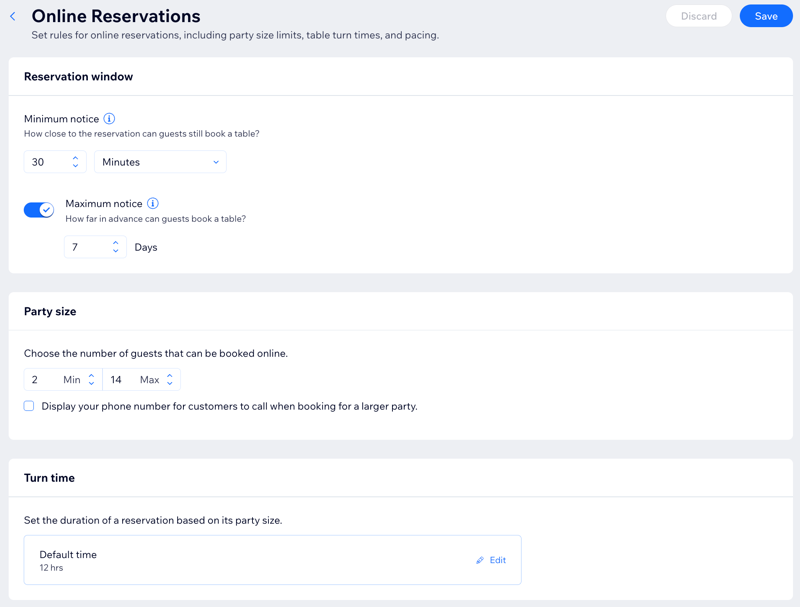
Availability for online reservations
Click Online reservations to set rules for online reservations. Choose how close to the reservation time guests can book a table and how far in advance bookings are allowed. You can also manage last-minute bookings, set party size limits, and ensure smooth table transitions with precise turnover times.
Customize the reservation form
Click Reservation form to customize your table reservations form, ensuring it gathers the exact information you need from your guests.
Collecting payment when a reservation is made
Reduce last minute cancellations by collecting pre-payment when a reservation is made. Click Prepayment to determine the reservation fee and the minimum party size that it applies to.
Reserve with Google
Reach local guests and drive traffic to your table reservation page with a Google Business Profile.
Click Reserve with Google.
Click Create Profile.
Click Start Now.
Manage the notifications I receive and send to customers
After clicking Notifications, you can manage both:
Notification preferences: Manage internal notifications to maintain seamless communication with you and your staff about guest activities such as new reservations, requests, or cancellations. Click Manage Notifications next to Email & Dashboard to set this up.
Outgoing notifications: Offer a range of automated notifications to keep your guests informed about their reservations, including confirmations, updates, reminders, and cancellations. Click Manage Notifications next to Email & SMS to see the list of current notifications your customers receive.
Tip: You can customize the email notifications that you send by clicking the More Actions icon

and then Edit.
Step 3 | Customize the pages on your site
The app includes 3 new pages on your site that you can customize in the Editor: Reservations, Reservations Details and Reservation Confirmation. Customers see these pages when reserving a table on your site.
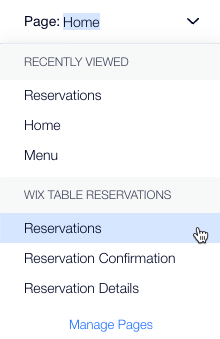
You can navigate between your app pages using the Switch Page drop-down menu at the top of your editor.
a | Customize your Reservations page
Go to the Reservation page in your editor:
Click the Switch Page drop-down menu at the top of the editor.
Click Reservation under Wix Table Reservations.
Click the Reservations app.
Click Settings.
Click Manage to manage reservations on your site's dashboard.
Click Display to specify the locations to show on the reservation form.
Click the Layout tab to choose text alignment, form layout and spacing.
Click the Design tab to customize the general design of the reservation form, time slots and the button.
Click the Texts tab to change the title, description and button label on your reservation form.
Click the Add Ons tab to add the form or button to another page on your site.
b | Customize your Reservation Details page
Go to the Reservation Details page in your editor:
Click the Switch Page drop-down menu at the top of the editor.
Click Reservation Details under Wix Table Reservations.
Click the Reservations app.
Click Settings.
Click the Design tab to customize the general design of the Reservation Details page, details and timer, text fields and button.
Click the Texts tab to change the title and button label.
Click the Add Ons tab to add the form or button to another page on your site.
c | Customize your Reservation Confirmation page
Go to the Reservation Confirmation page in your editor:
Click the Switch Page drop-down menu at the top of the editor.
Click Reservation Confirmation under Wix Table Reservations.
Click the Reservations app.
Click Settings.
Click the Design tab to customize the general design of the Reservation Confirmation page and button.
Click the Add Ons tab to add the form or button to another page on your site.
FAQs
Click a question below to learn more about the Wix Table Reservations app.
Can I manage table reservations with the Wix app?
Yes, you can manage table reservations with the Wix app.
How do I manually add a new table reservation?
You can add a table reservation for your customers from your site's dashboard.
Go to Table Reservations in your site's dashboard.
Click + Add Reservation.
Enter the guest and reservation details, assign a table, and add notes for your team about this reservation.
Note: You can only assign tables that are available during the requested date and time. If your restaurant is all booked, try a different time slot to avoid overbooking.
Click Save.
Can I pause online reservations?
Yes, you can pause online reservations so customers cannot book tables. You may not always be able to accept table reservations, for example, if your restaurant is closed for a private event or renovations.
Go to Table Reservations in your site's dashboard.
Click Settings at the top right.
Disable the Online reservations are on toggle to pause online table reservations.
Note: The reservations app still appears on your site but customers won't be able to book a table.
How can I select a certain location for the reservation form?
Go to the Reservation page in your editor:
Click the Switch Page drop-down menu at the top of the editor.
Click Reservation under Wix Table Reservations.
Click the Reservations app.
Click Settings.
Click Display.
Select Show specific location.
Choose the locations you want to show.
Tip: Make sure all locations accept online ordering. If not, click Manage location settings to turn it on.
Can I set both a minimum and maximum notice for my reservation window?
Yes. You can set both a minimum and a maximum notice period for reservations:
Minimum notice is on by default and set to 30 minutes, but you can adjust it to minutes, hours, or days.
Maximum notice is off by default. When you turn it on, it’s set to 30 days, and you can customize the number of days.
This article is credited to the Wix team - https://support.wix.com/ and we thank them for that!