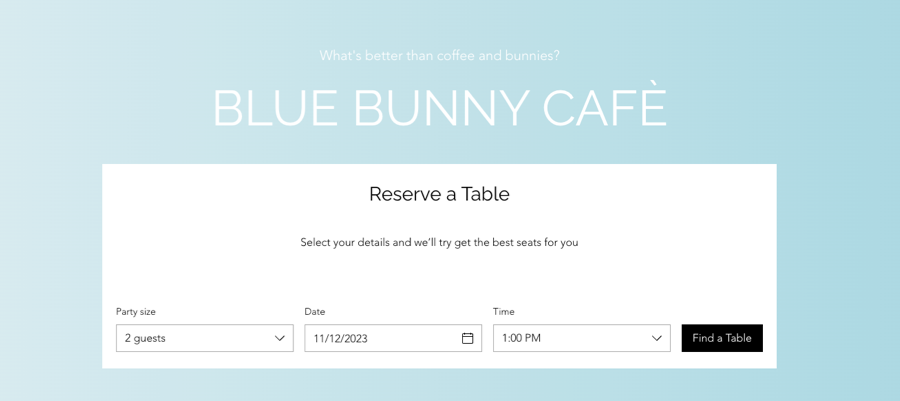
Make it easy for your customers to reserve a table by adding a reservation form or button to any page on your site. Choose from different widget styles to fit your design and boost bookings.
Wix Editor
Go to your Reservations page.
Click Settings.
Click Add-Ons.
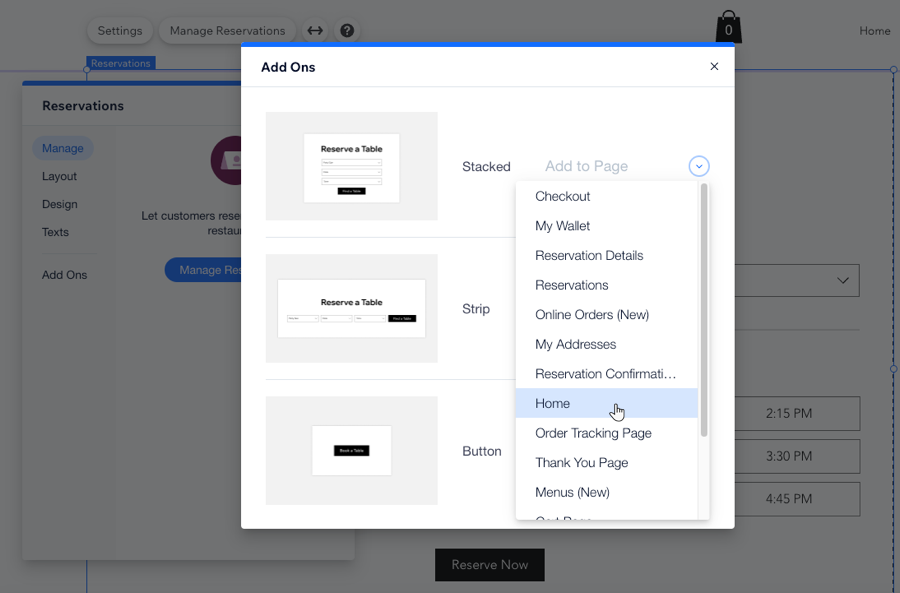
Click Add to Page next to your preferred widget style: Stacked, Strip, or Button.
Select the page in which you want your selected widget to appear.
(Optional) Reposition the widget on the page and design it to your liking.
Studio Editor
Go to your Reservations page.
Click Settings.
Click Add-Ons.
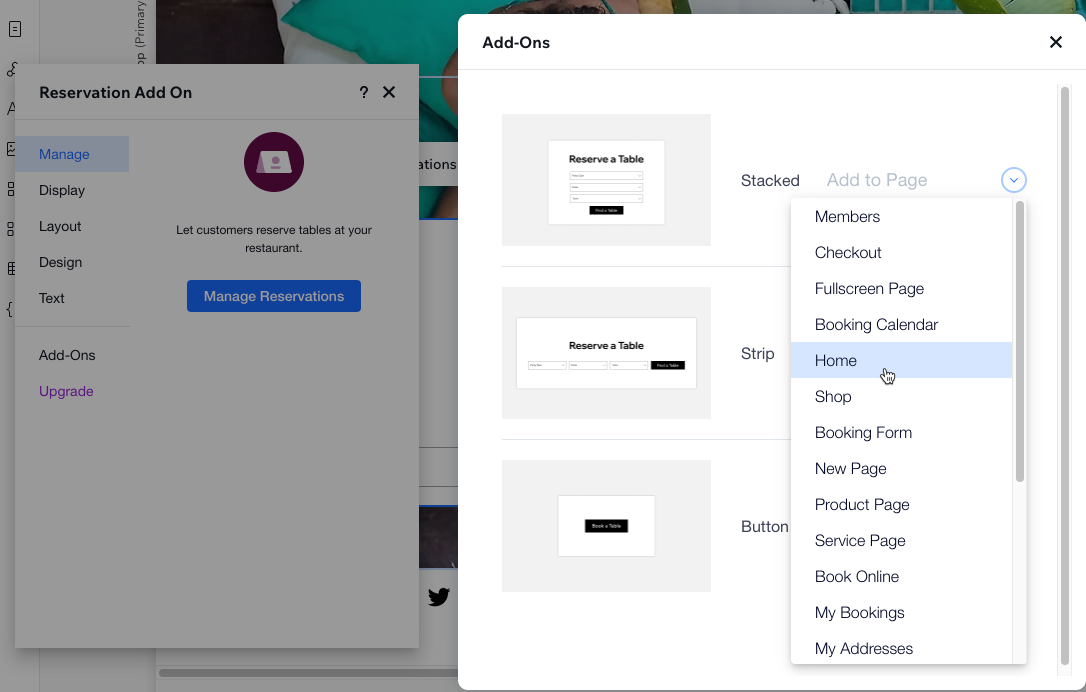
Click Add to Page next to your preferred widget style: Stacked, Strip, or Button.
Select the page in which you want your selected widget to appear.
(Optional) Reposition the widget on the page and design it to your liking.
Wix Harmony Editor
Go to your Reservations page.
Click the Settings icon

on the action bar.
Click Add-Ons.
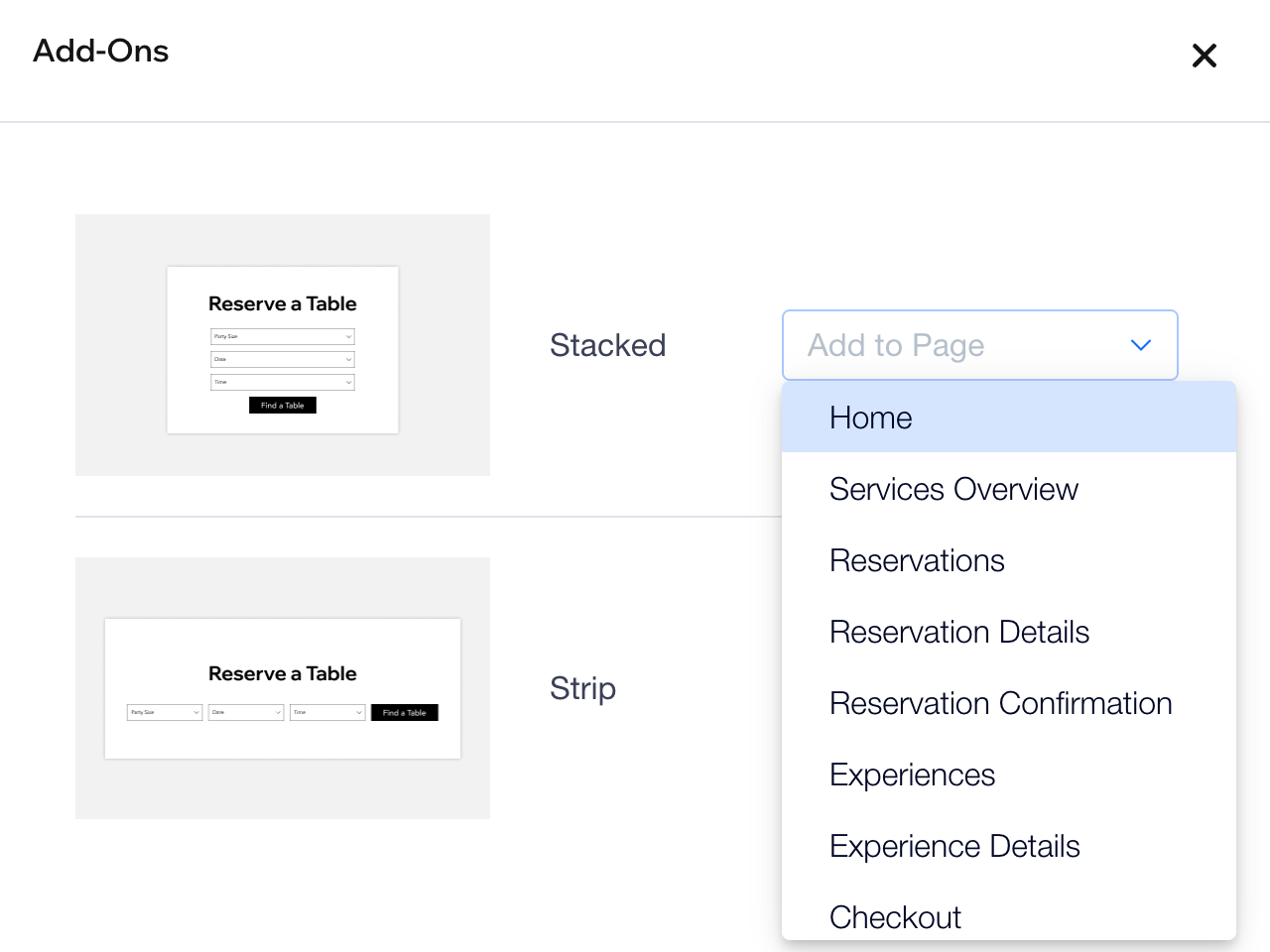
Click Add to Page next to your preferred widget style: Stacked or Strip.
Select the page in which you want your selected widget to appear.
(Optional) Reposition the widget on the page and design it to your liking.
This article is credited to the Wix team - https://support.wix.com/ and we thank them for that!