Bring your site to life and encourage site visitors to interact with your gallery by applying fun hover effects.
A visitor sees the hover view when placing the mouse over a gallery item without clicking. You can choose which elements appear on hover, as well as how the hover effect looks.

Customizing the hover view
Customize your hover view by adding an overlay, choosing what info and icons appear and applying scroll animations. Available customization options depend on the gallery layout you choose.
To customize the hover view:
Click the pro gallery element on your page.
Click Settings.
Click the Design tab.
Choose which hover elements you want to customize:
Overlay & Icons
An overlay sits on top of an image and adds an extra effect when you hover over it with your cursor. You can customize this effect as well as any icons you have.
Click Overlay & Icons.
Choose an overlay and customize it using the options available:
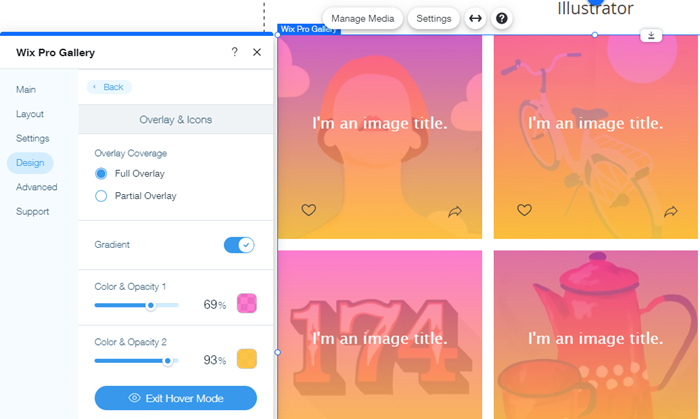
Full Overlay: The overlay covers the entire gallery item. Edit the following options:
Gradient: Click the toggle to enable a gradient overlay and edit its options:
Color & Opacity 1 and 2: Click the relevant color box to customize the gradient's colors. Then drag the slider to adjust the opacity of the colors.
Gradient direction: Drag the slider to adjust the gradient's overlay direction.
Overlay color: Click the color box to choose a color. Then drag the slider to change the transparency of the color overlay.
Icon color: Click the color box and select a new color for your gallery icons.
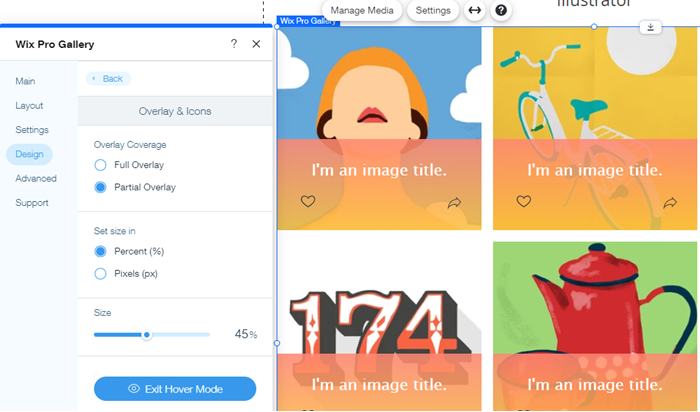
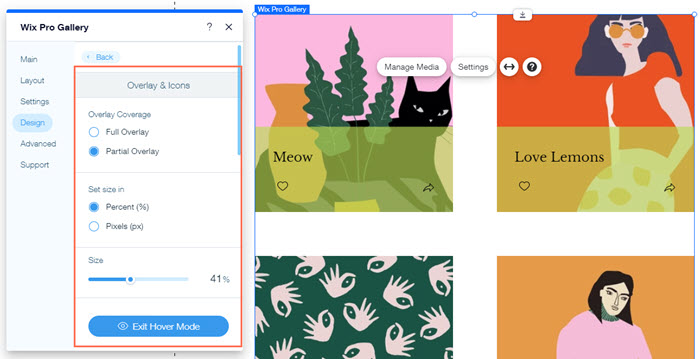
Partial Overlay: The overlay covers only a portion of the gallery item. Edit the following options:
Set size in: Manage your overlay's size in percentages or pixels.
Size: Drag the slider or enter a value to choose an overlay size.
Overlay starts from: Choose where your overlay is positioned.
Padding: Drag the slider to adjust the amount of space between the gallery border and your overlay.
Gradient: Click the toggle to enable a gradient overlay and edit the options:
Color & Opacity 1 and 2: Click the relevant color box to customize the gradient's colors. Then drag the slider to adjust the opacity of the colors.
Gradient Direction: Drag the slider to adjust the gradient's overlay direction.
Overlay color: Click the color box to choose a color. Then drag the slider to change the transparency of the color overlay.
Icon color: Click the color box and select a new color for your gallery icons.
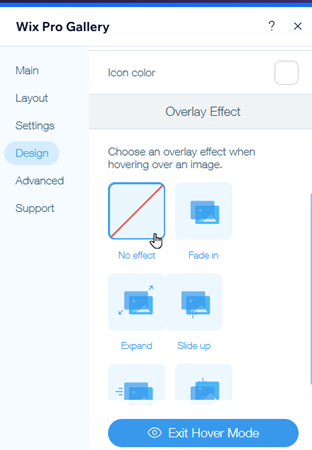
Choose an overlay effect from the options available:
No effect: The overlay does not apply any effect.
Fade in: The overlay gradually appears on hover.
Expand: The overlay expands on hover.
Slide up: The overlay slides up on hover.
Slide right: The overlay slides right on hover.
Texts
Customize the text using the options below:
Info to display: Select the checkbox next to the text you want to display on your gallery.
Info position: Choose where to position your text: Underneath, Above or On Image.
What happens to the info on hover?: Choose how your text behaves on hover: Appears, Disappears or No Change.
Title style and color: Select the font and color of the title text.
Description font style and color: Select the font and color of the description text.
Horizontal alignment: Choose how to align horizontal text: Left, Centered, or Right.
Vertical alignment: Choose how to align vertical text: Left, Centered, or Right.
Text vertical padding: Drag the slider to change the amount of space between the vertical text and the border.
Text horizontal padding: Drag the slider to change the amount of space between the horizontal text and the border.
Item Style
Customize the following settings:
Border width and color: Drag the slider to change the border width and click the color box to select a color.
Corner radius: Drag the slider to make the corners more round or square.
Shadow: Click the toggle to enable or disable the shadow:
Enabled: The gallery item has a shadow around it. Customize the opacity, color, blur, shadow direction and shadow size.
Disabled: The gallery item does not have a shadow around it.
Choose what happens when someone hovers over the gallery item with their mouse:
No effect: No effect is applied to the hover.
Zoom in: Zooms in on the image on hover.
Blur: The image is blurred on hover.
Grayscale: The image becomes black and white on hover.
Shrink: The image gets smaller on hover.
Invert: The image color is inverted on hover.
Color in: The image turns from black and white to colorful on hover.
Darken: The image becomes slightly darker on hover.
Choose what happens while the image is loading:
Blurred image: A blurred version of the image appears while loading.
Color placeholder: A colored placeholder appears while the image is loading.
Scroll Animations
Note: You can apply these effects to galleries that load as visitors scroll downwards (e.g. Collage, Masonry, Grid). You cannot apply these effects to Slider galleries.
Choose what happens when visitors scroll through your gallery:
No effect: No effect is applied to the scroll.
Fade in: Images gradually appear during the scroll.
Grayscale: The image becomes black and white when scrolling.
Slide up: The image slides up when scrolling.
Expand: The image gets larger when scrolling.
Shrink: The image gets smaller when scrolling.
Zoom out: The image zooms out when scrolling.
One color: A single color is applied to the images when scrolling.
Tip:
While you are customizing the hover view, you can see it on the Pro Gallery in your editor. Click Exit Hover Preview to go back to the regular Pro Gallery view.
FAQs
Click a question below to learn more about customizing the hover view of your gallery.
Can I have a different image appear when hovering over a gallery item?
Currently, it is not possible to have a different image appear when hovering over a gallery item in the Wix Pro Gallery. If this is a feature you would like to see in the future, you can vote for it here.
Can I apply a hover effect to a single gallery item?
When you apply a hover effect to a gallery, it is applied to all gallery items. It is not possible to apply hover effects to individual gallery items. If this is a feature you would like to see in the future, you can vote for it here.
How do I disable a hover effect?
Click the pro gallery element on your page.
Click Settings.
Click the Design tab.
Click Overlay & Icons.
Select No effect under Overlay Effect.
This article is credited to the Wix team - https://support.wix.com/ and we thank them for that!