Deliver an authentic and engaging visual experience for visitors whose language directionality is right-to-left, e.g., Hebrew, Arabic and Urdu. Change the order of your gallery images, text direction and alignment to be RTL, directly from your Pro Gallery settings.
Changing your gallery direction
Change the order of your gallery items to be displayed right-to-left in just one click. If you have chosen to display text in your gallery (titles and descriptions), the text direction is automatically adjusted to be RTL.
Wix Editor
Click the pro gallery element on your page.
Click Settings.
Click Advanced.
Select Right to left under Gallery direction.
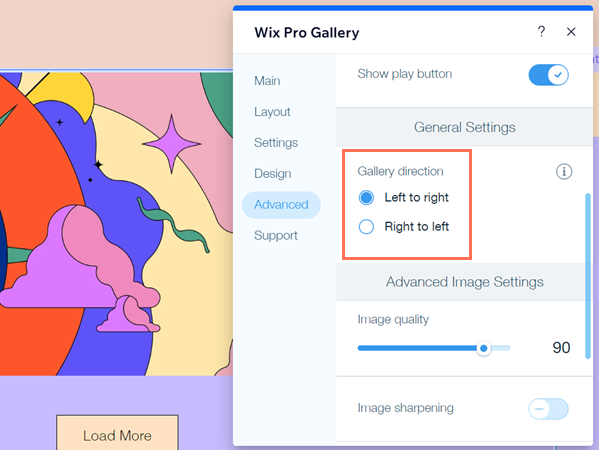
Studio Editor
Click the pro gallery element on your page.
Click Settings.
Click Advanced.
Select Right to left under General Settings.
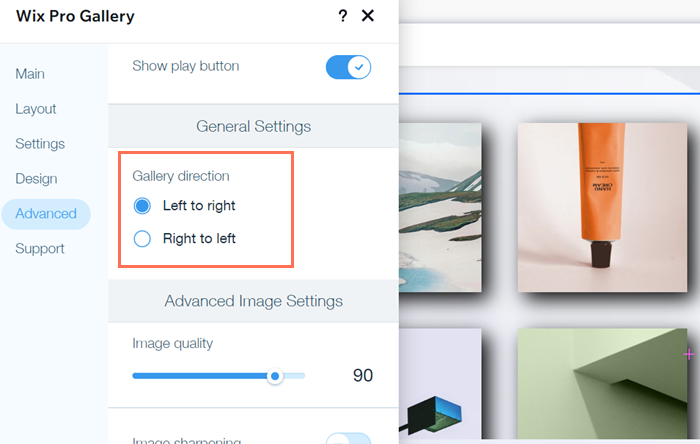
Note:
If you have chosen to display text (image title / description) on your gallery, make sure that the gallery direction you choose matches your language's direction, to avoid punctuation issues.
Changing your gallery text alignment
Align your gallery item's titles and descriptions to the right, to ensure a seamless user experience for your visitors. Have the text that visitors see when viewing / hovering over gallery items, aligned to the right.
Wix Editor
Click the pro gallery element on your page.
Click Settings.
Click Design.
Click Text.
Click the Align Right icon

under Horizontal alignment.
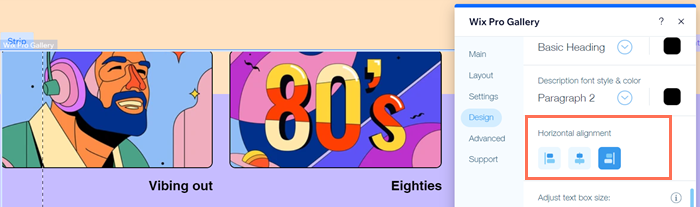
Studio Editor
Click the pro gallery element on your page.
Click Settings.
Click Design.
Click Text.
Click the Align Right icon
under Horizontal alignment.
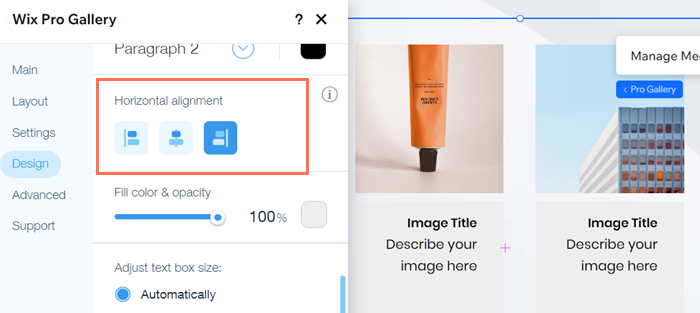
Changing text alignment in the Expand Mode
Align text to the right in the Expand Mode of gallery items.
Wix Editor
Click the pro gallery element on your page.
Click Settings.
Click Design.
Click Expand Mode.
Click Customize Expand Mode.
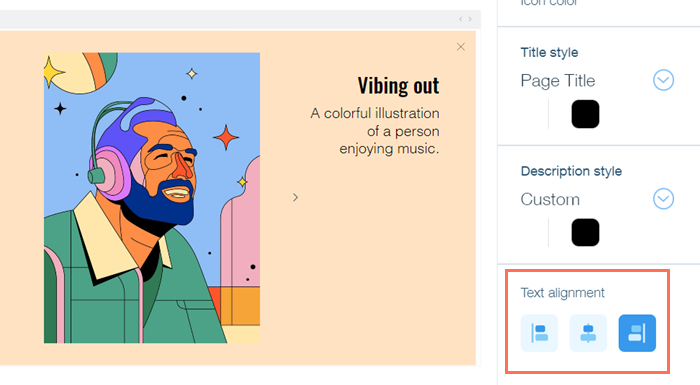
Click the Align Right icon
under Text alignment.
Studio Editor
Click the pro gallery element on your page.
Click Settings.
Click Design.
Click Expand Mode.
Click Customize Expand Mode.
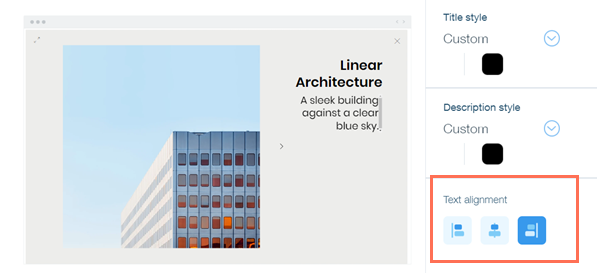
Click the Align Right icon
under Design Settings.
FAQs
Click a question below to learn more about adjust your gallery to be right-to-left:
Can I display gallery text in more than one direction at the same time?
No. Currently, it is not possible to display gallery text in more than one direction at the same time, e.g., one image's text in English (left-to-right), and another image's text in Hebrew (right-to-left) simultaneously.
When I set my gallery to direction to be right-to-left does this apply to the expand mode too?
No. Setting your gallery direction to be RTL only applies to your main gallery view and not the Expand Mode. If this is something you would like to see in the future, vote for that feature.
This article is credited to the Wix team - https://support.wix.com/ and we thank them for that!