Add depth to your gallery and make your images pop by applying and customizing shadows. The shadow is visible behind your gallery at all times.

Note:
You can only enable the shadow feature in certain layouts, and when specific gallery settings are applied. Read on to learn more about the applicable layouts and required settings.
Enabling and customizing shadows
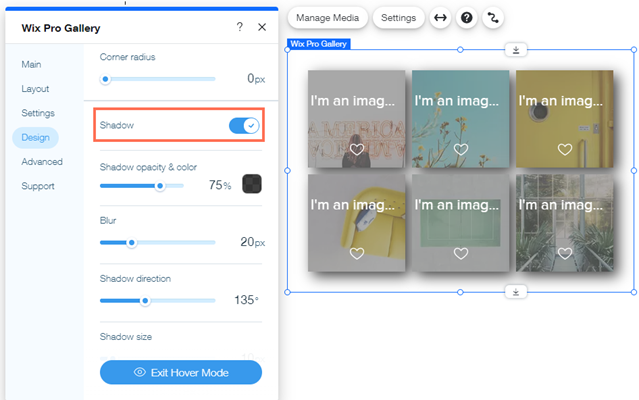
First, enable the shadow feature for your Pro Gallery. Then customize the shadow's color, direction, blurriness and size to make it your own.
Wix Editor
Click the pro gallery element on your page.
Click Settings.
Click the Design tab.
Click Item Style.
Enable the Shadow toggle.
Customize the shadow using the following options:
Shadow opacity & color: Click the color box to change the shadow's color and drag the slider to adjust the color's intensity.
Blur: Drag the slider to set the shadow's blurriness.
Shadow direction: Drag the slider to position your shadow exactly as you want.
Shadow size: Drag the slider to increase or decrease your shadow's size.
Studio Editor
Click the pro gallery element on your page.
Click Settings.
Click the Design tab.
Click Item Style.
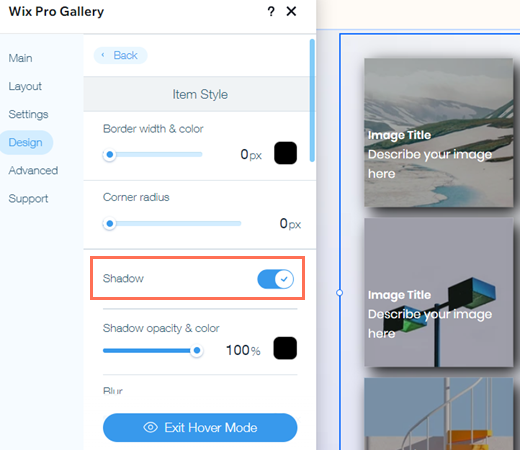
Enable the Shadow toggle.
Customize the shadow using the following options:
Shadow opacity & color: Click the color box to change the shadow's color and drag the slider to adjust the color's intensity.
Blur: Drag the slider to set the shadow's blurriness.
Shadow direction: Drag the slider to position your shadow exactly as you want.
Shadow size: Drag the slider to increase or decrease your shadow's size.
Applicable layouts
To apply shadows to a gallery with one of the following layouts, certain settings must already be in place. Click a layout below to learn more:
Collage
The Scroll Direction must be set to Vertical. This setting appears Image Settings in the Customize Layout Panel.
Masonry
Depending on how you have your gallery oriented, do the following:
Horizontal: No specific settings must be applied - the shadow setting is always available.
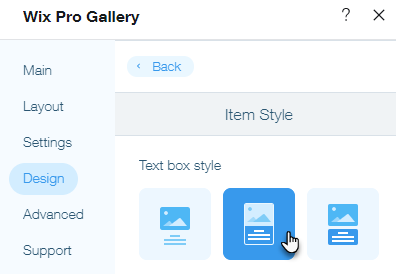
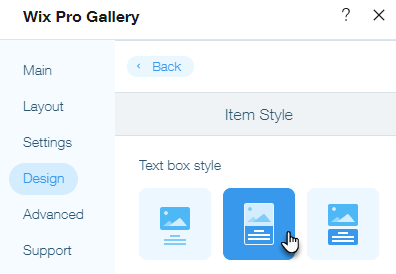
Vertical: If you choose to display text underneath or above gallery items, make sure to choose the second text box style (Background Attached), in the Item Style panel of the Design tab to display the shadow feature. Learn more about customizing gallery text boxes.
Grid
Set the Scroll Direction to Vertical and the Thumbnail Resize to Crop under Image Settings in the Customize Layout Panel.
Notes:
If you choose to display text underneath or above gallery items, make sure to choose the secondtext box style, (Background attached), in the Item Style panel of the Design tab to display the shadow feature. Learn more about customizing gallery text boxes.
If you choose to display text on your gallery items or choose to display no text, the shadow feature is available.
Strip
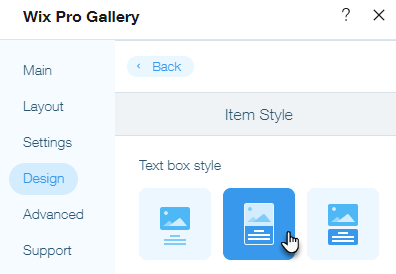
If you have chosen to display text underneath or above gallery items, make sure to choose the second text box style, (Background attached), in the Item Style panel of the Design tab to display the shadow feature. Learn more about customizing gallery text boxes.
If you choose to display text on your gallery items or choose to display no text, the shadow feature is available.
Bricks, Mix and Alternate
No specific settings need to be applied - the shadow feature is always available.
Note:
The shadow feature is not available in the Thumbnails, Slider, Slide show, and Column layouts.
This article is credited to the Wix team - https://support.wix.com/ and we thank them for that!