Encourage your site visitors to explore your gallery by adding enticing cover photos to videos. A cover photo offers a glimpse into what your videos are about, before watching them.
You can choose the cover photo of any video, e.g., uploaded videos, videos from the Wix Media Library, and YouTube or Vimeo.
Adding a cover photo to a video
Add an inviting cover photo to your videos to prompt site visitors to explore what your gallery has to offer.
To add a cover photo:
Click the pro gallery element on your page.
Click Manage Media.
Click the relevant video in the Media Manager.
Click the Add Cover Photoicon

on the right.
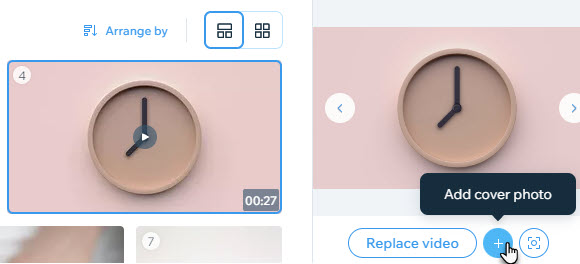
Select the image you want to use as the cover photo.
Click Add to Page.
Click Done.
Changing the cover photo of a video
Want to change a selected video cover photo? No problem - You can change a video's cover photo in just a couple of clicks.
To change a cover photo:
Click the pro gallery element on your page.
Click Manage Media.
Click the relevant video in the Media Manager.
Click the Remove Cover Photo

icon on the right.
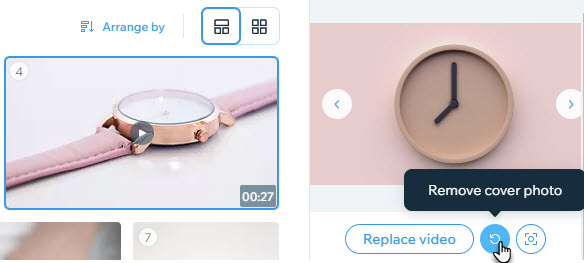
Click the Add Cover Photoicon
on the right.
Select the image you want to use as the cover photo.
Click Add to Page.
Click Done.
This article is credited to the Wix team - https://support.wix.com/ and we thank them for that!