Important:
This article is about the Wix POS Register for brick & mortar businesses.
For info on using POS on a mobile device, click here.
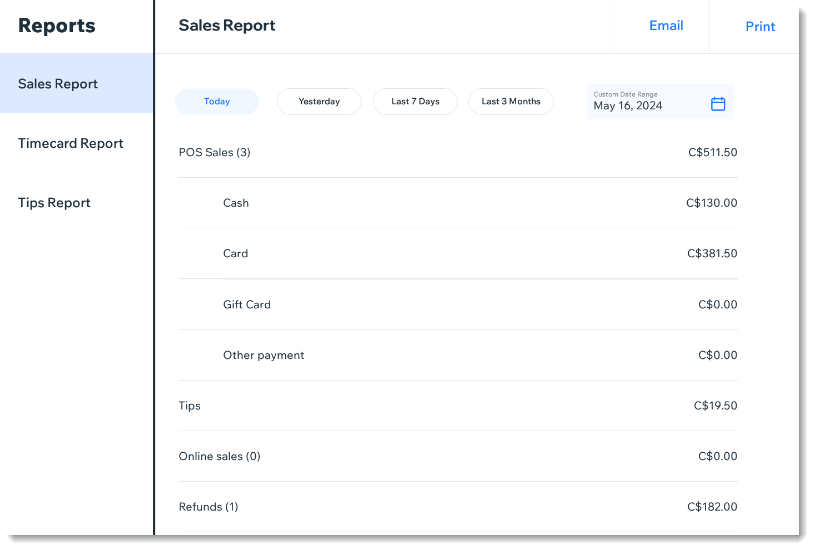
Access your sales report to get an overview of the day at your business. See details like the total amount collected in cash and credit, as well as any discounts and taxes you've applied.
To view your sales report:
Open the POS tablet.
Tap the Menu icon

at the bottom left.
Tap Reports.
Tap Sales Reports.
Select the dates you want to view at the top.
(Optional) Print or email the report:
Tap Print at the top right to print the report using your receipt printer.
Tap Email at the top right and enter the email address the report should be sent to.
Tip:
Go to Wix Analytics reports in the Wix dashboard to view reports on sales by employee, sales by channel and more.
This article is credited to the Wix team - https://support.wix.com/ and we thank them for that!