Important:
This article is about the Wix POS Register for brick & mortar businesses.
For info on using POS on a mobile device, click here.
This article will show you how to connect the Moneris Go Terminal card reader, so you can start to collect payment from customers by credit card, debit card, or phone app.
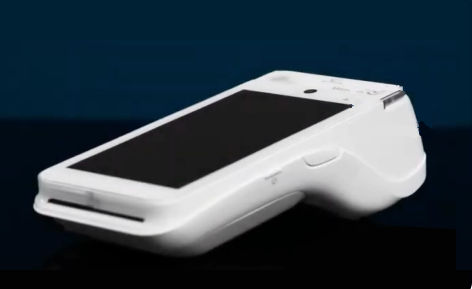
The Moneris Go Terminal card reader supports all magstripe and EMV payment functions and you can use it to accept new forms of payment, such as Apple Pay, Android Pay, Samsung Pay, VISA Paywave, MasterCard PayPass, AMEX ExpressPay and Discover D-PAS.
Step 1 | Unbox and charge your card reader
After receiving your card reader, start unboxing it and charging it so it'll be ready to set up.
To prepare your reader:
Unbox your card reader.
Press the power button on the right side to turn the reader on.
Charge the reader.
Tip: Plug the reader into a wall outlet, not directly into the tablet.
Step 2 | Connect the reader to the network
Now it's time to connect your card reader. You can use a SIM card to connect through a 4G connection and connect through Wi-fi, as well.
Tip:
If you set up a Wi-Fi connection, the terminal will switch to it when the Wi-Fi signal is stronger.
Connect via a 4G network connection: To connect through a 4G connection, you need to purchase and insert a SIM card, as you would do for a phone. Once you enter the SIM card correctly, the card reader and tablet should connect automatically.
Connect via Wi-Fi:
Swipe down at the top of the card reader's screen.
Note: You may need to swipe down twice.
Tap Wi-Fi.
Tap the network you want to connect to.
Enter the password and tap Connect.
Step 3 | Pair the card reader to your POS tablet
After connecting to Wi-Fi, a three-word code should automatically appear on the card reader screen. If not, you can generate the code. Once you have it, you'll enter it in your POS tablet.
To pair the reader and tablet:
Turn on your card reader.
Open the POS tablet.
Tap the Menu icon

at the bottom left.
Tap Manage Hardware.
Select Set up Card Reader.
Select an option:
Reader is connected: Go to step 7.
Reader is displayed but not connected: Tap Connect.
Reader isn't displayed: Tap Pair a New Card Reader.
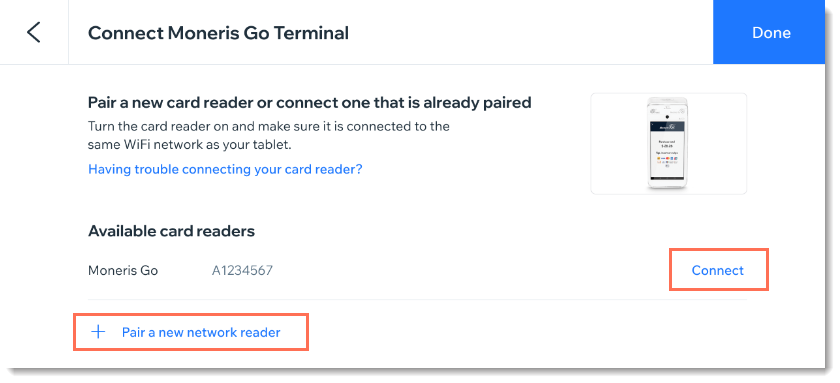
Click Done.
Enter the 8-digit code found on a sticker on the right side of your card reader.
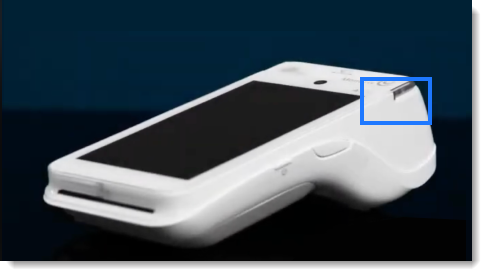
Tap Pair Reader.
Tap Done.
Tip:
To check if you are connected via a network connection (using your SIM card) or Wi-Fi, swipe down from the top of the screen to view the status bar. There you can also view your Wi-Fi signal strength and battery charge level.
Troubleshooting
If you are experiencing any issues setting up card reader, click a question below.
The touch screen is slow or unresponsive
Try taking the following actions:
If you haven't yet removed the protective film from the screen, remove it now.
Make sure no other electronic devices are close to the card reader.
Move any metallic objects that are touching the screen.
Make sure the screen is dry.
Check for any sources of magnetic waves near the device and move them away.
I am unable to swipe down to view settings
Swipe right on the card reader screen and tap Exit. Then, when navigation appears on the next screen, try again to swipe down.
The card reader is displaying a 60-second countdown
When the card reader is unable to connect via a 4G network connection and is not able to use a Wi-Fi connect as a backup, it will begin a 60 second countdown. At the end of the 60 seconds, the reader will try to reconnect to the network connection.
Make sure the SIM is inserted properly.
Try setting up a Wi-Fi connection.
If you are not able to get the card reader reconnected, contact Moneris for assistance.
Still having trouble connecting?
Contact Moneris for assistance.
This article is credited to the Wix team - https://support.wix.com/ and we thank them for that!