Important:
This article is about using the Wix POS Register solution with Moneris for brick-and-mortar businesses. If you are not using Moneris as your payment provider, follow the instructions for selling physical gift cards with Wix Payments.
Moneris is available only in Canada.
You can sell Moneris physical gift cards in your store and let customers use them to complete purchases. These gift cards have a magnetic stripe and a CVC, and you can sell them by swiping them through your Moneris card reader or by entering the card number manually on your POS tablet during payment.
Before you begin:
Make sure to connect Moneris as a payment provider on your site's dashboard before selling or accepting payment with Moneris physical gift cards.
Step 1 | Order Moneris physical gift cards
You can order physical gift cards by calling Moneris on 1-844-645-GIFT (4438), or directly from your Moneris dashboard. When ordering, you can choose between two types of gift cards:
Fixed amount gift cards: Cards with a pre-assigned value that cannot be changed.
Variable amount gift cards: Cards that let you assign any value to the card during the sale process.
Step 2 | Enable gift cards in your Moneris dashboard
Enable gift cards for your business in your Moneris dashboard. For help, call 1-844-645-GIFT (4438) to speak to a Moneris specialist.
Step 3 | Sell Moneris physical gift cards
Note:
Each Moneris physical gift card can only be sold and activated once. If you attempt to sell a previously activated card, you’ll see an error message.
You can sell fixed or variable amount physical gift cards in person with your POS tablet.
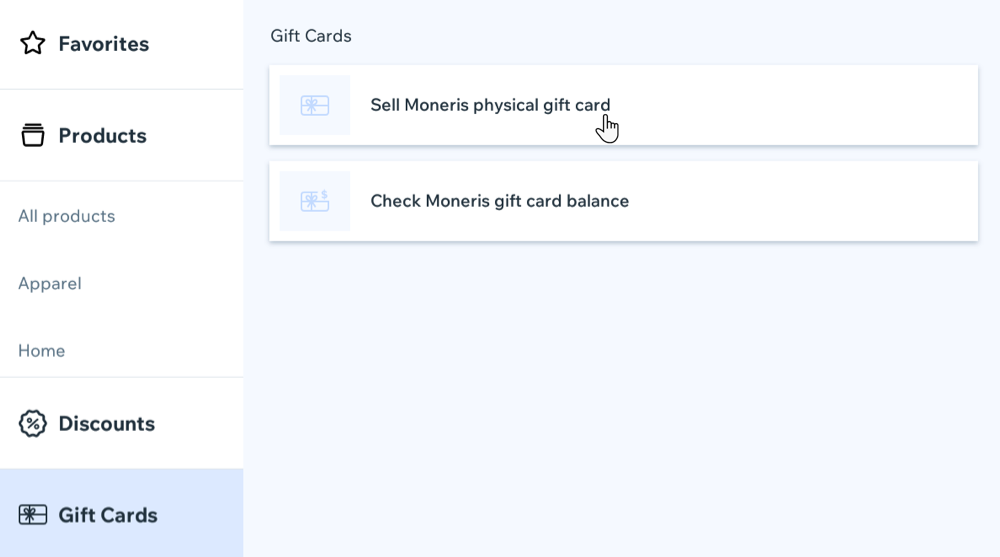
Sell a fixed amount Moneris physical gift card
(On your POS tablet) Tap Checkout on the bottom menu.
Tap Gift Cards.
Tap Sell Moneris Gift Card.
Take a fixed amount Moneris physical gift card from your supply.
Choose how to enter the gift card details:
Swipe the card through your Moneris card reader.
Enter the card number manually.
(In the cart) Complete checkout as you would for any other product.
Tip: The gift card number and fixed amount will be displayed in the cart.
Give the physical gift card to your customer.
Sell a variable amount Moneris physical gift card
(On your POS tablet) Tap Checkout on the bottom menu.
Tap Gift Cards.
Tap Sell Moneris Gift Card.
Take a variable amount Moneris physical gift card from your supply.
Choose how to enter the gift card details:
Swipe the card through your Moneris card reader.
Enter the card number manually.
Enter the desired gift card value.
Tap Add to Cart.
(In the cart) Complete checkout as you would for any other product.
Tip: The gift card number and the amount you assigned will be displayed in the cart.
Give the physical gift card to your customer.
Tip:
To remove the gift card from the cart, swipe it from right to left on your Moneris card reader.
Step 4 | Accept Moneris physical gift card payments
Customers can pay for their purchases in store using a Moneris physical gift card.
To accept payment with a Moneris physical gift card:
(On your POS tablet) Process the sale as usual and proceed to your cart.
Select Gift Card as the payment method.
Choose how to enter the gift card details:
Swipe the Moneris gift card through your Moneris card reader.
Tap Enter Gift Card Number, enter the number manually, and tap Continue.
Enter the CVC printed on the gift card.
Tap Continue to finalize the payment.
Tip:
If the gift card balance does not cover the full amount, select Add Payment and choose an additional payment method.
FAQs
Click a question below to learn more about Moneris physical gift cards.
Can I use regular Wix gift cards with Moneris POS?
No. Moneris merchants can only use Moneris physical gift cards, available directly from Moneris. Wix gift cards are not supported with Moneris as a payment provider.
How do I check a Moneris physical gift card balance?
You can check the balance of a Moneris physical gift card on your POS tablet before or during checkout.
To check a Moneris physical gift card balance:
Tap Checkout at the bottom of your POS tablet.
Tap Gift Cards.
Select Check Moneris gift card balance.
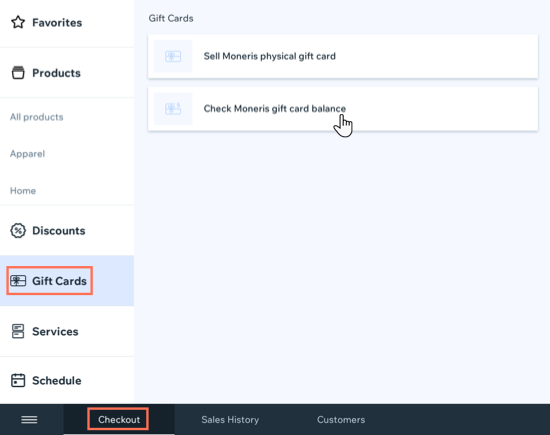
Choose how to enter the gift card details:
Swipe the Moneris gift card through your Moneris card reader.
Tap Enter Gift Card Number, enter the number manually, and tap Continue.
Ask the customer for the gift card CVC (the code printed on the card) and enter it.
Tap Check to check the balance.
Can customers use Moneris physical gift cards online?
Currently, Moneris physical gift cards are only supported for in-store transactions.
I have an issue with my Moneris physical gift cards. What can I do?
Contact Moneris by calling 1-844-645-GIFT (4438) for specialist support, or reach out through your Moneris dashboard.
This article is credited to the Wix team - https://support.wix.com/ and we thank them for that!