Important:
This article is about the Wix POS Register for brick & mortar businesses.
For info on using POS on a mobile device, click here.
Make sure your most popular products, discounts, and more are easily accessible by adding them to your Favorites. Your Favorites screen can include:
Products
Product categories
Discounts
Gift cards
When you're processing a sale, you can tap the Favorites tab and then add one of these items to the sale.
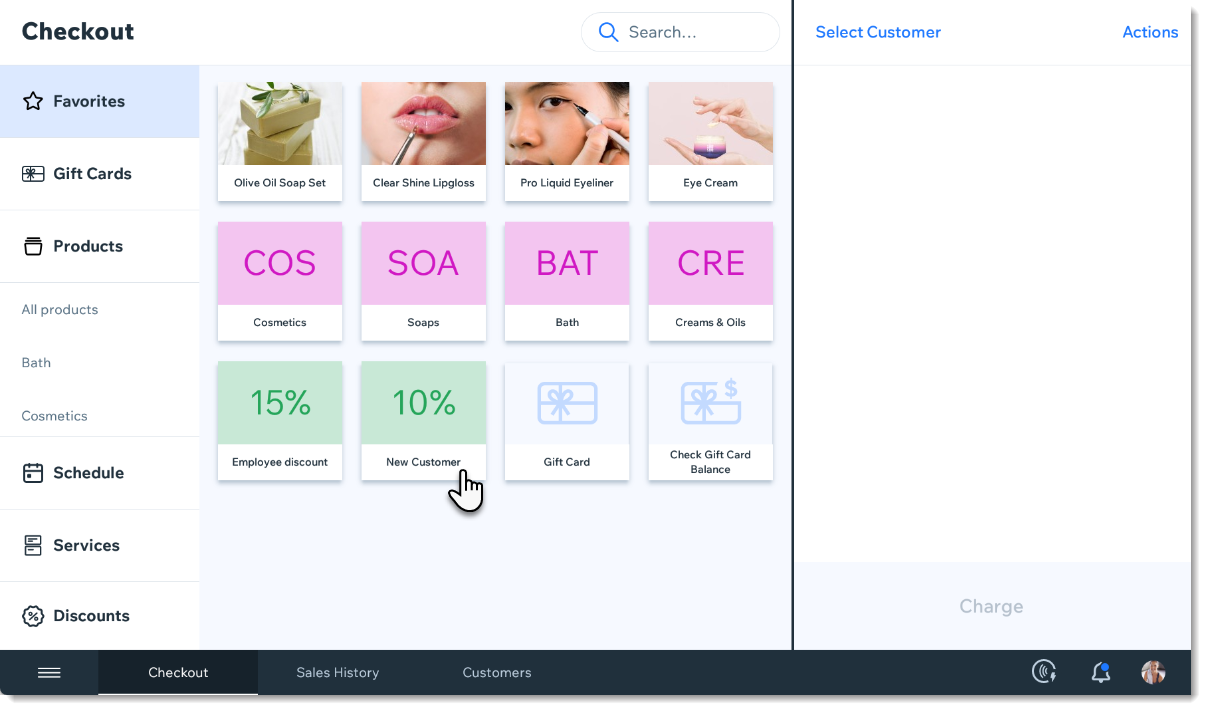
Adding items to your Favorites
Open the POS tablet.
Tap the Menu icon

at the bottom left.
Tap Settings.
Tap Manage next to Favorites.
Add an item to your Favorites.
Tap the Add icon

.
Select Products, Categories, Discounts, or Gift Cards.
Tap the item you want to add to your Favorites.
(Optional) Drag items to reorder them.
Tap Save.
FAQs
Click a question to learn more.
How can I remove an item from my Favorites?
To remove an item, go back to the Settings, tap Manage next to Favorites, then tap the X that appears in the top left corner of an item to delete it.

Can I customize the color of the categories, discounts, and gift cards?
These colors cannot be customized.
This article is credited to the Wix team - https://support.wix.com/ and we thank them for that!