Important:
This article is about the Wix POS Register for brick & mortar businesses.
For info on using POS on a mobile device, click here.
By default, the following payment methods are available at checkout:
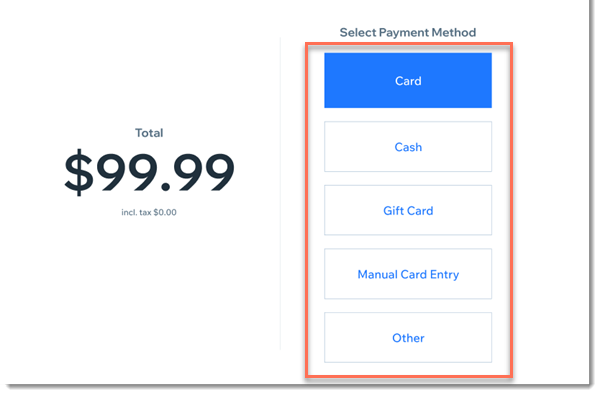
You can disable any payment methods you don't use to simplify the checkout process.
Disabling payment methods
You can set which payment options are displayed at checkout from the Payments tab.
To disable a payment option:
Open the POS tablet.
Tap the Menu icon

at the bottom left.
Tap the Settings tab.
Tap the Payment tab.
Tap the toggle next to any payment methods to disable them.
FAQs
How can I enable a payment method I disabled?
Follow the same instructions you used to disable the payment method, but click the toggles to enable them.
What is the "Other" payment method?
The "Other" payment method allows you to receive payment through a method which is not integrated with your POS system. For example, you can use it to accept payment through an app or a gift card which isn't integrated with the POS system.
Which gift cards can I accept with the Gift Card method
Currently, it's possible to accept payment through Wix Gift Cards and cards created through the Gifted app. Learn more about accepting payment through gift cards.
Note: You can, however, use the "Other" payment method to accept payment through a gift card which isn't integrated with the POS system.
Why can't I enable the "other" payment method?
If you purchased your POS Register system after October 25, 2023 and before April 2024, you may need an upgrade to enable the "other" payment method. Learn more
This article is credited to the Wix team - https://support.wix.com/ and we thank them for that!