Important:
This article is about sales reports on the Wix POS Go as a standalone device.
The Wix POS Go is currently only available in the US, Canada, and the UK.
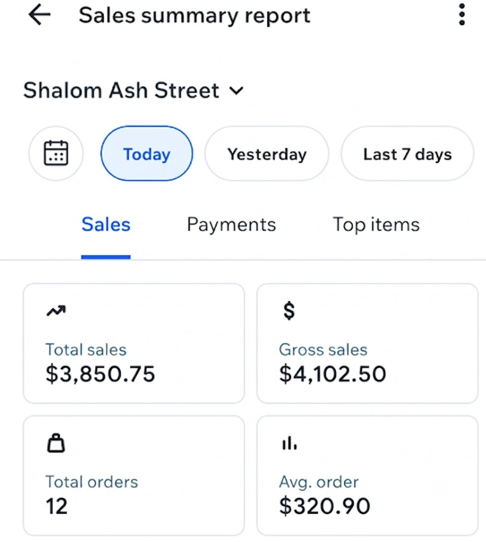
Check your Sales summary report for a quick summary of your business's daily performance. You can review key details like cash and credit card totals, applied discounts, and more.
To view your sales report:
Open your POS Go device.
Tap the Menu icon

at the bottom right.
Tap Reports.
Tap Sales summary report.
Select the date(s) you want to view at the top.
(Optional) Tap the More Actions icon

at the top and choose what to do next:
Tap Print report to print the report using your receipt printer.
Tap Email report to send the report to your email address.
FAQs
Click a question below to learn more about your sales report.
How can I view more detailed analytic data?
Go to Wix Analytics reports in your site's dashboard to view reports on sales by employee, sales by channel and more. Learn more about Wix Analytics reports.
Tip: Wix Analytics also includes a dedicated Sales by POS report. Click Filter and select a POS type to compare Mobile POS and Retail POS data separately.
How can I view data for a different location?
Tap your current location name at the top of the screen. Select a different location from the list to view its sales data.
Can I email or print a report?
Yes. While viewing the sales report, tap Actions and then select Email report or Print report to print using your receipt printer.
This article is credited to the Wix team - https://support.wix.com/ and we thank them for that!