Important:
As of April 2024, it is no longer possible to add the Wix Photo Albums app to your site. If you already have Wix Photo Albums installed in your site, you can still use the app as normal.
If you want to sell digital prints, we recommend adding Wix Stores. If you want to display your images, add a Wix Pro Gallery to your site.
Use Wix Photo Albums to share professional album sites with clients and friends. Create new albums for all your events: wedding, vacations, portraits - anything!
Wix Photo Albums keeps all of your albums together on a dedicated gallery page on your site. Choose which albums appear and match the design of the album gallery to the rest of your site.
Each album in your gallery opens in its own easy to share mini-site. Plus, each album mini-site is individually customizable and can be password protected, so you can control who has access to your work.
Wix Photo Albums even has Adobe Lightroom integration, and a proofing tool (favorites lists), making it a fully integrated photo album solution.
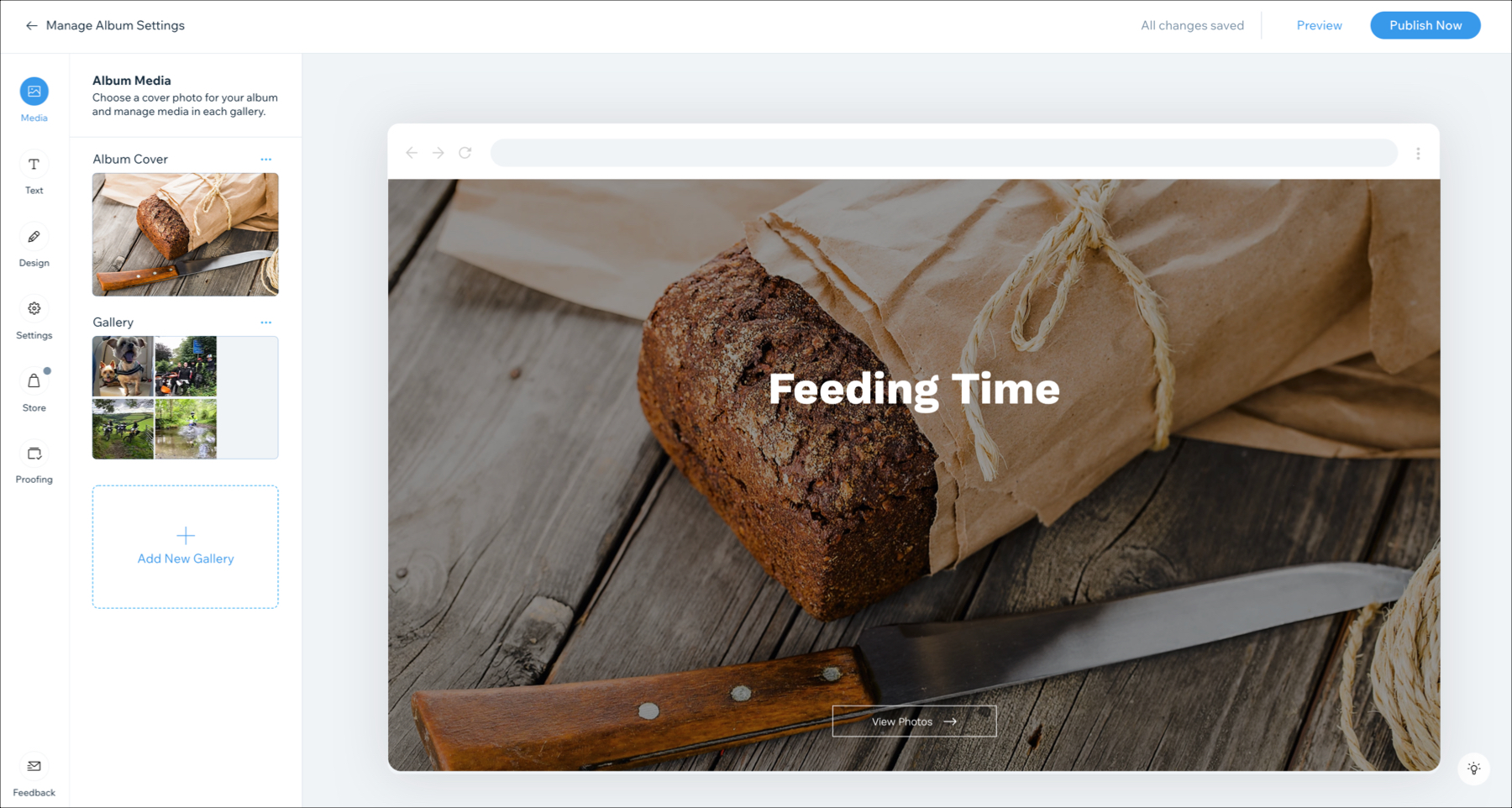
Create and Manage Your Albums
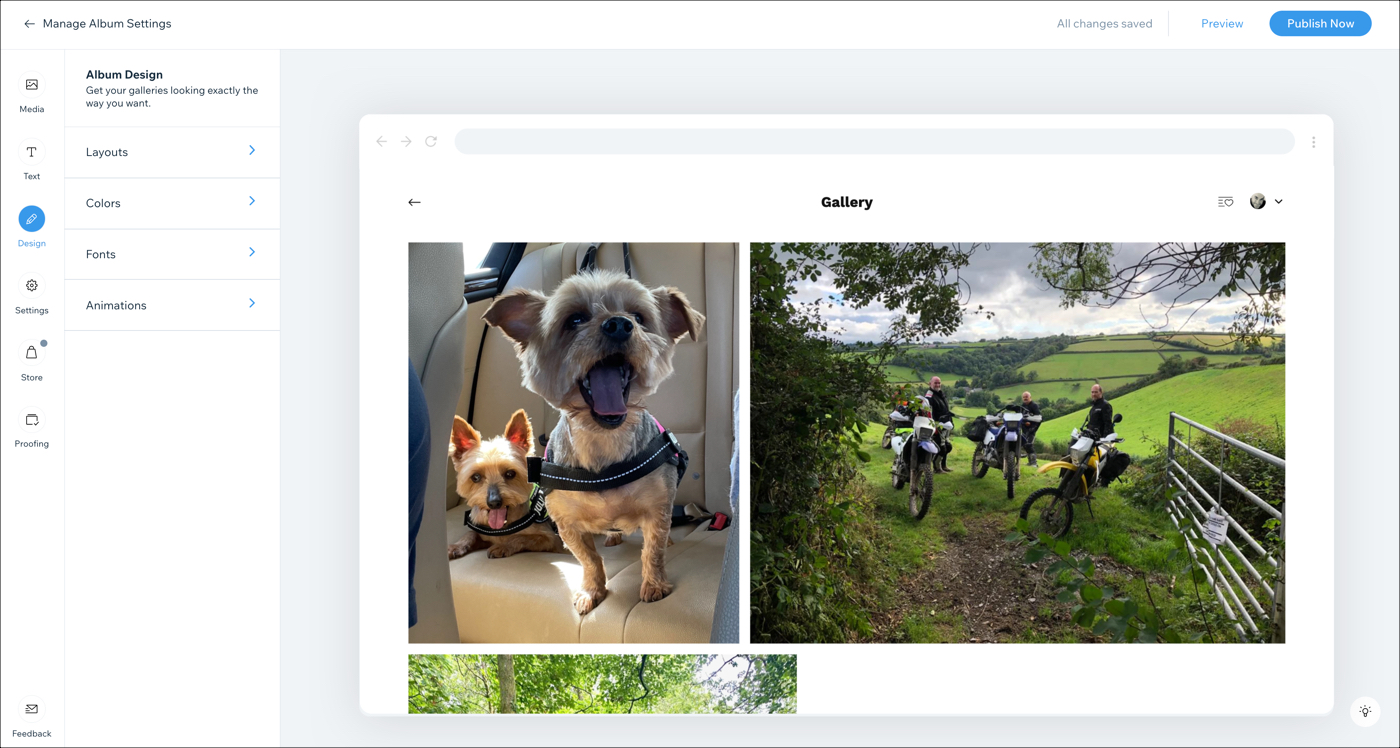
You have complete control on customizing and organizing your photo album. With Wix Photo Albums, you can choose the cover image for your album, select the layout and choose the text and background to suit your style.
Show me how
Create your album (You can always come back to organize or add more photos).
Customize the design and layout of your album.
Choose which albums appear as thumbnails on your gallery page. To learn how to set up and design your albums gallery, click here.
If certain galleries need to be password protected, you can add them to a private page.
Set up Your Photo Albums Store
Important:
Wix Photo Albums Store is not available to all users. As of February 2023, it is no longer possible to add Wix Photo Albums Store to your site. As an alternative, you can add Wix Stores to your site and connect it to Printful to sell your photos.
Using the Wix Album Store you can create an album to sell your digital or photo prints directly from your site. You can choose to sell digital and prints or just digital files.
Notes:
The Wix Photo Album Store is only available when you are creating a new album. It's not available for albums that you've already previously created.
To accept payments on your site, you'll need to have a Business Elite, Business, or Core Premium plan. Click here to learn more about accepting payments.
Show me how
Go to the Photo Albums tab in your site's dashboard.
Follow the prompts to create your album.
Click the Album Store tab on the left side of the album Editor.
Click Set Up Store.
Choose what you want to sell:
Digital Files and Prints.
Digital Files Only.
To sell Digital Files and Prints:
Select Sell Digital Files and Prints.
Click Next.
Click OK.
Select the products you wish to sell.
Click Units and Currency to set your stock levels and currency type.
Enter your Business Information.
Click the checkbox to complete the ownership confirmation.
Click Done.
Click Media on the left.
Click Manage Media to arrange the photos in your gallery.
Click Publish.
To sell Digital Files Only:
Select Digital Files Only.
Click Store on the left.
Click OK.
Choose the licences you want to sell and set prices.
Click Next.
Set payment method (only if not already set).
Click the checkbox to complete the ownership confirmation.
Click Next.
Click Media on the left.
Click Manage Media to arrange the photos in your gallery.
Click Done.
Click Publish.
Note:
Currently, you cannot transfer your Wix Photo Albums from one site to another. This means that you cannot share the content of your app across sites. If this is a feature you would like to see in the future, please click Vote for this feature in this article and we'll make sure to keep you updated.
This article is credited to the Wix team - https://support.wix.com/ and we thank them for that!