Wix Photo Albums has its very own Media Manager, stored on separate servers from your site's Media Manager. For this reason, it is not possible to add images from your site's Media Manager straight to your photo albums.
How do I access the Photo Albums Media Manager?
Go to Photo Albums in your site's dashboard.
Click Edit on the relevant album.
Hover over the relevant gallery and click Manage Media.
Click the Import Photos icon

at the top right. The album's Media Manager will open and you'll see all of the app's media.

As a workaround, you can download images from your site's Media Manager and then upload them to your photo albums. Once you upload these images, you can edit their titles and descriptions.
Differences between the Photo Albums Media Manager and your site's Media Manager
Images uploaded to the Photo Albums Media Manager are saved on a separate server.
You can add watermarks to your images uploaded to the Photo Albums Media Manager.
The file limit for images uploaded to the Photo Albums media manager is 40 MB (as opposed to 15 MB in the regular Media Manager).
Editing the titles and descriptions of photos you upload
You can edit the titles and descriptions of any images you upload to your Wix Photo Albums Media Manager. You can choose to leave these fields blank if you don't want any text to be displayed.
To edit photo titles and descriptions:
Go to Photo Albums in your site's dashboard.
Click Edit next to the relevant album.

Hover over the Gallery section at the left and click Manage Media.
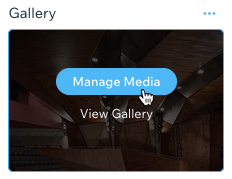
Select an individual image to edit its title or description.
Click Done.
Deleting media from your Photo Albums Media Manager
To delete album media from your site and free up storage space, it's necessary to delete it within your Photo Albums Media Manager and then delete it again in Trash within your Photo Albums Media Manager.
Deleting an album will remove the album from your site but its media will remain in the Photo Albums Media Manager until deleted.
To delete media in your Photo Albums Media Manager:
Go to Photo Albums in your site's dashboard.
Click Edit on the relevant album.
Hover over the relevant gallery and click Manage Media.
Click the Import Photos icon
at the top right. The album's Media Manager will open and you'll see all of the app's media.
Select and delete the files you don't need.
Access the Trash folder and delete the same files again.
Download or delete Photo Albums files in bulk:
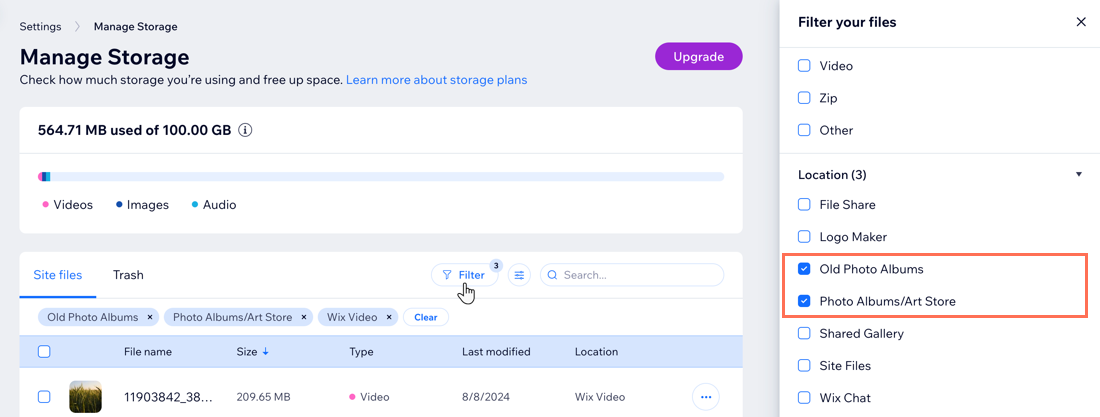
You can do this by going to the Manage Storage page in your site's dashboard. If you use the Location filter to show Wix Photo Albums, make sure to select the right option to locate the relevant files:
Old Photo Albums: Includes media uploaded to Photo Albums prior to 2020.
Photo Albums/Art Store: Includes media uploaded to Photo Albums or Art Store.
This article is credited to the Wix team - https://support.wix.com/ and we thank them for that!