Once you have created your online program, you can manage it from the Online Programs tab in your site's dashboard and in the Wix app. Change your program status whenever you need to. Publish your program or bring it to an end, edit your program settings, and more.
Dashboard
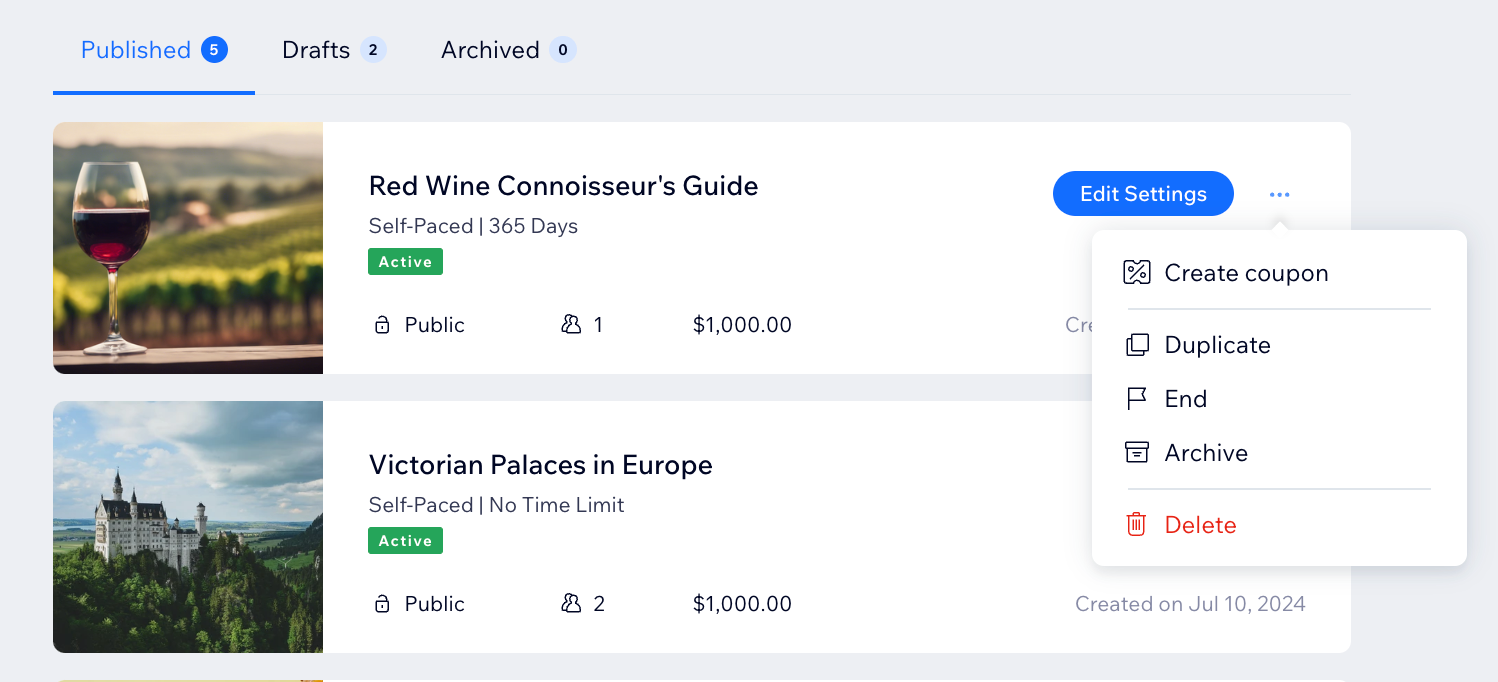
Go to Online Programs in your site's dashboard.
Click the More Actions icon

next to the program you want to edit.
Select an option:
Create coupon
Promote your program sign-ups with coupons. Offer discounts to encourage people to join your paid programs. You can choose to make your coupons apply to all programs or target specific ones to create a focused offer.
Duplicate
Create a copy of your program that will appear in the Draft tab. This allows you to retain the original program's settings while building another version.
End
When you end a program, it no longer appears on the site, and new participants cannot join. However, current participants can continue working on the program and finish all the steps they've started.
Archive
When you archive a program, it moves to the Archived tab and cannot be restored. Once a program is archived, participants can no longer access it, and it will be hidden from your live site.
Delete
Remove a program if you no longer need it. Keep in mind that this action permanently deletes the program and all its information.
Publish
When you're ready to make your program live, publish it from the Draft tab. After publishing, you can invite participants using an invitation link or an email campaign.
Tip:
Edit your program settings to update the program's name, description, price, groups, and more.
Wix app
Go to your site in the Wix app.
Tap Manage

at the bottom.
Tap Online Programs.
Tap the relevant tab according to the status of your program: Published, Drafts or Archived.
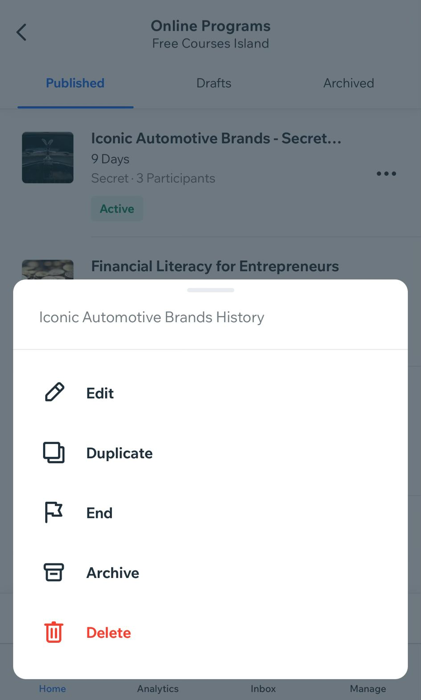
Tap the More Actions icon

next to the relevant program and choose what you want to do next:
Edit
Edit your program settings to update the program's name, description, price, groups, and more.
Duplicate
Create a copy of your program that will appear in the Draft tab. This allows you to retain the original program's settings while building another version.
End
When you end a program, it no longer appears on the site, and new participants cannot join. However, current participants can continue working on the program and finish all the steps they've started.
Archive
When you archive a program, it moves to the Archived tab and cannot be restored. Once a program is archived, participants can no longer access it, and it will be hidden from your live site.
Publish
When you're ready to make your program live, publish it from the Draft tab. After publishing, you can invite participants using an invitation link or an email campaign.
Delete
Remove a program if you no longer need it. Keep in mind that this action permanently deletes the program and all its information.
This article is credited to the Wix team - https://support.wix.com/ and we thank them for that!