Your Wix Online Programs site pages include three customizable pages: The Program List page, Visitor page, and Participant page. Another Wix Online Programs page is the payment page, which is not customizable. You can choose to display different details on each page. Think about your site visitor's journey—from visiting your site, to being intrigued, to enrolling. What messages do you want to convey to your site visitors at each step?

About your Program pages
When you add Online Programs to your site, the following pages are installed:
Program List page: This page displays all available programs on your site, organized by your preferences. It gives a brief overview of each program's details, such as price and number of participants.
Visitor page: This page offers potential enrollees a program description and sets basic expectations, giving them a clear understanding of what the program entails.
Participant page: This page includes elements for post-enrollment. These can be group discussions and rewards, to keep participants engaged and motivated.
Payment page: This page is where site visitors complete their purchase to enroll in your program. This is a dedicated checkout page for Online Programs.
Tip:
You can also create a custom landing page on your site that focuses on a single program.
Customizing your Program List page
Choosing what to display on the Program List page helps you communicate key details to your site visitors. Select essential information such as price, length, instructor, and more to ensure interested visitors have everything they need to enroll.
Wix Editor
Click Pages & Menu

on the left side of the editor.
Click Program Pages.
Click the Program List page.
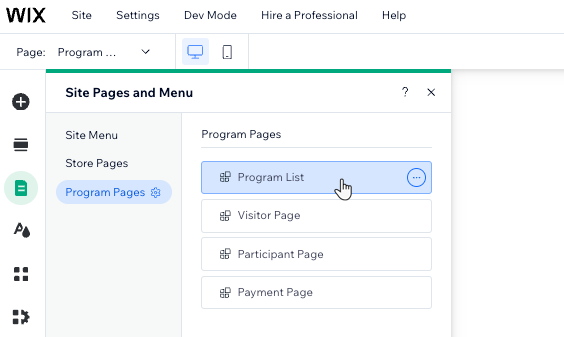
Click the Program Listelement on your page.
Click Settings.
Customize the Program Listelement using the available tabs:
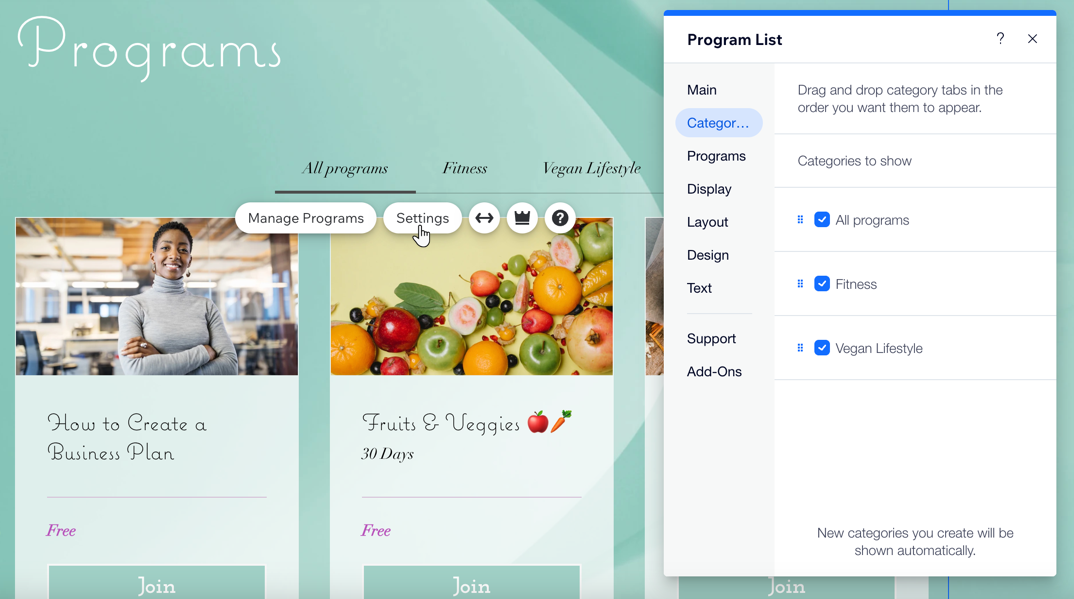
Categories
Select the categories you want to display on your program list.
Drag and drop the categories in the order you want them to appear.
Note: Can't see the Categories tab? Go to your site's dashboard to create categories and assign them to your programs.
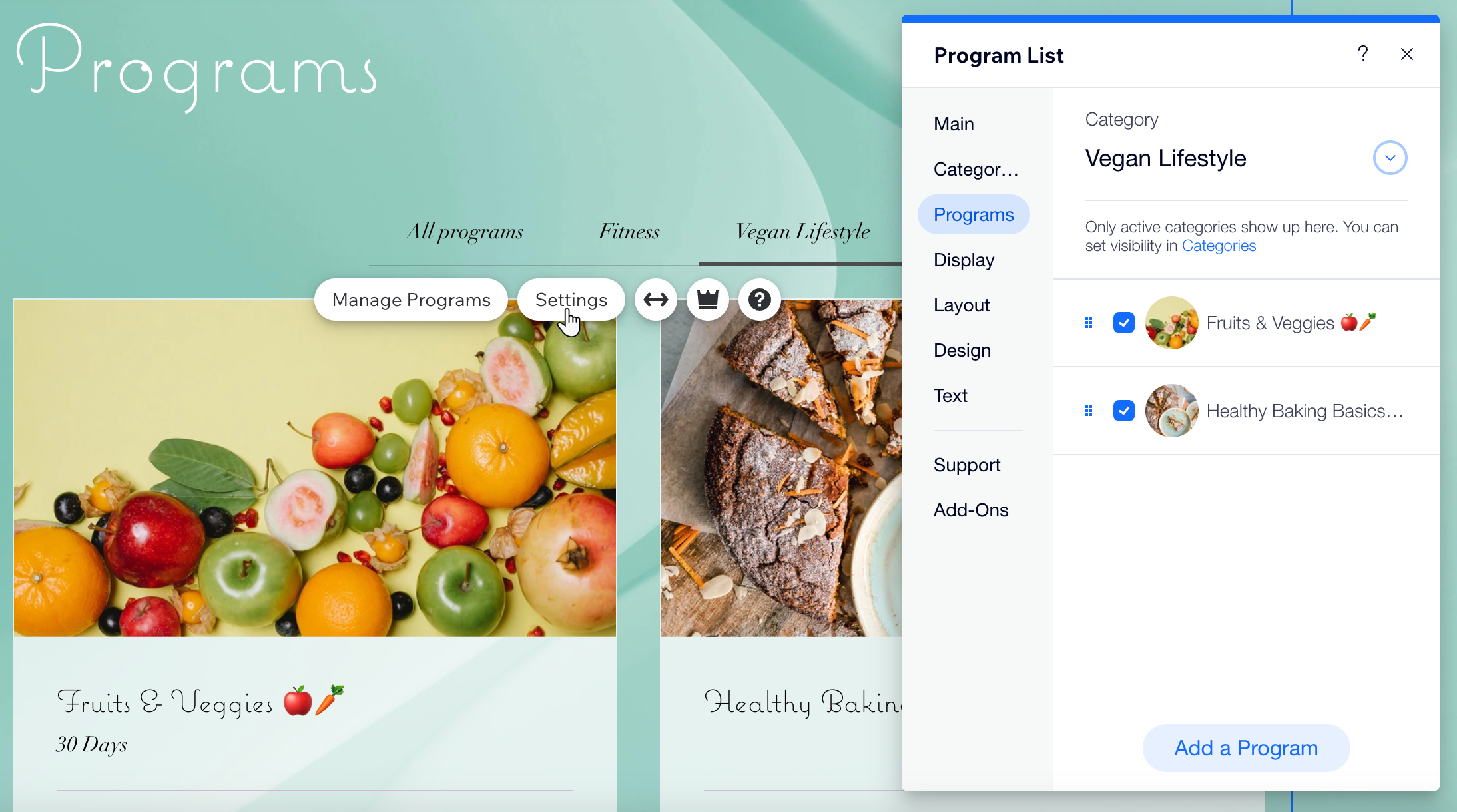
Programs
Select the checkbox next to a program to display it on the list.
Drag and drop programs in the order you want them to appear.
Click Add a Program to create a new program in your site's dashboard.
Display
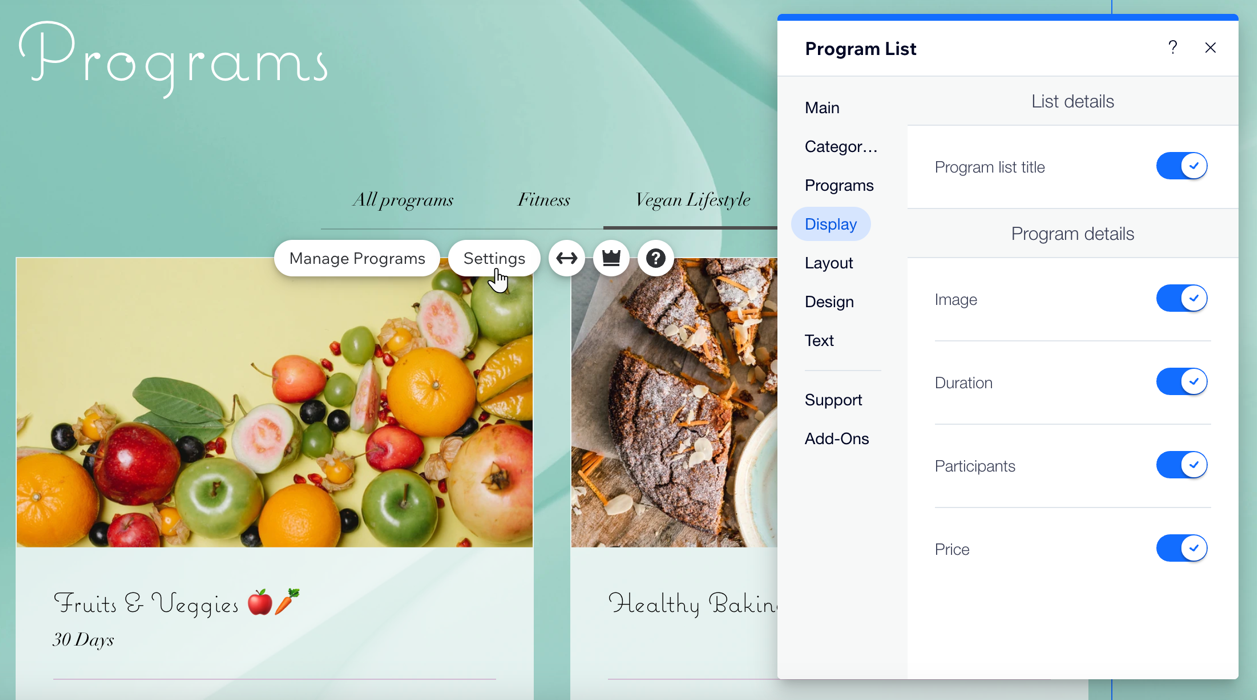
Enable thetoggle next to the details you want to show on the program list:
List Details: Show the title on the program list. You can edit the default "Programs" title from the Text tab.
Program Details:
Image: Show the program cover image.
Duration: Show the duration of your program (e.g. 18 days).
Participants: Show the number of participants in the program.
Price: Show the price of each program.
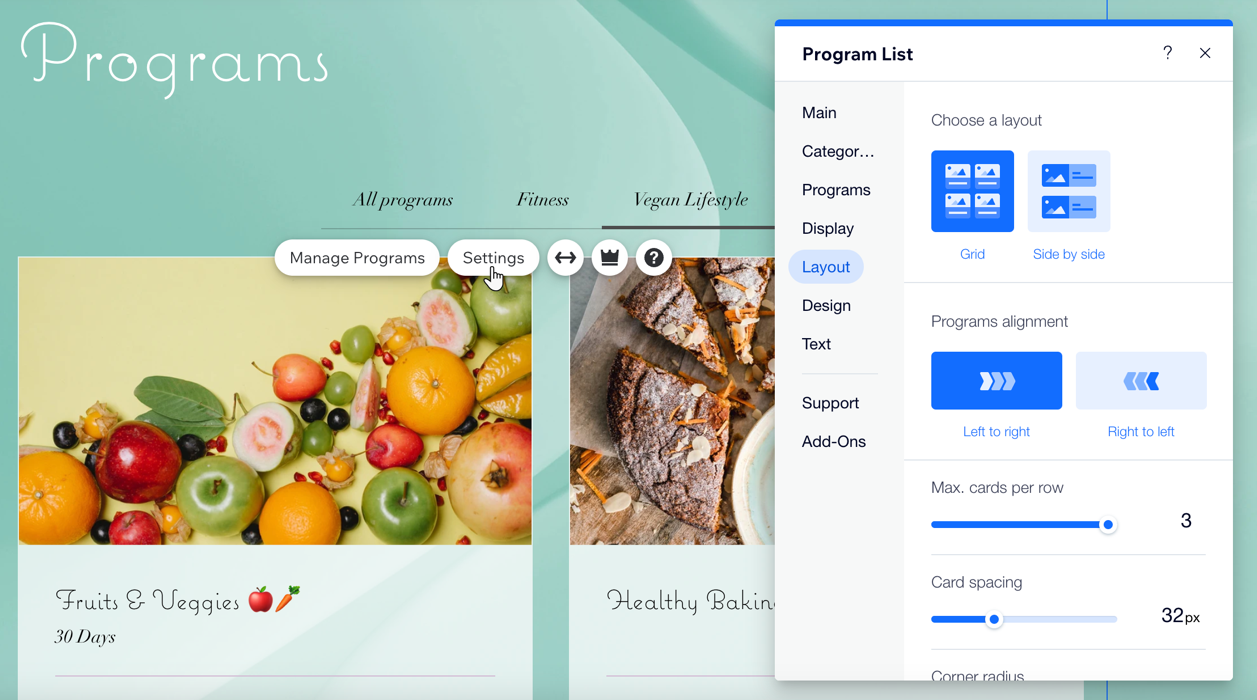
Layout
Choose between a Grid or Side by side alignment:
Grid: Displays your programs in rows and columns.
Side by side: Displays your programs in a vertical stack.
Customize the layout according to your preferences.
Design
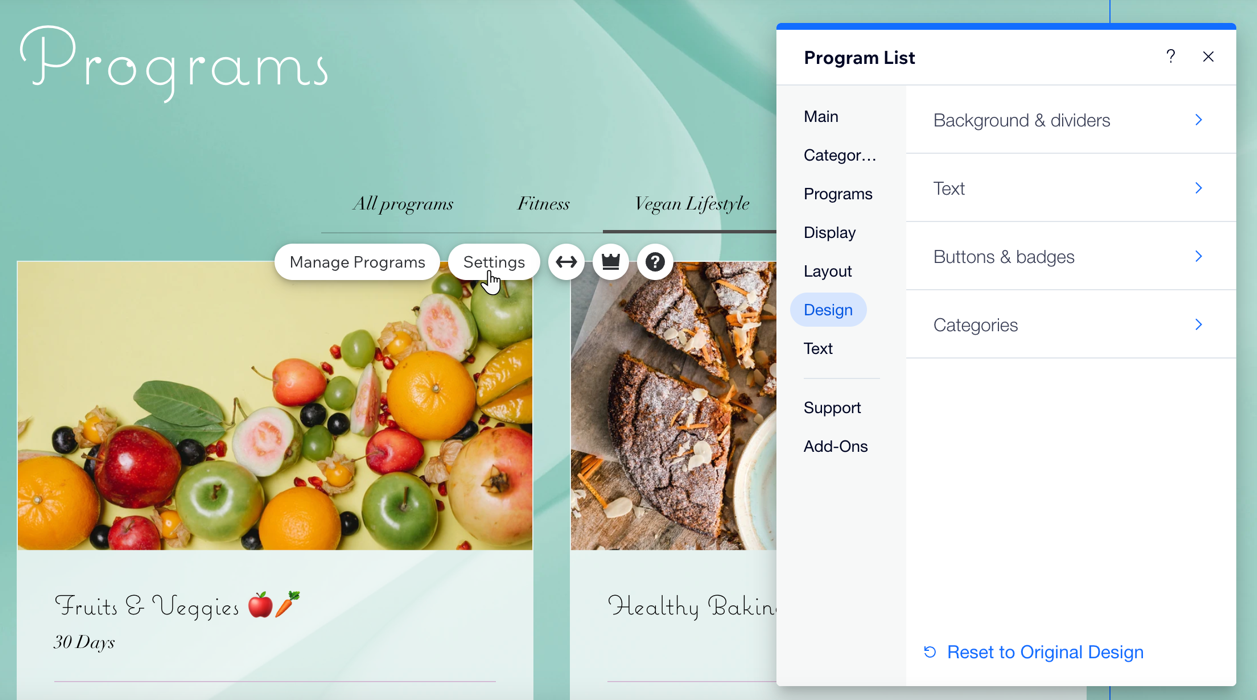
Choose what you want to design:
Background & dividers: Design the app background and the card background.
Text: Style text elements like program name, participants, duration, and price.
Buttons & badges:
Buttons: Adjust the Default and Hover states of your buttons.
Badges: Design the label. You can customize the text in the Text tab.
Categories: Customize the Default and Selected states for your categories.
Note: Click Reset to Original Design at the bottom of the panel to undo the changes.
Text
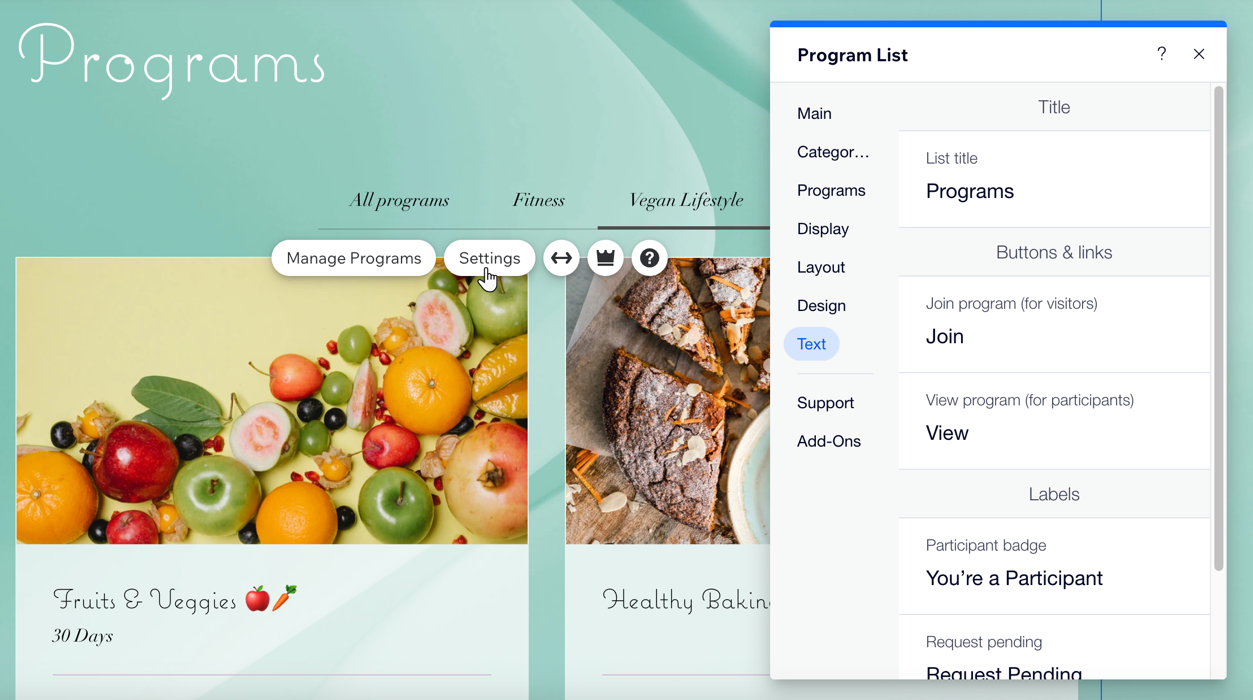
Click the relevant fields to update the text:
List title: Edit the title that displays at the top of the list.
Buttons: Edit the text that displays on buttons.
Labels: Edit the text that displays on labels.
Studio Editor
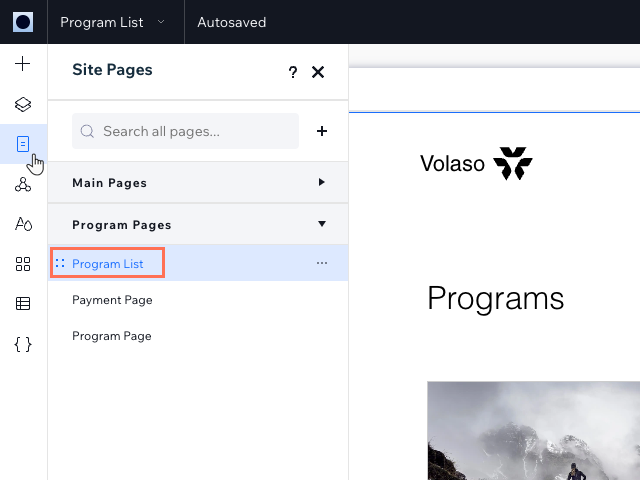
Click Pages

on the left side of the editor.
Click your Program List page under Program Pages.
Click the Program List element on your page.
Click Settings.
Customize the Program Listelement using the available tabs:
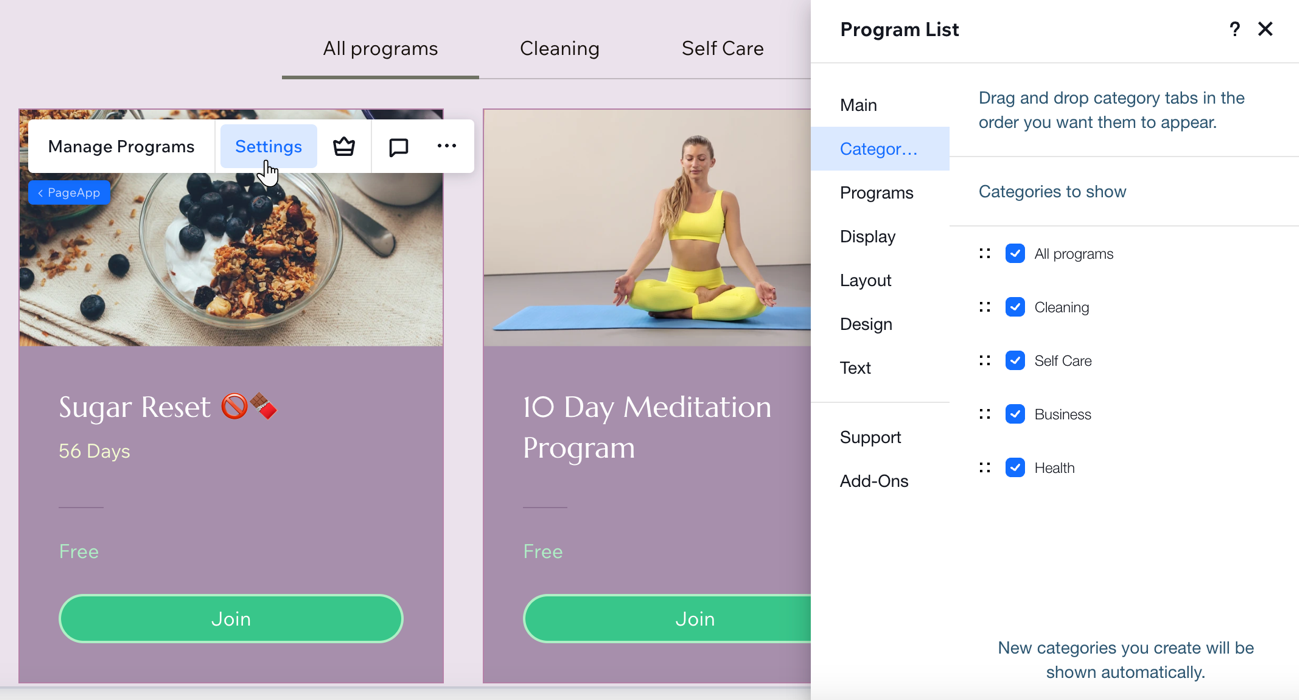
Categories
Select the categories you want to display on your program list.
Drag and drop categories in the order you want them to appear.
Note: Can't see the Categories tab? Go to your site's dashboard to create categories and assign them to your programs.
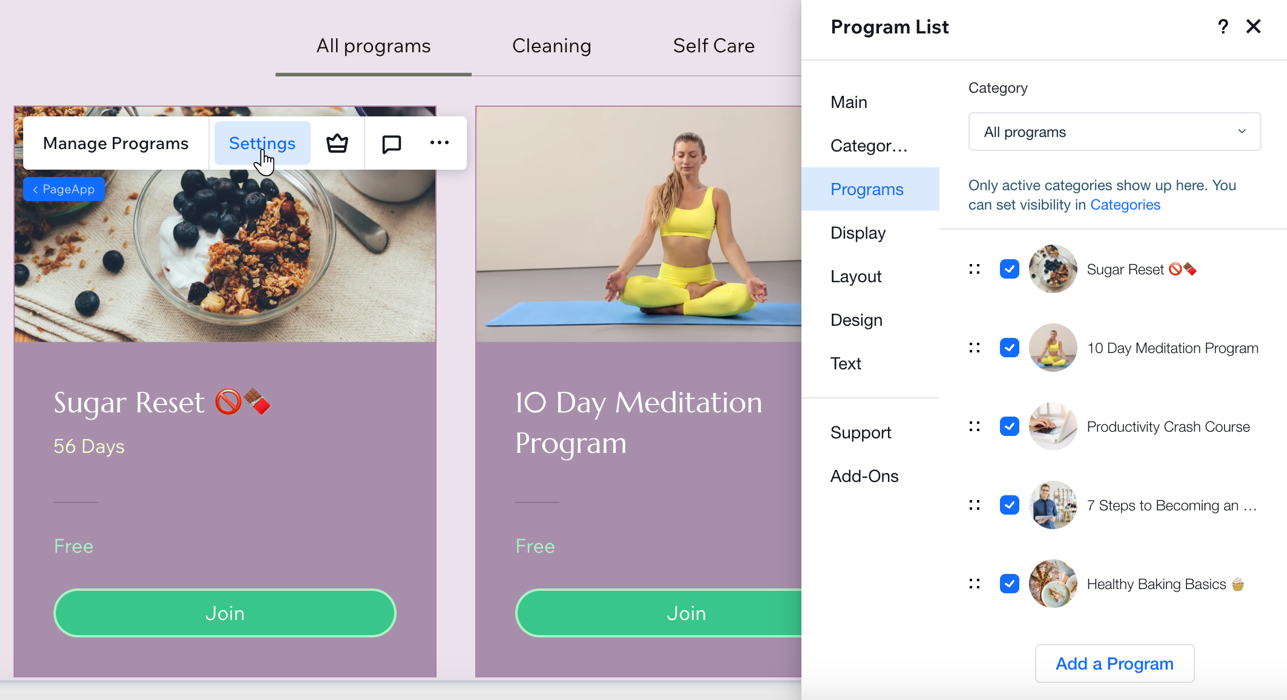
Programs
Select the box next to a program to display it on the list.
Drag and drop programs in the order you want them to appear.
Click Add a Program to create a new program in your site's dashboard.
Display
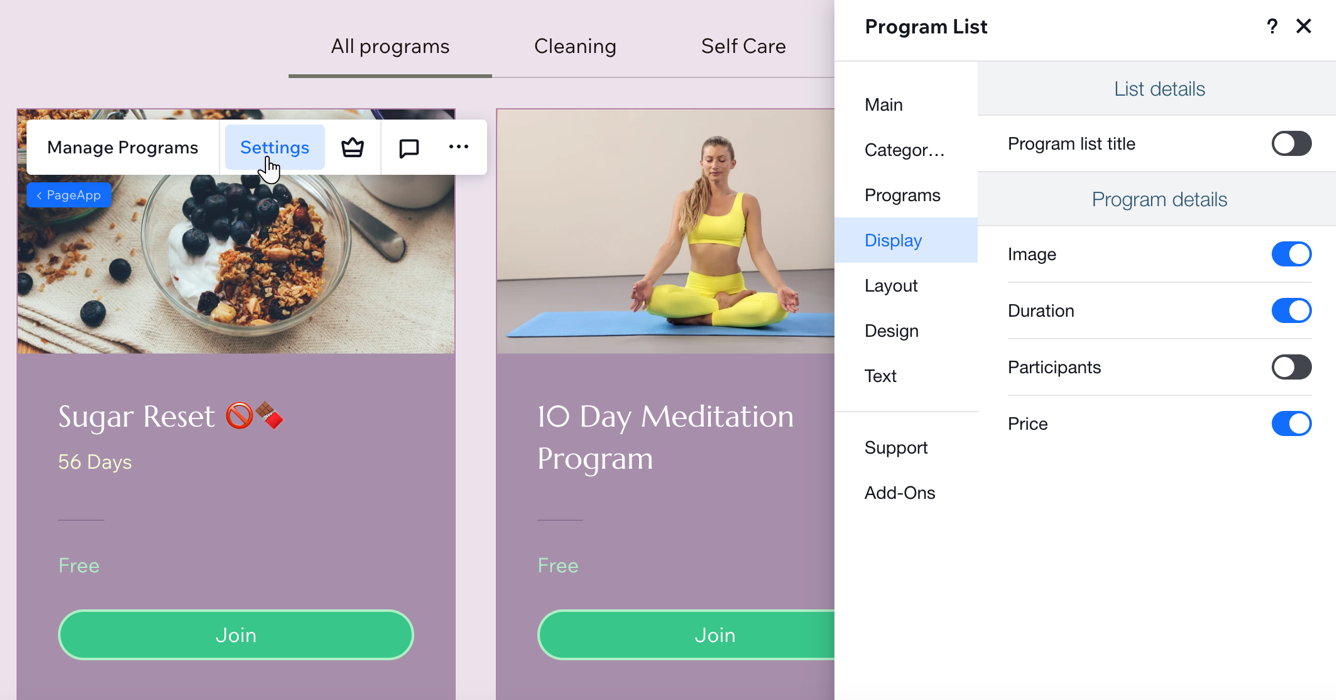
Enable the toggle next to the details you want to show for your program list:
List Details: Show the title on the program list. You can edit the default "Programs" title from the Text tab.
Program Details:
Image: Show the program cover image.
Duration: Show the duration of your program (e.g. 18 days).
Participants: Show the number of participants in the program.
Price: Show the price of each program.
Layout
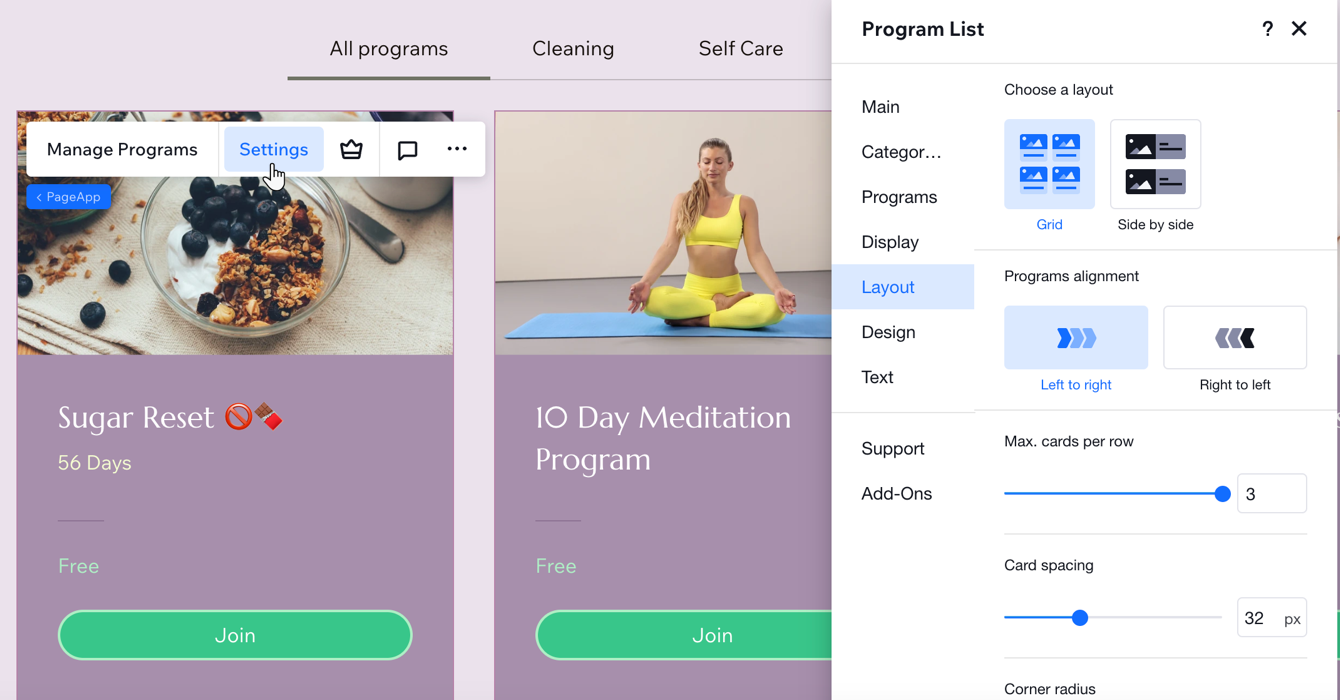
Select between a Grid or Side by side layout:
Grid: Displays your programs in rows and columns.
Side by side: Displays your programs in a vertical stack.
Customize the layout according to your preferences.
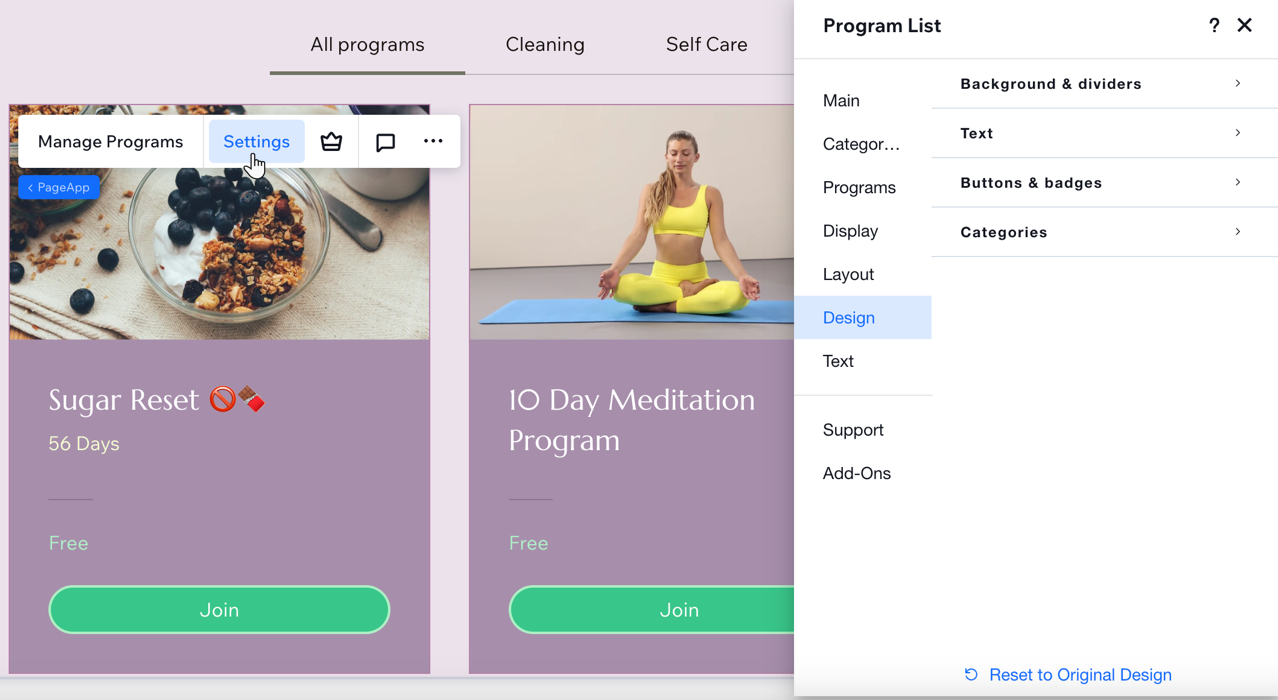
Design
Select elements to design:
Background & dividers: Design the app background and the card background.
Text Style: Style text elements like program name, participants, duration, and price.
Buttons & badges:
Buttons: Adjust the Default and Hover states of your buttons.
Badges: Display the label text you can customize in the Text tab.
Categories: Customize the Default and Selected states for your categories.
Note: Click Reset to Original Design at the bottom of the panel to undo the changes.
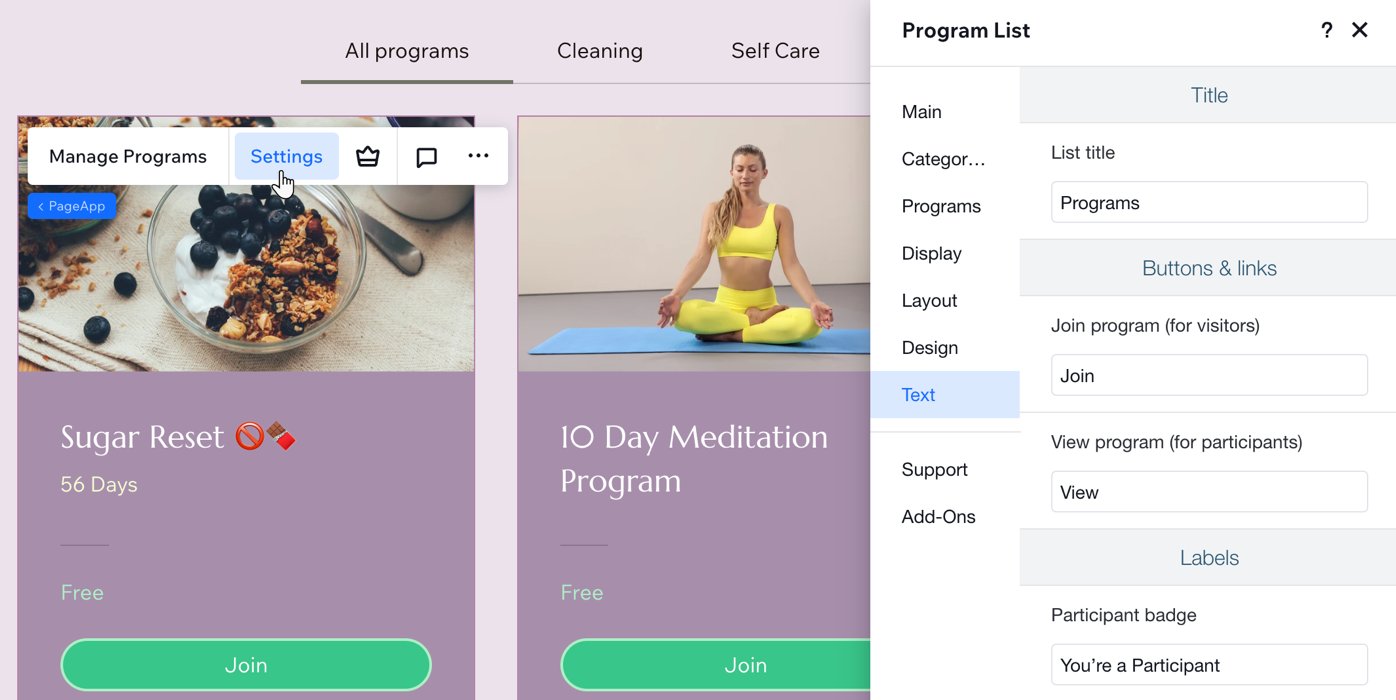
Text
Click the relevant fields to update the text:
List title: Edit the title that displays at the top of the list.
Buttons: Edit the text that displays on buttons.
Labels: Edit the text that displays on labels.
Tip:
Learn more about site colors in the Studio Editor.
Wix Harmony Editor
Click the Page dropdown at the top left of the page.
(In the Site Pages panel) Select the Program List page under Program pages.
Tip: Jump to the page you need by clicking the dropdown next to Site Pages and selecting Program pages.
Click the Program Listelement on your page.
Click the Settings icon

on the action bar.
Customize the Program Listelement using the available tabs:
Categories
Select the categories you want to display on your program list.
Drag and drop the categories in the order you want them to appear.
Note: Can't see the Categories tab? Go to your site's dashboard to create categories and assign them to your programs.
Programs
Select the checkbox next to a program to display it on the list.
Drag and drop programs in the order you want them to appear.
Click Add a Program to create a new program in your site's dashboard.
Display
Enable the toggle next to the details you want to show on the program list:
List Details: Show the title on the program list. You can edit the default "Programs" title from the Text tab.
Program Details:
Image: Show the program cover image.
Duration: Show the duration of your program (e.g. 18 days).
Participants: Show the number of participants in the program.
Price: Show the price of each program.
Layout
Choose between a Grid or Side by side alignment:
Grid: Displays your programs in rows and columns.
Side by side: Displays your programs in a vertical stack.
Customize the layout according to your preferences.
Design
Choose what you want to design:
Background & dividers: Design the app background and the card background.
Text: Style text elements like program name, participants, duration, and price.
Buttons & badges:
Buttons: Adjust the Default and Hover states of your buttons.
Badges: Design the label. You can customize the text in the Text tab.
Categories: Customize the Default and Selected states for your categories.
Note: Click Reset to Original Design at the bottom of the panel to undo the changes.
Text
Click the relevant fields to update the text:
List title: Edit the title that displays at the top of the list.
Buttons: Edit the text that displays on buttons.
Labels: Edit the text that displays on labels.
Tips:
Go to your dashboard to edit the specific settings of each of program.
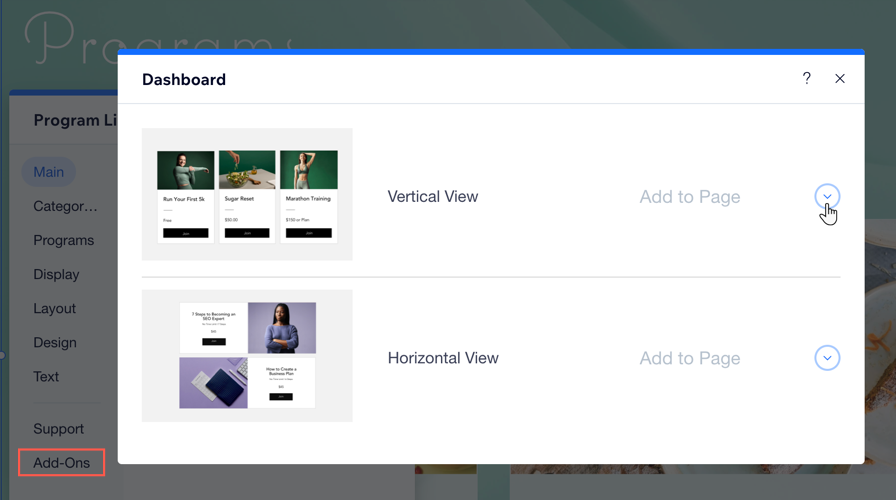
Add your program list to another page in your site by selecting Add-ons.
Customizing your Participant page
The Participant page allows you to display additional information such as the number of participants, group discussions, rewards gained, and steps to complete. These details help provide a more comprehensive and engaging experience for your users.
Wix Editor
Click Pages & Menu
on the left side of the editor.
Click Program Pages.
Click your Participant page.
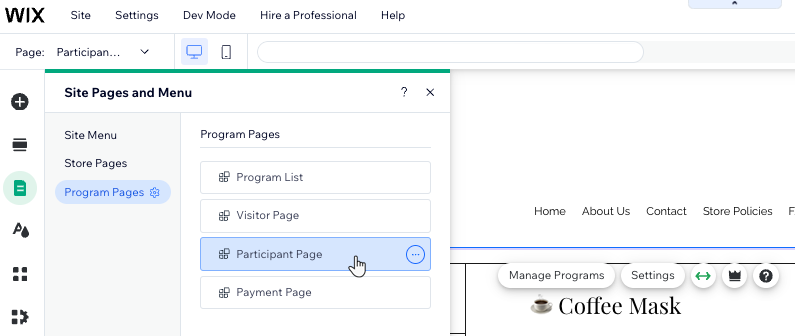
Click the Participant Page element on your page.
Click Settings.
Select the relevant tab:
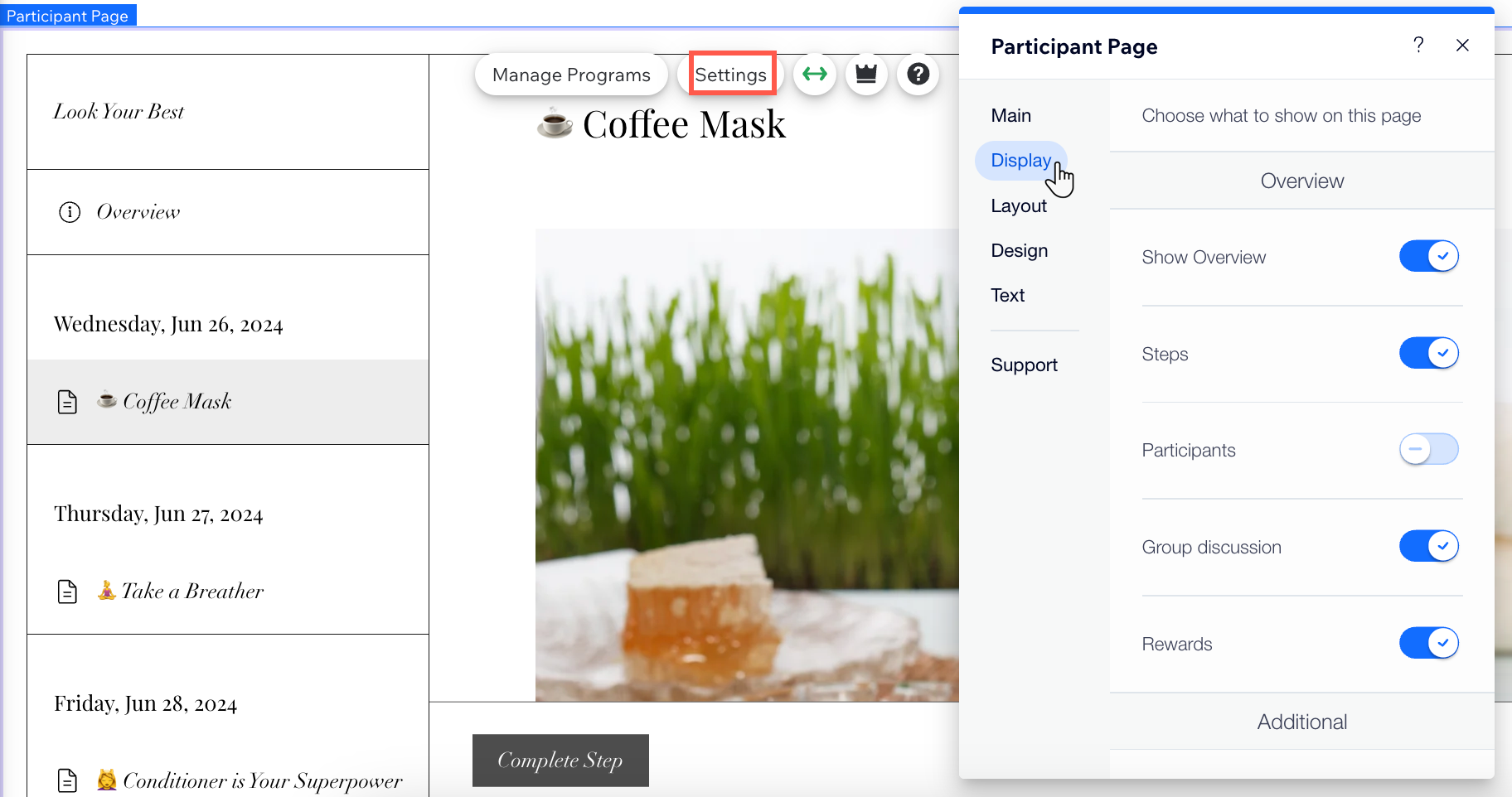
Display
Enable the toggles next to the details you want to show on your Participant Page:
Show Overview: Include an overview of your program's content and steps.
Steps: The number of steps in the program.
Participants: The number of participants in the program.
Note: The number of participants is displayed once there are participants in the program.
Group discussion: The group you connected to the program.
Rewards: Any certificates or badges you've added as program rewards.
Allow social sharing: Allow visitors to share the page on social networks.
Show View on the App: Tell participants they can join programs via the Spaces by Wix app.
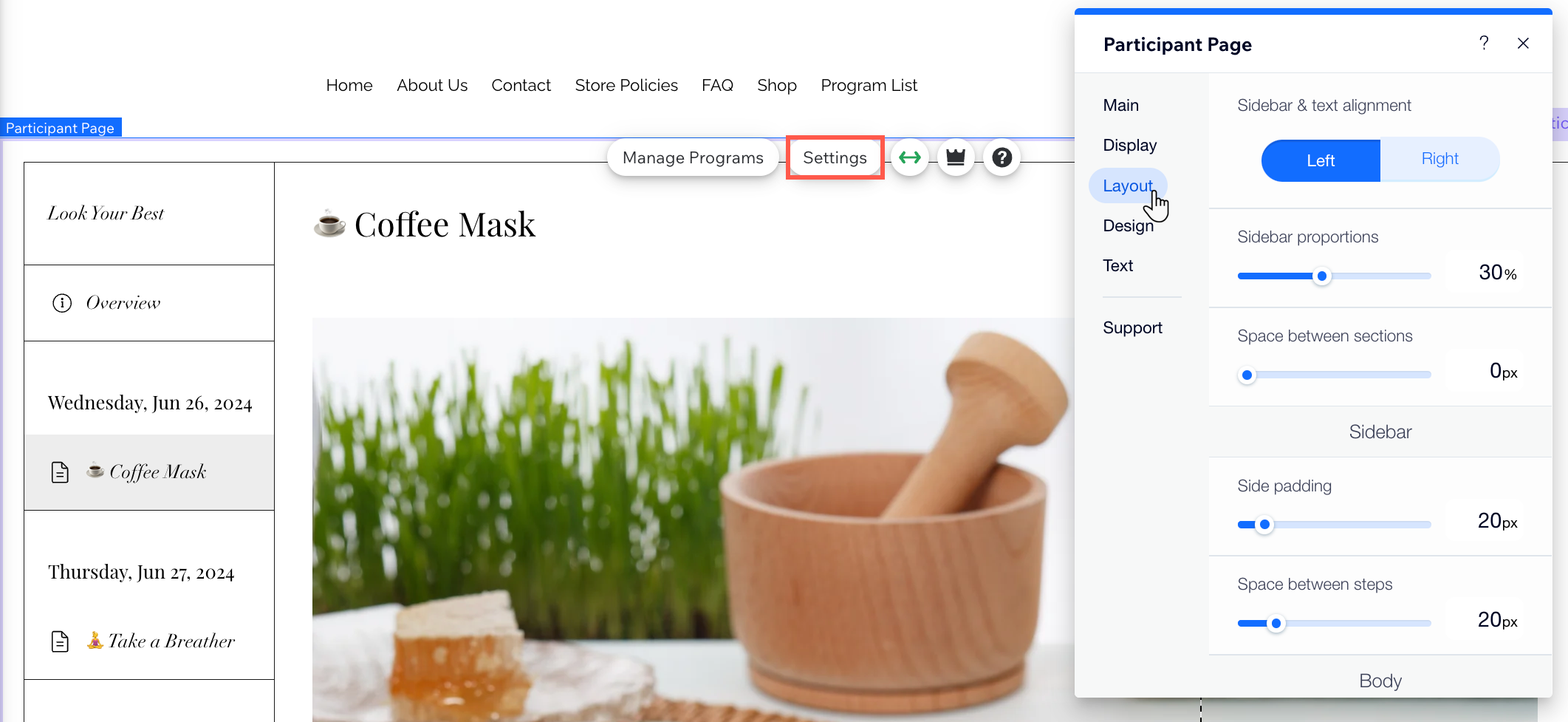
Layout
Choose a layout and customize it based on your preferences: Change the sidebar and text alignment, spaces between sections, and more.
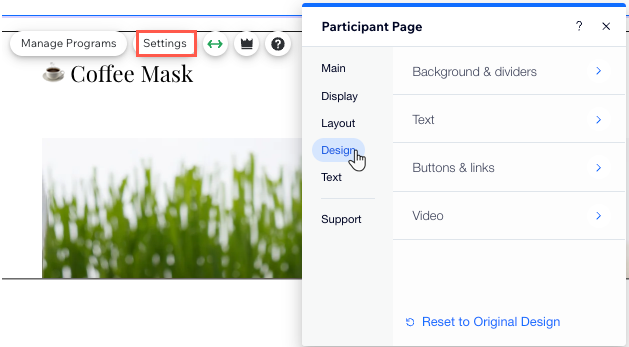
Design
Choose what you want to customize:
Background & dividers: Customize the color and opacity of the page background and the dividers.
Text: Customize the color, font and style of text on the page (e.g. program name, section name, step name).
Buttons & links: Design the buttons that appear on the page. You can create a different look for when people hover over the buttons.
Video: Customize the player appearance for your uploaded videos. Change the overlay opacity and color, and the play icon color.
Tip: Click Reset to Original Design at the bottom of the Design panel to restore the default design settings.
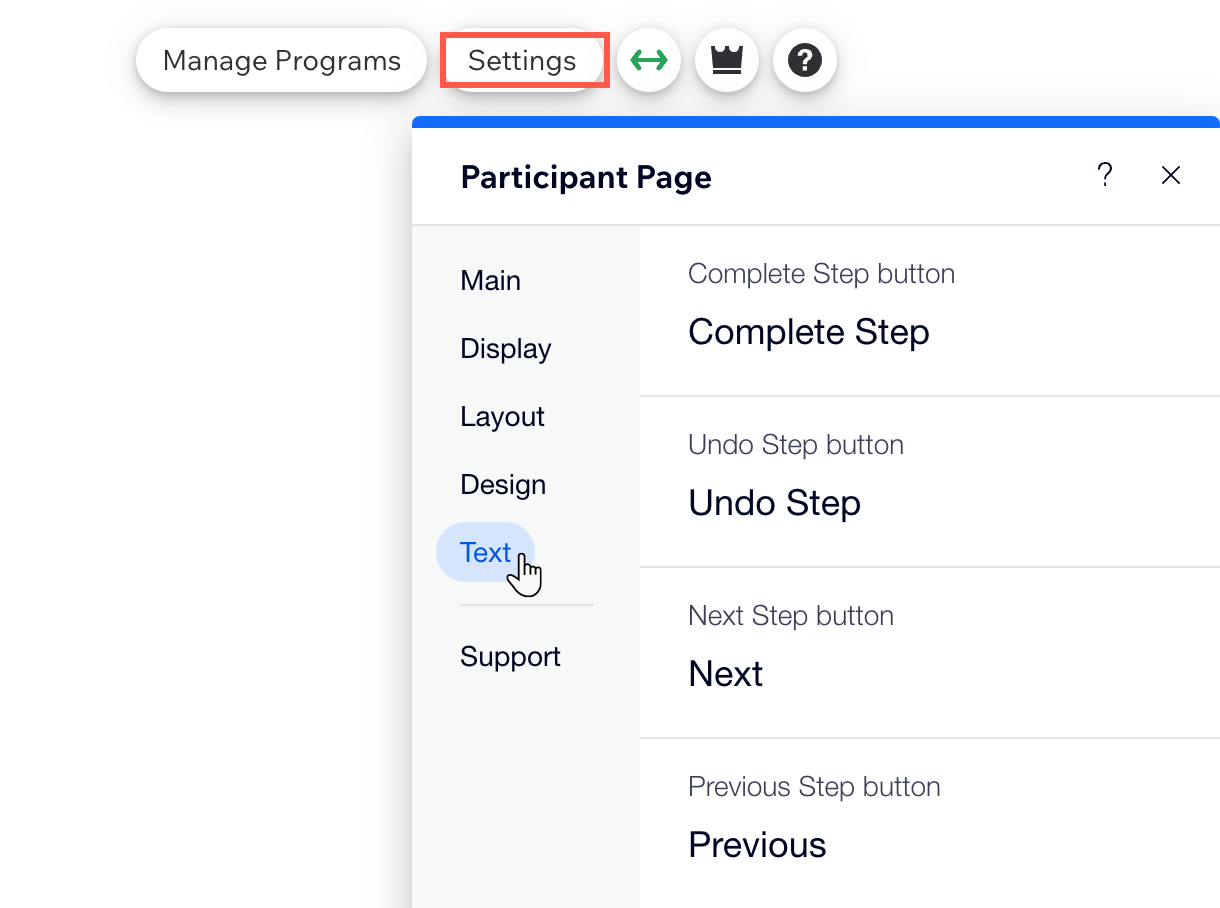
Text
Edit the text of the Complete Step, Undo Step, Next Step and Previous Step buttons.
Studio Editor
Click Pages
on the left side of the editor.
Click your Participant pageunder Program Pages.
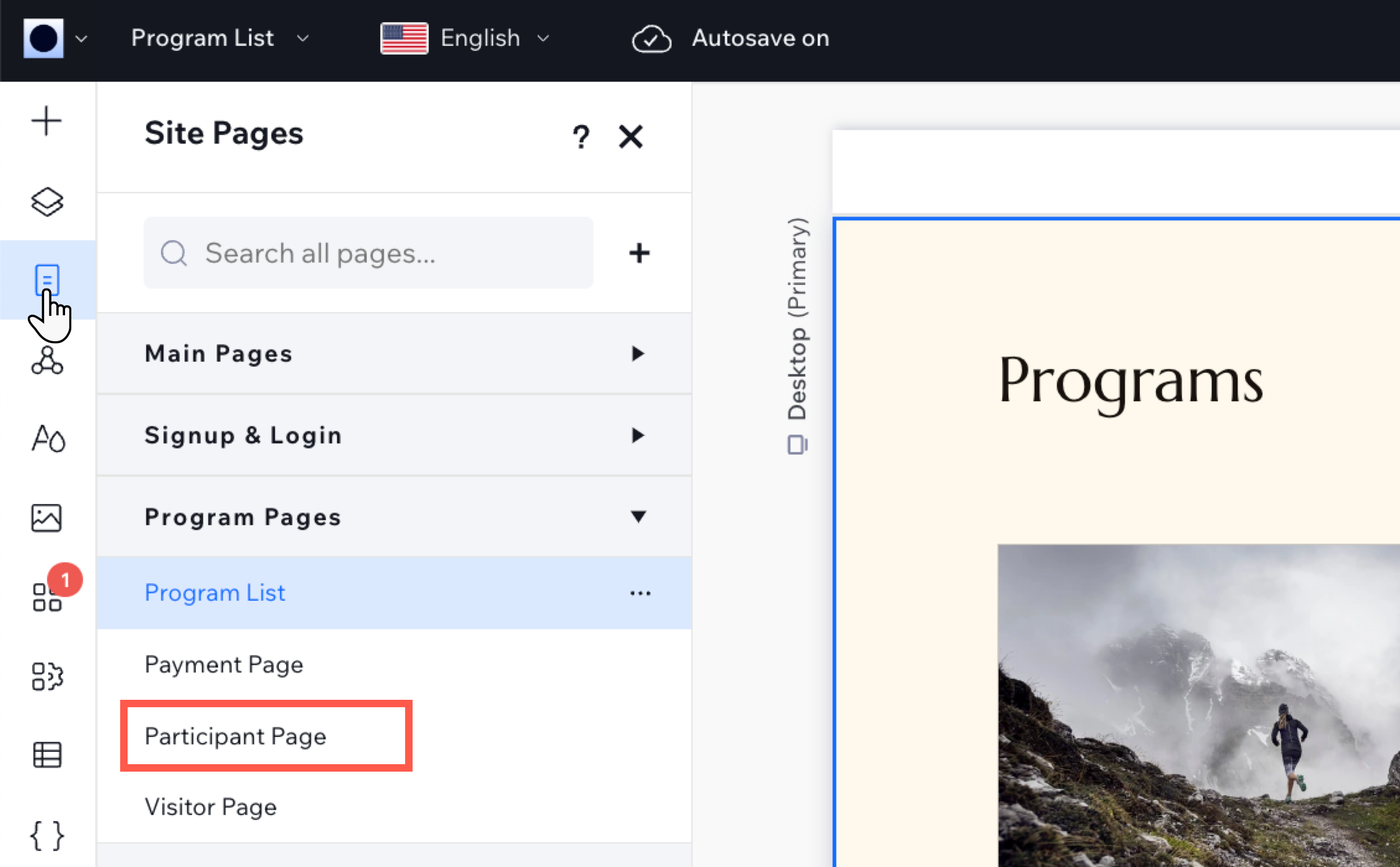
Click the Participant page element on your page.
Click Settings.
Select the relevant tab:
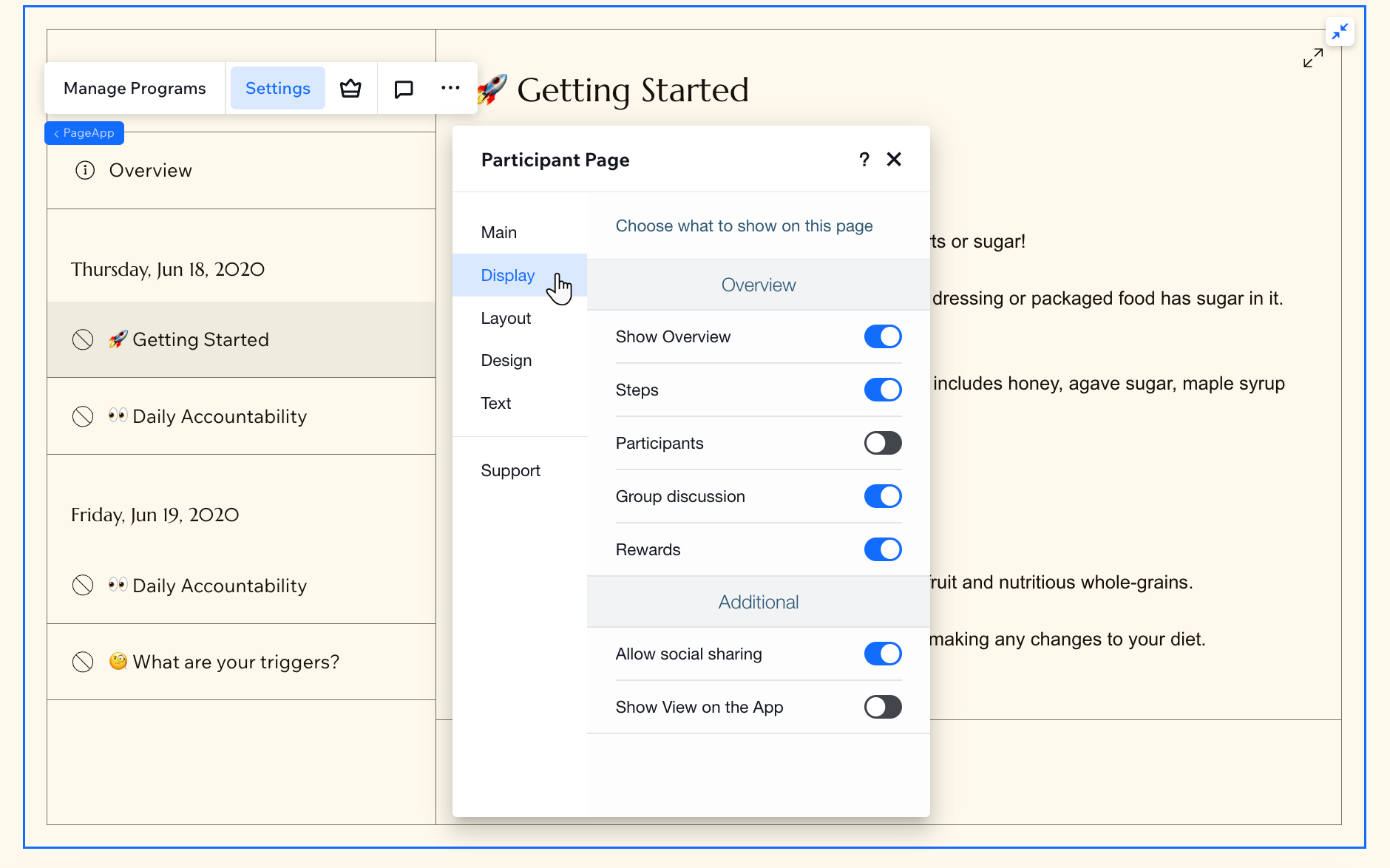
Display
Enable the toggles next to the details you want to show on the page:
Show Overview: Include an overview of your program's content and steps.
Steps: The number of steps in the program.
Participants: The number of participants in the program.
Note: The number of participants is displayed once there are participants in the program.
Group discussion: The group you connected to the program.
Rewards: Any certificates or badges you've added as program rewards.
Allow social sharing: Allow visitors to share the program page on social networks.
Show View on the App: Tell participants they can join programs via the Spaces by Wix app.
Layout
Choose a layout and customize it based on your preferences: Change the sidebar and text alignment, spaces between sections, and more.
Design
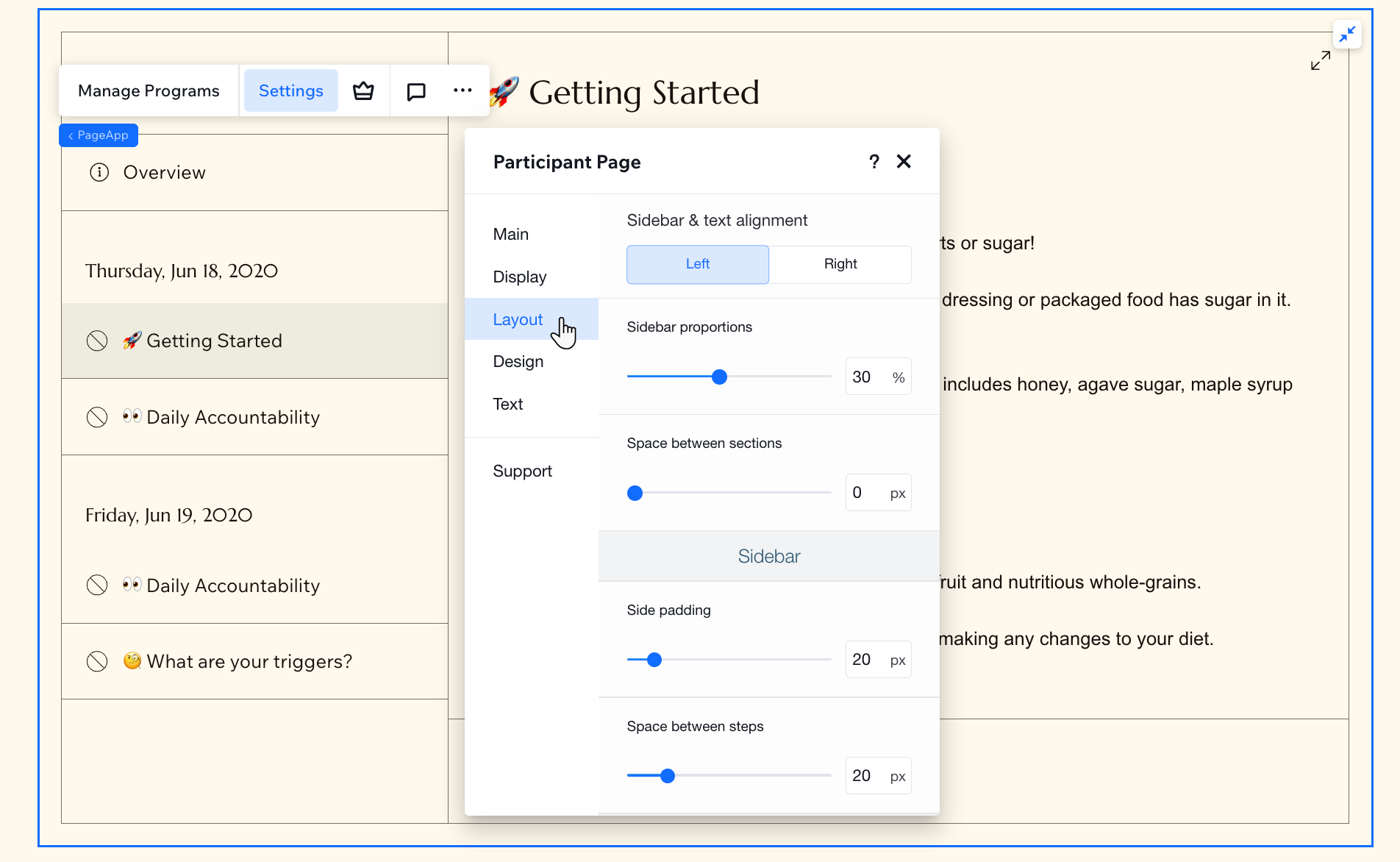
Choose what you want to customize:
Background & dividers: Customize the color and opacity of the page background and the dividers.
Text: Customize the color, font, and style of text on the page (e.g. program name, section name, step name).
Buttons & links: Design the buttons that appear on the page. You can create a different look for when people hover over the buttons.
Video: Customize the player appearance for your uploaded videos. Change the overlay opacity and color, and the play icon color.
Tip: Click Reset to Original Design at the bottom of the Design panel to restore the default design settings.
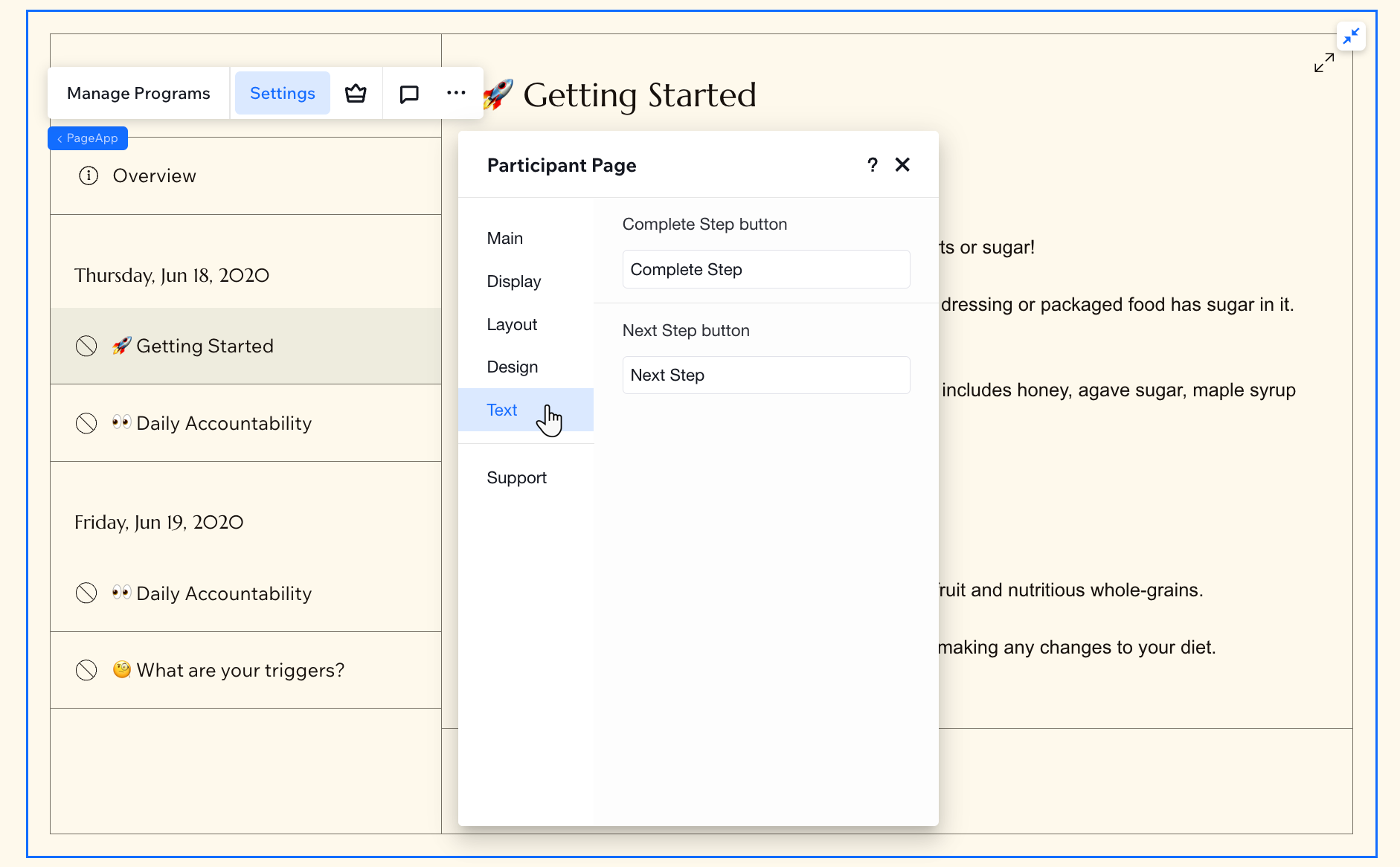
Text
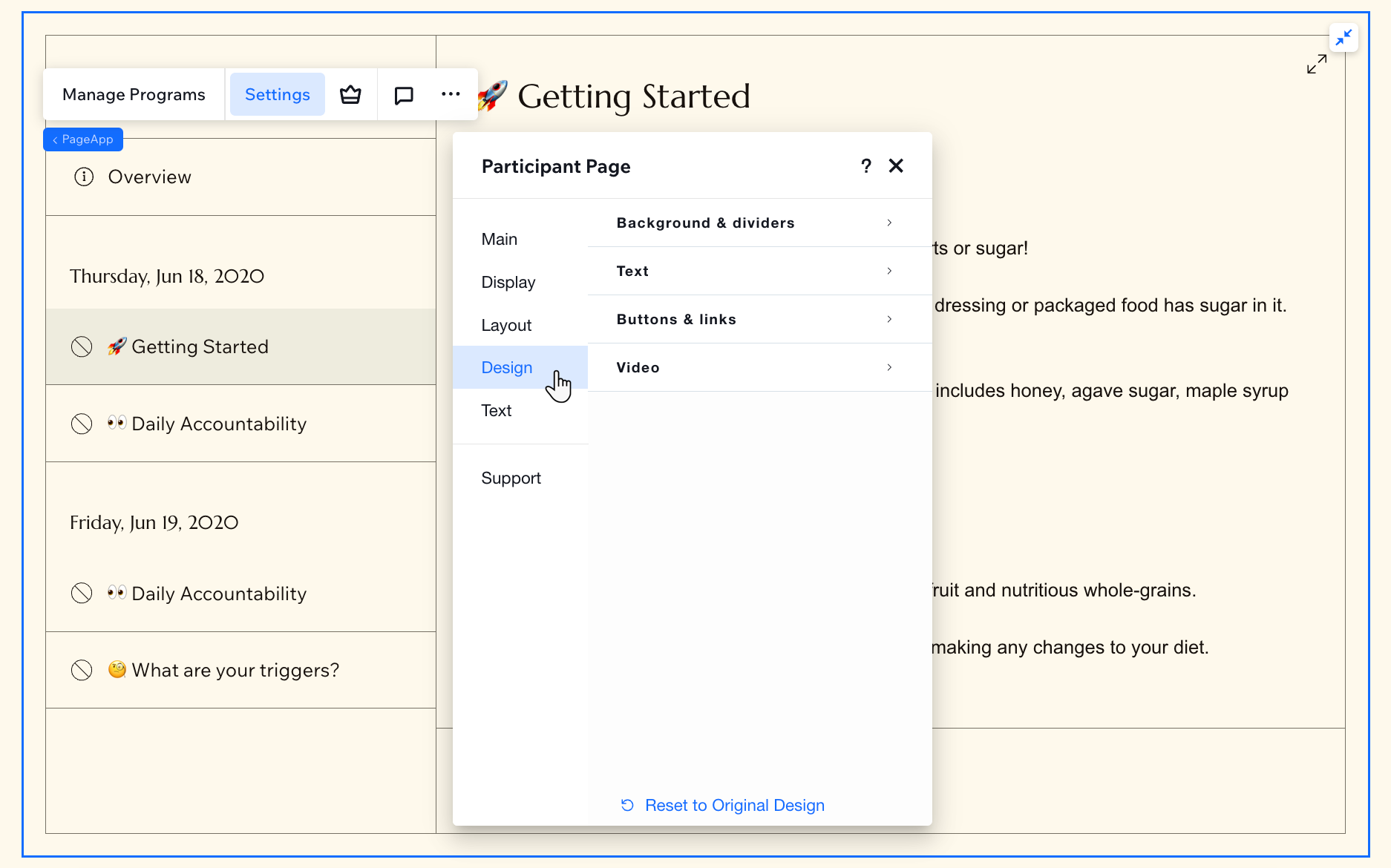
Edit the text of the Complete Step and Next Step buttons.
Tip:
Learn more about site colors in the Studio Editor.
Wix Harmony Editor
Click the Page dropdown at the top left of the page.
(In the Site Pages panel) Select the Participant page under Program pages.
Tip: Jump to the page you need by clicking the dropdown next to Site Pages and selecting Program pages.
Click the Participant Pageelement on your page.
Click the Settings icon
on the action bar.
Customize the Participant pageelement using the available tabs:
Display
Enable the toggles next to the details you want to show on your Participant Page:
Show Overview: Include an overview of your program's content and steps.
Steps: The number of steps in the program.
Participants: The number of participants in the program.
Note: The number of participants is displayed once there are participants in the program.
Group discussion: The group you connected to the program.
Rewards: Any certificates or badges you've added as program rewards.
Instructors: Show the instructors you've assigned to lead the program.
Allow social sharing: Allow visitors to share the page on social networks.
Show View on the App: Tell participants they can join programs via the Spaces by Wix app.
Layout
Choose a layout and customize it based on your preferences: Change the sidebar and text alignment, spaces between sections, and more.
Design
Choose what you want to customize:
Background & dividers: Customize the color and opacity of the page background and the dividers.
Text: Customize the color, font and style of text on the page (e.g. program name, section name, step name).
Buttons & links: Design the buttons that appear on the page. You can create a different look for when people hover over the buttons.
Video: Customize the player appearance for your uploaded videos. Change the overlay opacity and color, and the play icon color.
Tip: Click Reset to Original Design at the bottom of the Design panel to restore the default design settings.
Text
Edit the text of the Complete Step, Undo Step, Next Step and Previous Step buttons.
Customizing your Visitor page
When customizing the Visitor page, you can decide to include information like the content overview or only the first steps of the program. This helps visitors get a quick understanding of the program while keeping them intrigued.
Wix Editor
Click Pages & Menu
on the left side of the editor.
Click Program Pages.
Click Visitor Page.
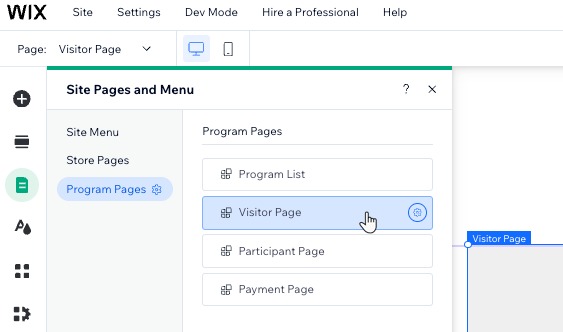
Click the Visitor page element on your page.
Click Settings.
Select the relevant tab:
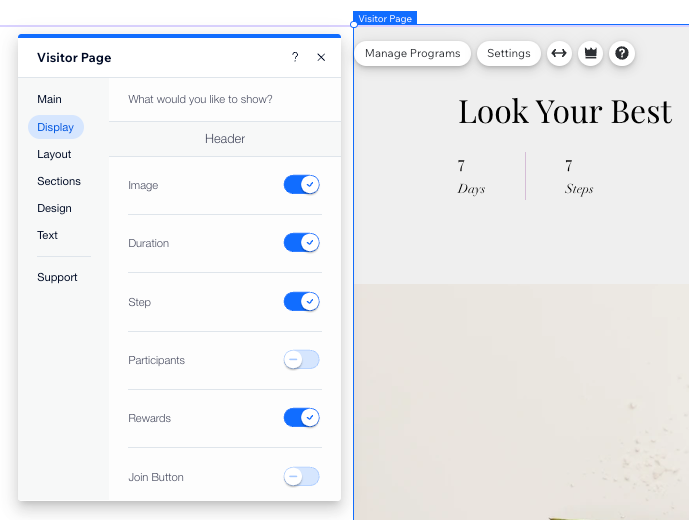
Display
Enable the toggles next to the details you want to show in the Header:
Image: The program cover image.
Duration: The duration of the program (e.g. 18 days).
Step: The number of steps in the program.
Participants: The number of participants in the program.
Note: The number of participants is not displayed on the page if there are no people in the program.
Rewards: The certificates and / or badges people will earn when they complete the program.
Join Button: A button that allows people to join the program.
Tip: By default, an additional "Join" button always appears at the bottom of the page.
Enable the toggles next to the details you want to show in under Program info:
Instructors: Include the name of the program instructor.
Content overview: Include an overview of your program's content and steps.
Price section for free programs: If your program is free of charge, you can show "Free" under "Price" to encourage visitors to join.
Allow social sharing: Allow visitors to share the Program page on social networks.
Join via the App: Include a sentence inviting site visitors to join your program via the Wix member apps.
Layout
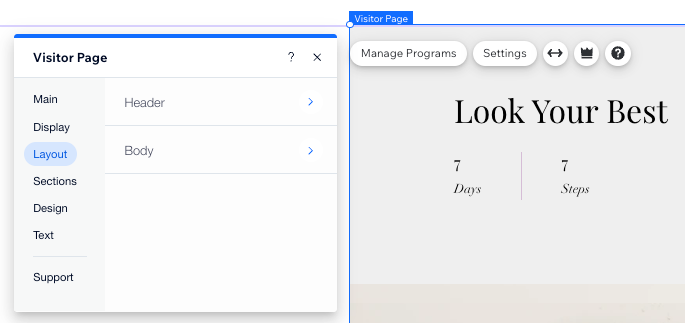
Select what you want to customize:
Header: Choose a single or two-column layout, image position, and adjustments to fit your site design.
Body: Choose a single or two-column layout and adjust it to your preferences.
Sections
The options vary, depending on the layout you selected. Choose what you want to do.
Reorder sections: Drag and drop items on the list to organize them.
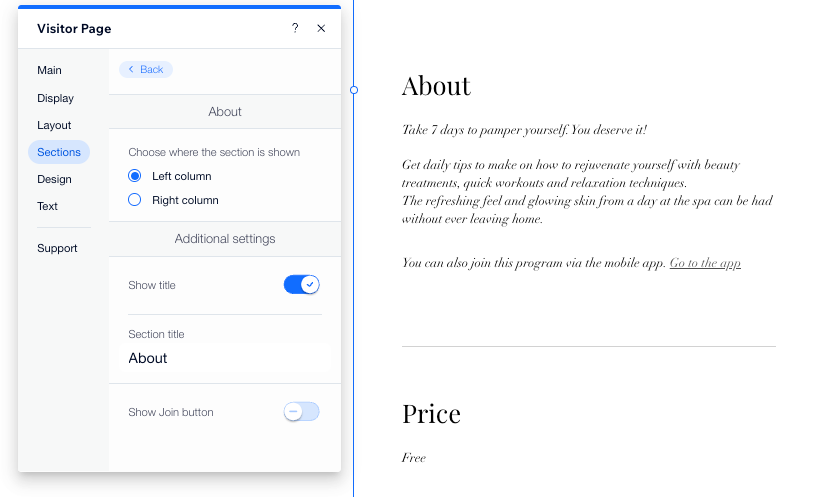
Change display settings: Place your cursor over the section title and click the Arrow icon

.
Choose the column to display the section.
Click the Show title toggle to show or hide it.
Change the section title.
Click the Show join button toggle to show or hide it.
In the Overview section you can also adjust the following settings:
Box padding: Adjust the padding around the information box in your program's overview.
Steps shown: Enter the number of steps you want to display.
Load all steps button: Enter text for the button that prompts users to view all program steps.
In the Instructor section: Adjust the Image shape for your instructor's photo: Square or Round.
If you connected a group to your program, you can edit the Group Discussion section which shows a snippet of the discussion.
Design
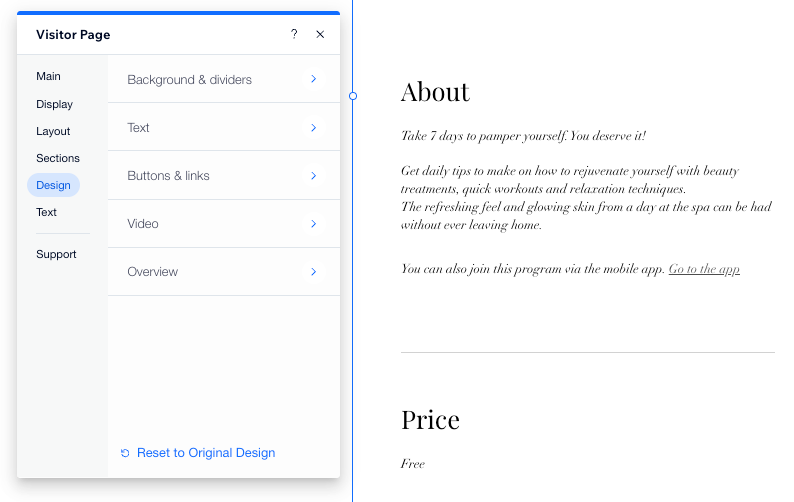
Choose what you want to customize:
Background & dividers: Customize the color and opacity of the page background and the dividers.
Text: Customize the color, font, and style of text on the page (e.g. program name, section name, step name).
Buttons & links: Design the buttons that appear on the page. You can create a different look for when people hover over the buttons.
Video: Customize the player appearance for your uploaded videos. Change the overlay opacity and color, and the play icon color.
Overview: Customize your program's overview section. You can design the background, border, dividers, and text in this section.
Tip: Click Reset to Original Design at the bottom of the Design panel to restore the default design settings.
Text
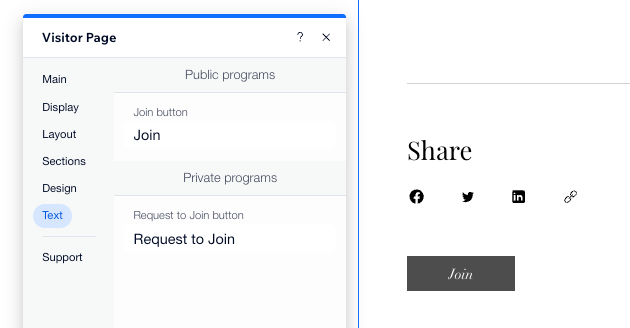
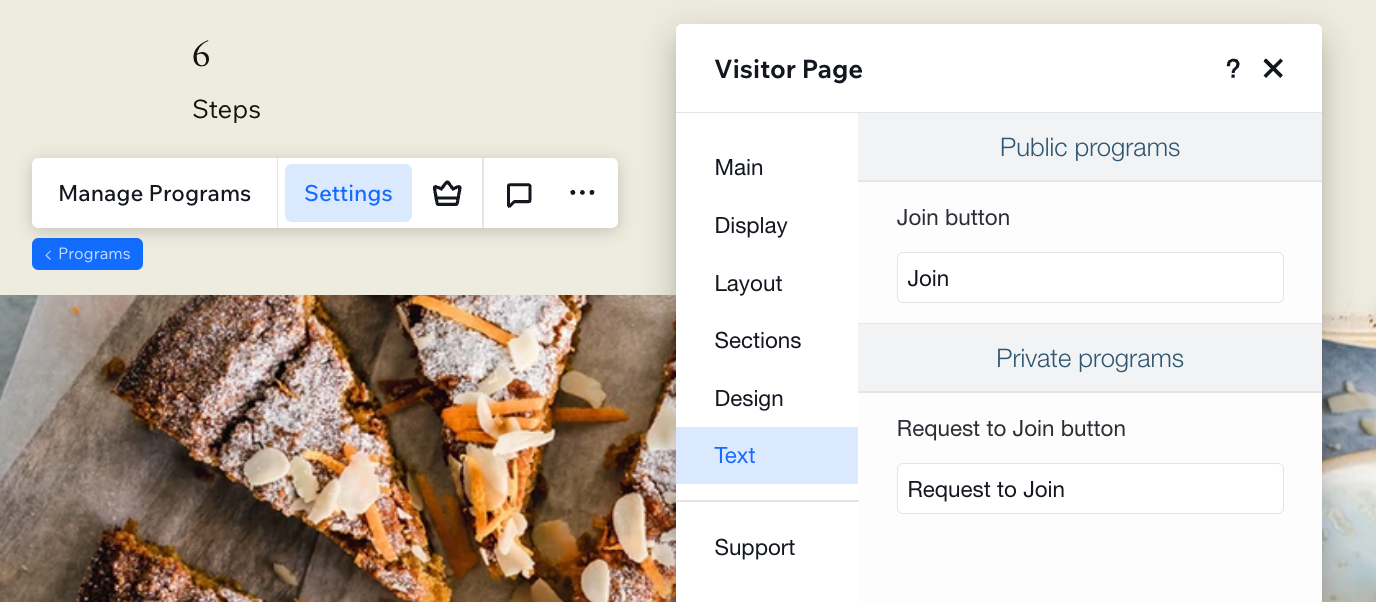
Change the default text for the Join button and the Request to Join button.
Studio Editor
Click Pages
on the left side of the editor.
Click Visitor Page under Program Pages.
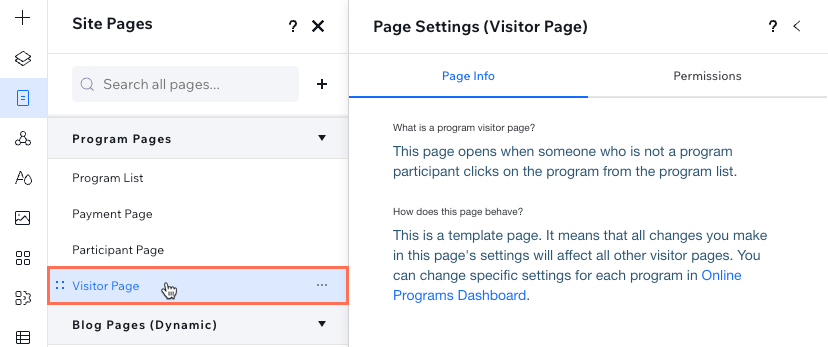
Click the Visitor page element on your page.
Click Settings.
Select the relevant tab:
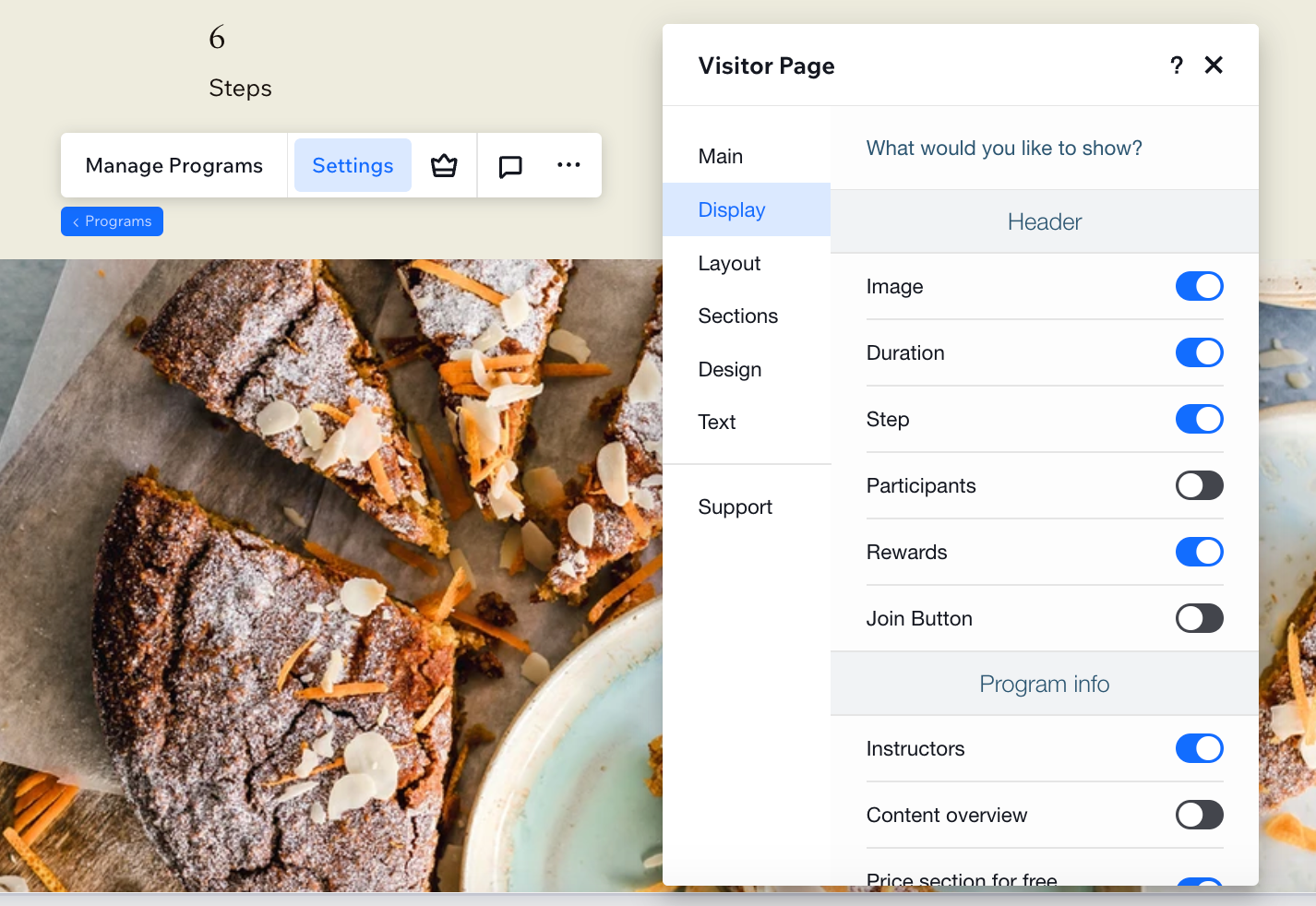
Display
Enable the toggles next to the details you want to show in the Header:
Image: The program cover image.
Duration: The duration of the program (e.g. 18 days).
Step: The number of steps in the program.
Participants: The number of participants in the program. Note: The number of participants is not displayed on the page if there are no people in the program.
Rewards: The certificates and / or badges people will earn when they complete the program.
Join Button: A button that allows people to join the program.
Tip: By default, an additional "Join" button always appears at the bottom of the page.
Enable the toggles next to the details you want to show in under Program info:
Instructors: Include the name of the program instructor.
Content overview: Include an overview of your program's content and steps.
Price section for free programs: If your program is free of charge, you can show "Free" under "Price" to encourage visitors to join.
Allow social sharing: Allow visitors to share the page on social networks.
Join via the App: Include a sentence inviting site visitors to join your program via the Wix member apps.
Layout
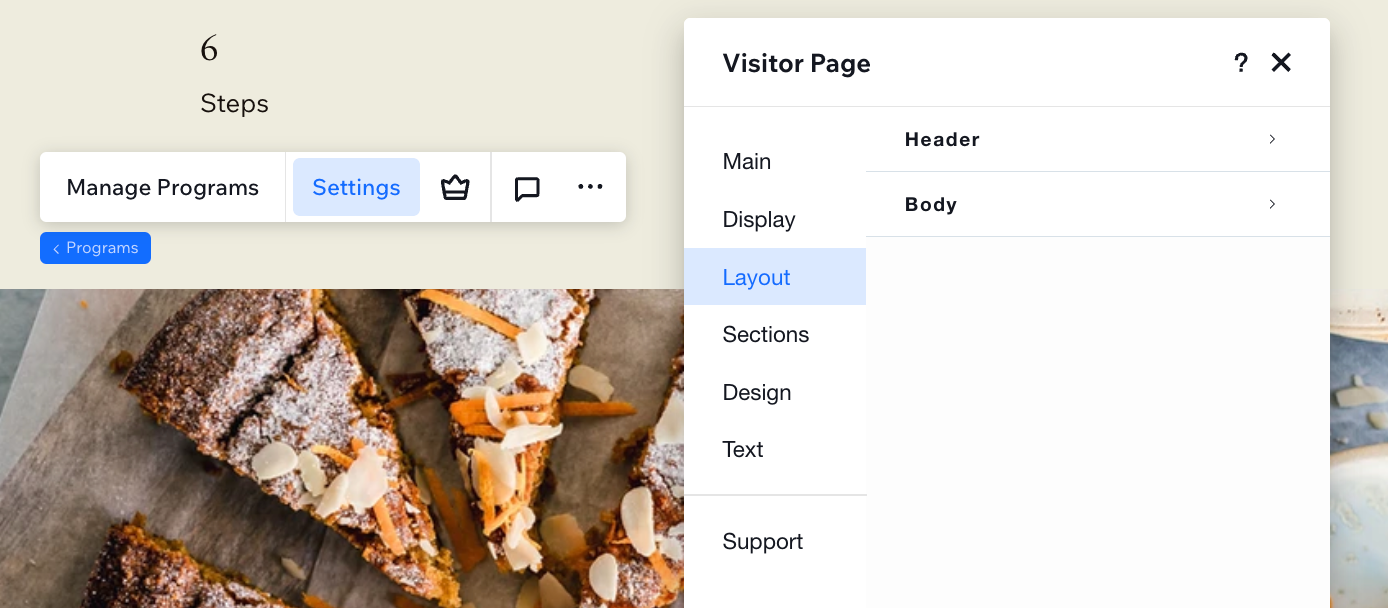
Select what you want to customize:
Header: Choose a single or two-column layout, image position, and adjustments to fit your site design.
Body: Choose a single or two-column layout and adjust it to your preferences.
Sections
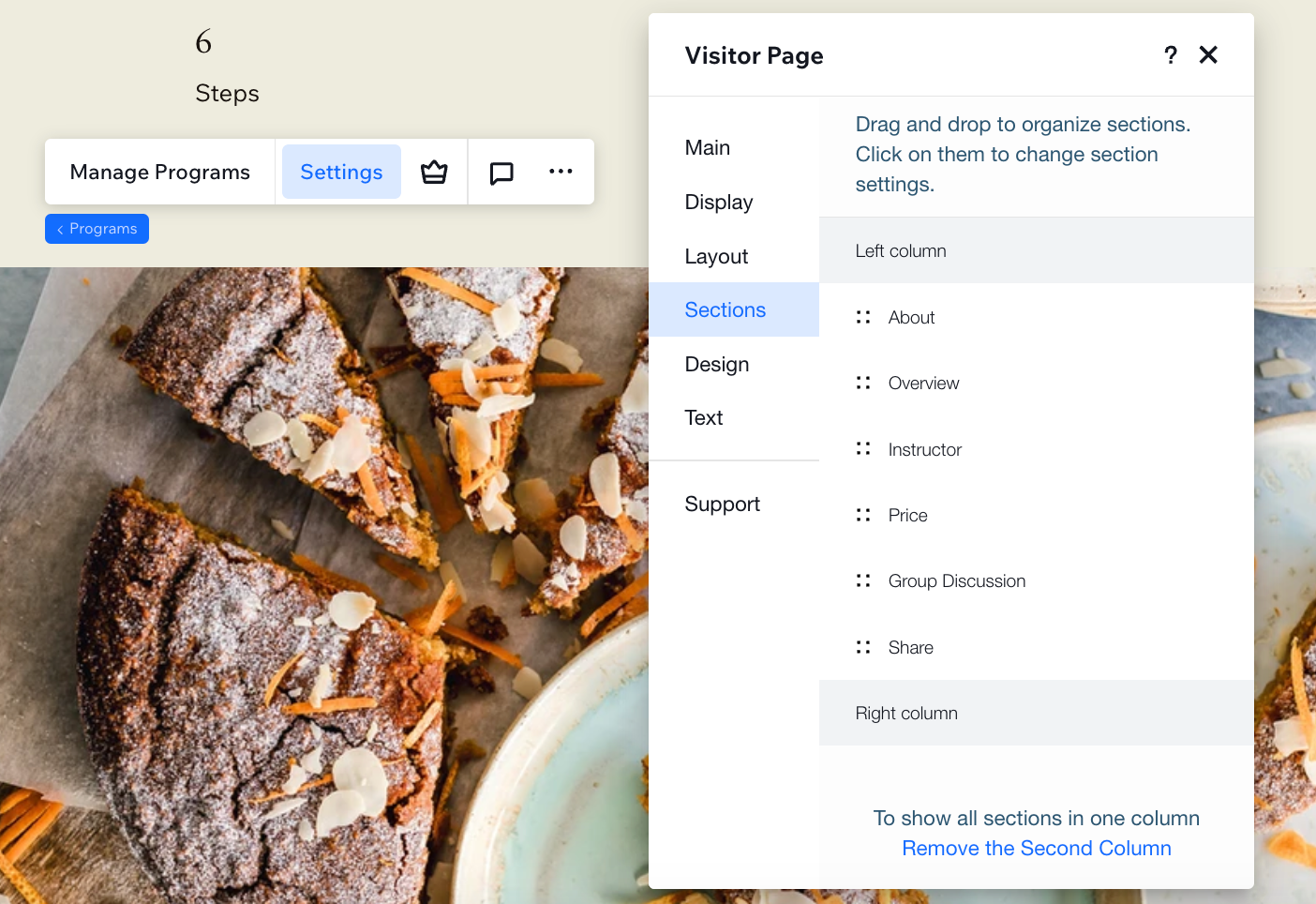
The options vary, depending on the layout you selected. Choose what you want to do.
Reorder sections: Drag and drop items on the list to organize them.
Change display settings: Place your cursor over the section title and click the Arrow icon

:
Choose the column to display the section.
Click the Show title toggle to show or hide it.
Change the section title.
Click the Show join button toggle to show or hide it.
Design
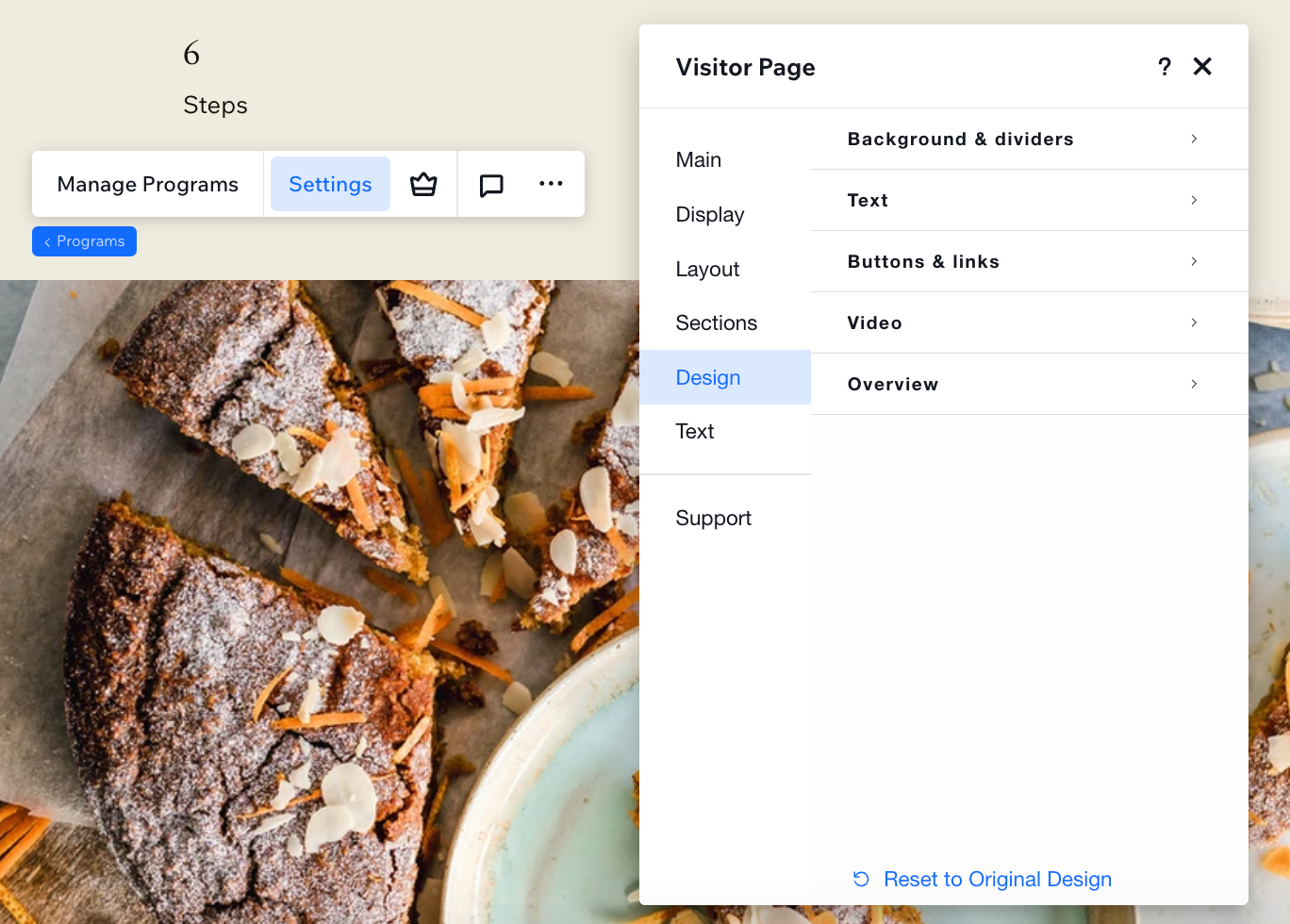
Choose what you want to customize:
Background & dividers: Customize the color and opacity of the page background and the dividers.
Text: Customize the color, font, and style of text on the page (e.g. program name, section name, step name).
Buttons & links: Design the buttons that appear on the page. You can create a different look for when people hover over the buttons.
Video: Customize the player appearance for your uploaded videos. Change the overlay opacity and color, and the play icon color.
Overview: Customize your program's overview section. You can design the background, border, dividers, and text in this section.
Tip: Click Reset to Original Design at the bottom of the Design panel to restore the default design settings.
Text
Change the default text for the Join button and the Request to Join button.
Tip:
Learn more about site colors in the Studio Editor.
Wix Harmony Editor
Click the Page dropdown at the top left of the page.
(In the Site Pages panel) Select the Visitor page under Program pages.
Tip: Jump to the page you need by clicking the dropdown next to Site Pages and selecting Program pages.
Click the Visitor Pageelement on your page.
Click the Settings icon
on the action bar.
Customize the Visitor pageelement using the available tabs:
Display
Enable the toggles next to the details you want to show in the Header:
Image: The program cover image.
Duration: The duration of the program (e.g. 18 days).
Step: The number of steps in the program.
Participants: The number of participants in the program.
Note: The number of participants is not displayed on the page if there are no people in the program.
Rewards: The certificates and / or badges people will earn when they complete the program.
Join Button: A button that allows people to join the program.
Tip: By default, an additional "Join" button always appears at the bottom of the page.
Enable the toggles next to the details you want to show in under Program info:
Instructors: Include the name of the program instructor.
Content overview: Include an overview of your program's content and steps.
Price section for free programs: If your program is free of charge, you can show "Free" under "Price" to encourage visitors to join.
Allow social sharing: Allow visitors to share the Program page on social networks.
Join via the App: Include a sentence inviting site visitors to join your program via the Wix member apps.
Layout
Select what you want to customize:
Header: Choose a single or two-column layout, image position, and adjustments to fit your site design.
Body: Choose a single or two-column layout and adjust it to your preferences.
Sections
The options vary, depending on the layout you selected. Choose what you want to do:
Reorder sections: Drag and drop items on the list to organize them.
Change display settings: Hover over a section title and click the Arrow icon
.
Choose the column to display the section.
Click the Show title toggle to show or hide it.
Change the section title.
Click the Show join button toggle to show or hide it.
In the Overview section you can also adjust the following settings:
Box padding: Adjust the padding around the information box in your program's overview.
Steps shown: Enter the number of steps you want to display.
Load all steps button: Enter text for the button that prompts users to view all program steps.
In the Instructor section: Adjust the Image shape for your instructor's photo: Square or Round.
Tip: If you connected a group to your program, you can edit the Group Discussion section which shows a snippet of the discussion.
Design
Choose what you want to customize:
Background & dividers: Customize the color and opacity of the page background and the dividers.
Text: Customize the color, font, and style of text on the page (e.g. program name, section name, step name).
Buttons & links: Design the buttons that appear on the page. You can create a different look for when people hover over the buttons.
Video: Customize the player appearance for your uploaded videos. Change the overlay opacity and color, and the play icon color.
Overview: Customize your program's overview section. You can design the background, border, dividers, and text in this section.
Tip: Click Reset to Original Design at the bottom of the Design panel to restore the default design settings.
Text
Change the default text for the Join button and the Request to Join button.
FAQs
Click a question below to learn more about customizing your Program pages.
Can I customize the Program pages using the Wix app?
While you can manage many customization aspects using the Wix app, some specific per-page customization features may be limited. For more detailed customization, use the Wix Editor on desktop.
However, you can use the Wix app to customize your mobile apps.
To edit the program details in the Wix app:
Go to your site in the Wix app.
Tap Manage

at the bottom.
Tap Online Programs.
Tap the More Actions icon

next to the relevant program.
Tap Edit.
What are some key details to convey to potential participants?
Ensure potential participants get all the info they need with the following best practices:
Program Overview: Provide a concise summary of what the program entails, including its main objectives and benefits.
Price: Clearly state the cost of the program to avoid any confusion or surprises.
Program Length: Indicate the duration of the program in terms of weeks, months, or total hours, so visitors can gauge the time commitment required.
Instructor Information: Include details about the instructor(s) such as their qualifications, experience, and teaching style to build trust and credibility.
Schedule: Offer a breakdown of the program schedule, like the start date and key milestones.
Can I design each program differently?
No, you cannot customize the settings for each program individually. Any changes made will apply to all programs with a unified design.
How can I link a button directly to a program payment page?
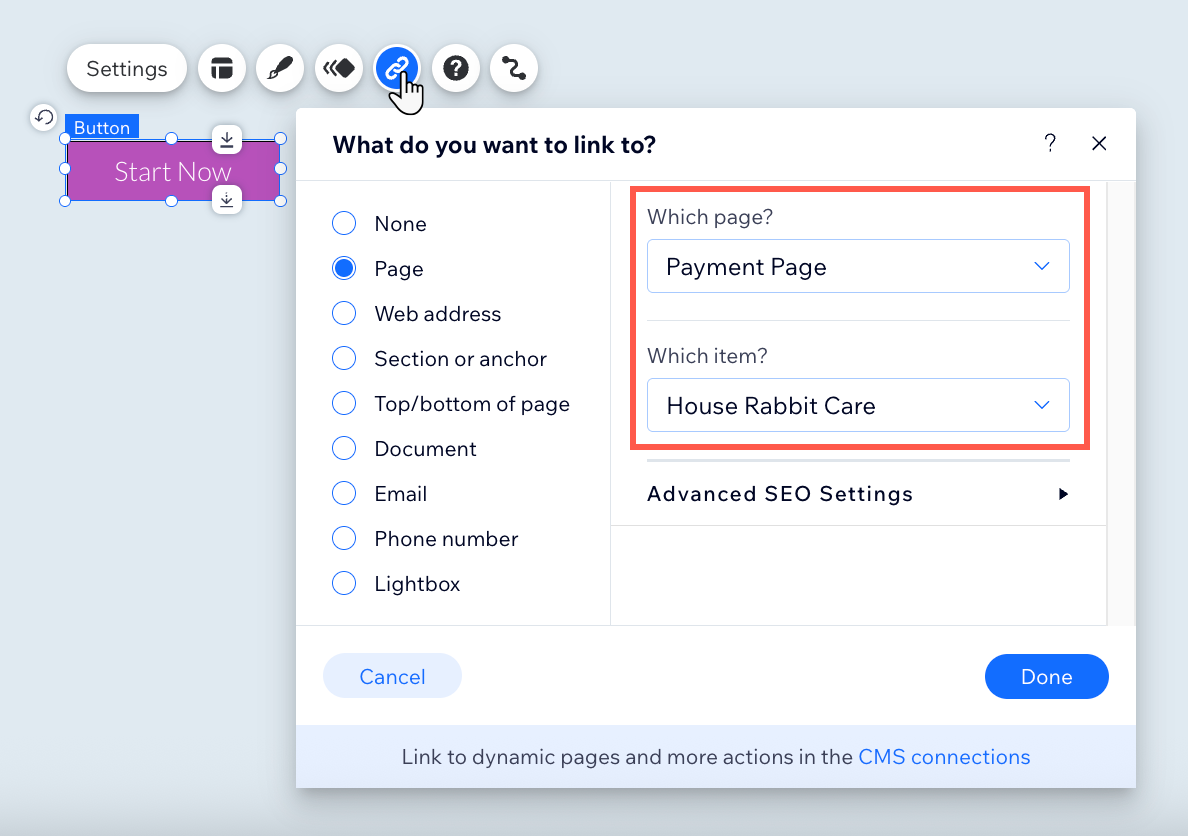
When a program is public and set to 'single payment', you can send site visitors straight to the program’s payment page.
Go to your site's editor.
Click on the relevant button in your editor.
Click Link.
Select Page.
Select Payment Page under Which page?
Select the relevant program under Which item?
Click Done.
Publish your site.
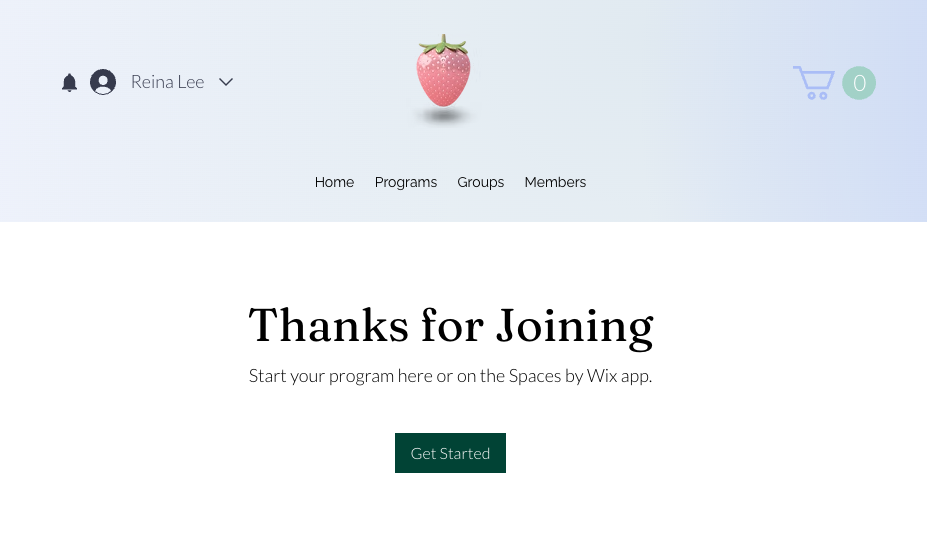
Can I customize the "Thanks for Joining" text that appears once participants purchase a program?
No, it’s not possible to edit the "Thanks for Joining" text or customize the screen that participants see when they purchase a program.
This article is credited to the Wix team - https://support.wix.com/ and we thank them for that!