Wix Online Programs includes a default page where visitors can view and join your program. You can also create a custom landing page on your site that focuses on a single program. A dedicated landing page helps you promote that program more effectively, highlight its benefits, and drive more signups.

Step 1 | Adjust your program settings
Make sure visitors can go straight from your landing page to joining or paying for your program. Your program must be public and either free of charge or paid for with a single payment. For example: you might create a 4-week fitness challenge that people pay for once and then complete at their own pace.

Step 2 | Create a new site page
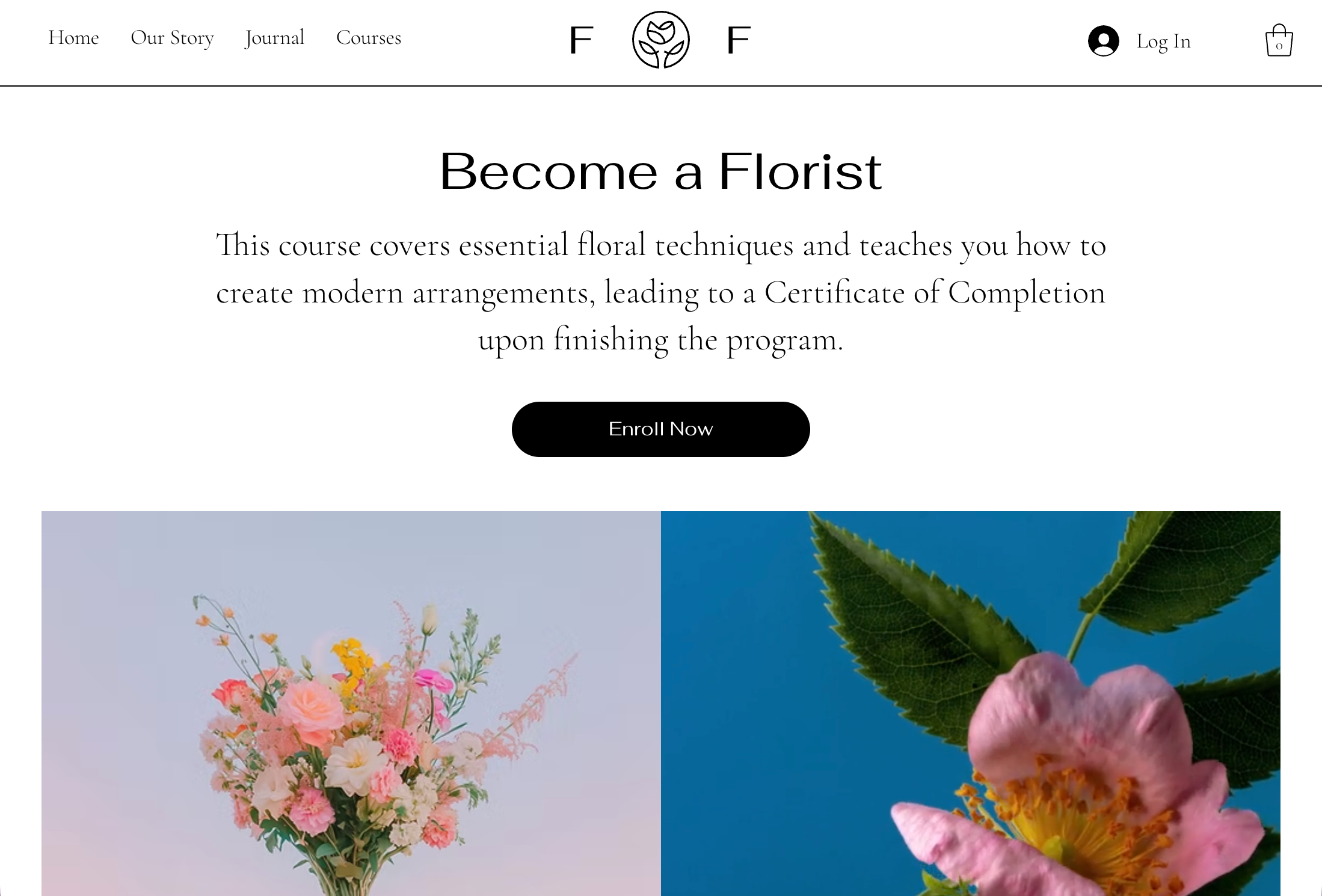
Create a new page to act as your custom landing page. You can design it to match your brand and focus only on 1 specific program, a list of programs, or a mix of both.

Wix Editor
Add a new page to your site and give it a clear name, such as “4‑Week Fitness Challenge” or “Programs.”
Design the page layout to match your goals:
Display a single program: Use text, images, video and call to action buttons to explain who the program is for, what it includes and why it is valuable.
Display a program list: Use repeaters to showcase several programs with consistent cards that you can fully customize.
Create a custom layout: Combine sections, for example highlight one featured program in the first section and add a second section with a list of all your programs.
Add a button that links directly to joining or paying for the program:
Add a button to your landing page.
Click the button, then click the link option.
In the link panel, select the option that links directly to your program’s checkout or join page.
Update the button text to match the action, for example “Join program” or “Enroll now.”
Apply your changes and position the button where you want it on the page.
Studio Editor
Add a new page to your site and give it a clear name, such as “4‑Week Fitness Challenge” or “Programs.”
Design the page layout to match your goals:
Display a single program: Use text, images, video and call to action buttons to explain who the program is for, what it includes and why it is valuable.
Display a program list: Use repeaters to showcase several programs with consistent cards that you can fully customize.
Create a custom layout: Combine sections, for example highlight one featured program in the first section and add a second section with a list of all your programs.
Add a button that links directly to joining or paying for the program:
Add a button to your landing page.
Click the button, then click the link option.
In the link panel, select the option that links directly to your program’s checkout or join page.
Update the button text to match the action, for example “Join program” or “Enroll now.”
Apply your changes and position the button where you want it on the page.
Wix Harmony Editor
Add a new page to your site and give it a clear name, such as “4‑Week Fitness Challenge” or “Programs.”
Design the page layout to match your goals:
Display a single program: Use text, images, video and call to action buttons to explain who the program is for, what it includes and why it is valuable.
Display a program list: Use repeaters to showcase several programs with consistent cards that you can fully customize.
Create a custom layout: Combine sections, for example highlight one featured program in the first section and add a second section with a list of all your programs.
Add a button that links directly to joining or paying for the program:
Add a button to your landing page.
Click the button, then click the link option.
In the link panel, select the option that links directly to your program’s checkout or join page.
Update the button text to match the action, for example “Join program” or “Enroll now.”
Apply your changes and position the button where you want it on the page.
Tip:
If you prefer to keep everything on one page, you can create a dedicated section for your program on an existing page instead of adding a new page. Add your content and buttons in that section and link them to the program’s checkout or join page in the same way.
(Optional) Step 3 | Update your site menu
Update your site menu so visitors go to your custom landing page rather than the default program pages. Hide the default program pages from your site menu and add your new page instead.
Wix Editor
Click Pages & Menu

on the left side of the editor.
Studio Editor
Click Pages

on the left side of the editor.
Wix Harmony Editor
Click the menu.
Click Manage Menu on the action bar.
FAQs
Click a question below to learn more.
Can I create a custom page on my member app?
Yes. You can create a custom page on your member app and add Online Programs widgets.
Online Programs widgets help members discover and access your programs more quickly in your mobile app. Depending on the app you're using, you can customize settings like the widget title, placement, and device visibility in Android and iOS.
How can I optimize my program's landing page?
When designing your landing page, it is important to keep the below points in mind:
If you want this page to be the first page that people see when they access your site URL, you need to set it as your homepage.
If you are not ready for visitors to view your whole site, you can also prevent search engines from finding your site.
You can build awareness and excitement for your site or brand by linking the landing page in an email marketing campaign.
What should I consider if I set my landing page to not display the header or footer?
If you have set your landing page to not display the header or footer, you should also keep these points in mind:
It does not have a menu. If you want your visitors to be able to navigate to the rest of your site, make sure to link a button to your site's main page.
It does not display elements set to "show on all pages".
Certain apps might not appear on your page.
How can I learn about landing pages best practices?
Want to learn more about landing pages? The Wix blog has information on how landing pages can help you achieve your goals.
Will the 'Join Program' button text change automatically after someone joins the program?
No. The button text stays the same for everyone and does not update based on whether someone has already joined the program.
If a participant who already bought the program clicks the button while logged in, they are taken to the Participant page instead of being asked to pay again. To avoid confusion, choose button text that works for both new and returning participants, like "Enroll Now" or "Access Course".
This article is credited to the Wix team - https://support.wix.com/ and we thank them for that!