After you've created an album, track or playlist, you can add more tracks as necessary and manage them directly from your music library. This helps you keep your site engaging and up-to-date with fresh music and the latest podcast episodes.
Adding tracks to an album, single, or playlist
Add a track to your pre-existing albums, singles or playlists, by uploading it to your music library. You can upload a track from a number of locations, including your Wix account, Dropbox, and Google Drive.
To add a track:
Go to Music Library in your site's dashboard.
Click the album, single or playlist to which you want to add the track.
Hover over + Add Tracksand select an option:
Upload New Tracks: Select a track from your computer and click Open.
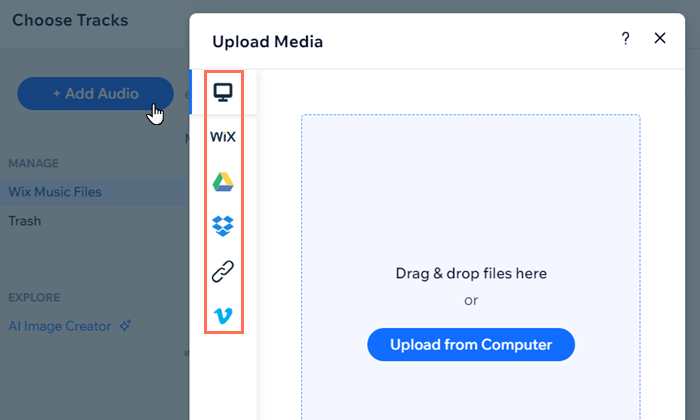
Select Tracks: Select existing files to add or click + Add Audio and upload from your computer, Wix account, Google Drive, Vimeo, or by entering the URL of a file.
Click Add Tracks.
Editing track information
Manage the tracks in your music library by editing what information and options are available to your listeners.
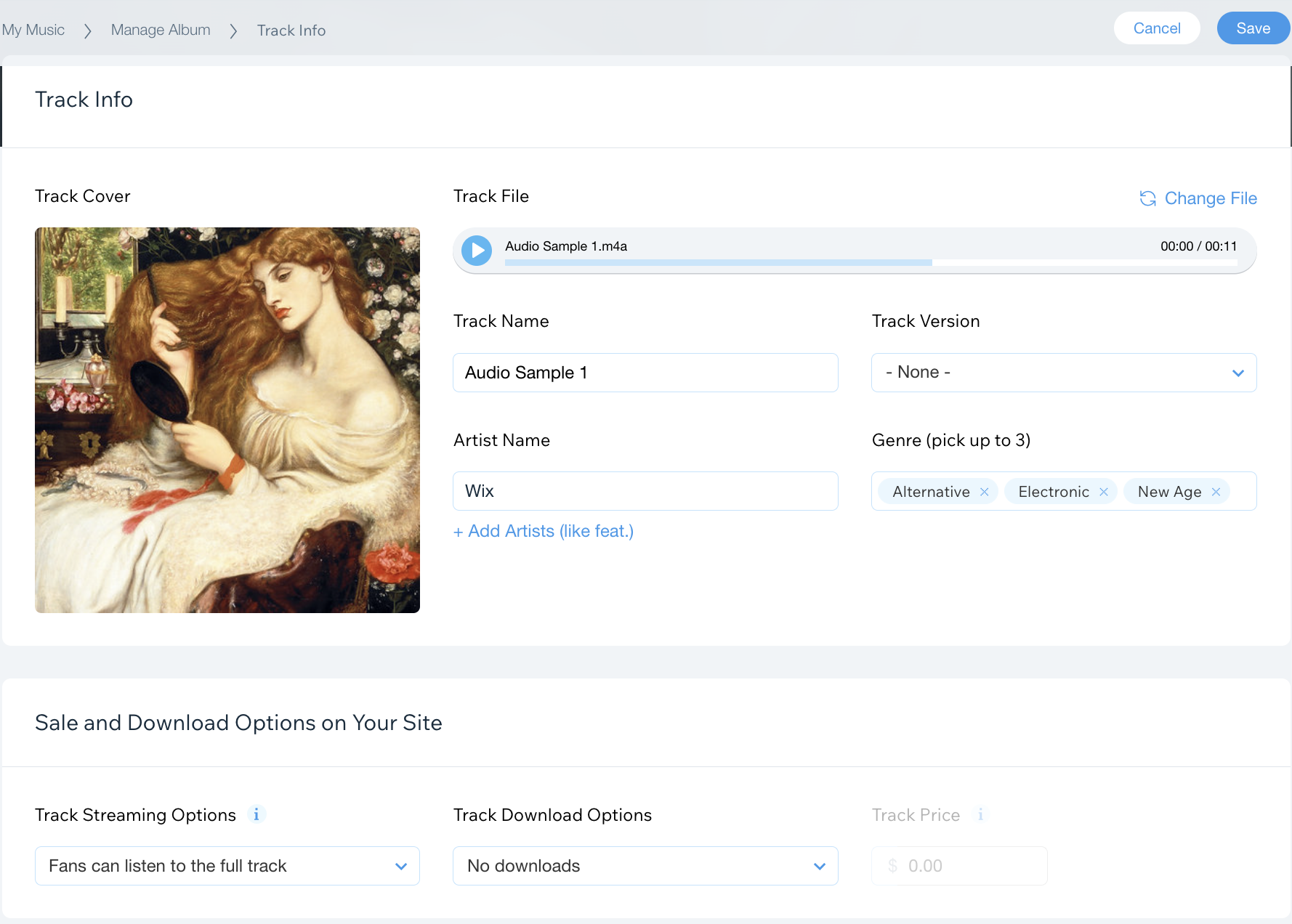
You can manage key features of your track, such as the name, genre, the download and streaming options, and other information you may want to add.
To edit track information and content:
Go to Music Library in your site's dashboard.
Click the relevant album, single or playlist.
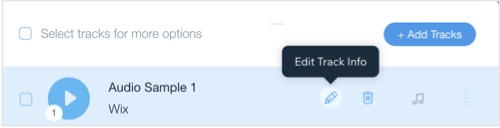
Hover over the track and click the Edit Track Info icon

.
Customize your track using the following options:
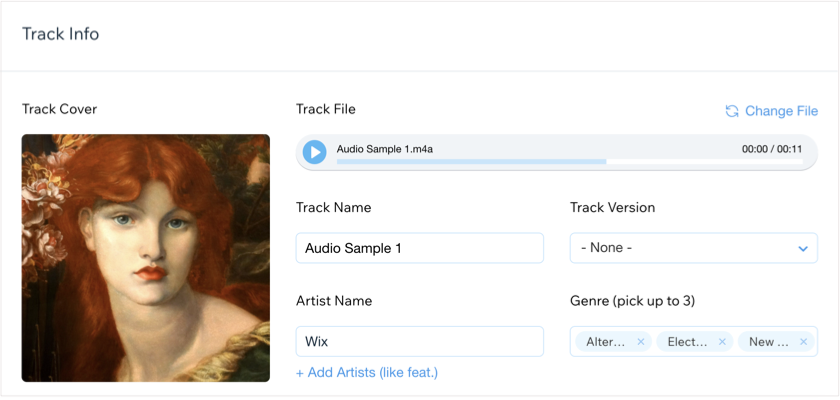
Track Info
Tailor how you present your track info using the following options:
Track Cover: Hover over the track cover image and click Change Image. Choose an image from your Wix files, Media from Wix, Shutterstock, or Unsplash. You can also upload media from your computer. Then click Add to Page.
Track Name: Enter the name of the track.
Track Version: Click the drop-down menu and select a version.
Artist Name: Enter the name of the track artist. You can choose to add another artist if there is more than one listed by clicking + Add Artist.
Genre (pick up to 3): Click the field and select the genre of your track.
Change File: Click Change File next to Track File and replace the track witha different one from your Wix library or upload your own audio file. Then click Add Track.
Sale and Download Options on Your Site
Set the sale and download options for your site, including whether your music is free to download or incurs a fee:
Track Streaming Options: Choose to allow fans to listen to the full track, or a 30 second preview.
Track Download Options: Click the drop-down menu and select an option.
Track Price / Min. Track Price: Enter the price you want to sell your track at. (This option is only available if you select Sell for a fixed price or Let fans name their price as your track download option.)

Tip: Want to offer your tracks in a different currency? Learn how to change your currency in Wix Music.
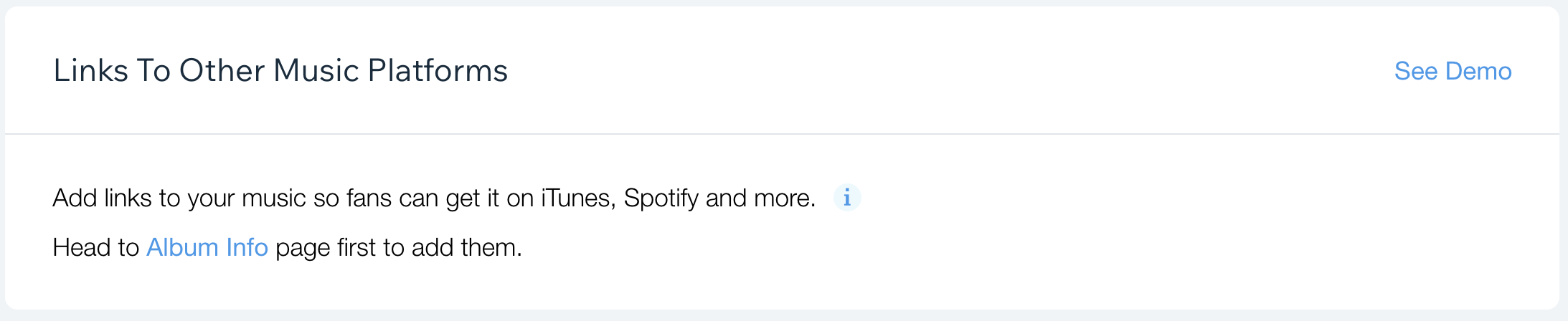
Links to Other Music Platforms
Add links to your music so fans can access it on other streaming platforms like iTunes, Spotify and more.
To add links:
Enable the toggle to allow listeners to view links to your music.
Click the drop-down and select a platform. Then paste the track link.
Click + Add link to add more music platforms.
Note: To add links to music platforms for tracks in an album, you must enable the Links To Other Music Platforms toggle in Album Info and then add the link(s) to other music platforms there.
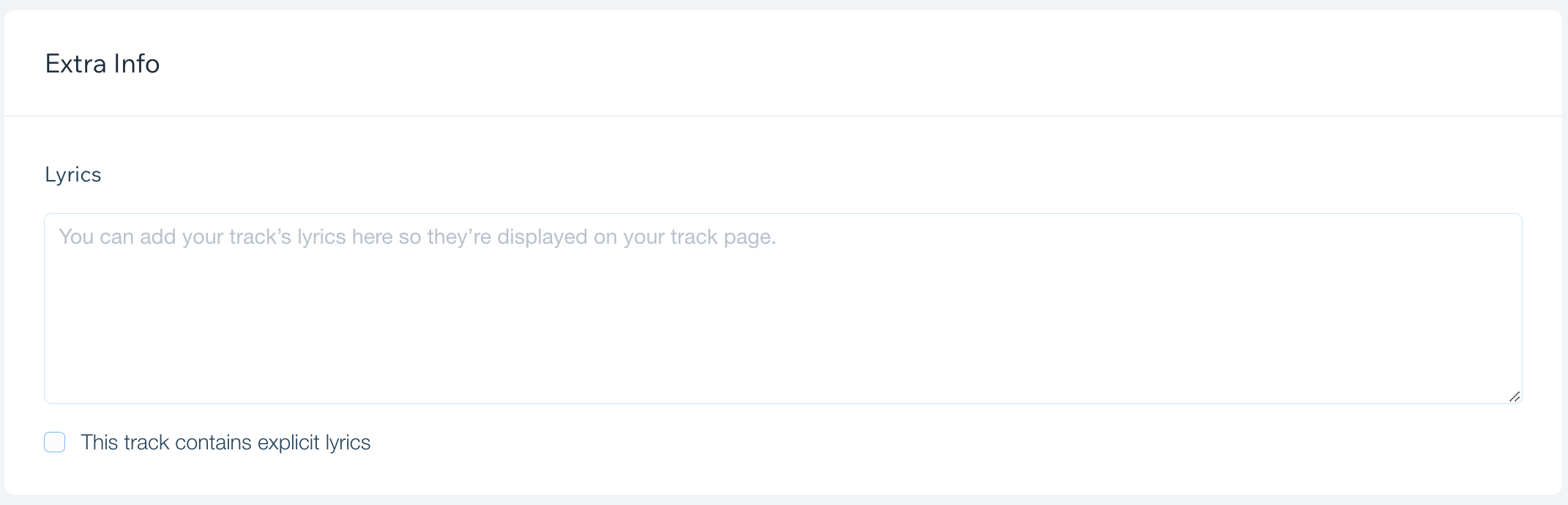
Extra Info
Add extra information to your track about its lyrics:
Lyrics: Add lyrics to your tracks which display on your track page.
This track contains explicit lyrics: Select the checkbox to let your listeners know that the track is explicit.
4. Click Save in the top right corner.
Deleting tracks
You can delete a single track or multiple tracks from at once in Wix Music.
Note:
Deleting tracks from Wix Music does not delete the files from your Music Media Manager. Learn how to permanently delete music files from your site in the next section.
To delete track(s):
Go to Music Library in your site's dashboard.
Click the relevant album, single or playlist.
Depending on how many tracks you want to delete, follow the relevant instructions below:
To delete a single track:
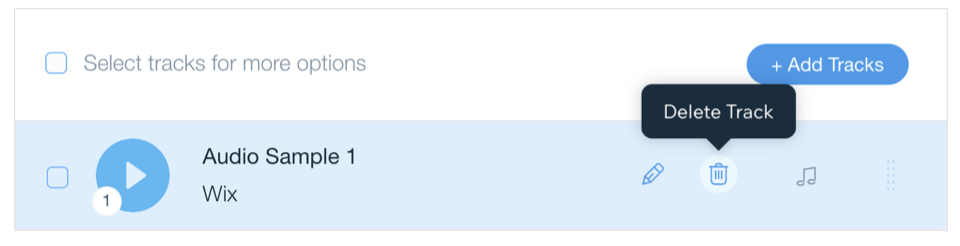
Hover over the track you want to delete.
Click the Delete Track icon

.
Click Remove.
To delete multiple tracks:
Select the checkbox next to the tracks that you want to delete.
Click Delete.
Click Remove.
Permanently deleting music files
To permanently remove a track from your site, you must first delete it from the album, single, or playlist and then delete it from the Music Media Manager. This permanently deletes the music files from your account and frees up storage space.
To permanently delete music files:
Go to Music Library in your site's dashboard.
Click the relevant album, single or playlist.
Hover over the + Add Tracks.
Click Select Tracks to open the Music Media Manager.
Hover over the relevant track and click the More Options

icon.
Click Move to Trash.
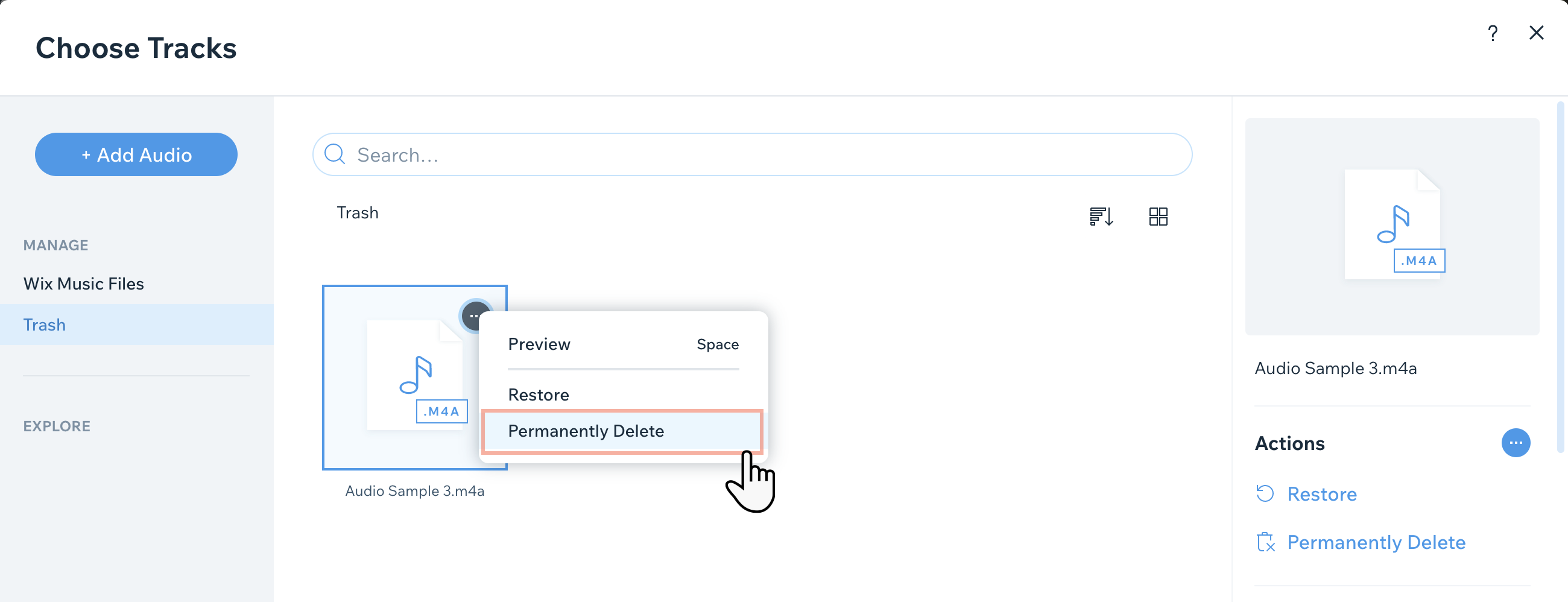
Click Trash on the left.
Hover over the relevant track and click the More Options
icon.
Click Permanently Delete.
Select the checkbox next to I'm sure I want to delete it.
Click Permanently Delete.
FAQs
Click a question below to learn more about managing tracks.
What file types does Wix support?
Wix supports uploading the following formats:
File type: WAV, FLAC, M4A (Apple Lossless) & MP3
Size: Up to 360 MB
Sample rate: Any rate, such as 44,100, 48,000, 96,000, 88,200 or 192,000
Sample Size: 16, 24 or 32 BIT.
Number of Channels: Mono and stereo
What is an ID3 tag?
ID3 tags are tags that Wix automatically adds to any track added in Wix Music. They include metadata about a track such as:
Track name
Artist name
Album / Single name
Track number
Cover image
ID3 tags are also included when a visitor downloads a full album, single, or a single track.
Note: Cover images and/or track art do not appear when a FLAC file is downloaded from your site.
In what formats can my fans download my music?
Your fans can download your music in FLAC or MP3:
MP3: To allow your fans to download your music in MP3 format, upload WAV, FLAC, M4A or MP3 files.
FLAC: To allow your fans to download your music in FLAC format, upload WAV, FLAC or M4A files.
Note: Downloaded files are saved as .zip files. A zip extractor program is needed to open it.
What upload limits are on tracks, albums and playlists?
The upload limits are as follows:
Album/ EP: You can have up to 100 albums with up to 30 tracks per album.
Single: You can have up to 100 singles with up to 5 tracks per single.
Playlist: You can have up to 100 playlists with up to 500 tracks per playlist.
Does deleting an entire album or playlist remove the individual track files from my site?
No, when you delete an entire album or playlist from Wix Music, the individual track files are still stored in your Music Media Manager.
This article is credited to the Wix team - https://support.wix.com/ and we thank them for that!