With Wix Music, you can easily customize your music player to match your brand and style. This allows you to create a seamless and professional listening experience for your audience.
For example, if you are a musician with a unique aesthetic, you can personalize the music player's layout, design and settings to reflect your album artwork and colors, making your site more cohesive and visually appealing.
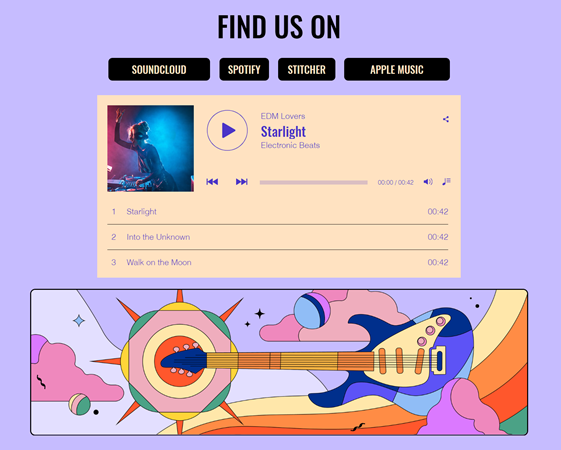
Customizing the layout of your player
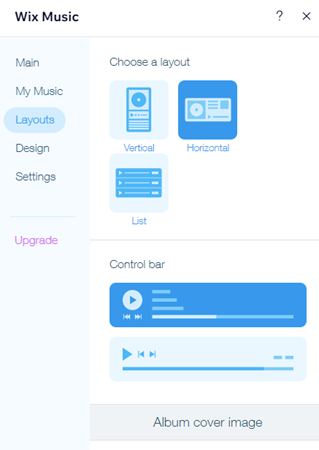
Choose from 3 layout options in the Wix Music player: Vertical, Horizontal or List. You can then customize aspects such as the track list spacing, the play button style, and where to display the music's information.
To customize the player's layout:
Click the Wix Music player.
Click Settings.
Click the Layouts tab.
Choose a layout: Vertical, Horizontal, or List.
Choose what you want to customize:
Vertical
Control bar: Choose a design for the control bar.
Album / Playlist / Single cover image: Show or hide the cover image.
Show music info: Choose to show the info on or below the cover image.
Show track list: Show or hideyour track list.
Track info includes: Display the track name only or the name and the artist.
Show track actions: Show the track actions on all tracks or just the active track.
Track list spacing: Adjust the spacing between tracks.
Horizontal
Control bar: Choose a design for the control bar.
Album / Playlist / Single cover image: Show or hide the cover image.
Track actions: Show track actions on all tracks or just the active track.
Track list spacing: Adjust the spacing between tracks.
List
Album / Playlist / Single info: Show or hide the album / playlist / single info.
Play buttons: Choose the play button style: Round, Classic, or Cover Image.
Track info includes: Display the track name only or the name and the artist.
Track actions: Show the track actions on all tracks or just the active track.
Track duration: Display track duration or not.
Track list spacing: Adjust the spacing between tracks.
Stretch to fit: Stretch the player to fill the width of the screen.
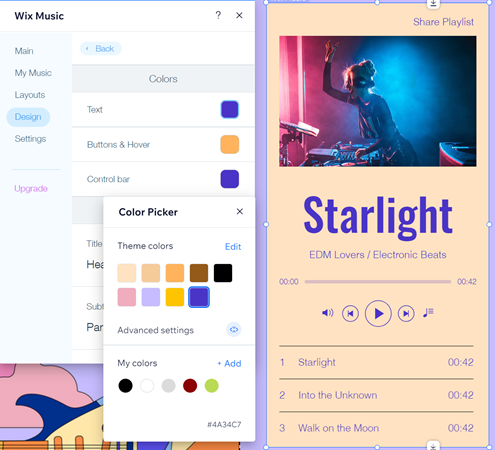
Customizing the design of your player
Further customize the look of your Wix Music player by rhyming its design in with the rest of your site. Adjust the player's background, fonts, buttons and controls.
To customize the player's design:
Click the Wix Music player.
Click Settings.
Click the Design tab.
Choose what you want to customize:
Background
Background color: Adjust the music player's background color.
Border color: Adjust the color and width of the border around the player.
Border width: Set the width of the player border.
Dividers: Choose a color and set the opacity of the dividers on the player.
Text & Buttons
Colors: Choose a color for your player's text, buttons and hover mode, as well as the control bar.
Fonts: Choose a font style and size for the title, subtitle, track list and album actions.
Action Buttons: Choose a style for the player's action buttons.
Customizing the settings of your player
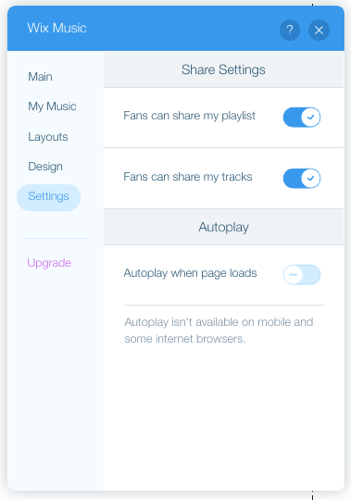
Adjust your player's settings and allow your visitors to share your music and enable autoplay.
To customize the player's settings:
Click the Wix Music player.
Click Settings.
Click the Settings tab.
Choose what you want to customize:
Fans can share my album/playlist/single: Allow fans to share your music on social media.
Fans can share my tracks: Allow fans to share your tracks on social media.
Autoplay when page loads: Enable your player to play music automatically once the page loads.
FAQs
Click a question below to learn more about the Wix Music player:
How can I reorder tracks in the app?
Go to My Music in your site's dashboard.
Click the relevant album, single, or playlist.
Click the track you want to move and drag it into the preferred position.
Can I add multiple Wix Music players to my site?
Yes. You can add multiple players to your site and showcase albums, singles and playlists all at the same time.
Note: Adding more than four players to a site page may cause site loading issues. We recommend adding a playlist rather than individual players in this case.
How can I hide the cover image of my album / playlist / track?
Click the Music Player element.
Click Settings.
Click the Layout tab.
Disable the Show Album / Playlist / Track Cover toggle.
How can I change the music displayed on my player?
Click the Music Player element.
Click Settings.
Click the My Music tab.
Select the album, single or playlist you want to display.
How can I delete the Wix Music player?
Click the Music Player element.
Press Delete on your keyboard.
Note: Your music is still saved in your Music Library even after you delete the Wix Music player.
This article is credited to the Wix team - https://support.wix.com/ and we thank them for that!