Note:
Wix Music is not yet available in the Studio Editor. If this is something you'd like to see in the future, vote for that feature.
Wix Music lets you share and spread your music online, completely free of charge. Add the Wix Music player to your site and choose which track, playlist or album it displays. You can also control whether visitors can share or download your music.
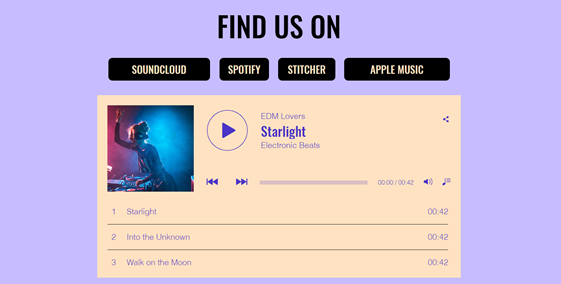
Step 1 | Add Wix Music to your site
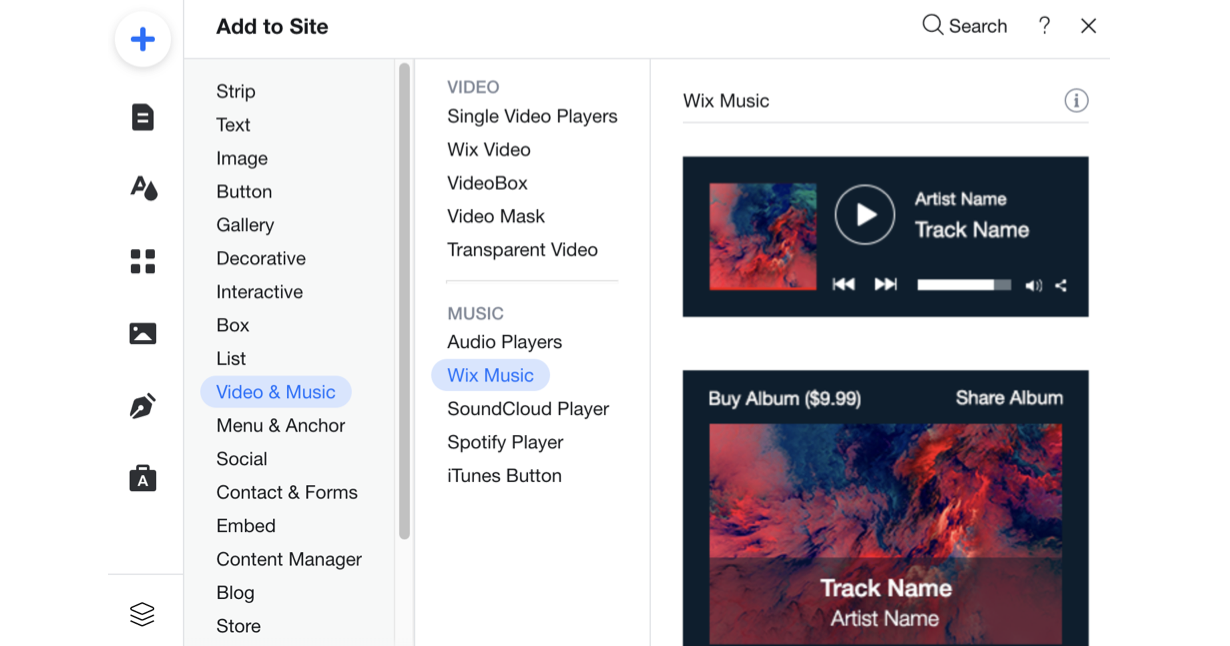
First, add the Wix Music player to your site in the Wix Editor. You can choose the design that best suits your site's style - compact or classic.
To add Wix Music:
Click Add Elements

on the left side of the editor.
Click Video and Audio.
Click Wix Music.
Drag a Wix Music player onto your page.
Step 2 | Choose music for your player
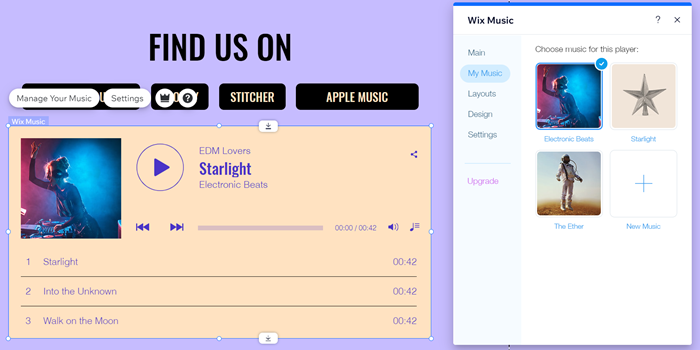
After adding the Wix Music player to your site, it's time to choose which music you want to display. You can choose from music you've already uploaded to your Music Library or add new music. Then choose whether to display an album, single, or playlist.
To choose music for your player:
Click the Wix Music player in your editor.
Click Settings.
Click the My Music tab.
Choose what music to add to the player:
Existing music: Choose from music you've already uploaded to your Music Library.
New music: Click + New Music to upload a single, album or playlist.
Step 3 | Set up your player
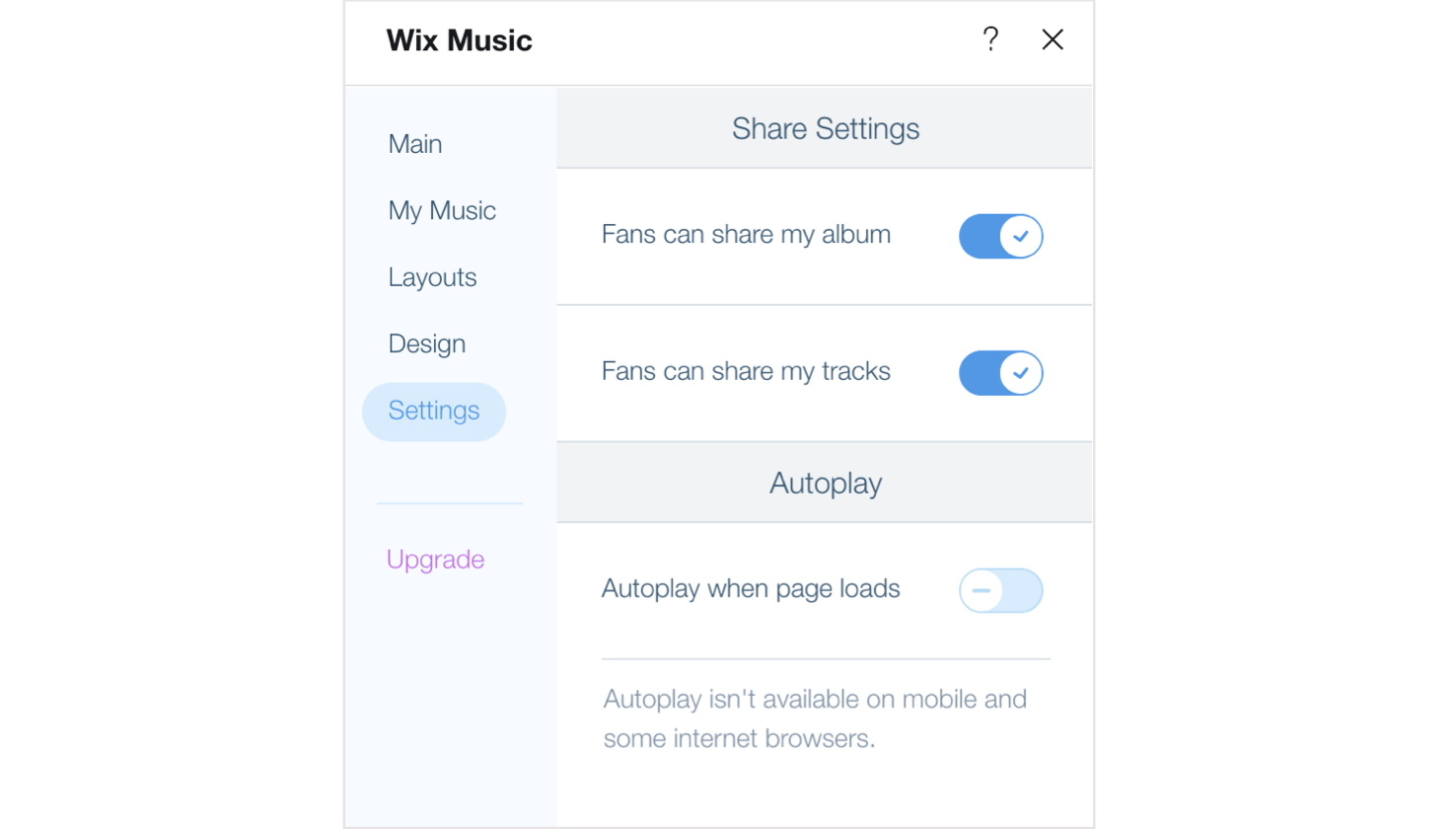
Lastly, set up your player to work just how you want. Adjust your player's settings to allow your visitors to share your music and enable autoplay. Learn more about setting up your Wix Music player.
What's next?
Learn how to customize the design and layout of your player, so that it complements the rest of your site's design.
Troubleshooting issues with Wix Music
Click an option below to learn how to resolve issues with Wix Music:
The player isn't working
If your player isn't working, we suggest deleting the existing player and adding a new one. Your music is saved in your music library, so you can easily re-add it to the new player.
Music files aren't uploading
Make sure that the file type you are uploading matches our supported file types. If the file is not supported by Wix Music, you can convert it to another file type.
Music isn't downloading
If your issue relates to music downloads, try disabling the sale and then re-enabling it. Learn more about selling your music.
Payments aren't working
If you are having issues with payments, check that a supported payment gateway is properly connected. Learn how to connect a payment method.
Still need help?
If the problem persists, contact us with the information below:
The name or URL of your Wix site.
The name and version of the web browser you're using.
The name and version of your computer's operating system.
What troubleshooting steps you've tried.
A screenshot of your console view using the steps below:
Open an incognito window in Google Chrome (Ctrl + Shift + N).
Sign in to Wix and try to open your Editor.
Use the keyboard shortcut Ctrl + Shift + J (on PC) or Cmd + Option + J (on Mac).
Click the Console tab at the top of the panel and refresh the page (F5).
Take a screenshot of this tab.
FAQs
Click a question below to learn more about the Wix Music player:
Do I need to have a Premium plan to add Wix Music to my site?
No. You can add Wix Music to a site without a Premium plan.
Can I view analytics reports related to Wix Music?
Yes. You can view how your music is performing and learn more about your site visitors with Wix Music analytics reports.
How can I delete an album, single or playlist?
Go to Music Library in your site's dashboard.
Click the More Actions icon

on the relevant album, single or playlist.
Click Delete, then Delete again.
Can I set my player to autoplay?
No. Due to changes in policies of web browsers, many of them no longer support the autoplay of music and videos. This means that automatic background music on sites is no longer possible.
How can I edit an album, single or playlist?
Go to Music Library in your site's dashboard.
Click the relevant album, playlist or single.
Edit the information you wish to change.
Click Save.
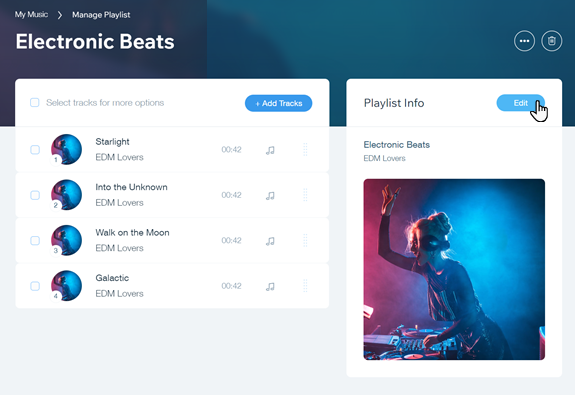
What are the recommendations for uploading images to my player?
We recommend uploading .jpg images of 3000 x 3000 pixels or more in size.
Images for each track should be the same size as the album cover image and be square as this is industry standard.
Note: Album or track art appears when downloading a file in MP3 format, but not in FLAC.
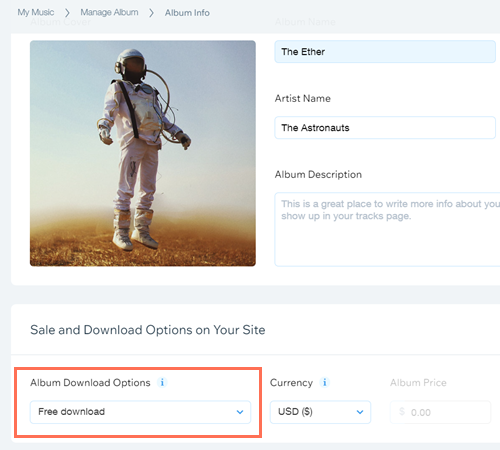
How can I let fans download my music for free?
Go to Music Library in your site's dashboard.
Click the relevant album or single.
Click Edit.
Scroll to the Sale and Download Options on Your Site section.
Select Free Download under Album / Single Download Options.
Click Save.
In what format is my music streamed?
Your music is delivered in 128kbps stereo MP3 format for effective streaming.
Are transcripts available for Wix Music?
Currently, transcripts are not available for Wix Music.
This article is credited to the Wix team - https://support.wix.com/ and we thank them for that!