Apple's In-App Purchase option lets you sell your digital products and services directly from your own mobile app, ensuring the most secure transactions through Apple's system.
Wix automatically identifies which services in your app require Apple's In-App purchasing. For example, if you run a fitness app, users can buy one-time access to a workout program directly through the app, making the process simple for everyone involved.
To accept payments through Apple In-App Purchase, your app must be connected to a site with a premium plan that supports payments, in addition to an active Mobile App Premium plan for your own app.
In-App Purchase supports single payments for one-time charges and recurring payments like monthly or annual subscriptions.
In-App Purchase does not support free trials, one-time fees, custom start dates, changing plan duration, resubscribing after canceling. Read more about features not supported by Apple In-App Purchase.
Step 1 | Set up Apple's In-App Purchase
You complete most setup steps for In-App Purchase through your Apple Developer account. To make the process easier, we provide detailed instructions in your Mobile App dashboard to guide you through the process.
To set up Apple's In-App Purchase:
Go to Mobile App in your dashboard.
Click the tab with the name of your own mobile app.
Scroll down and click Apple In-App purchase under Features and settings.
Note: If you haven't yet set up an Apple Developer account, click Set Up In-App purchase under Let’s set up your app to submit it and get it live in stores.
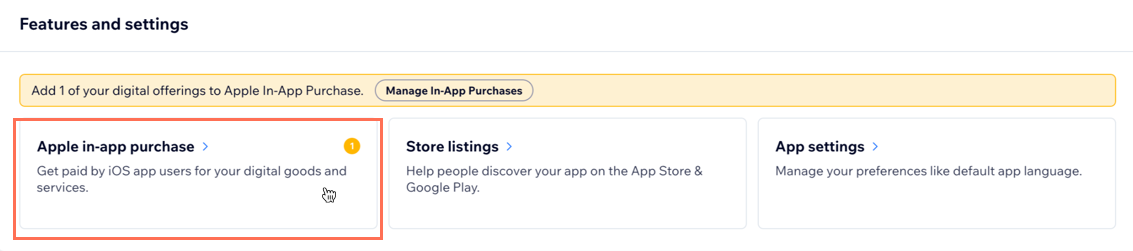
Click Open Instructions next to Sign Apple's Paid Applications Agreement. Follow the steps provided to fill out the legal entity and to sign the agreement.
Click Open Instructions next to Set up your banking and tax information. Follow the instructions provided to add your bank account, tax info and to submit your tax forms.
Click Confirm Completion.
Step 2 | Choose which digital goods and/or services to list for In-App Purchases
Once you've agreed to Apple's terms, any digital good or service you provide that's available to sell with In-App Purchase appears on the submission page. You can choose what to include or exclude from your submission. Some examples of what you can sell include:
Bookings services
Digital store products
Events
Videos
Online programs
Important:
The first time you add items for In-App Purchases, you need to submit your app to Apple.
To choose which digital goods and/or services to submit:
Click the checkbox next to the items you want to add to In-App Purchases.
Tip: Click the checkbox next to Name to select all items.
Click List Items for In-App Purchase.
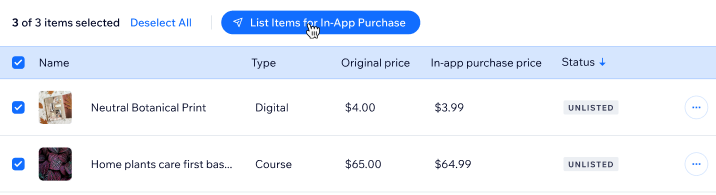
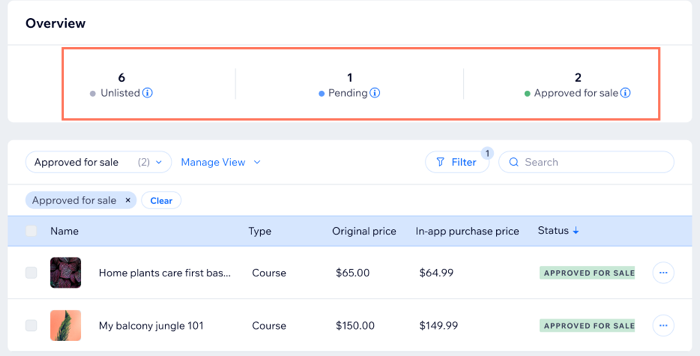
Every available digital good and/or service is included in a list in the Apple In-App Purchase tab. Review the list to make sure the information is accurate. Approved for sale or Unlisted labels appear next to each listing to show you whether it's included in the submission or not. Once you submit an item it will show up as Pending until it is accepted or rejected.
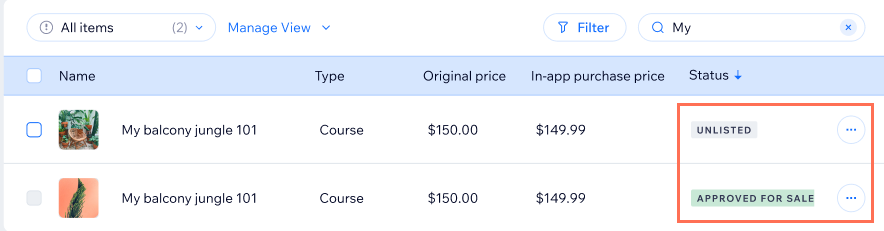
(Optional) If you don't want to include one of the listed goods or services in your submission:
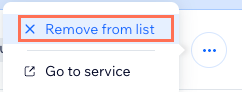
Click the More Actions icon

next to a good or service.
Click Remove from list.
Step 3 | Wait for Apple to approve your services
Your application is now in review with Apple. The label in the Mobile App Overview tab says Pending.
You can track what services are currently in review and approved from the Apple In-App Purchase tab. Under the Overview section at the top you can see which services are Unlisted, Pending (in review by Apple), or Approved for sale.
FAQs
Below are some frequently asked questions about setting up Apple's In-App Purchase for your own native mobile app.
Why do I need to use In-App Purchases for my services?
Apple requires that all digital goods and services sold within an app use their In-App Purchases system. It ensures that all the transactions are done through Apple in the most secure way.
If you opt out of In-App Purchases, Apple may reject your app.
Can I offer services, products, or subscriptions without using Apple’s In-App Purchase?
Yes, if you don’t want to comply with Apple's In-App Purchase policy, you can hide your services, products, or subscriptions from iOS devices before submitting your app for approval. Learn more about hiding elements in your app.
How long does it take for Apple to approve my In-App Purchase submission?
Approval times can take up to a few days. You can track the status of your submission in the Mobile App Overview tab to stay updated on its progress.
What types of digital goods and services can I sell through Apple's In-App Purchase?
You can sell various digital goods and services such as booking services, digital downloads, event tickets, online programs, and videos. Physical goods do not require In-App Purchase setup.
What percentage does Apple take if I sell my digital services through In-App Purchase?
Apple takes up to 30% of a developer's total In-App Purchase revenue in the first year of a subscription. (Digital goods and services only, sales of physical products are exempt). After 1 year, the subscription commission falls to 15%.
Can I edit my services before I add them to my submission?
You can edit your service at any time from Bookings Services in your site's dashboard. Changes automatically update in the Mobile App dashboard.
Do I need to resubmit my app every time I add more In-App Purchase services?
No, you only need to submit your app the first time you add digital products/services.
What happens if a user requests a refund for an In-App Purchase?
Apple handles refund requests. Users can request a refund through their Apple account, and Apple will process it according to their policies.
Can I hide an item if I don't want it to be sold as an In-App Purchase?
Yes, there are 2 ways to remove an item from In-App Purchases:
Remove the item from the in-app purchase list: Click the More Actions icon
next to the relevant item, then click Remove from list. Follow the steps depending on the item.
Note: This prevents the item from being sold as an Apple In-App Purchase product, but it will still be visible in your app.
Completely remove the service: Delete the service from your Wix dashboard to remove the item from the business entirely.
What types of bookings services do I need to set up In-App Purchases for?
You only need to set up In-App Purchases for certain types of bookings services. Locate your type of service below to check if you need to set up in-app purchase. If your service requires it, you need to set up in-app purchase to accept payments.
Booking in-person appointments: Not required
Booking online 1:1 appointments: Not required
Booking an online group service: Required
Booking in-person group service: Not required
Selling physical items via Wix Stores: Not required
Selling online/digital items via Wix Stores (e.g. a logo): Required
Do I need to set up In-App Purchases for physical goods sold via Wix Stores?
No, you do not need to set up In-App Purchases for physical goods. In-App Purchases are only required for digital goods and services.
Why do the prices of my in-app purchase items not match the prices on my website?
Apple uses a fixed list of price points for in-app purchases. When your digital goods or services are submitted as in-app purchases, their prices are mapped to the closest price tier Apple allows. This can create small differences between the prices in your app and the prices on your live site.
Learn how Apple sets prices for in-app purchases on Apple’s developer site.
This article is credited to the Wix team - https://support.wix.com/ and we thank them for that!