Create announcements and send them as push notifications to your members' mobile devices from your app. Remind clients about an upcoming booking, encourage customers to check out a new sale, or give important business updates. You create and manage announcements in the Wix mobile app.
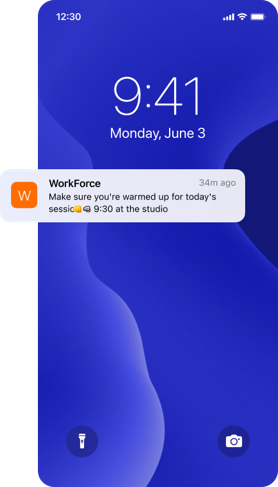
Sending an announcement with a push notification
Go to your site in the Wix app.
Tap Manage

at the bottom.
Tap Mobile Announcements under Marketing.
Tap Create New Announcement.
Write your announcement title and body text.
(Optional) Tap the Add icon

at the bottom left to include media in your announcement (an image, video, GIF or a divider).
Tap Next.
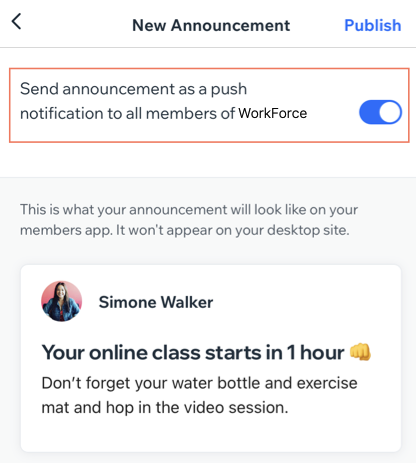
Preview your announcement and make sure the Send announcement as a push notification to all members toggle is enabled.
Click Publish.
What's next?
Your Member App's members will receive the announcement on their device if they have enabled notifications for your app.
FAQs
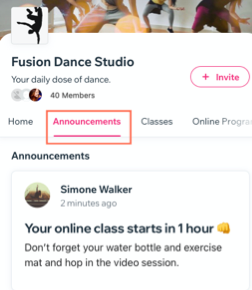
Where can my members view my announcements?
The push notification content appears in your own app if you've added an Announcements tab or section. The content remains until you send a new announcement.
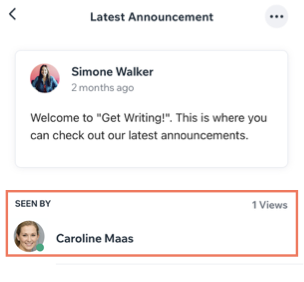
How do I check which members have seen my announcement?
Check which members have viewed the announcement by tapping the announcement in the Mobile Announcements section of the Wix app.
Go to your site in the Wix app.
Tap Manage
at the bottom.
Tap Mobile Announcements under Marketing.
Tap the existing announcement to see who has viewed it.
Is it possible to delete an announcement after I've sent it?
You cannot undo sending the push notification, but you can remove the announcement from the content of your own app. To remove an announcement, either send a new announcement or remove the Announcements section altogether.
Learn how to delete a section from your own app.
Why can't my members see push notifications?
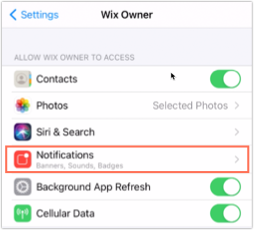
If your members aren't receiving push notifications they should check their device's settings. They must enable push notifications for your own app in the general notification settings of their mobile device.
This article is credited to the Wix team - https://support.wix.com/ and we thank them for that!