The Spaces App sends notifications to your phone, as well as your email inbox, with important updates from sites that you either own or belong to as a member. Choose which sites and activities you want to receive notifications for.
To manage your notifications:
Open the Spaces App.
Tap My Profile

at the bottom.
Scroll down to Settings and tap Notifications.
(If you have multiple sites) Tap to choose the relevant site.
Select the notification type (push or email notifications).
Depending on the notification you're editing, follow the steps below.
Push notifications
Edit the notifications you get directly to your mobile device.
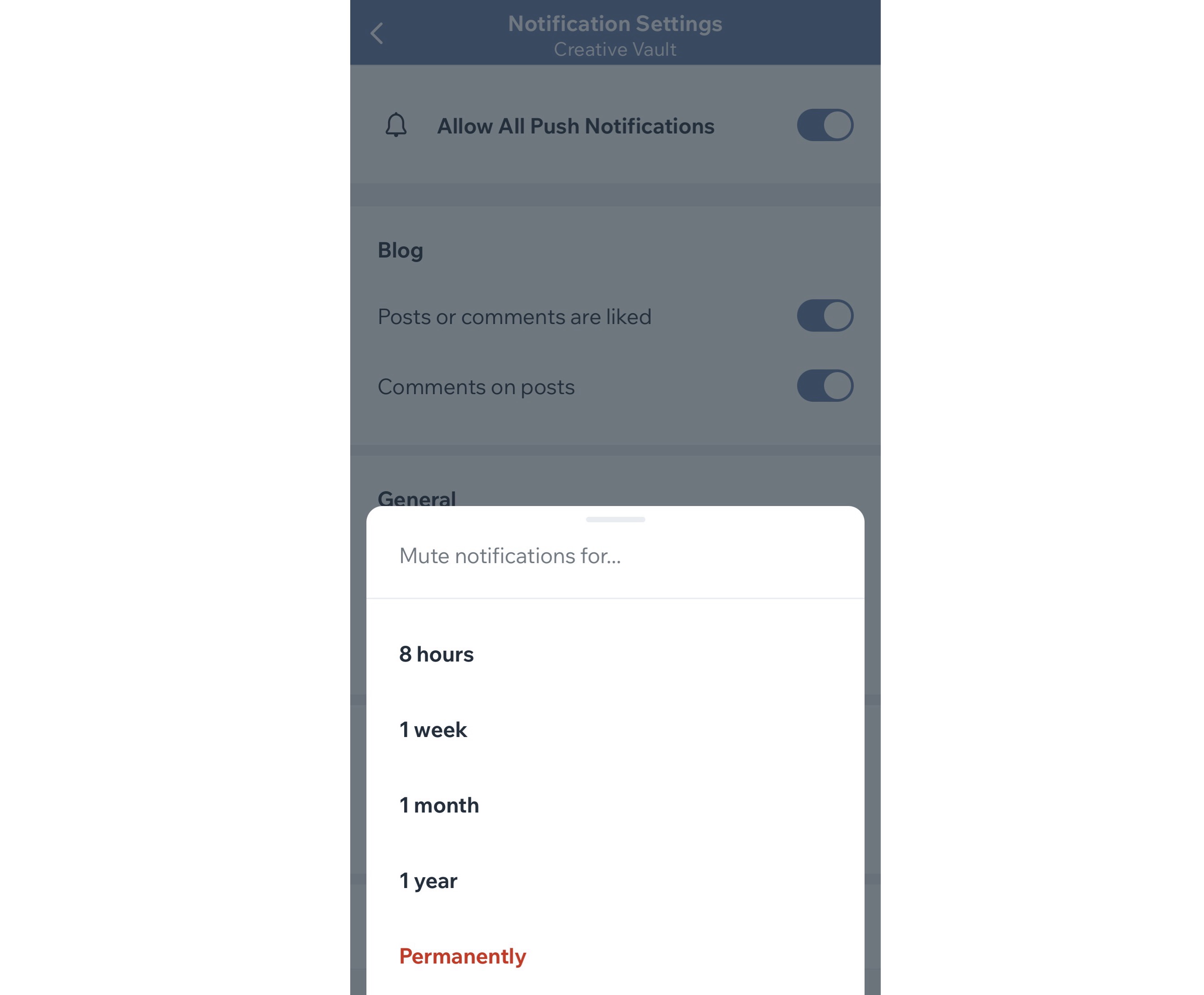
Tap the Allow All Push Notifications:
Enabled: Notifications are turned on. Enable the toggles for the activities you want to receive notifications for (e.g. updates and reminders, new messages, etc.)
Disabled: Notifications are completely turned off. Tap to select a specific timeframe to pause notifications for, or turn them off permanently.
Email notifications
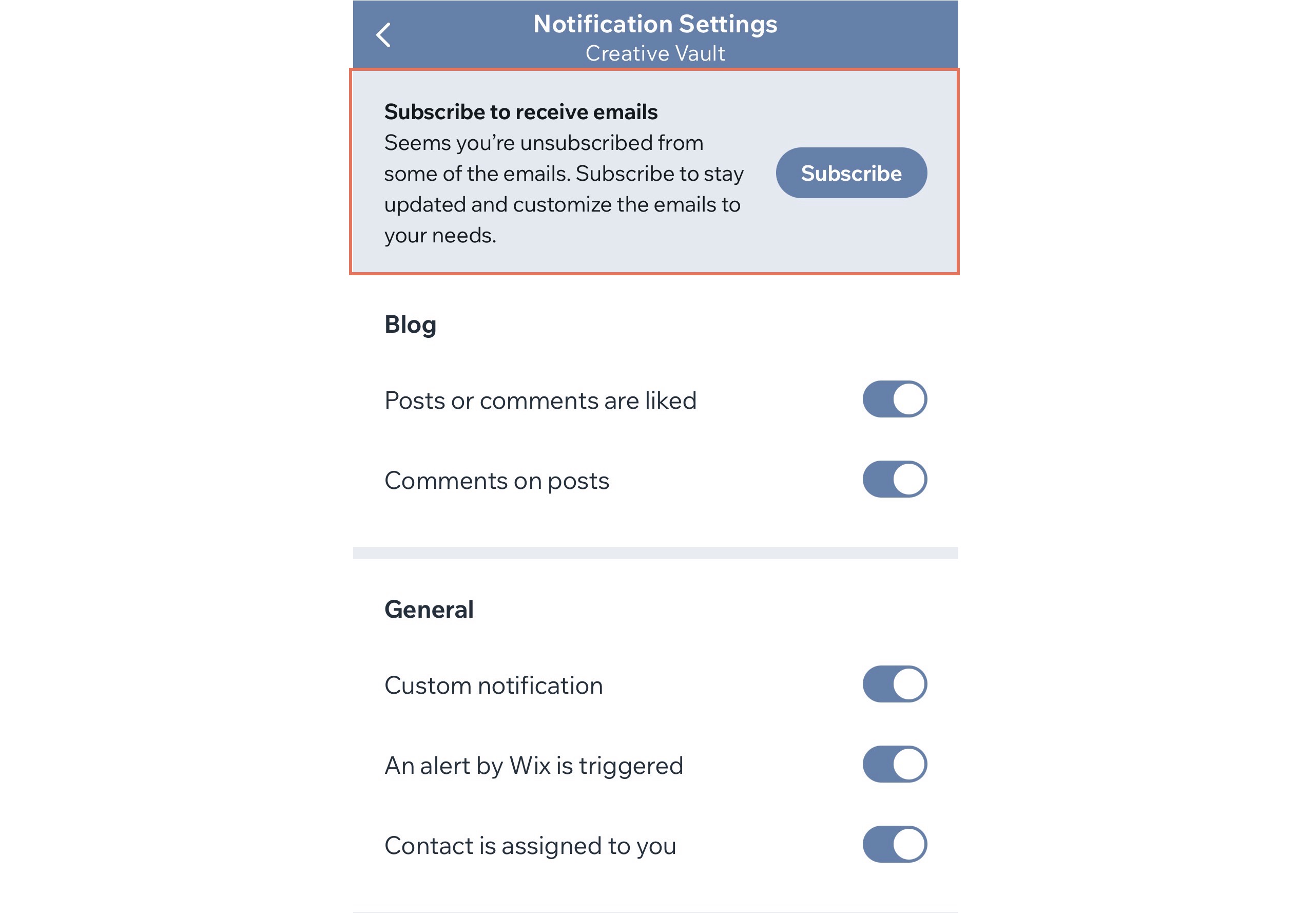
Edit the notifications you get to your email inbox. Enable the toggles for the activities you want to receive an email about (e.g. payment notifications, new contact assigned to you, etc.)
Note: You may be asked to tap Subscribe to ensure you're all set to receive your email notifications.
Having problems with your notifications?
Click here to learn how to troubleshoot issues related to push notifications in the Spaces App.
This article is credited to the Wix team - https://support.wix.com/ and we thank them for that!