Customize your app's launch and login screens by picking the perfect colors, text and image for your brand. This includes your launch screen, which is a brief introductory screen that appears as the app loads, and your login screen, which is where members sign up or log in to your app.
You can edit both these screens in your site's dashboard. Changes to your app's launch screen only go live once you resubmit your app to the App Store & Google Play.
Note:
This feature is only available if you are building your own native app, and you must purchase a Mobile App Premium plan.
You can only edit your system screens from desktop.
To customize your app's system screens:
Go to Mobile App in your dashboard.
Click the Your own mobile app tab or the tab with the name of your own mobile app.
Click Edit Mobile App.
Click the Screen drop-down at the top and choose the screen you want to edit.
Launch screen
Click Launch.
Choose what you want to edit:
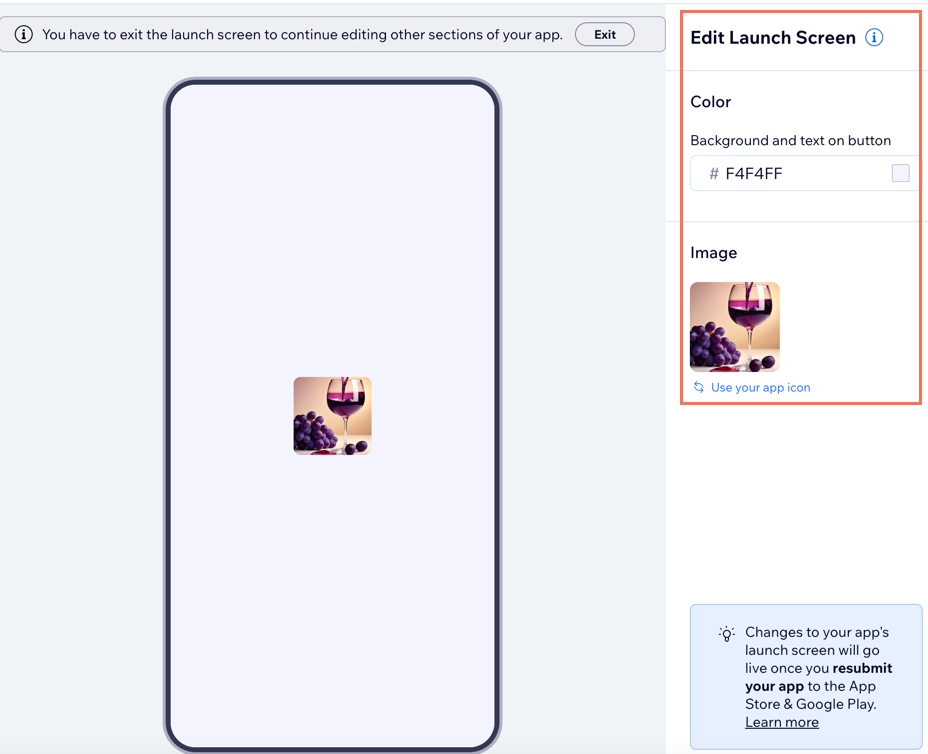
Color: Choose a color for your launch screen background and button text.
Image: Choose an image or use your app icon.
Tap Save.
Login screen
Click Login.
Choose what you want to edit:
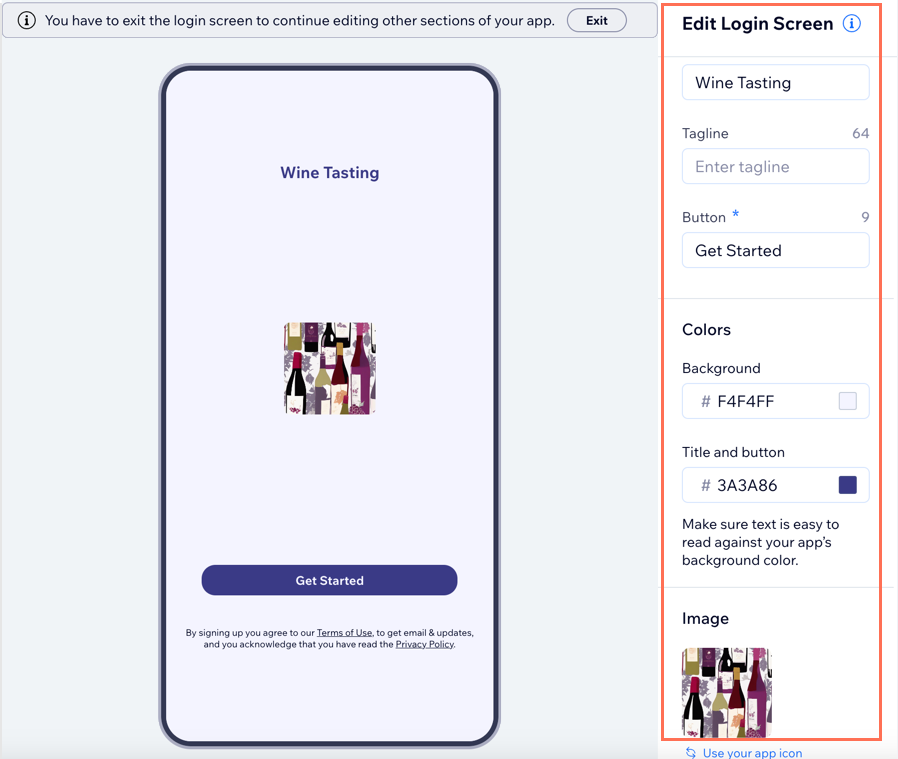
Screen text: Choose a title, tagline, and button text on your login screen.
Colors: Edit the colors of your login screen background and text.
Image: Choose an image or use your app icon.
Tap Save.
This article is credited to the Wix team - https://support.wix.com/ and we thank them for that!