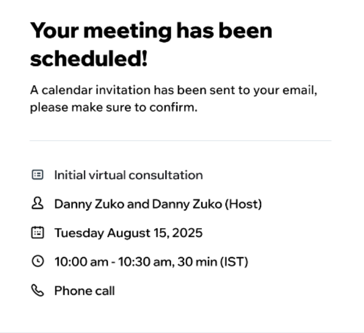
Wix Meetings makes it simple to schedule and manage consultations, interviews, or any type of meeting, online or in person. You don't need to set up a Wix website to schedule meetings. Share your scheduling link so clients can book a time that works for them.
Sync your calendar to avoid double-bookings, and send automatic reminders to help prevent missed appointments. You can also accept payments, set your availability, and manage everything from your dashboard.
Important:
Currently, Wix Meetings is only available to site owners, co-owners, and back-office manager roles. Learn more about roles and permissions.
Sites on the Basic Studio plan, Light Premium plan, or a free plan can host up to 3 free meetings per site. Upgrade your site to schedule unlimited meetings.
Key benefits of Wix Meetings
Wix Meetings lets you share scheduling links with anyone, even if you don't have a Wix website. Other key benefits include:
Personalize every meeting: Customize scheduling links with your meeting name, duration, location, policies, forms, and if you want to charge for a meeting or offer it free.
Stay in control of your availability: Sync your calendar (Google, Apple/iCal, or Outlook) so clients only see open times, reducing double-bookings.
Distribute meetings across your team: Use Round Robin scheduling to automatically assign incoming meetings to available team members, so no one person gets overbooked.
Make scheduling easy: Share your meeting link via URL, WhatsApp, email, or QR code.
Keep clients informed: Send automatic email and SMS notifications so clients stay updated and don't miss meetings.
Give clients flexibility: Let clients cancel or reschedule directly from notification links, no login required.
Manage everything in one place: Approve, decline, reschedule, or cancel meetings from your Wix dashboard.
Meet anywhere: Host meetings online, by phone, or at a physical location.
Getting started with Wix Meetings
You can find Wix Meetings in your site’s dashboard under Customers & Leads. When you create or edit the scheduling link, you're prompted to sync your calendar if you haven’t yet. This is important to keep your availability up to date and helps avoid double-bookings. You can also connect a payment method to accept payments for meetings.
When creating a new scheduling link, choose how meetings are assigned, set your availability and meeting details, and customize the settings that fit your needs. Once your link is ready, share it so clients can schedule with you directly.
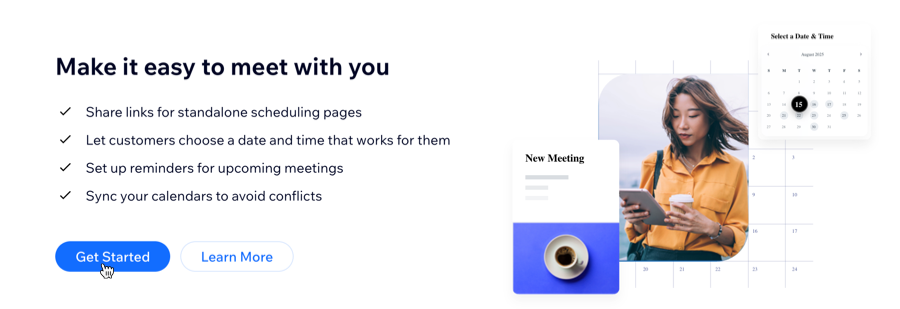
Ready to create your first meeting?
Learn how to create a scheduling link.
FAQs
Click below for answers to common questions about Wix Meetings.
What is the difference between Wix Bookings and Wix Meetings?
Wix Meetings is a fast, standalone scheduling tool for any business type, no published site required. It’s great for sharing links and scheduling single meetings quickly.
Wix Bookings is a full business management solution for service-oriented businesses. It requires a published site and supports managing staff, recurring services, group sessions, and complex scheduling needs. Read more about Wix Bookings.
Do meetings scheduled with Wix Meetings appear on my Booking Calendar?
Meetings scheduled with Wix Meetings are displayed in your Booking Calendar only if Wix Bookings is installed on your site. They do not appear in your Booking List or any other Bookings-related page.
How do clients schedule meetings?
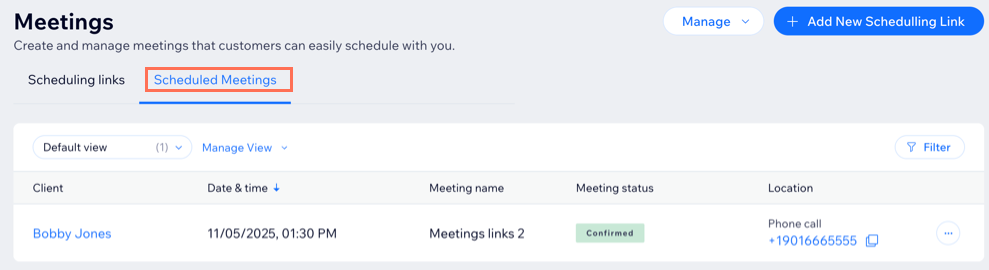
Once you create a meeting, share your scheduling link with clients in any way that works for you—such as by email, social media, or WhatsApp. Clients open the link, pick a date and time, enter their details, and book. All scheduled meetings appear in Meetings in your site's dashboard so you can easily keep track of bookings.
How can I add a new host option to my meetings?
Site owners, co-owners, and anyone with the back-office manager role can be selected as a meeting host. To add a new host, assign one of these roles to someone in your Roles & Permissions settings. For detailed steps, see how to invite or manage collaborators.
Why can't I choose the option to notify customers via SMS?
The option to select the Notify this customer via SMS checkbox can be unavailable for several reasons, including:
If your customer has asked in the past to opt out of communication.
If your customer doesn't have a valid country code with their phone number.
If you've hit your SMS quota for the month.
If you did not enable the Active toggle for this action in your settings.
Tip: Hover over Notify the customer via SMS to see the reason.
How can I customize my meeting policy?
Each meeting has its own individual policy. You can customize your scheduling policy to control how clients schedule, cancel, and reschedule meetings.
To customize your meeting policy:
Go to Wix Meetings in your site's dashboard
Click an existing meeting or add a new scheduling link.
Add the meeting details and scroll down to Meeting settings.
Click Edit next to Policy.
Add your Policy details:
Policy name: Enter a name for the policy.
Policy description: Briefly describe your policy, for example your cancellation policy or any other information clients need to know.
Note: Clients will only be able to click your policy if you add a description and name.
Allow customers to cancel their own meetings online: Select the checkbox to allow clients to cancel their meetings. Define how much time before a session clients can cancel by choosing one of the existing options from the drop-down or create your own custom timeframe.
Allow customers to reschedule their own meetings online: Select the checkbox to allow clients to reschedule their meeting. Define how much time before a session clients can reschedule by choosing one of the existing options from the drop-down or create your own custom rescheduling timeframe.
Limit early scheduling: Select the checkbox and set how long before a meeting a customer is able to schedule from the drop-down. You can also select Custom to choose a specific timeframe (e.g. 1 week) before which clients can't make a meeting.
Limit late scheduling: Select the checkbox and set how close to a meeting clients can schedule, for example, "24 hours before start time". Choose an existing option from the drop-down. You can also choose the Custom option to set a specific timeframe (for example, 1 week) before which clients are not able to book a meeting.
Meeting requests: Choose to automatically accept all meetings or require manual approval.
Click Save.
What are the scheduling options in Wix Meetings?
When you create a scheduling link, you can choose between 2 scheduling options:
Single Host: Each booking is assigned to the same host. This is a good option if one person always runs the meeting.
Round Robin: Each booking is assigned automatically to one available host from the group you selected. This is useful when you want to share meetings across multiple hosts.
This article is credited to the Wix team - https://support.wix.com/ and we thank them for that!