Upload your own media files to the Media Manager to use across your site whenever you need them. You can upload images, videos, vector art, fonts, and more directly from your computer, other sites in your Wix account, your social media accounts, or by pasting a URL.
Which media file types and sizes are supported?
Your Wix site supports a variety of media file types and sizes. Learn more about the file types you can upload
Uploading your media
Upload your media to your site from a variety of locations via the Media Manager.
Wix Editor
Click Media

on the left side of the editor.
Click the Upload Media icon

.
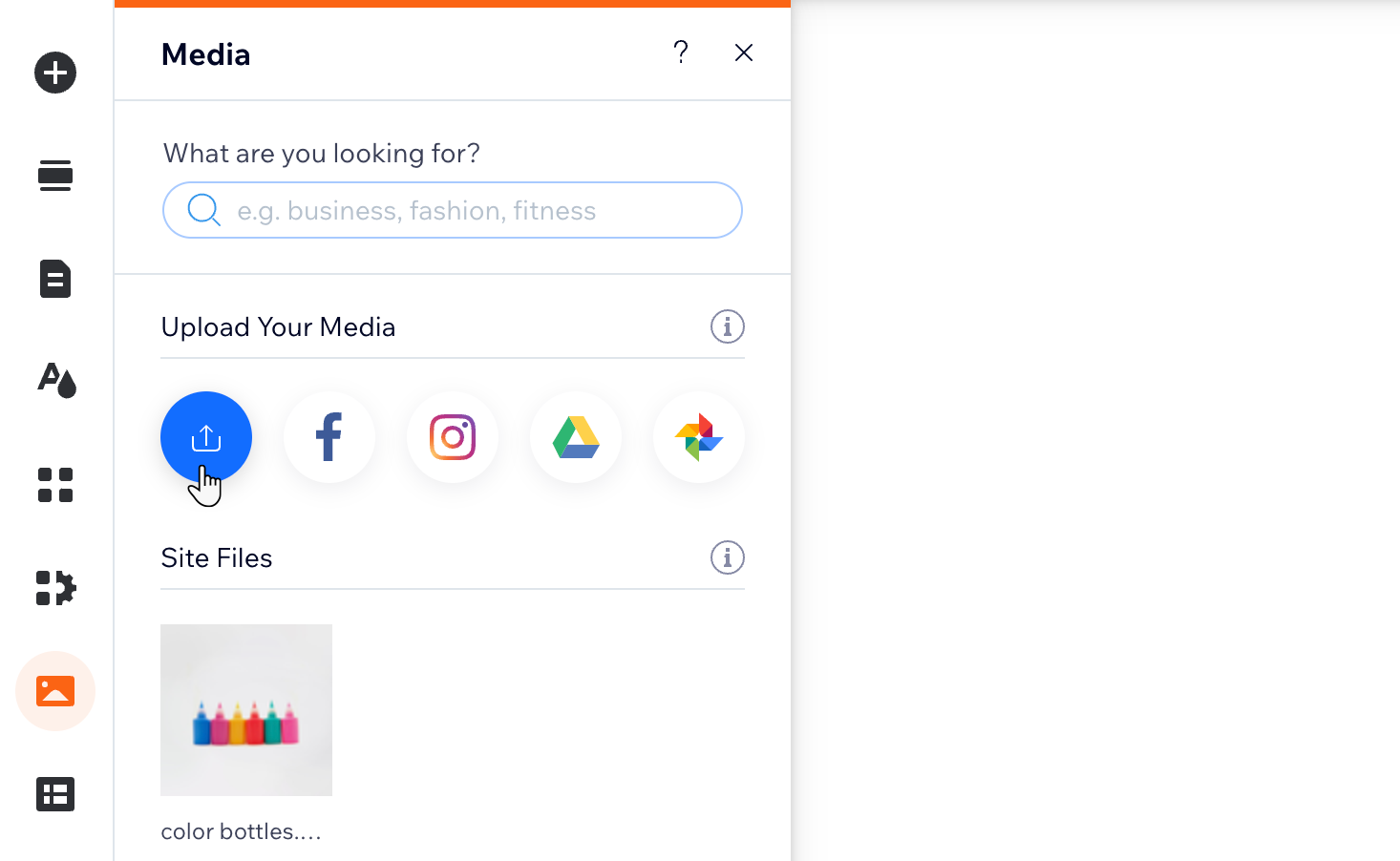
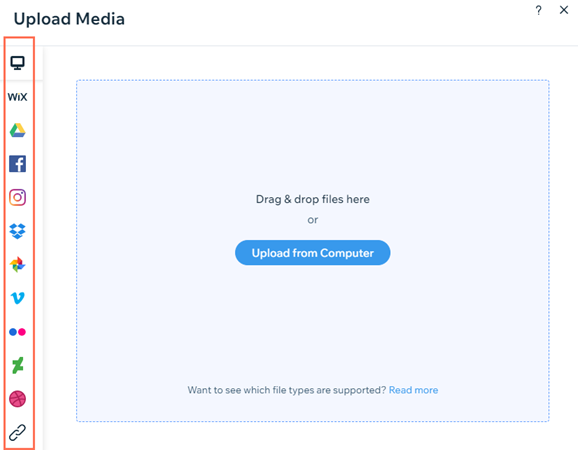
Drag and drop your files or choose an option on the left to upload media.
Your computer
Drag and drop files into the Media Manager or click Upload from Computer.
Select the files you want to upload.
Click Open.
Your other Wix sites
Upload media from other sites in your Wix account to the Media Manager of the site you are currently working on.
Importing media from one site to another does not remove it from the source's Media Manager. The file will continue to exist in both places after importing.
Click My Wix Account.
Select the site folder.
Select the files you want to upload.
Click Upload Selection.
Tips:
To import Wix Video files, click Video Library in the site folder you want to import video files from.
Use the keyboard shortcut Ctrl + A (for PC) or ⌘ + A (for Mac) to select multiple files at once and import them in bulk from other sites to your current site.
Social networks
Display your favorite files on your site by connecting your social network accounts to your Wix account.
Connecting a social network account to your Wix site does not affect its settings, and you only have to set up the connection once.
Select the social network.
Click Connect.
Select the files you want to upload.
Click Upload Selection.
A URL
Import media files to your Media Manager using a URL so that you can add them to your site. A media file with a URL link may come from another website, a social network, or from an online portfolio you have.
Click the Link icon

on the left side.
Paste the URL link and click Import.
Note: It's not possible to import video files with YouTube and Vimeo URL's.
Studio Editor
Click Add Elements

on the left side of the editor.
Click Media.
Click My Uploads.
Click the Upload Media icon
.
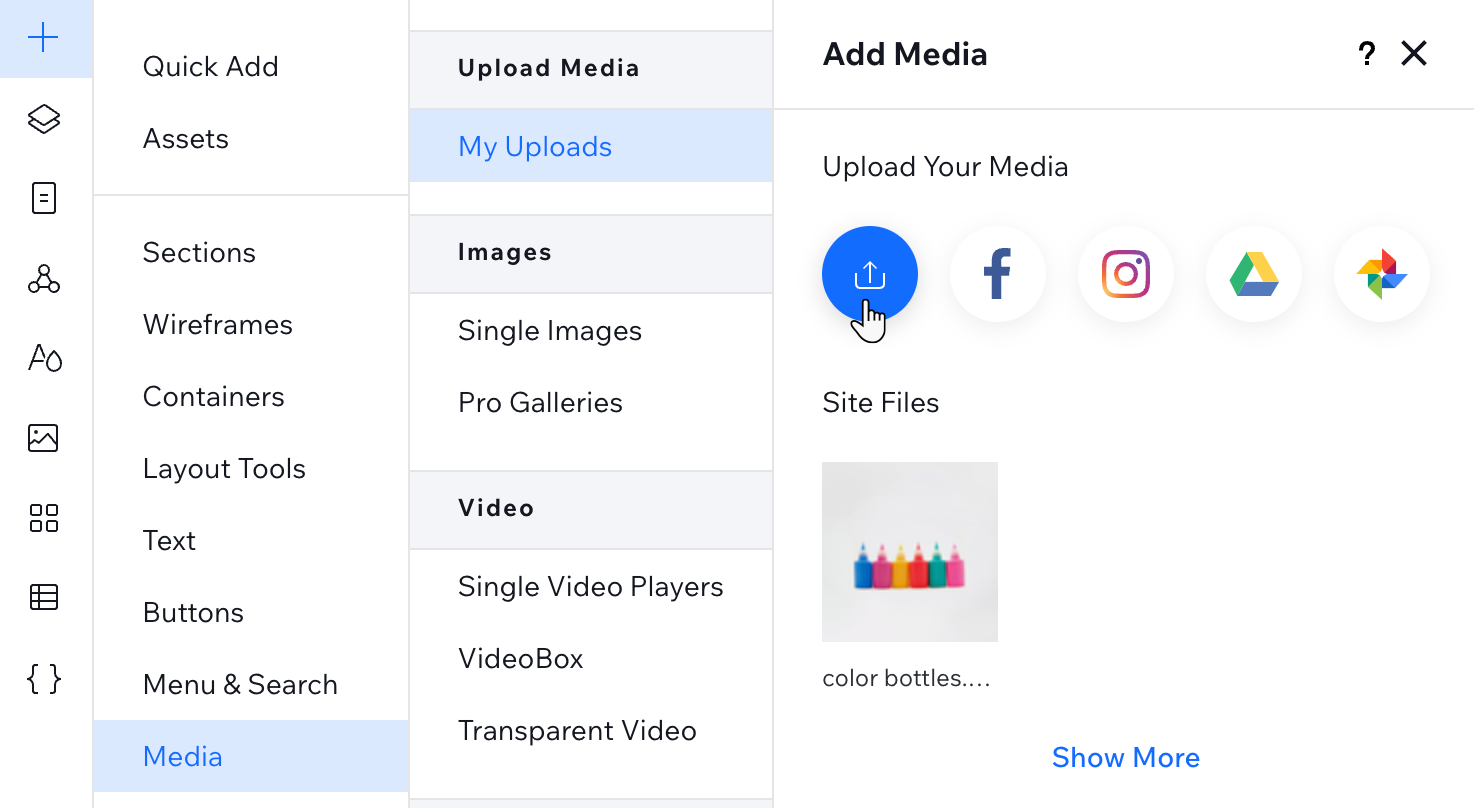
Drag and drop your files or choose an option on the left to upload media.
Your computer
Drag and drop files into the Media Manager or click Upload from Computer.
Select the files you want to upload.
Click Open.
Your other Wix sites
Upload media from other sites in your Wix account to the Media Manager of the site you are currently working on.
Importing media from one site to another does not remove it from the source's Media Manager. The file will continue to exist in both places after importing.
Click My Wix Account.
Select the site folder.
Select the files you want to upload.
Click Upload Selection.
Tips:
To import Wix Video files, click Video Library in the site folder you want to import video files from.
Use the keyboard shortcut Ctrl + A (for PC) or ⌘ + A (for Mac) to select multiple files at once and import them in bulk from other sites to your current site.
Social networks
Display your favorite files on your site by connecting your social network accounts to your Wix account.
Connecting a social network account to your Wix site does not affect its settings, and you only have to set up the connection once.
Select the social network.
Click Connect.
Select the files you want to upload.
Click Upload Selection.
A URL
Import media files to your Media Manager using a URL so that you can add them to your site. A media file with a URL link may come from another website, a social network, or from an online portfolio you have.
Click the Link icon
on the left side.
Paste the URL link and click Import.
Note: It's not possible to import video files with YouTube and Vimeo URL's.
Harmony Editor
Click the Wix dropdown at the top left of the editor.
Select Media Manager.
Click + Upload Media at the top left.
Drag and drop your files or choose an option on the left to upload media.
Your computer
Drag and drop files into the Media Manager or click Upload from Computer.
Select the files you want to upload.
Click Open.
Your other Wix sites
Upload media from other sites in your Wix account to the Media Manager of the site you are currently working on.
Importing media from one site to another does not remove it from the source's Media Manager. The file will continue to exist in both places after importing.
Click My Wix Account.
Select the site folder.
Select the files you want to upload.
Click Upload Selection.
Tips:
To import Wix Video files, click Video Library in the site folder you want to import video files from.
Use the keyboard shortcut Ctrl + A (for PC) or ⌘ + A (for Mac) to select multiple files at once and import them in bulk from other sites to your current site.
Social networks
Display your favorite files on your site by connecting your social network accounts to your Wix account.
Connecting a social network account to your Wix site does not affect its settings, and you only have to set up the connection once.
Select the social network.
Click Connect.
Select the files you want to upload.
Click Upload Selection.
A URL
Import media files to your Media Manager using a URL so that you can add them to your site. A media file with a URL link may come from another website, a social network, or from an online portfolio you have.
Click the Link icon
on the left side.
Paste the URL link and click Import.
Note: It's not possible to import video files with YouTube and Vimeo URL's.
Tip:
Upload your own fonts so that you can use them in text elements and anywhere else you can choose a font (buttons, contact forms, menu, etc).
FAQs
Click a question below to learn more about uploading to the Media Manager:
Can I upload an SVG file created from the Wix Logo Maker?
Currently, you can't upload the SVG file of a logo you created with the Wix Logo Maker to the Media Manager, if the logo contains uploaded PNG or JPG images. You can, however, upload the PNG version of your logo instead.
Will my upload be interrupted if I close the Media Manager?
Your media continues uploading even if you close the Media Manager.
Where does the media I upload to the Wix app go?
Any media you upload to the Wix app can be found in the Mobile Uploads folder in the Media Manager.
How can I tell how much storage space I have left?
You can view how much storage space you have left directly from the Media Manager. Learn how to view your site's storage space
I don't have a Premium plan. Is there a limit on the length of videos I can upload?
There is a storage limit of 10GB for sites without a Premium plan. If you need to upload a larger video, you can upgrade to a Premium plan to increase the storage available to you. Learn more about upgrading your video storage.
Which Google Drive files can I import to the Media Manager?
You can import files that are saved in My Drive in Google Drive. Files from shared drives cannot be imported.
Before importing, make sure the file's share settings are set to “Anyone” and not “Restricted.”
Can I import Instagram Live videos?
No. Currently, you can't import Instagram Live videos.
Can I import posts with multiple images from Instagram?
Yes. When importing files from Instagram, the images from a single post with multiple images are unpacked from the post. Select each image from the post to upload them to your Media Manager. All images from this post will have the same title, which you can change at any time.
Tip: You can hold down the Ctrl or Shift key on your keyboard ( Cmd key for Mac) and multi-select images to upload in bulk.
Can I connect my Media Manager to a Business Facebook account?
No. Currently, it is not possible to connect a Business Facebook account when uploading images via Facebook in the Media Manager. You can only connect to a Personal Facebook account.
How do I disconnect a social media account?
If you decide you no longer want a social account connected to your Wix account, here's how to disconnect it:
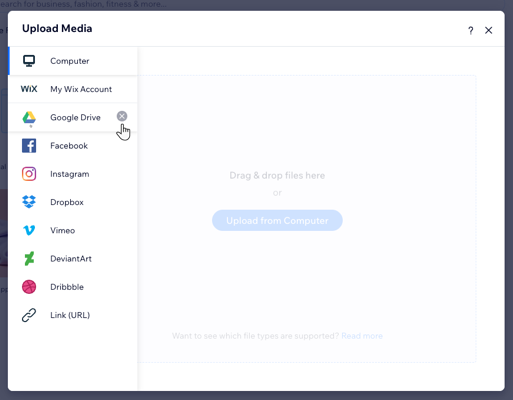
Dashboard:
Click + Upload Media.
Hover over a social network on the left and click the X.
Wix app:
Go to your site in the Wix app.
Tap Manage

at the bottom.
Tap Media Manager under Settings.
Tap Connected apps.
Tap the More Actions icon

at the top right.
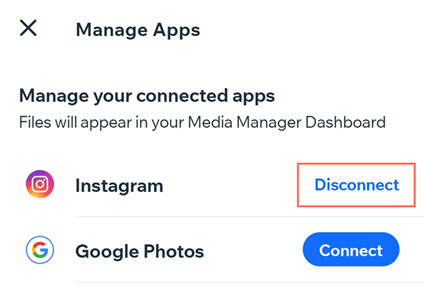
Tap Manage apps.
Tap Disconnect next to the relevant app.
This article is credited to the Wix team - https://support.wix.com/ and we thank them for that!