Review and manage all of your customer invoices from your site's dashboard. You can edit invoices, duplicate them, resend them, share them via a unique link, and more. To simplify your accounting processes, you can charge customer credit cards directly from the invoices.
Important:
This article refers to the Wix Invoices feature. If you are looking for your invoices for payments you made to Wix, click here.
Reviewing your invoices
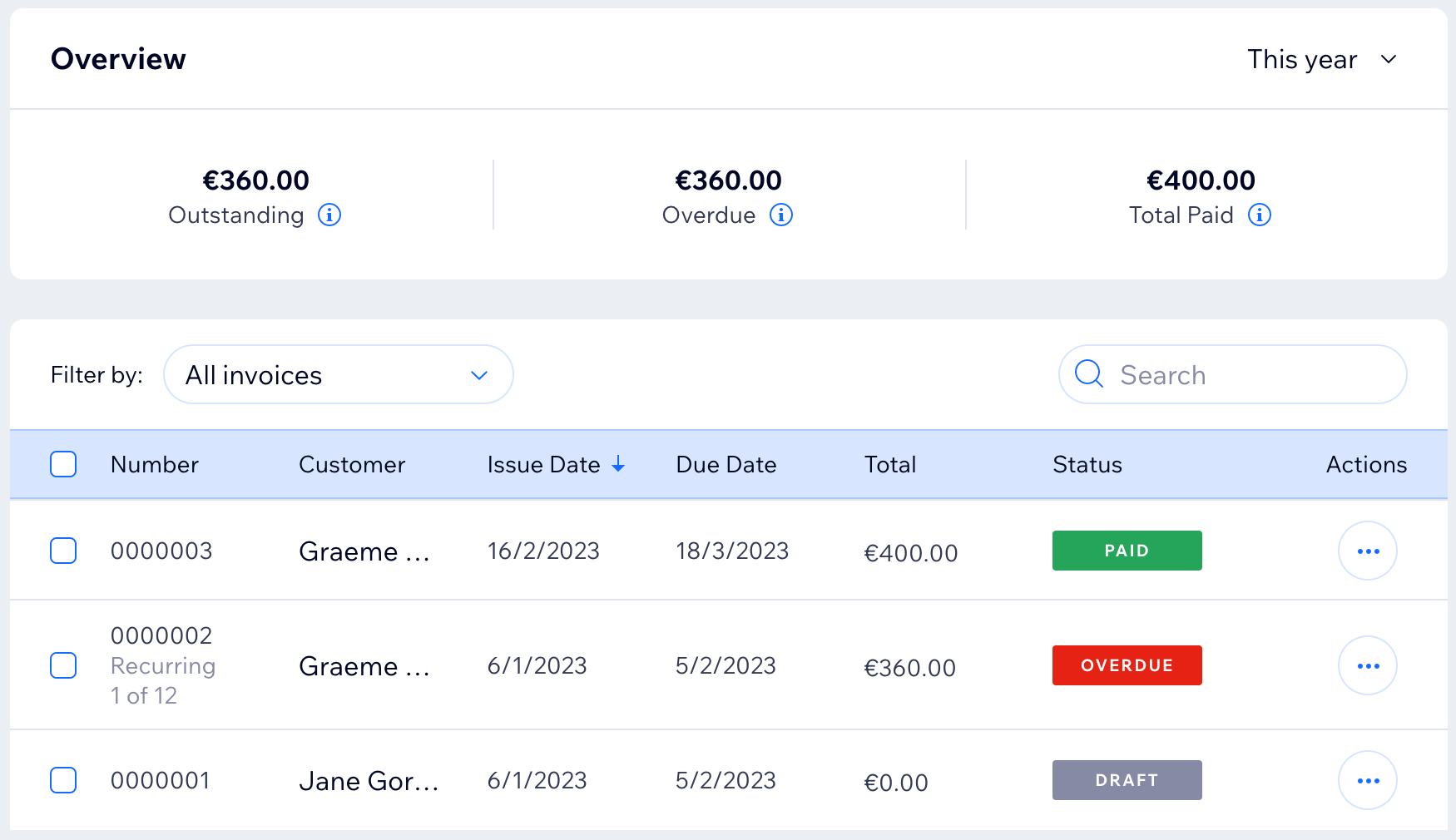
When you access Invoices in your site's dashboard, you see an overview of payments made, outstanding and overdue (within the time period selected). Below this, you'll see a list of all invoices you've created.
Filter, search and sort to find the invoices you need. Each invoice will have a status attached:
Draft: The invoice has been saved as a draft, but has not been sent to your customer.
Sent: The invoice has been sent to your customer. Your customer can view and print the invoice.
Viewed: The Viewed icon

appears if the invoice was opened by your customer. Hover over the icon for more information.
Paid: The invoice was paid in full online, or you manually marked the invoice as paid.
Partial: The invoice has been partially paid. Hover over Partial in the Status column for more information.
In Process: Your customer has begun the payment process, but the payment has not yet been confirmed. It can take up to 4 hours for the invoice to revert back to its original status or to change to Paid. While the invoice is in process, you can only view or print it.
Overdue: The invoice has not been paid and has passed the due date.
Void: The invoice has been canceled. Your customer can still view and print this invoice, although a Void stamp can be seen on the invoice.
Tip:
Use Wix Automations to streamline your billing process. For example, you can send automated emails to your clients every time an invoice is sent, paid or overdue.
Managing individual invoices
There are many ways you can manage the invoices you create. Make edits and then resend an invoice by email or share via a unique link. Duplicate an existing invoice to save time when creating a new one. Charge a customer's card directly from their invoice, and more.
To manage individual invoices:
Go to Invoices in your site's dashboard.
Click the More Actions icon

next to the relevant invoice.
Choose what you want to do:
Preview
Click Preview to see the invoice your customer will receive.
Edit
You can edit any of your invoices, as long as they are not marked as Paid or Void.
Click Edit.
Note: If your invoice is a recurring invoice, you'll see Edit recurring invoice. Learn more about recurring invoices.
Edit the relevant information.
Select an option at the top right:
Preview: Click the Preview icon

to see the invoice your customer will receive.
Save & Close: Save the revised invoice without sending it.
Collect Payment: Charge or record a payment that relates to this invoice.
Send Invoice: Send the revised invoice to your customer. First review or edit the content of the email your customer will receive. Click Send when you're ready to send.
Notes:
When changing the invoice total, the balance must be greater than or equal to the payment(s) you have already received from your customer.
When you update your customer's email address:
For all sent invoices: The status will change back to Draft. A new invoice link is created and the original link will no longer be valid. You can resend the invoice via email or by using the new invoice link.
For all paid invoices: The updated customer email address will not be reflected on your customer's paid invoice. The change will only be reflected in your Contact List.
Duplicate
Click Duplicate.
(Optional) Make changes to the invoice.
Select an option at the top right:
Preview: Click the Preview icon
to see the invoice your customer will receive.
Save & Close: Save the revised invoice without sending it.
Collect Payment: Charge or record a payment that relates to this invoice.
Send Invoice: Send the revised invoice to your customer. First review or edit the content of the email your customer will receive. Click Send when you're ready to send.
Note: The following details update automatically in the duplicated invoice:
Issue Date: The issue date is the date the invoice was duplicated.
Due Date: The due date is calculated based on your payment terms.
Invoice #: The invoice is given a new invoice number.
Send / Resend via email
Send or resend an invoice if your customer didn't receive it or accidentally deleted it.
Click Send via email or Resend via email.
Review or edit the content of the email your customer will receive.
Click Send.
Note: It is not possible to issue an invoice showing a refund. Vote for the ability to do so.
Share link
Share links to Wix Invoices via any platform or channel. By sending customers links to their invoices, they can pay for your goods or services without having to search for your invoice in their email inbox.
Click Share link.
Click Copy Link.
Click Done.
You can now share this link by pasting it into any communication you have with your customer.
Note: When you create a link for a draft invoice, it will be marked as Sent. This action can't be undone.
Click Print.
Download PDF
Click Download PDF.
Charge with credit card
You can handle the payment of an invoice by charging a customer's credit card.
Click Charge with credit card.
Enter your customer's credit card details.
Click Charge [payment amount] (e.g. Charge $50.00).
Note: You can only charge the full invoice amount or the deposit amount (if defined). You cannot charge any other amount.
Record payment
If a customer makes a partial or full payment via cash, bank transfer, check or similar, record this payment so it is reflected on their invoice. Learn more about setting up manual (offline) payments.
Click Record payment.
Enter amount received, payment date and payment method.
Click Record Payment.
Notes:
You must record the full payment amount if you want the invoice to be marked as Paid.
You can record a partial payment amount for offline payments only.
Void
You can void (cancel) any of your paid or sent invoices. Customers will not be able to make a payment on void invoices. If an invoice has been paid and is then made void, the amount will be deducted from your total paid overview and revenue report. This action can’t be undone.
Click Void.
Click Void to confirm.
Delete
You can delete any invoice in Sent, Draft or Void status. To delete a Paid invoice, you must first change its status to Void.
Click Delete.
Click Delete to confirm.
Note: If you delete an invoice, it is removed from your invoice list and it is not possible to restore it. Your customer can no longer view or print the invoice.
Downloading or exporting invoices in bulk
Simplify your accounting processes by accessing invoice data in bulk. You can bulk download to PDF or bulk export to CSV. Bulk downloading to PDF will download each invoice as a single page in a PDF document. Bulk exporting to CSV will produce a single CSV file with a line for each invoice. You can open CSV files using tools such as Microsoft Excel and Google Sheets.
To download or export invoices in bulk:
Go to Invoices in your site's dashboard.
Select the checkbox next to each invoice you want to download or export. Select the top checkbox to select all invoices.
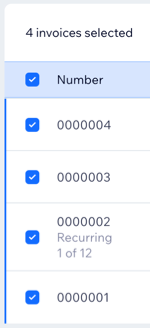
Click Download PDF or Export to CSV.
When exporting to CSV:
If you export a recurring invoice in Draft status, its Issue Date and Due Date will be blank. These fields are populated when the invoice is sent.
You can open CSV files using many text editors or spreadsheet applications. Choose Open from the File menu to open in Excel or Import from the File menu to open in Google Sheets.
FAQs
Click a question below to learn more about managing your invoices.
How many invoices can I export to CSV?
You can bulk export up to 5,000 invoices to CSV. Vote for the ability to export more.
Is there a maximum number of invoices I can download to PDF?
Yes. You can bulk select up to 50 invoices to download them as a PDF file. The invoices are downloaded in a single PDF file. If you need to download more than 50 at a time, you can export a CSV file.
How can I ensure the service fee is visible to customers on their invoices?
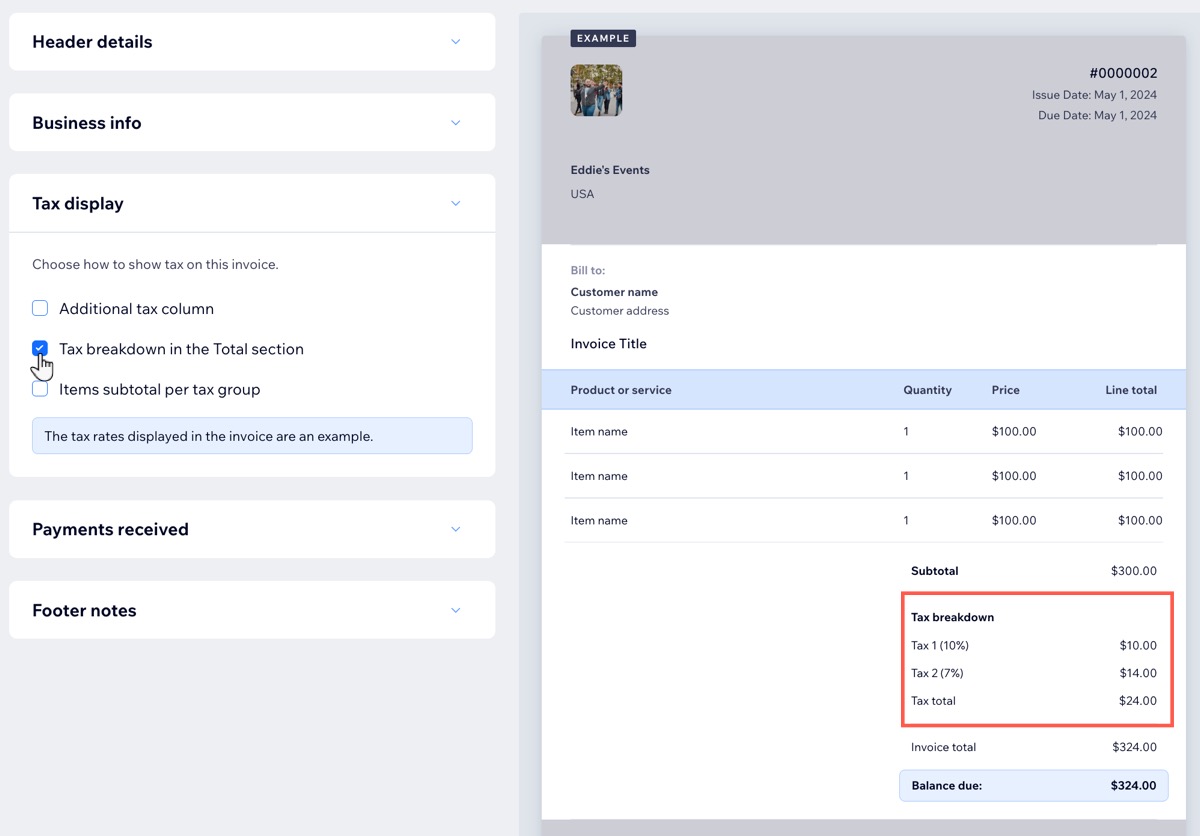
To ensure customers can view the service fee on their invoice, select the Tax breakdown in the Total section checkbox in the Tax Display settings of your Invoices.
To edit the Tax Display settings:
Go to Settings in your site's dashboard.
Click Invoices & quotes.
Click the Invoices tab.
Click the Tax Display drop-down and select the Tax breakdown in the Total section checkbox.
Note: If this checkbox is not selected, the invoice will no longer display the service fee line.
Click Save.
This article is credited to the Wix team - https://support.wix.com/ and we thank them for that!