Important:
This article refers to the latest version of Wix Hotels by HotelRunner. For information on the previous version of Wix Hotels, click here.
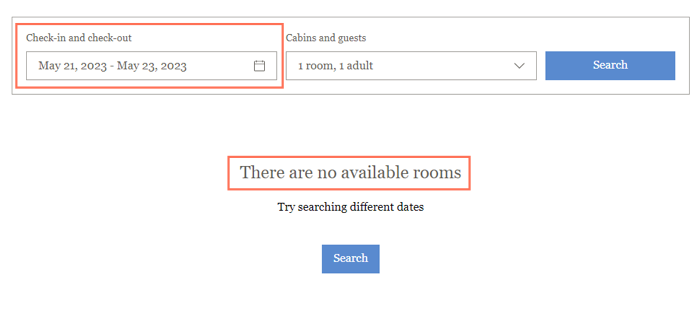
If you are experiencing issues with no rooms appearing as available on your site, see our solutions below.
Click an issue below to find out how to resolve it:
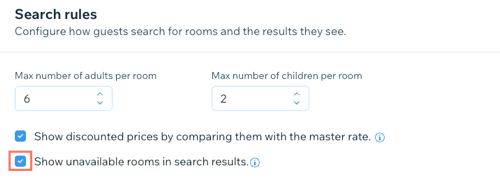
Step 1 | Check that you are showing unavailable rooms in search results in Reservation settings
Make sure to enable the Show unavailable rooms in search results checkbox under Search rules in Reservation settings under Property Settings. This gives your guests the chance to try searching for alternative dates or to contact you about making a reservation.
Learn more about managing your Reservation Settings.
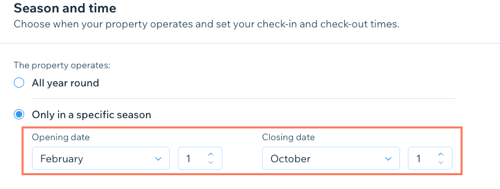
Step 2 | Check that your opening dates are correct under General Settings
Make sure you select the correct opening dates for your property under Season and time in General Settings under Property Settings.
Learn more about managing your Reservation Settings.
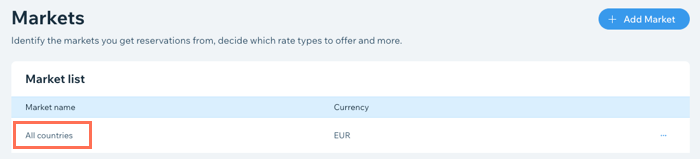
Step 3 | Check that the relevant countries appear in your Market list
Make sure you connect the relevant countries from which you accept reservations in the Markets section of your site's dashboard.
Step 4 | Check that your Inventory Calendar is configured correctly
To check that your Inventory Calendar is set up correctly:
Check if you have Stop Sell active on the relevant dates (Stop Sell dates appear in red on the calendar).
Check if Close to arrivals or close to departures are active on the incorrect dates.
Check if you have the correct minimum stay set up for the relevant room that's not available to reserve on your site.
Learn more about managing your prices and availability with the Inventory calendar.
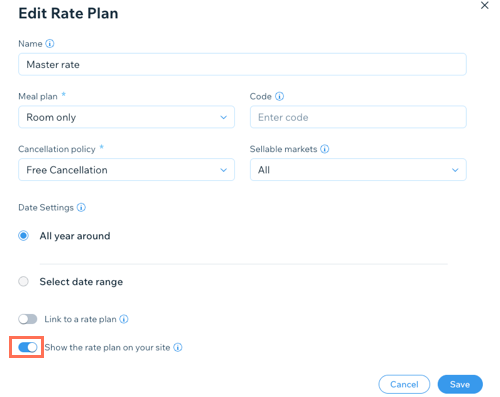
Step 5 | Check that the relevant rate plan isn't hidden
Make sure the relevant rate plan isn't hidden from your site.
Learn more about creating and managing your Rate Plans.
Still need help?
What information should I include if I need to reach out for assistance?
For us to best assist you, it helps to have the following information ready:
The name or URL of your Wix site.
The rooms, dates and a link to the relevant pages.
A screenshot of the error including the relevant dates.
The name and version of the web browser you're using.
The name and version of your computer's operating system.
This article is credited to the Wix team - https://support.wix.com/ and we thank them for that!