Wix Hotels by HotelRunner lets you connect Vrbo iCal to your site, streamlining your booking process. By integrating Vrbo, you can manage all your reservations from one place, reducing the risk of double bookings and saving you time.
Important information before you begin:
The Vrbo iCal integration sends your Wix Hotels by HotelRunner calendar to the Vrbo channel’s extranet but doesn’t receive any other data from the Vrbo channel. This means that rates and reservations don’t sync. Every time you get a reservation from a VRBO iCal channel, you need to add it manually to your Wix Hotels by HotelRunner calendar.
You need to manage your rates and restrictions from the Vrbo channel extranet.
Step 1 | Choose which rooms to send to Vrbo
You can choose which of your rooms you want to display on Vrbo from the Channel Manager section of the Wix Hotels by HotelRunner dashboard.
To choose which rooms to send from Wix Hotels by HotelRunner to Vrbo:
Go to the Channel Manager in your Wix Hotels by HotelRunner dashboard.
Click Connect next to Vrbo.
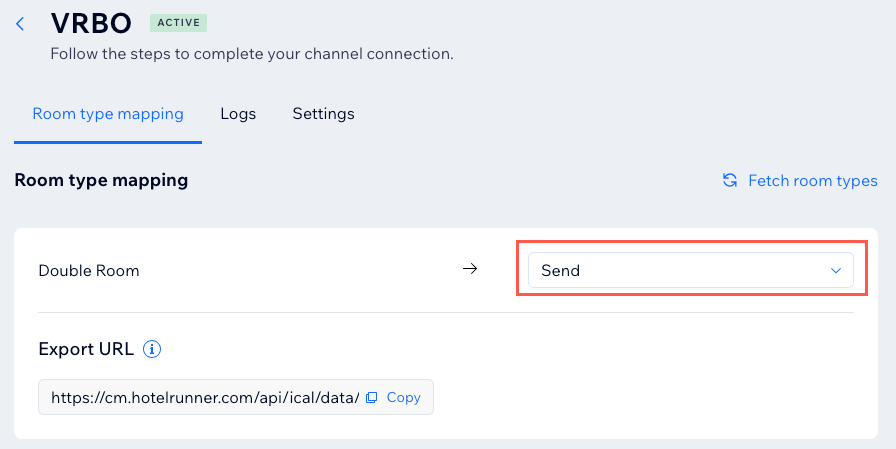
Choose Send from the drop-down next to all relevant rooms you want to share with Vrbo iCal.
Click Next.
Click Copy next to all relevant rooms you want to send to Vrbo.
Step 2 | Import your Wix Hotels by HotelRunner calendar to Vrbo
Once you have marked all relevant rooms as 'send' and copied their links, it's time to log in to the Vrbo extranet to import the room types.
To import your Wix Hotels by HotelRunner calendar to Vrbo:
Click Calendar.
Click Import & Export.
Click Export Calendar.
If you have more than one property on Vrbo, select the relevant property from the drop-down at the top right of the calendar.
Click the Import/Export drop-down at the top.
Click Import calendar.
Enter Wix Hotels by HotelRunner iCal in the Name field.
Paste the export URL you copied from your Wix Hotels by HotelRunner account in the Calendar URL field.
Click Import Calendar.
Repeat steps 8-10 for all relevant Export URLs you want to add to Vrbo from Wix Hotels by HotelRunner.
Step 3 | Activate the Vrbo integration with Wix Hotels by HotelRunner
Once you have finished entering the Export URLs in the relevant Vrbo extranet calendar, go to the Wix Hotels by HotelRunner channel manager menu and activate your Vrbo channel.
To activate the Vrbo integration:
Go to the Channel Manager in your Wix Hotels by HotelRunner dashboard.
Hover over Vrbo and click Complete Setup.
Click Activate.
Note:
Once the Vrbo connection is complete, your availability on your Wix Hotels by HotelRunner calendar transfers to your Vrbo account. You can update which rooms you send to Vrbo at any time.
This article is credited to the Wix team - https://support.wix.com/ and we thank them for that!