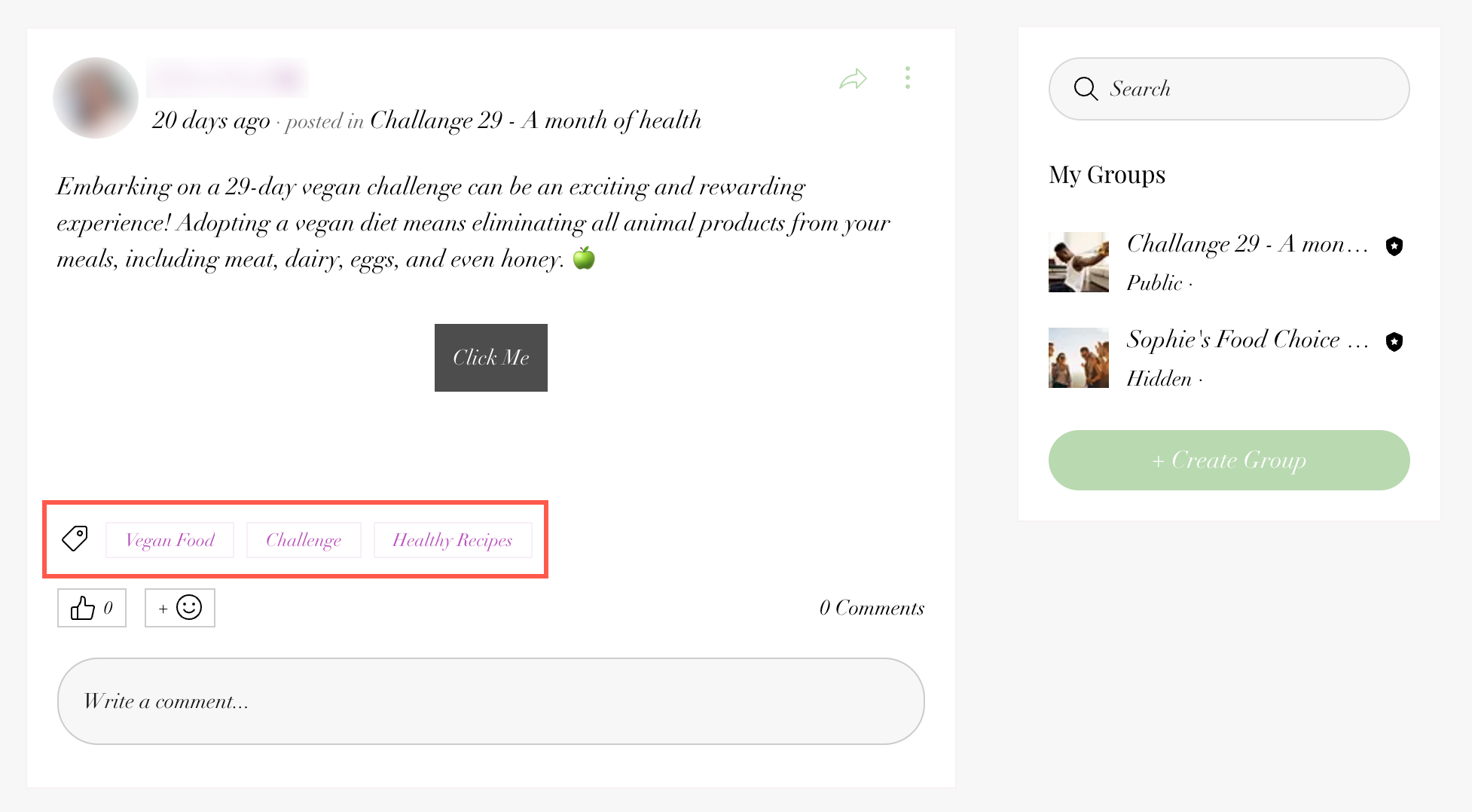
Organize your group's posts by topics to improve their discoverability. Assign and update topics so members can filter for relevant content. For example, a fitness center could use topics like "Success Stories" or "November Fitness Challenge."
Creating topics
Create topics for your group posts to help members easily find and join conversations that interest them.
Dashboard
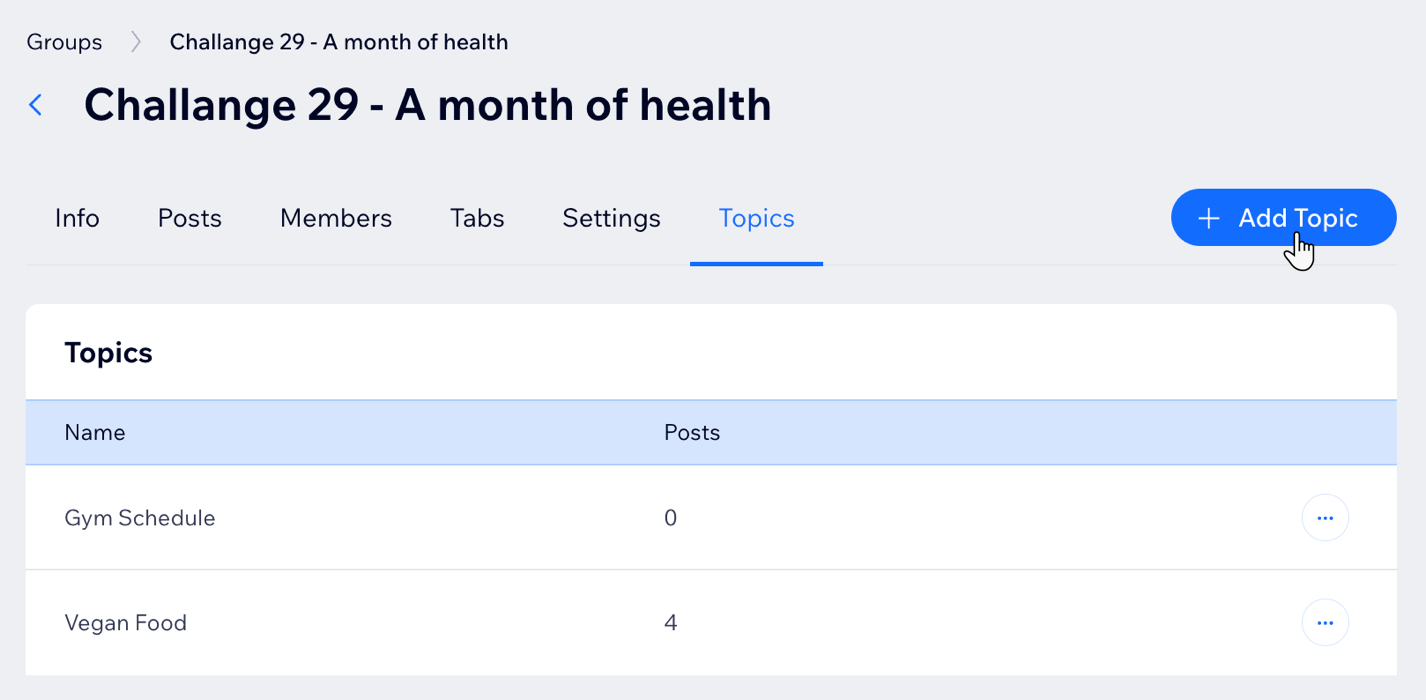
Go to Groups in your site's dashboard.
Click the relevant group.
Click the Topics tab.
Click + Add Topic.
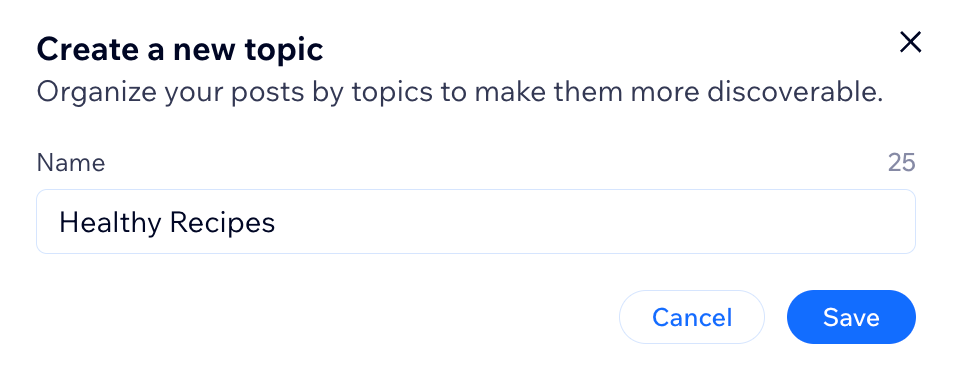
Enter your topic name.
Click Save.
Wix app
Go to your site in the Wix app.
Tap Manage

at the bottom.
Tap Groups.
Tap the relevant group.
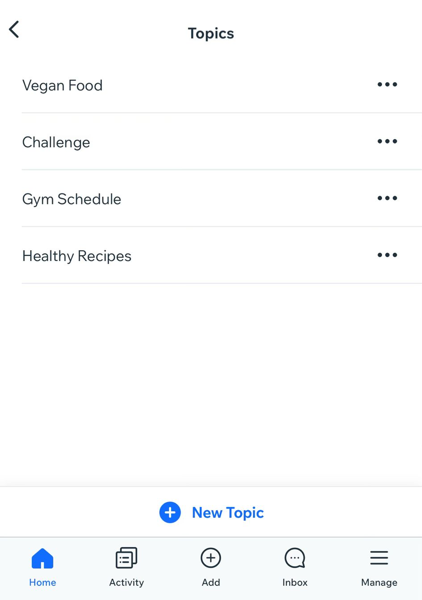
Tap Topics.
Tap + New Topic.
Enter the topic name.
Tap Create.
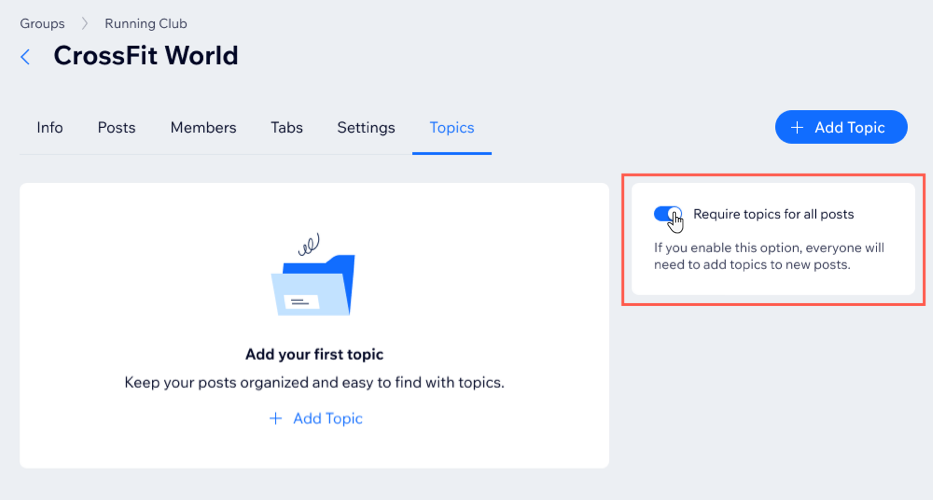
Want to require group members to add topics to their posts?
Click the Require topics for all posts toggle to enable it.
Adding topics to posts
Once you have added a topic, you and your group members can add it to posts.
Dashboard
Go to Groups in your site's dashboard.
Click the relevant group.
Click the Posts tab at the top.
Choose what to do next:
Add topics to an existing post
Click the More Actions icon

next to the relevant post.
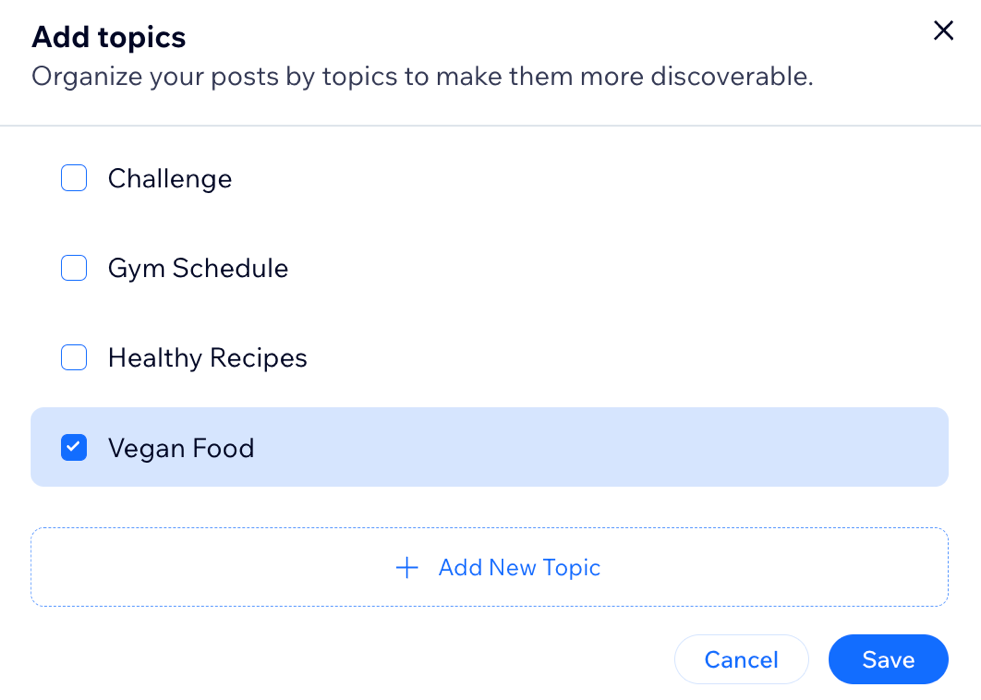
Select Add topics.
Select a topic to add:
Add existing topics: Select topics from the list.
Add New Topic:
Click + Add New Topic.
Enter your topic name.
Click the Checkmark icon

.
Select your new topic.
Click Save.
Add topics to a new post
Click Create Post.
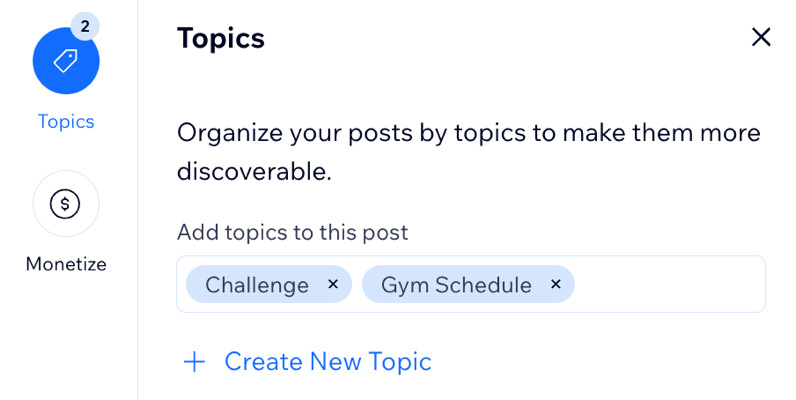
Click Topics on the left.
Select a topic to add:
Add existing topics: Click the search bar and select topics from the list.
Add a new topic: Click + Create New Topic, enter your topic name and click Save.
When ready, click Post.
Wix app
Go to your site in the Wix app.
Tap Manage
at the bottom.
Tap Groups.
Choose what to do next:
Add topics to an existing post
Tap the More Actions icon
next to the relevant group.
Tap View Group.
Tap the More Actions icon
next to the relevant post.
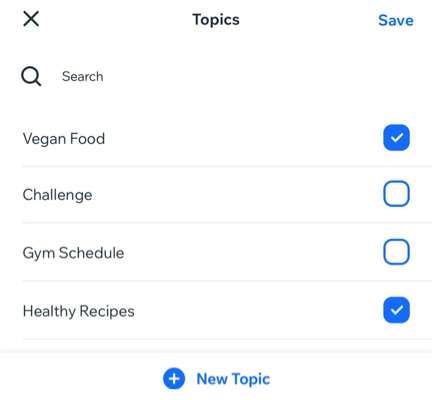
Tap Add Topics or Edit Topics if you already assigned topics to this post.
Select a topic to add:
Add existing topics: Select topics from the list.
Add a new topic:
Tap + New Topic.
Enter the topic name and tap Create.
Select your new topic.
Tap Save.
Add topics to a new post
Tap the More Actions icon
next to the relevant group.
Tap Create a post.
Tap + Add Topics.
Select a topic to add:
Add existing topics: Select topics from the list.
Add a new topic:
Tap + New Topic.
Enter the topic name and tap Create.
Select your new topic.
Tap Save.
When ready, tap Post.
Live site
Go to the relevant group on your live site and log in.
Choose what you want to do next:
Add topics to an existing post
Click the More Actions icon
next to the relevant post.
Select Edit.
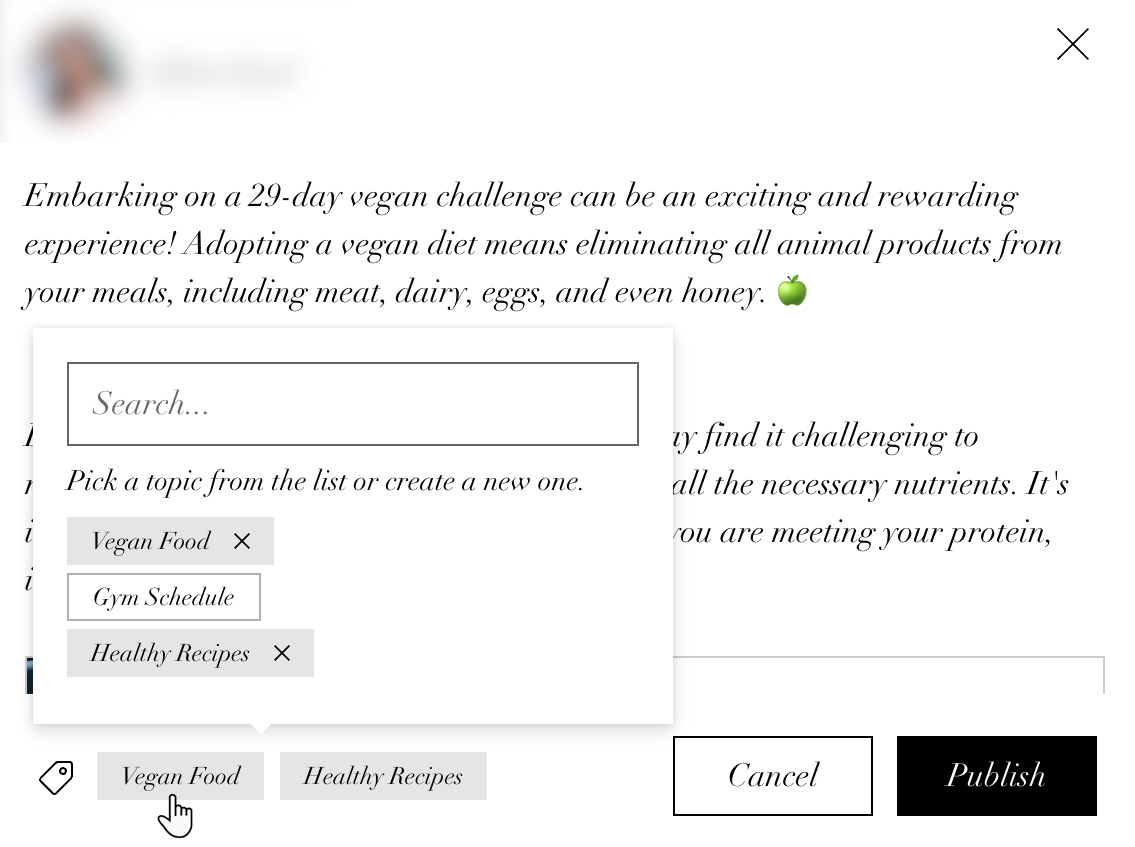
Click + Add a Topic or click the topic if you already assigned topics to your post.
Select a topic to add:
Add existing topics: Select topics from the list.
Add a new topic: Enter your topic's name in the search bar and click + Create.
Click Publish.
Add topics to a new post
Click Create a Post.
Select the relevant group.
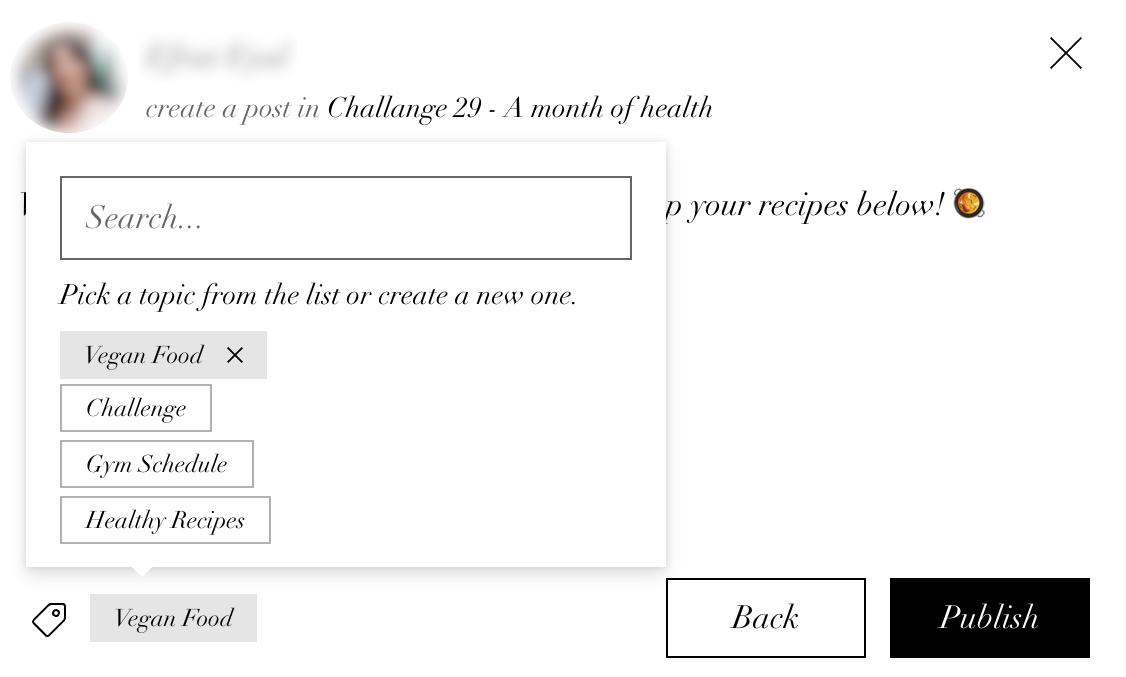
Click + Add a Topic.
Select a topic to add:
Add existing topics: Select topics from the list.
Add a new topic: Enter your topic's name in the search bar and click + Create.
When ready, click Publish.
Renaming and deleting topics
You can edit and delete topics as needed. Deleting a topic removes it from any post that it is assigned to, but the post remains live on your group's feed.
Dashboard
Go to Groups in your site's dashboard.
Click the relevant group.
Click the Topics tab.
Choose what to do next:
Rename a topic:
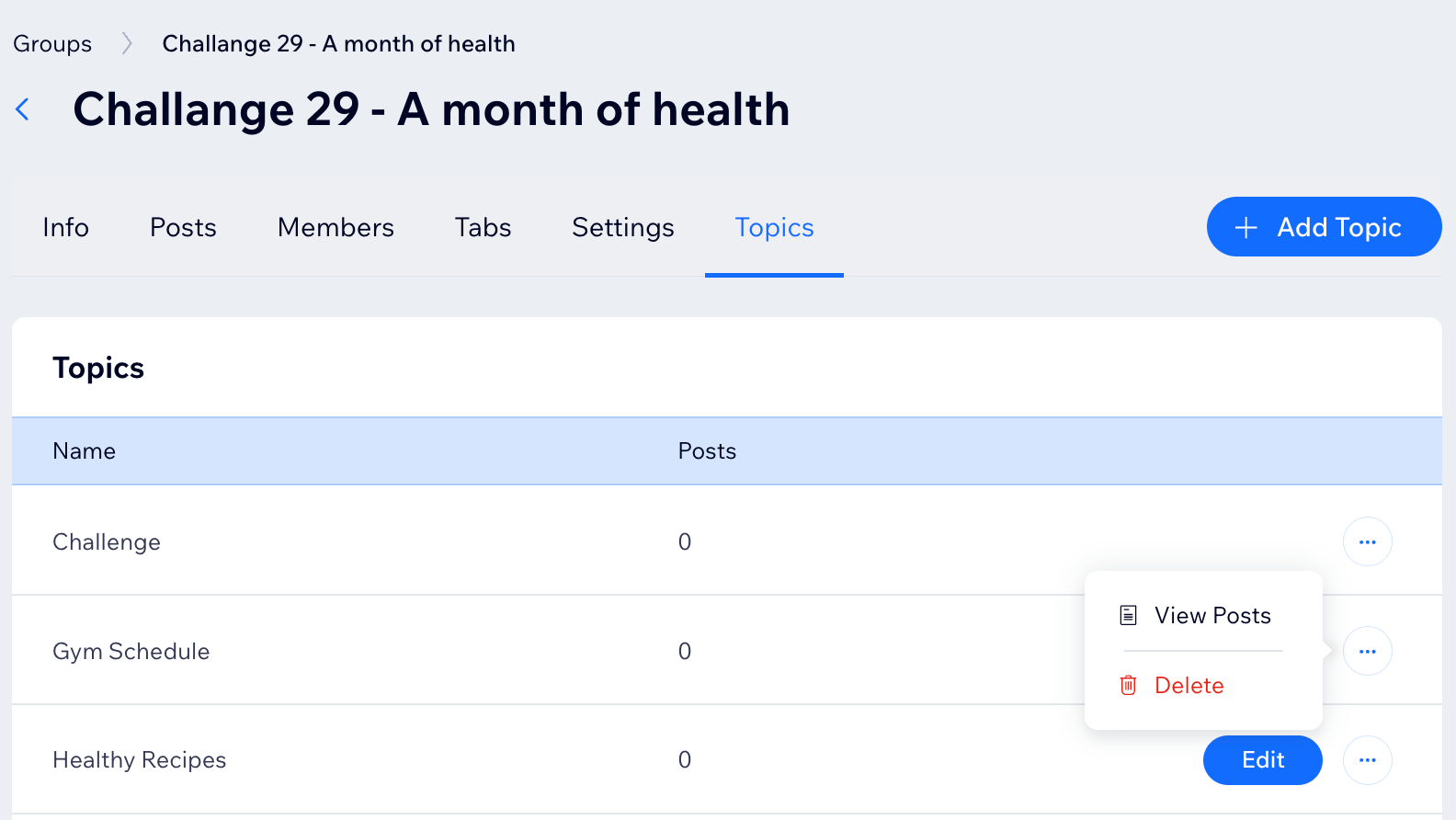
Hover over the topic you would like to rename and click Edit.
Enter a new name for your topic.
Click Save.
Delete a topic:
Click the More Actions icon
next to the relevant topic.
Click Delete.
Click Confirm.
Wix app
Go to your site in the Wix app.
Tap Manage
at the bottom.
Tap Groups.
Tap the relevant group.
Tap Topics.
Click the More Actions icon
next to the relevant topic.
Choose what to do next:
Tap Edit to change the topic name. Enter a new name for your topic and tap Save.
Tap Delete to remove a topic and tap Delete to confirm.
Note: Removing a topic will unassign it from posts but won't delete the posts.
FAQs
Click a question below to learn more about group topics.
Can members suggest new topics?
Members cannot create new topics directly, but they can suggest new topics to you. Consider creating a suggestion post or form where members can submit their ideas for new topics.
How can I ensure my members use topics effectively?
Educate your members about the importance of using topics. You can create a pinned post explaining how to use topics for better navigation and encourage them to categorize their posts appropriately.
Are members notified when a topic is edited or removed?
No, members are not notified when you edit or remove topics.
Can I customize the appearance of topics?
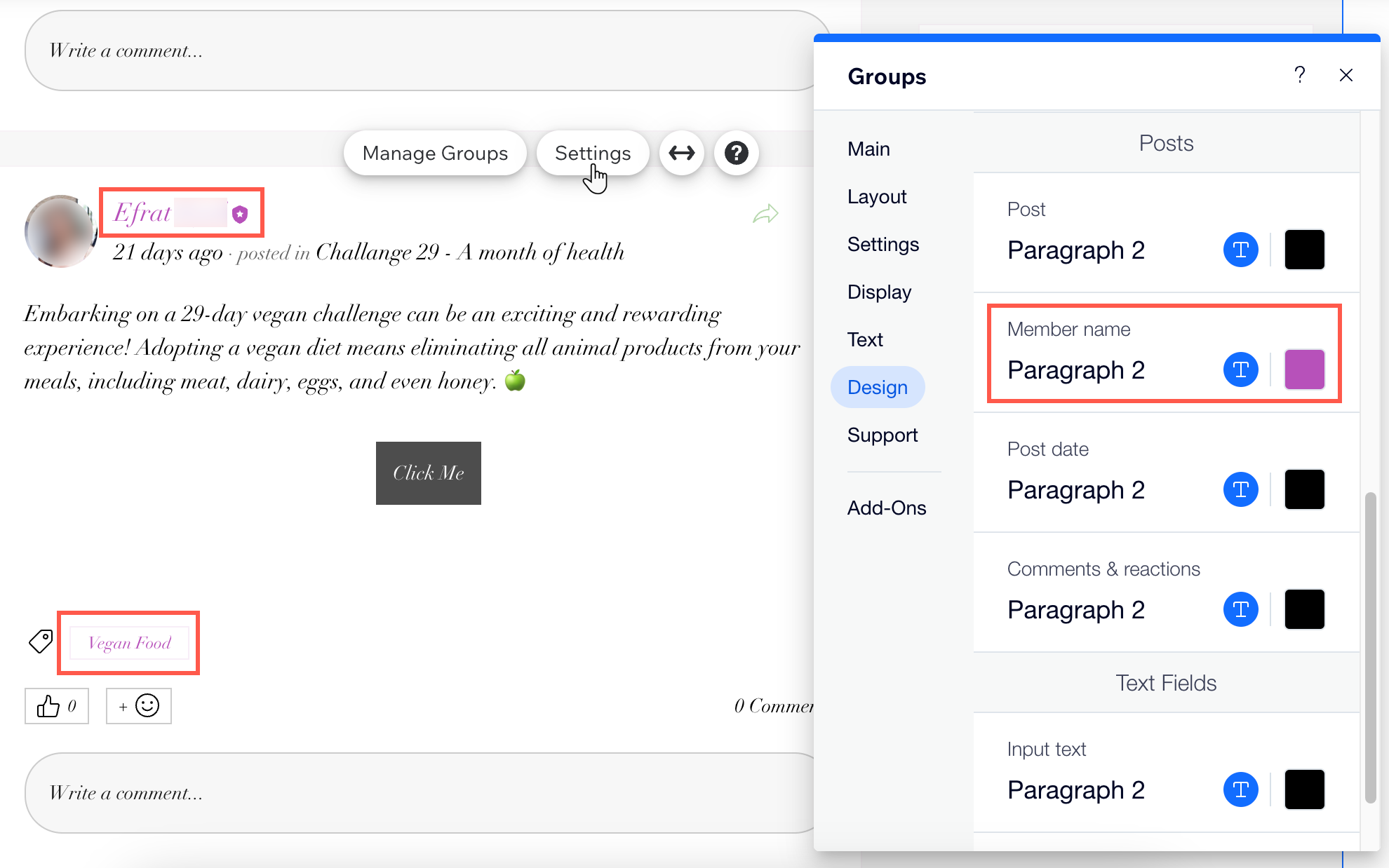
Yes. The topic label design is based on your overall group page design. To change the color of the topic label text, modify the Member name text in your editor. In your group's page, Click Settings, select the Design tab and click Member name to change the text color.
What are some best practices for naming topics?
Keep topic names clear and concise. Use descriptive names that accurately represent the content. Avoid using overly generic names to ensure each topic serves a specific purpose.
Can I restore a deleted topic?
No. Once a topic is deleted, it cannot be restored. However, you can create a new topic with the same name and reassign posts to it.
Can I assign multiple topics to a single post?
Yes, you can assign multiple topics to a single post. This allows the post to be categorized under different relevant topics, making it easier for members to find.
How can I use topics to improve member engagement?
Use topics to create focused discussions and events. For example, you can have topics for different challenges, events, or themes. This helps members find content that interests them and fosters engagement.
Is there a limit to the number of topics I can create?
No. There are no strict limits on the number of topics you can create. However, keep the number manageable to avoid overwhelming your members. Too many topics can make navigation difficult.
This article is credited to the Wix team - https://support.wix.com/ and we thank them for that!