Keep everyone connected in your groups by managing notification settings. As a site owner, you control which group activities trigger automated emails to members using Wix Automations, and can create segments to target specific group audiences. Group members can also choose which notifications they want to receive.
Good to know:
Weekly group emails are sent when there are at least 3 new posts and 1 popular post (measured by having a comment or reaction). These posts must be visible to the member receiving the email.
Managing notifications as a site owner
You can send automated email notifications to group members about key activities such as group info updates, new member joins, comments on posts, and more. These notifications are managed in your site dashboard using Wix Automations.
Note:
Only the site owner can manage automations, group admins do not have access.
Automated group notifications are sent to every member of your groups by default. Automations apply to all groups at once, not to individual groups. To target specific members, you can set up a custom automation using the available triggers and variables.
You can customize automated emails by editing the sender address and personalizing the content. Some settings are fixed, but you can duplicate a preinstalled automation or create your own for more customization. You can deactivate automations whenever you want, but they cannot be permanently deleted.
Preinstalled automated email notifications for group activities include:
Group info updated
New member added
New members join
Comments on posts
New posts
New posts from members you follow
New member request status
Weekly summary of posts
Group created or status changes
Member mentioned you
Learn how to:
Managing email notifications as a group member
Group members can choose which automated email notifications they want to receive from your site. Share these steps with your group members to help them manage their own preferences.
To manage your email notifications as a group member:
Go to your live site and log in.
Click your profile image in the login bar and select Account Settings.
Click the Settings tab.
Click the toggles under Social Groups to enable or disable the relevant notifications.
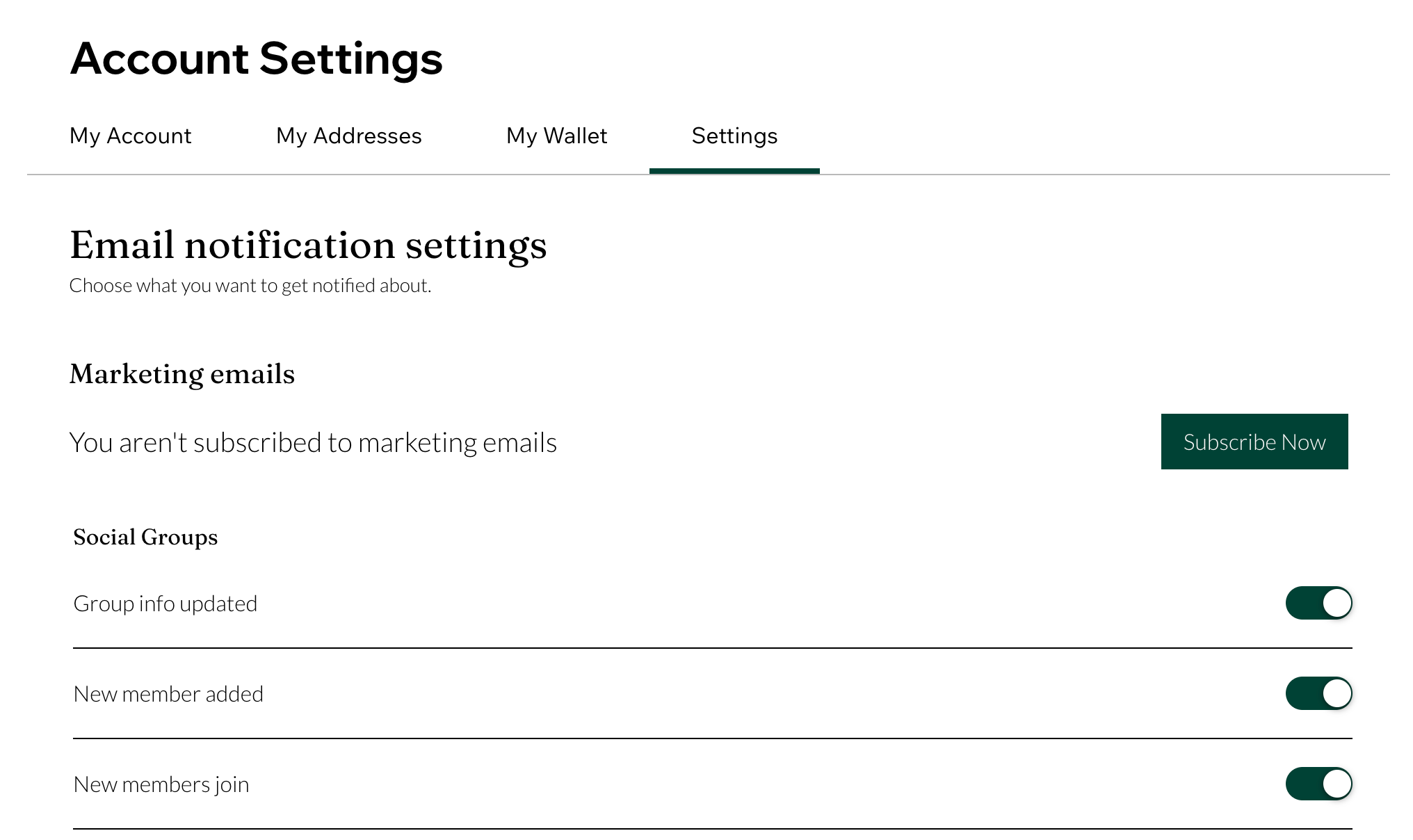
Managing group notifications as a group member
Each group member can also control the notifications they receive from within a specific group. They can choose whether to get updates on the website, in the mobile app, or both.
To manage your group notifications as a group member:
Go to your live site and log in.
Go to the relevant group on your live site.
Click the More Actions icon

at the top right of the group.
Click Notification Settings.
Choose where you want to get notifications from:
Website
On the Website tab, click the Website notifications toggle to enable or disable all notifications related to group updates.
(Optional) Select or deselect the relevant checkboxes for the types of notifications you want to receive:
Posts: Get notified when someone posts in the group.
Comments: Get notified when someone comments on posts.
Reactions: Get notified when someone reacts to post.
Member Requests: Get notified about new member requests.
Group Updates: Get notified when an admin makes changes to the group.
New Members: Get notified when new members join the group.
Click Save to apply your changes.
Mobile App
These settings control the updates you receive on the relevant mobile app (e.g. Spaces by Wix, Fit by Wix, or the native app).
Click the Mobile App tab in the notification settings.
Click the Mobile app notifications toggle to enable or disable all notifications on the relevant mobile app:
Enabled: You get notifications on the mobile app about the group updates you choose. Select the checkboxes next to the notifications you want to receive:
Posts: When someone posts in the group.
Comments: When someone comments in the group.
Reactions: When someone reacts to your post (e.g. with an emoji).
Member Requests: Get notified about new member requests.
Group Updates: When an admin makes changes to the group.
New Members: When new members join the group.
Disabled: You do not receive notifications on the mobile app about group updates.
Click Save to apply your changes.
This article is credited to the Wix team - https://support.wix.com/ and we thank them for that!