Go to the group settings to customize your group to your needs. Set member permissions, add group guidelines, automate posts, and create membership questions.
To customizing your group settings:
Go to Groups in your site's dashboard.
Click the More Actions icon

next to the relevant group.
Select Manage.
Click Settings.
Choose what you want to do next:
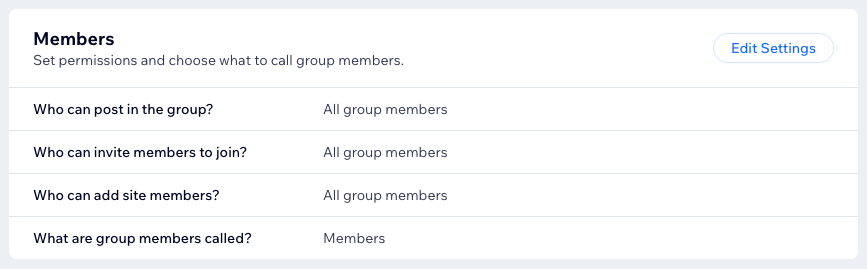
Set permissions and choose what to call group members
Click Edit Settings next to Members.
Select the relevant option for each type of member permission:
Who can post in the group?: Decide who can post and publish in this group.
Who can invite members to join?: Decide who can send out invitations to join this group.
Who can add site members?: Decide who can add members of your site to this group, without an invite.
(Optional) Click the What are group members called? drop-down and select the desired name or create a custom one.
Click Save.
Add guidelines for your group to ensure members post responsibly and respectfully
Learn more about managing your group rules.

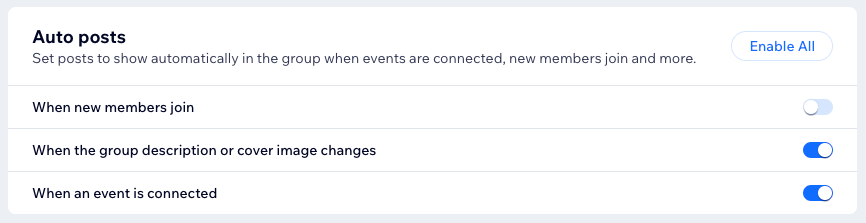
Set posts to show automatically in the group when events are connected, new members join and more
Learn more about auto posts.
Control AI spam detection
AI spam detection automatically filters out potential spam posts before they’re published in your group. This helps keep your group content safe and relevant. Posts from group administrators aren’t affected by this filter. AI spam detection is on by default, but you can turn it off at any time.
Click the AI spam detection toggle to turn the filter off.

Set Membership questions to find out more about members before they join this group
Click + Add Question to set up the first question you want to ask members before they join your group. Enter your question and click the Required checkbox if you want to make the question mandatory. Click + New Question for each additional question you want to ask and click Save when you're done.

This article is credited to the Wix team - https://support.wix.com/ and we thank them for that!