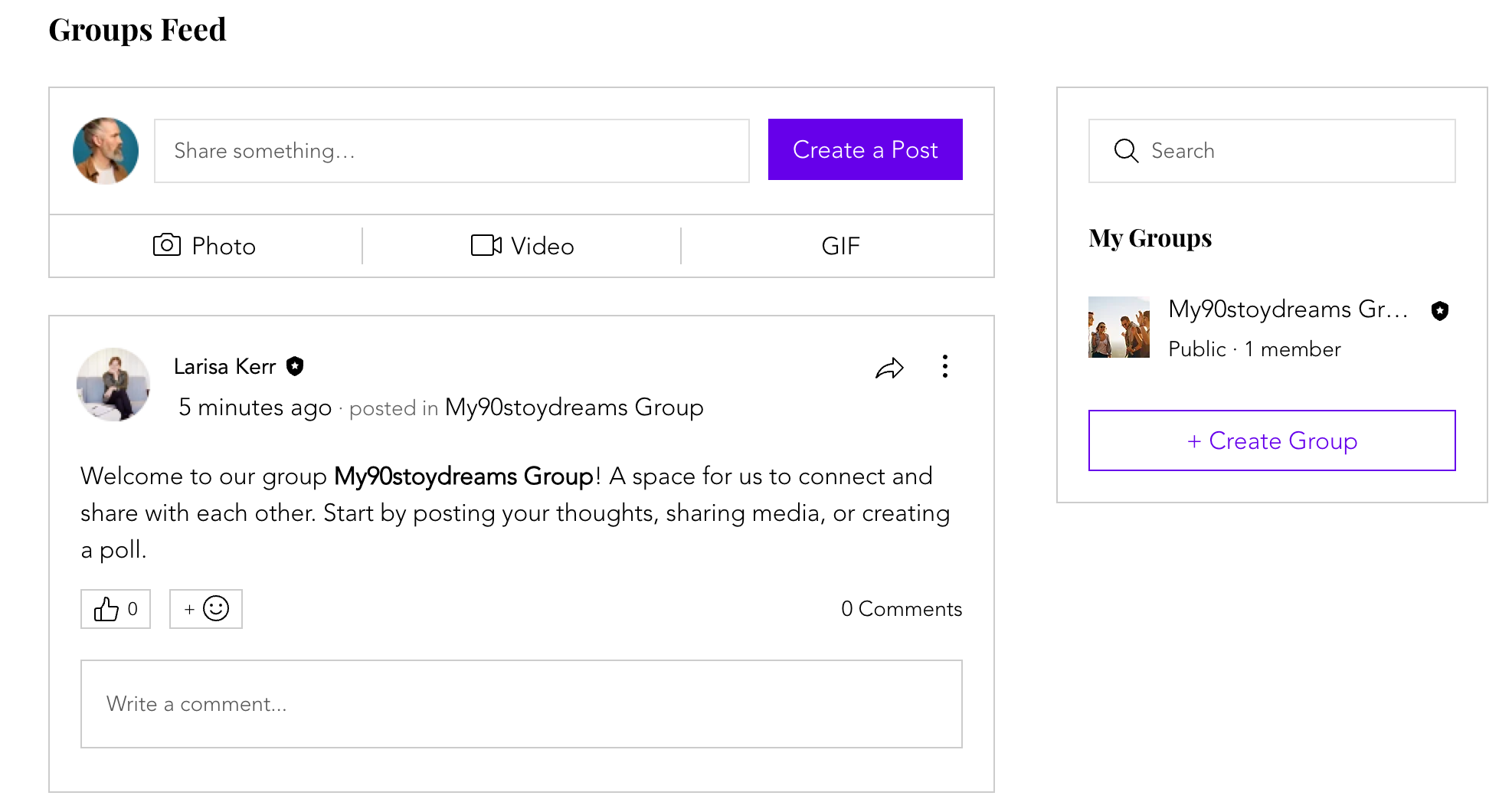
Groups are a wonderful way to connect with people who share your interests. You can post updates, talk to members, and even ask others to help run the group. You can make your group look special to attract more members. Use a ready-made group or create your own.
Step 1 | Add the Wix Groups app to your site
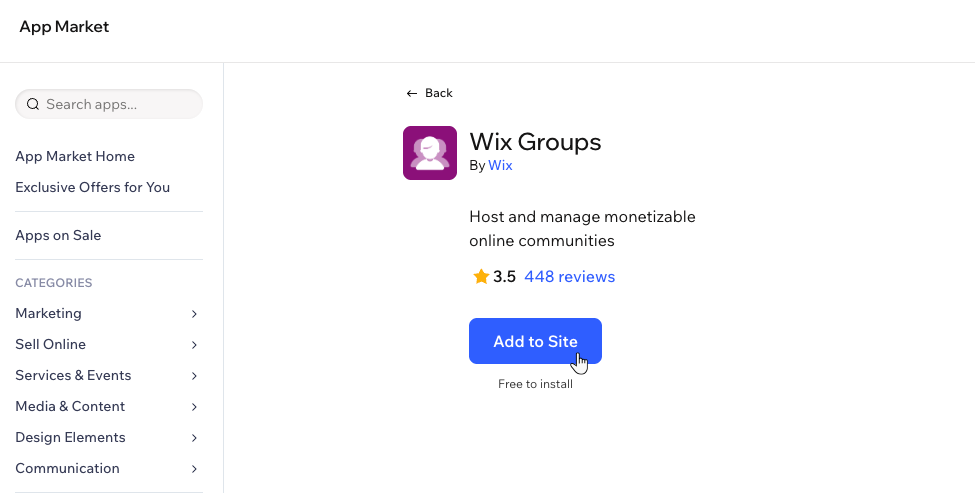
Get started by adding the Wix Groups app to your site from the Wix App Market. You can add Wix Groups from the editor or the Apps tab in your site's dashboard.
Wix Editor
Click Add Apps

on the left side of the editor.
Search for the Wix Groups app in the search bar.
Click Add to Site.
Studio Editor
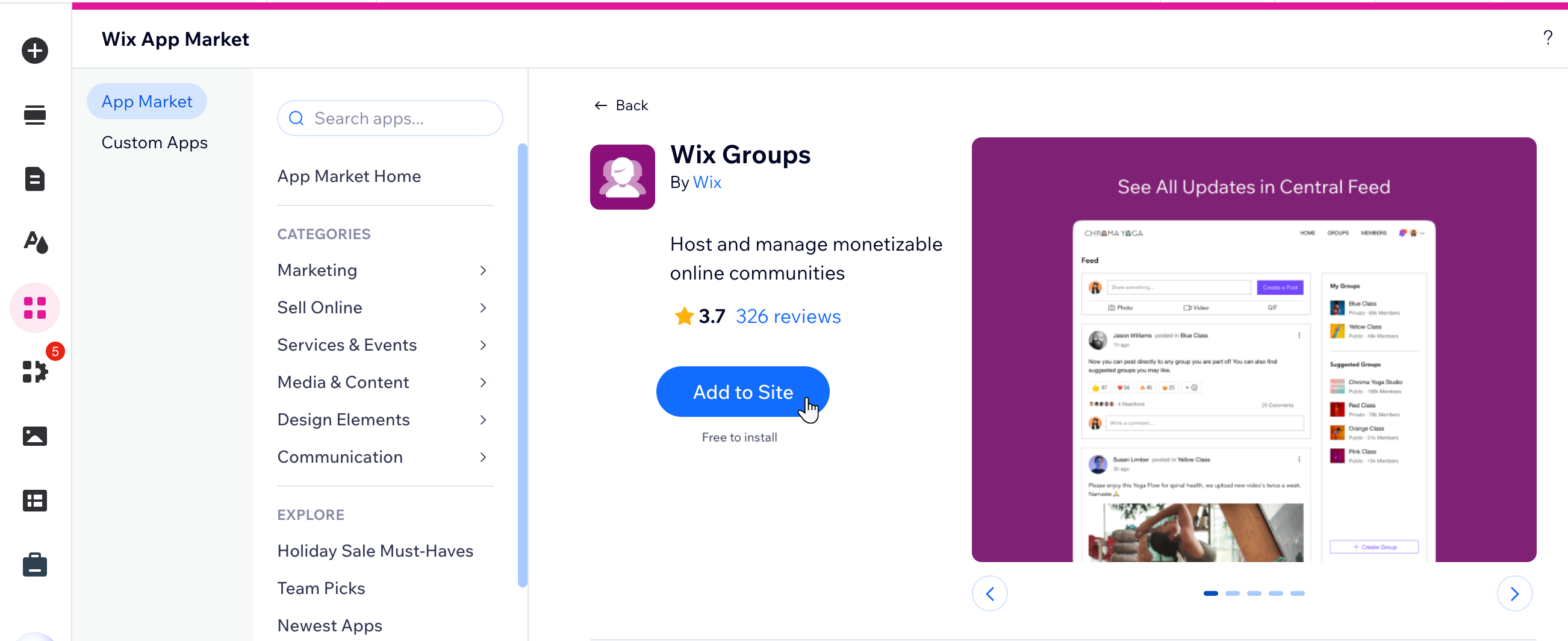
Click App Market

on the left side of the editor.
Click App Market.
Search for the Wix Groups app in the search bar.
Click Add to Site.
Dashboard
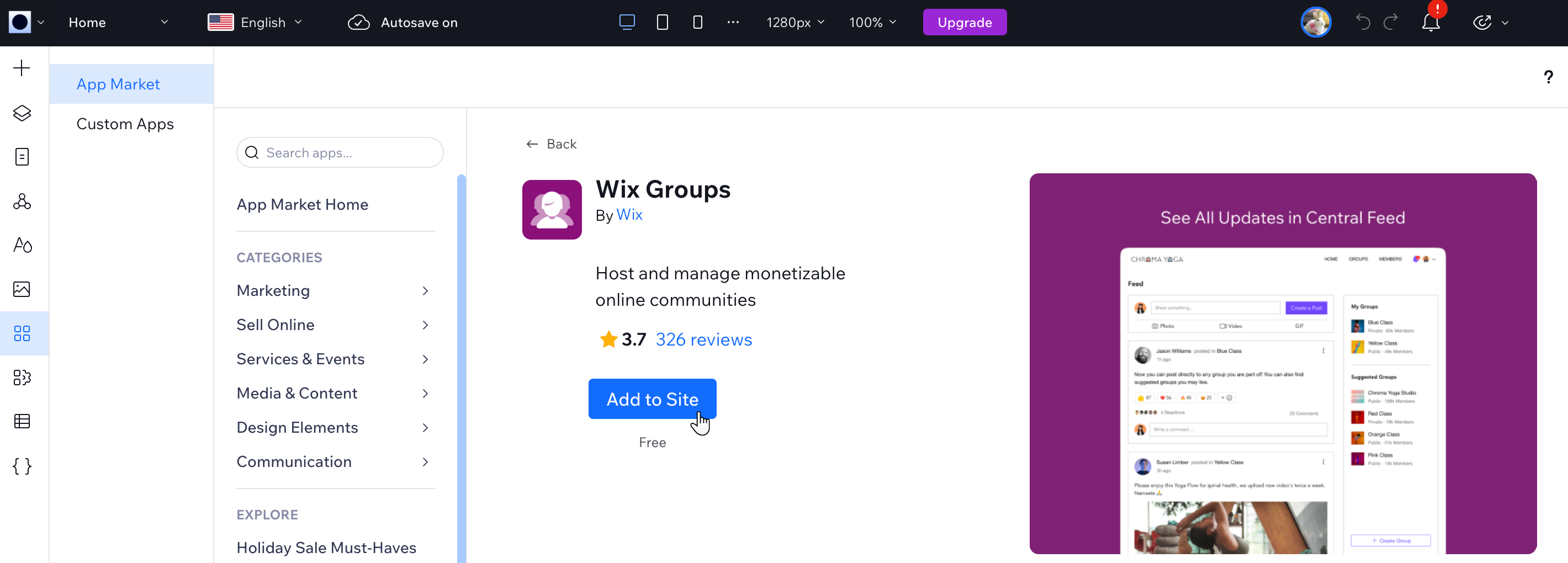
Go to the Wix App Market in your site's dashboard.
Search for the Wix Groups app in the search bar.
Click Add to Site.
Click Go to Editor.
Harmony Editor
Click + Add at the top left of the editor.
Click the Arrow icon

to navigate to the Apps category.
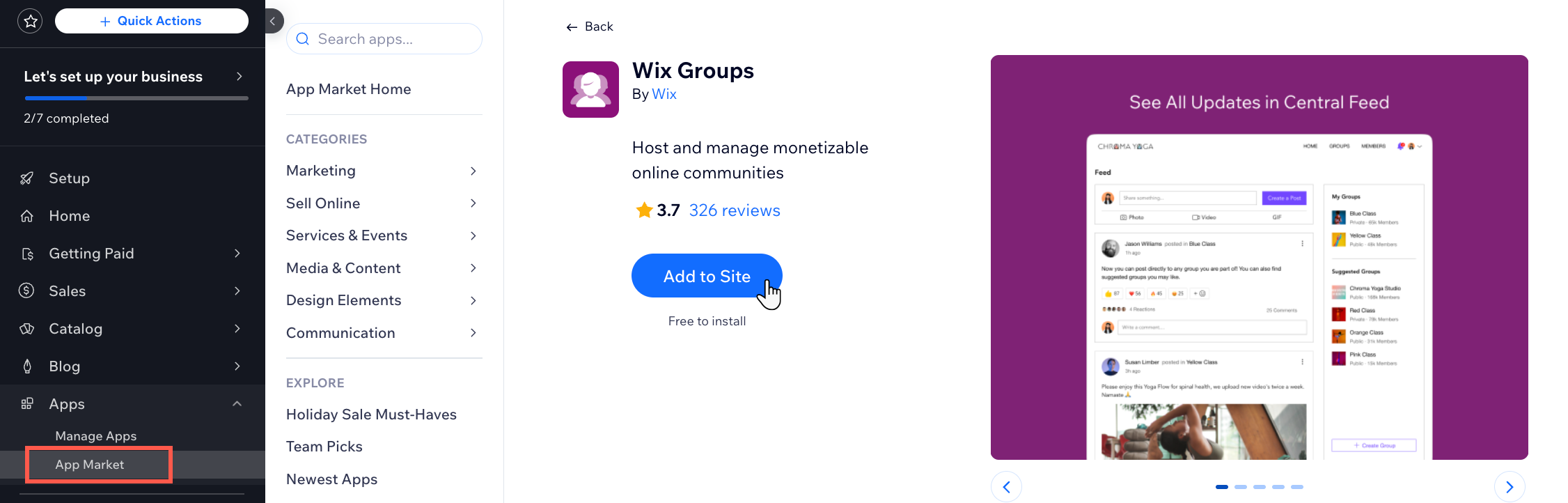
Click Wix App Market at the bottom left.

Search for the Wix Groups app, then select the app.
Click Add to Site.
Step 2 | Create your first group
After you've added Wix Groups to your site, you're ready to create your first group. You can use an existing template or create your own group from scratch. Later, manage your group settings to serve the goal and vision you have for your community.
Step 3 | Design your group pages
Once you've created your group, it's time to customize its appearance. In your editor, you can choose a layout and decide what information to display on your group pages and add-ons.
Step 4 | Invite group members
Is your group ready to go live? You can now invite people to join your group and become members.
FAQs
Click a question below to learn more.
Can I prevent members of a group from downloading shared videos?
To prevent video downloads, you can use a third-party app to disable right-click functionality, which can prevent users from downloading videos. This solution may not completely block all download methods, so consider using watermarks or other protective measures for sensitive content.
How can I make a group private so only invited members can access it?
In Wix Groups, you can set a group to private by adjusting the privacy settings in the group management panel. This ensures that only members you invite can join and view the group's content. To further enhance privacy, consider enabling manual approval for group membership requests.
How do I transition a free group to a paid group without losing members?
You cannot directly convert a free group to a paid group. Instead, duplicate the existing group, create a new paid version, and manually invite or add current members to the new group. Use a pricing plan to manage the paid membership and ensure clear communication with your members about the transition.
Can I limit group access based on user roles, such as buyers and affiliates?
Yes, you can create separate groups for different user roles and manage access accordingly. For example, create one group for buyers and another for affiliates. Use the Members Area to assign roles and ensure users only access the appropriate group.
How can I manage access to group pages for paid members only?
To restrict access to group pages for paid members, connect the group to a pricing plan. This ensures only members who have subscribed to the plan can access the group. You can create a pricing plan from your dashboard under the Pricing Plans tab.
Is there a limit to how many groups I can create, or how large each post can be?
Yes. You can create up to 1,000 groups on your site. Each group post can be up to approximately 200,000 characters.
This article is credited to the Wix team - https://support.wix.com/ and we thank them for that!