Build your mailing list with a subscribe form. Subscribe forms allow site visitors to sign up for your newsletter, special offers, business updates or more. Once they fill out the form they are automatically added to your contact list with a 'Subscriber' label.
You can also add a 'subscribe to mailing list' form field to any standalone form. Send the unique URL to potential subscribers rather than directing them to your site.
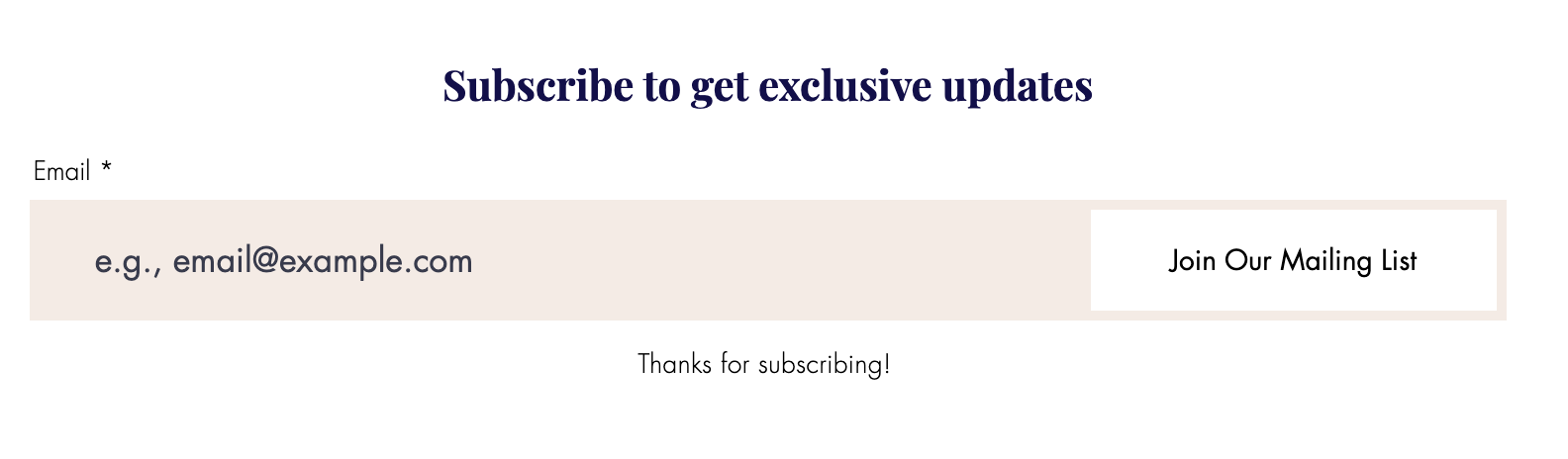
To add a subscribe form to your site:
New Forms
Click Add Elements

on the left side of the editor.
Click Contact & Forms.
Scroll down to the Subscribe section and drag a form onto your site.
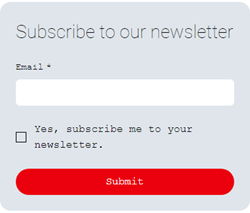
Click Settings.
Customize your subscribe form settings using the available options:
Layout
Drag the slider to adjust the forms side padding, top and bottom padding, and spacing between rows and columns to align your form to meet your needs.
Design
Choose from a number of customization options for elements such as Form Background, Form Fields, Header and Paragraph and Buttons. Customize your form design to captivate your visitors.
Manage
View all existing submissions for this form in the Forms dashboard. Learn more about a form's submissions table.
Want to add a subscribe field, not a subscribe form?
You can add an individual subscribe field to any of your new Wix forms.
Old Forms
Click Add Elements

on the left side of the editor.
Click Contact & Forms.
Scroll down to the Subscribe section and drag a form onto your site.
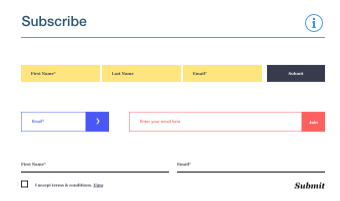
Click Form Settings.
Click Settings on the left.
Customize your subscribe form settings using the available options:
Email notifications
Choose which email addresses or site collaborators should be notified when someone submits this form. Learn more about setting email notifications for forms.
Submissions table
View all existing submissions for this form in the Forms dashboard. Learn more about a form's submissions table.
Submission limit
Choose how many people can submit this form. You can pick unlimited submissions, or limit the submissions by number, date and time.
Autofill form info
Click the Enable Email Autofill toggle to automatically insert a visitors' email address in the field if they have previously provided that information on your site.
Enabled: The visitor's email address is automatically added to the email form field.
Let members edit auto-filled email? Choose whether visitors are able to edit their email address after it's automatically filled in.
Disabled: The visitor must manually add their email address before submitting the subscribe form.
Subscriber double opt-in
Click the Enable double opt-in toggle to add a second verification step for subscribers. They must verify their email before they can subscribe. This is recommended to make sure you have explicit consent. Learn more about adding double opt-in to a form.
7. Click Submit Message on the left.
8. Choose an option under When visitors submit a form.
Show success message: Display a success message such as 'thanks for submitting!'
What's the message? Enter the display text after someone submits the form.
How long should the message show after submission? Choose either a Set time that the success message should display (in seconds) or select Always if you want the message to remain until the visitor navigates away.
Go to site page or lightbox: Direct visitors to another page on your site or a lightbox (popup).
Click Choose a Link to select where the form leads.
Select a URL destination: Page, Web Address, Lightbox or None.
Link to external URL: Direct visitors to an external web address that is not part of your site.
Click Choose a Link to select where the form leads.
Select a URL destination: Page, Web Address, Lightbox or None.
Show link to file download: Allow visitors to download a file after submitting the form.
Note: This feature requires an Premium plan.
Click Upload file to choose the file your site visitors will download.
Edit the download link text.
Important:
When editing your form to customize available options, keep in mind that the legal requirements for marketing and promotional communications differ from location to location. We recommend that you seek legal assistance to ensure your customizations are compliant with laws and regulations that may be applicable to you.
This article is credited to the Wix team - https://support.wix.com/ and we thank them for that!