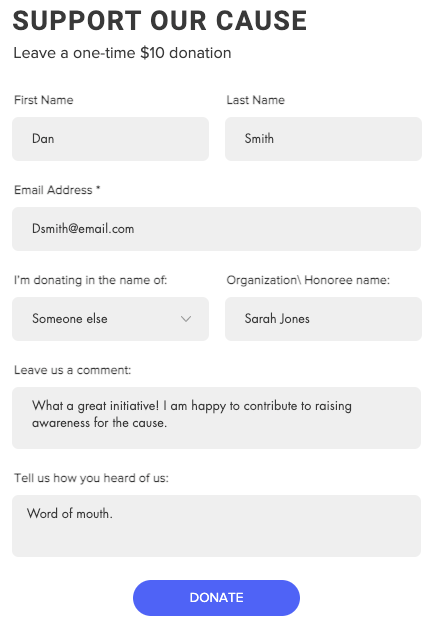
Having a donation form on your site allows you to connect with your charitable site visitors. Your visitors can help you support a cause by making a donation. Donations can be made on behalf of an organization, a specific individual, or anonymously.
Note:
This article refers to adding a donation form using old Wix Forms. In the new Wix Forms, you can add a donation field to any of your forms.
Before you begin:
Make sure you've connected your site to a payment method and purchased a premium plan.
Step 1 | Add a donation form to your site
Add a predefined donation form to your site, then drag and drop it to anywhere on your site. You can change the form fields and the design of your donation form anytime.
To add a donation form:
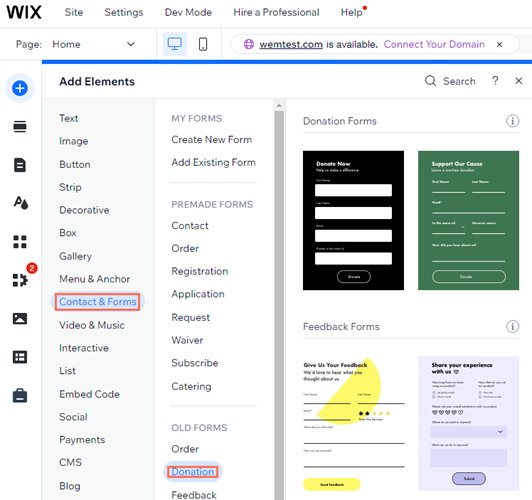
Click Add Elements

.
Click Contact & Forms.
Click Donation on the left.
Click or drag any of the forms under Donation onto your site.
Step 2 | Manage your donation fields
After adding your donation form, customize the fields according to the information you want visitors to submit. You can add, edit or remove fields as needed.
To manage your form fields:
Add a new field:
Click the form.
Click Add New Field or click the Plus icon

.
Click the Add icon

next to the field you want to add.
Edit an existing field:
Click the relevant field in your form.
Click Edit Field.
Edit the field using the available options:
Click the Field title text box to add a title for the field name.
Tip: Learn more about adding field titles to your form.
Select the relevant option under Show initial text:
None: No text appears in the field.
Placeholder text: Add text to the field to help visitors understand what they should enter (e.g. "Add it here").
Remove a field:
Click the relevant field in your form.
Press "Delete" on your keyboard.
Step 3 | Set up payments on your donation form
Send your site visitors to checkout when they submit your donation form. You can suggest a donation amount by setting a default, or allow visitors to decide.
To setup payments on your form:
Click Donate.
Click Settings.
Choose what happens when a visitor submits a form:
Show success message
Display a success message. Edit the message settings:
Enter the message you want to show.
Set how long the message should show for.
Go to site page or popup
Direct visitors to another page on your site or a popup.
Click the Link icon

.
Select the link destination on the left and enter the link details on the right.
Click Done.
Link to external URL
Direct visitors to an external web address.
Click the Link icon
.
Enter the URL on the right.
Click Done.
Show link to file download
Allow visitors to download a file after submitting the form.
Note: This is a Premium feature which requires a Premium plan.
Click Upload file to choose the file your site visitors will download.
Note: You can add doc & .docx, .xls & .xlsx, .ppt & .pptx, .odt, .odp and .pdf. You cannot upload password protected documents.
Edit the download link text.
3. Scroll down to Accept Payments on Your Form.
4. Click Set Up Payment Form.
5. Click Get Started and set up the desired payment form type.
Tip: Click here to set up your payment form type.
Design Your Donation Form:
Now that your Donation Form is set up, you can design it using one of the preset designs. You can also customize the design to match the look and feel of your site by clicking the Design icon

This article is credited to the Wix team - https://support.wix.com/ and we thank them for that!