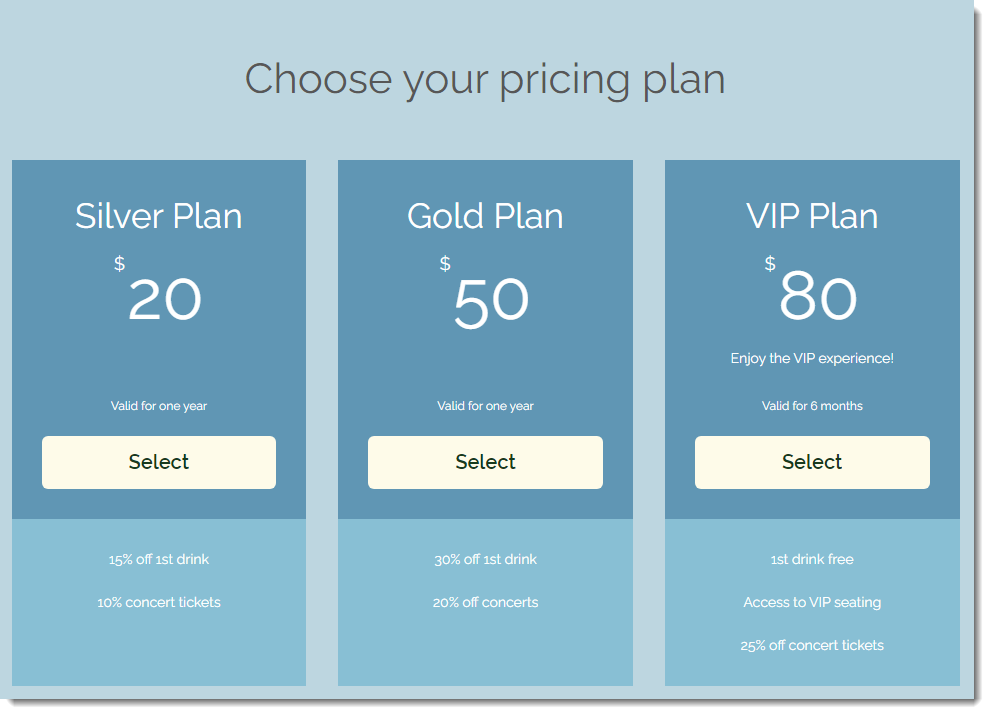
Boost event loyalty and recurring revenue with exclusive membership plans. Guests can enjoy discounted or unlimited access to your events for a set period—monthly, annually, or on your own schedule.
You decide which events are included, the discount level, and membership duration. When guests purchase tickets, they’ll see these plans alongside standard options, giving them a clear incentive to commit long-term.
Before you begin:
Make sure you create a ticketed event with at least one ticket type.
Creating a membership plan
When you create your first membership plan, the Pricing Plans app is automatically added to your site (if it isn’t already). It powers your membership offerings and creates a dedicated page where visitors can view and purchase plans. You choose the plan details, benefits, pricing, and settings.
To create a membership plan for an event:
Dashboard
Go to Events in your site's dashboard.
Hover over the relevant event and click Manage.
Click the Tickets and Seating tab.
Click Edit next to Membership plans.
Click Create Membership.
Add the plan details:
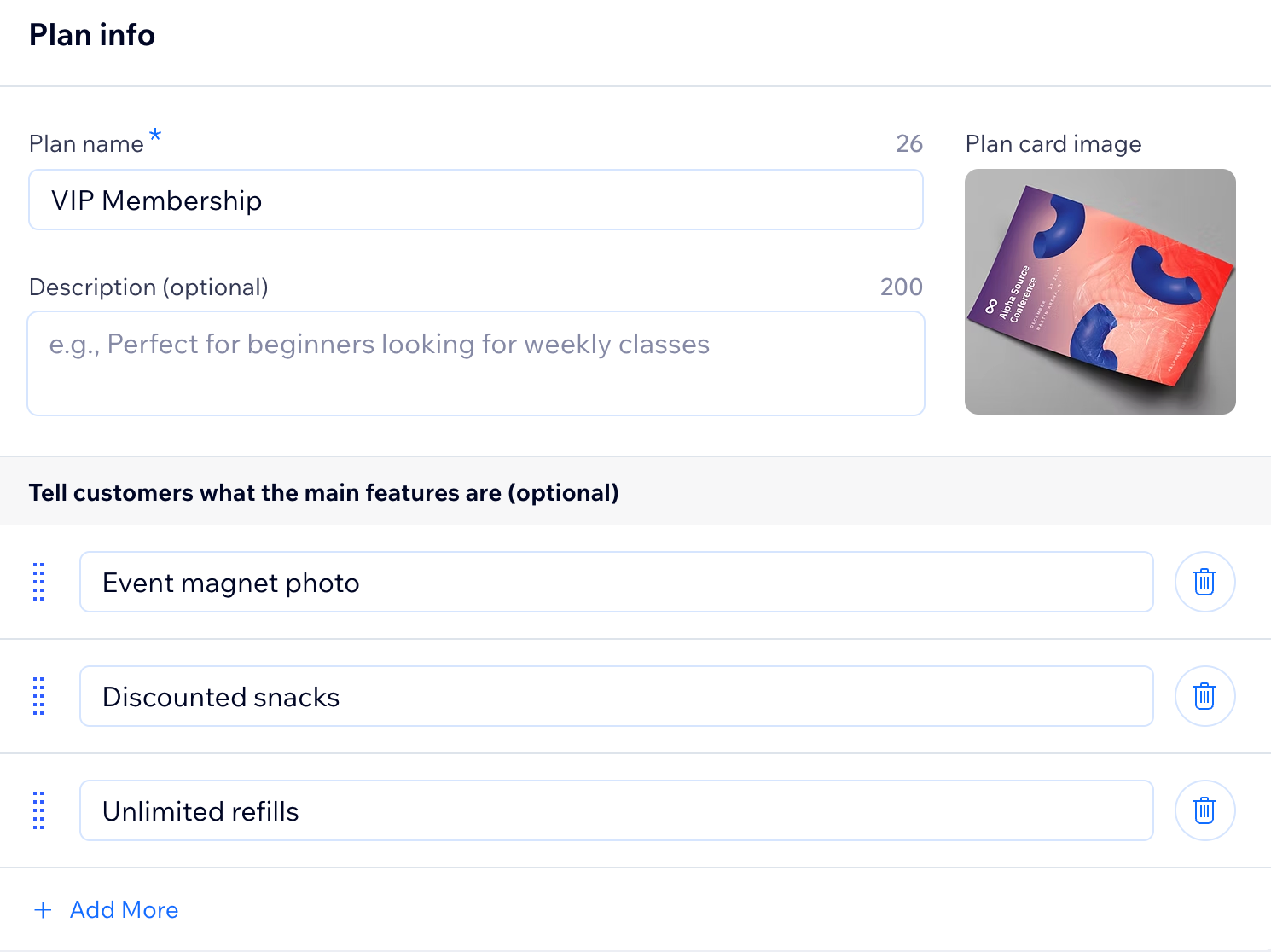
Plan info
Enter the plan name (e.g. VIP plan).
Add a Plan card image.
(Optional) Enter a short description of the plan.
(Optional) Tell customers what the main features are and press Enter on your keyboard to add more (e.g. 20% discount on concerts, first drink 30% off).
Benefits
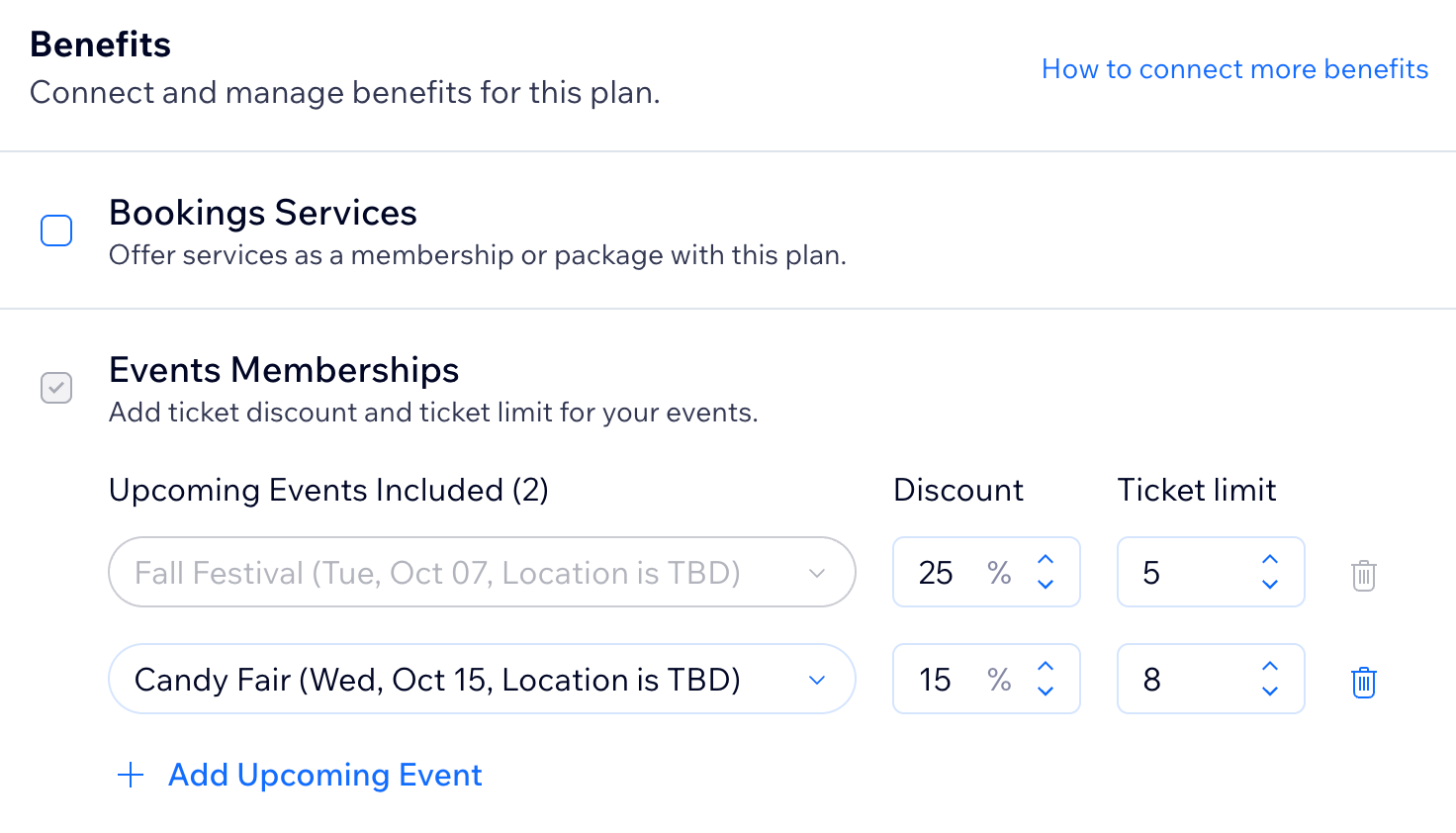
You can connect this plan to other events or other services your site offers (e.g. Wix Bookings).
Note: The event you are editing is automatically connected to this plan.
Connect this plan to benefits:
Additional events to this plan:
Click +Add Upcoming Event.
Select an event from the Choose Event drop-down.
Other site services:
Select the checkbox next to what you want to include in the plan (e.g. Bookings Services) and select the specifics you want to include.
Enter the discount amount next to each event (e.g. 25%).
Enter the maximum number of tickets a guest can apply the discount to next to each event.
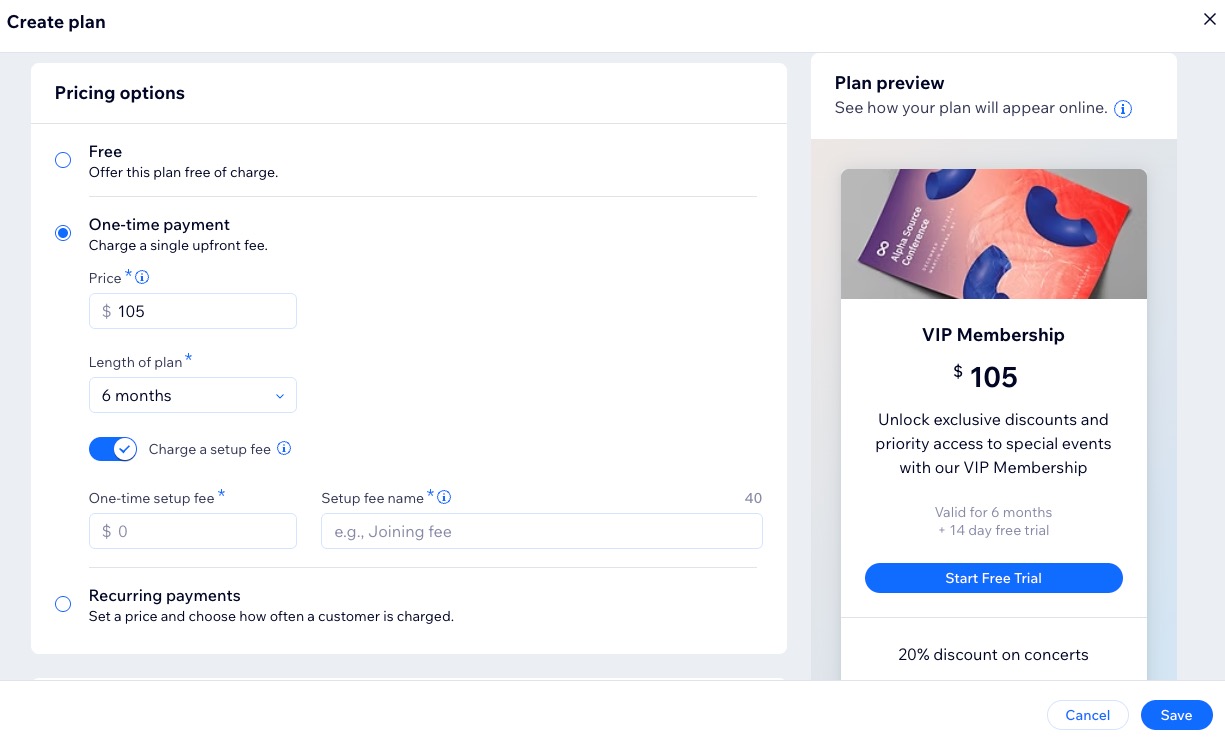
Pricing options
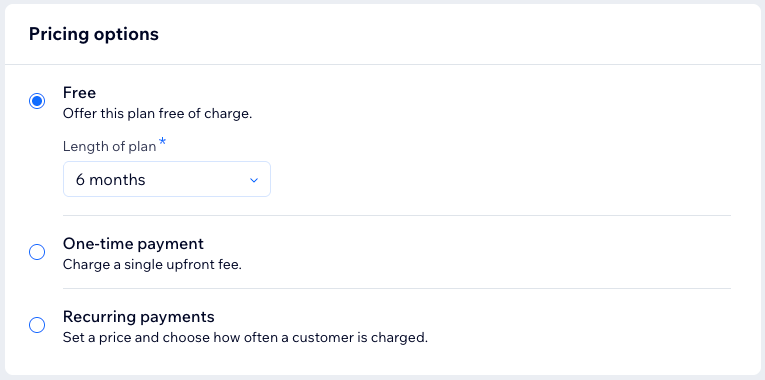
Select a pricing option:
Free: Clients don't pay for this plan. Click the Length of Plan drop-down and select the duration of the plan.
One-time payment: Clients pay a specific amount for the entire duration of the plan.
Enter the plan price.
Click the Length of Plan drop-down and select the duration of the plan.
(Optional) Enable the Charge a setup fee toggle:
Enter the Amount.
Enter the Setup fee name.
Recurring payments: Clients pay a specific amount each period, until the plan ends (e.g. a monthly membership that lasts 6 months).
Enter the price for each recurring period.
Click the Payment Frequency drop-down and select how often payments are made.
Click the Length of Plan drop-down and select the duration of the plan.
(Optional) Enable the Charge a setup fee toggle:
Enter the Amount.
Enter the Setup fee name.
(Optional) Enable the Enable a free trial toggle then click the Length of free trial drop-down to set the trial length.
Settings
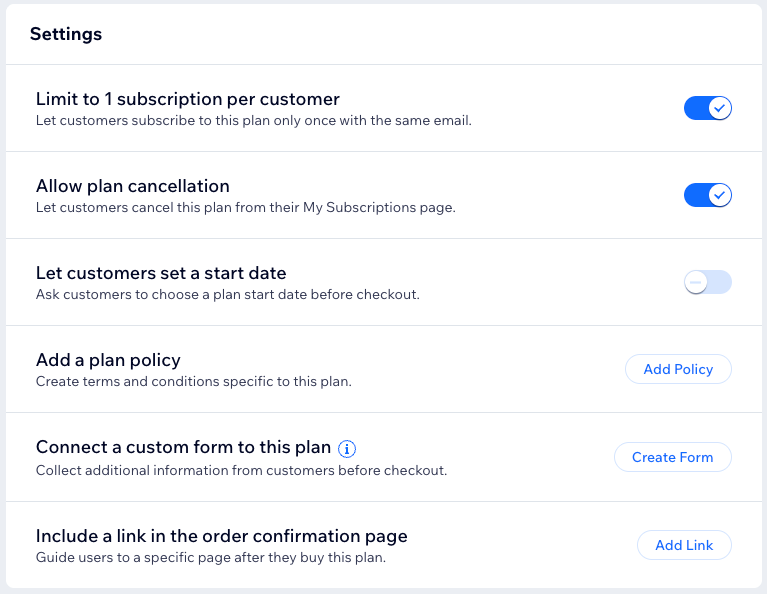
Use these settings to customize how your membership plan works and how members interact with it.
Enable the relevant toggle to:
Limit to 1 subscription per customer: Allow customers to subscribe to this plan only once with the same email.
Allow plan cancellation: Let members cancel the membership on their own.
Let people set start date: Allow members to decide when their membership begins.
Click the relevant option to add it:
Add Policy: Create a policy for your pricing plan that appears on the checkout page.
Create Form: Connect a custom form to this plan.
Add Link: Include a link in the order confirmation.
7. When ready, click Save.
Wix app
Go to your site in the Wix app.
Tap Manage

at the bottom.
Tap Events.
Tap the relevant event status: Published Events or Draft Events.
Tap the relevant event.
Tap the Promote tab.
Tap Memberships.
Tap Create New Plan.
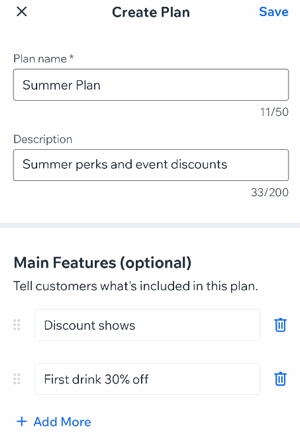
Enter the Plan name.
(Optional) Enter a short description of the plan.
Set up the plan details:
Main Features (optional)
Tell customers what’s included in the plan. Enter the main features, then tap +Add More to list additional ones.
Connect Benefits
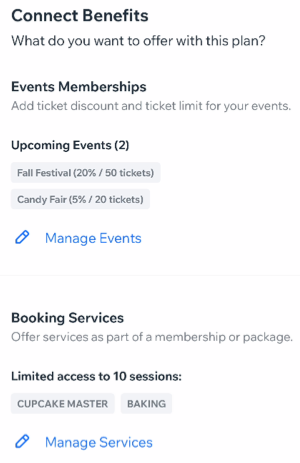
Connect this plan to other benefits. You can connect this plan to other events, or other services your site offers (e.g. Wix Bookings).
Note: The event you are editing is automatically connected to this plan.
Connect additional events to this plan:
Tap Manage Events.
Select the relevant event(s).
Enter the Discount (%) and Ticket Limit.
Tap Done.
Connect other site services:
Tap Connect Services.
Select the relevant option under What Do You Want to Offer?
Membership: Unlimited number of sessions.
Package: Enter the total number of sessions.
Select the relevant checkbox(es) next to the service(s) you want to include.
Tap Save
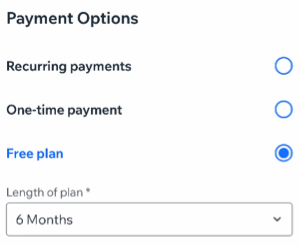
Payment Options
Select a Payment Option:
Free plan: Guests don't pay for this plan. Tap the Length of plan drop-down and select the duration of the plan.
One-time payment: Guests pay a specific amount for the entire duration of the plan.
Enter the plan price in the Price field.
Tap the Length of Plan drop-down and select the duration of the plan.
(Optional) Enable the Setup fee toggle.
Enter the Amount.
Enter the Setup fee name.
Recurring payments: Guests pay a specific amount each period, until the plan ends (e.g. a monthly membership that lasts 6 months).
Enter the price for each recurring period.
Tap the Payment frequency drop-down and select how often payments are made.
Tap the Length of Plan drop-down and select the duration of the plan.
(Optional) Enable the Setup fee toggle.
Enter the Amount.
Enter the Setup fee name.
(Optional) Enable the Free trial toggle then click the Length of free trial drop-down to set the trial length.
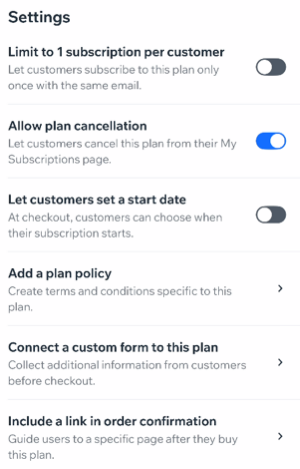
Settings
Use these settings to customize how your membership plan works and how members interact with it.
Enable the relevant toggle(s):
Limit to 1 subscription per customer: Allow customers to subscribe to this plan only once with the same email.
Allow plan cancellation: Let members cancel the membership on their own.
Let people set start date: Allow members to decide when their membership begins.
Tap the relevant option:
Add a plan policy: Create a policy for your pricing plan that appears on the checkout page.
Connect a custom form to this plan: Connect a custom form to this plan.
Include a link in order confirmation: Include a link in the order confirmation.
12. Tap Save.
Wix Studio app
Go to your site in the Wix Studio app.
Tap Manage.
Tap Events.
Tap the relevant event status: Published Events or Draft Events.
Tap the event you want to manage.
Tap the Promote tab.
Tap Memberships.
Tap Create New Plan.
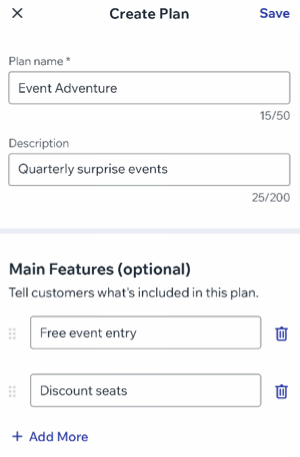
Enter the Plan name.
(Optional) Enter a short description of the plan.
Set up the plan details:
Main Features (optional)
Tell customers what’s included in the plan. Enter the main features, then tap +Add More to list additional ones.
Connect Benefits
Connect this plan to other benefits. You can connect this plan to other events, or other services your site offers (e.g. Wix Bookings).
Note: The event you are editing is automatically connected to this plan.
Connect additional events to this plan:
Tap Manage Events.
Select the relevant event(s).
Enter the Discount (%) and Ticket Limit.
Tap Done.
Connect other site services:
Tap Connect Services.
Select the relevant option under What Do You Want to Offer?
Membership: Unlimited number of sessions.
Package: Enter the total number of sessions.
Select the relevant checkbox(es) next to the service(s) you want to include.
Tap Save
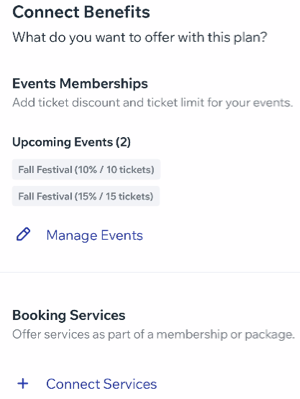
Payment Options
Select a Payment Option:
Free plan: Guests don't pay for this plan. Tap the Length of Plan drop-down and select the duration of the plan.
One-time payment: Guests pay a specific amount for the entire duration of the plan.
Enter the plan price in the Price field.
Tap the Length of Plan drop-down and select the duration of the plan.
(Optional) Enable the Setup fee toggle.
Enter the Amount.
Enter the Setup fee name.
Recurring payments: Guests pay a specific amount each period, until the plan ends (e.g. a monthly membership that lasts 6 months).
Enter the price for each recurring period.
Tap the Payment frequency drop-down and select how often payments are made.
Tap the Length of Plan drop-down and select the duration of the plan.
(Optional) Enable the Setup fee toggle.
Enter the Amount.
Enter the Setup fee name.
(Optional) Enable the Free trial toggle then click the Length of free trial drop-down to set the trial length.
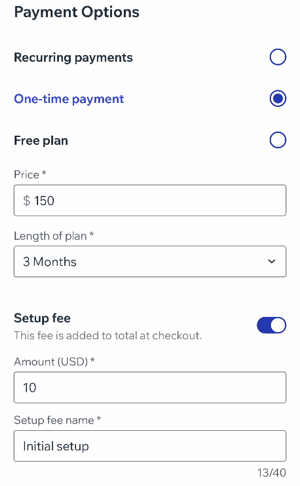
Settings
Use these settings to customize how your membership plan works and how members interact with it.
Enable the relevant toggle(s):
Limit to 1 subscription per customer: Allow customers to subscribe to this plan only once with the same email.
Allow plan cancellation: Let members cancel the membership on their own.
Let people set start date: Allow members to decide when their membership begins.
Tap the relevant option:
Add a plan policy: Create a policy for your pricing plan that appears on the checkout page.
Connect a custom form to this plan: Connect a custom form to this plan.
Include a link in order confirmation: Include a link in the order confirmation.
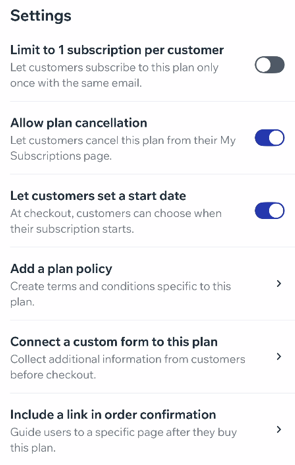
12. Tap Save.
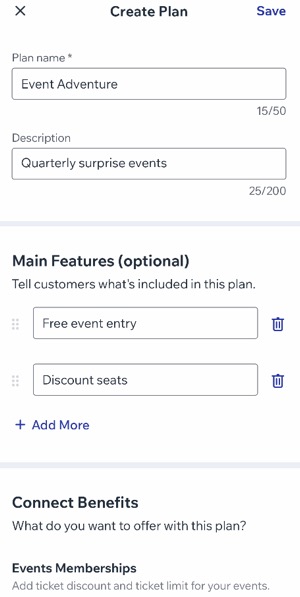
Connecting membership plans to an event
After creating a membership plan, you can apply it to any new or existing events. You can choose to set the same discount percentage and ticket limit for all events, or customize the discount and ticket limit for each event individually.
To connect a membership plan:
Dashboard
Go to Events in your site's dashboard.
Hover over the relevant event and click Manage.
Click the Tickets and Seating tab.
Click Edit next to Membership plans.
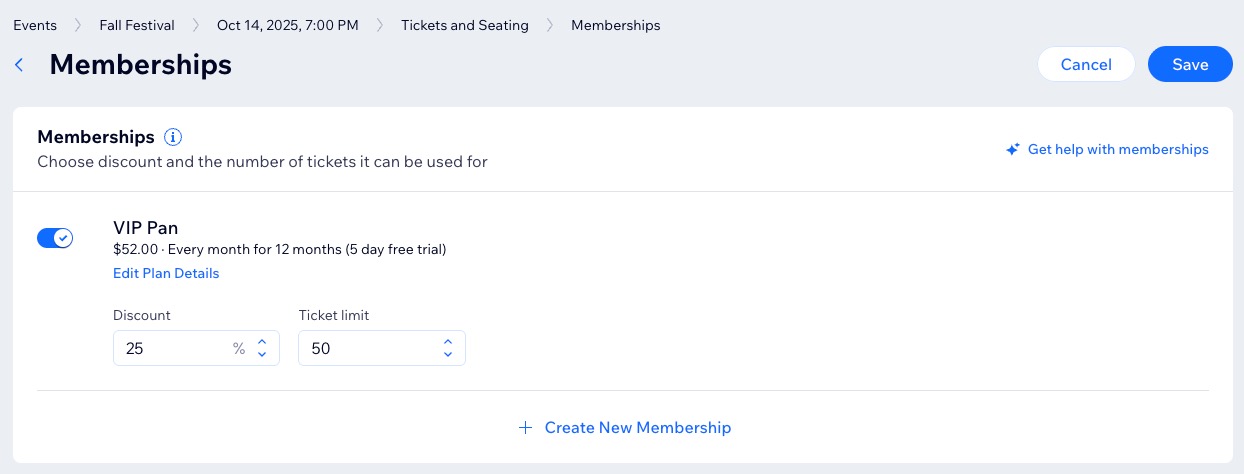
Enable the toggle next to the relevant plan.
Enter the Discount and the Ticket limit.
Click Save.
Wix app
Go to your site in the Wix app.
Tap Manage
at the bottom.
Tap Events.
Tap the relevant event status: Published Events or Draft Events.
Tap the event you want to manage.
Tap the Promote tab.
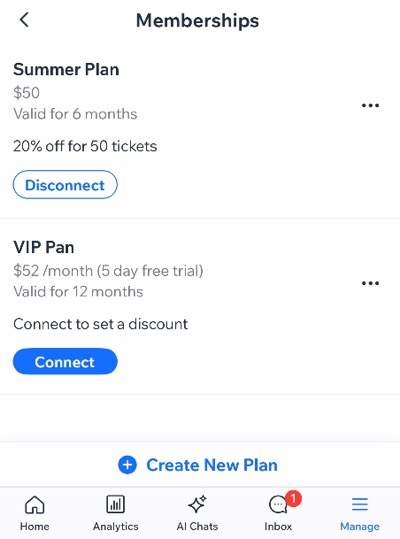
Tap Memberships.
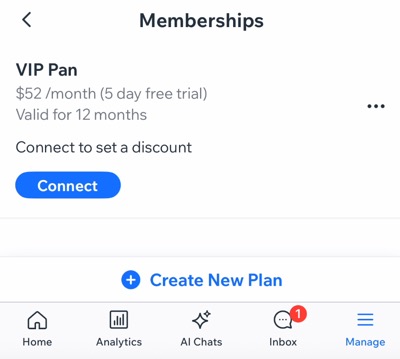
Tap Connect under the relevant plan.
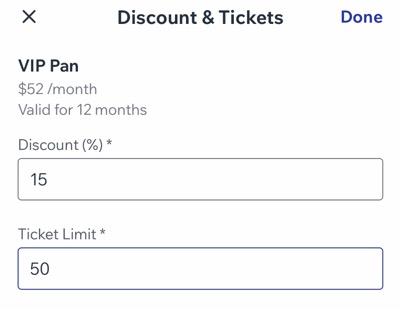
Enter the Discount and the Ticket limit.
Click Done.
Wix Studio app
Go to your site in the Wix Studio app.
Tap Manage.
Tap Events.
Tap the relevant event status: Published Events or Draft Events.
Tap the event you want to manage.
Tap the Promote tab.
Tap Memberships.
Tap Connect under the relevant plan.
Enter the Discount and the Ticket limit.
Click Done.
FAQs
Click a question below to learn more about creating a membership plan for your events.
I can't see the Pricing Plans app on my site. What should I do?
Make sure that you add the Wix Pricing Plans app in your editor.
Learn how to add the Pricing Plans app to your site.
How can I customize the Plans & Pricing page?
You can customize the design of your page right from your editor—including buttons, ribbons, text formatting, and background styles.
Can I limit event access to members with a specific pricing plan only?
Currently, you can create a membership plan using the Pricing Plans app. However, it is not possible to limit event access to members with a specific pricing plan only. Vote for this feature if you’d like to see it in the future.
Can I use a membership plan to give members free tickets to events?
No. Membership plans only provide discounts on event tickets.
This article is credited to the Wix team - https://support.wix.com/ and we thank them for that!