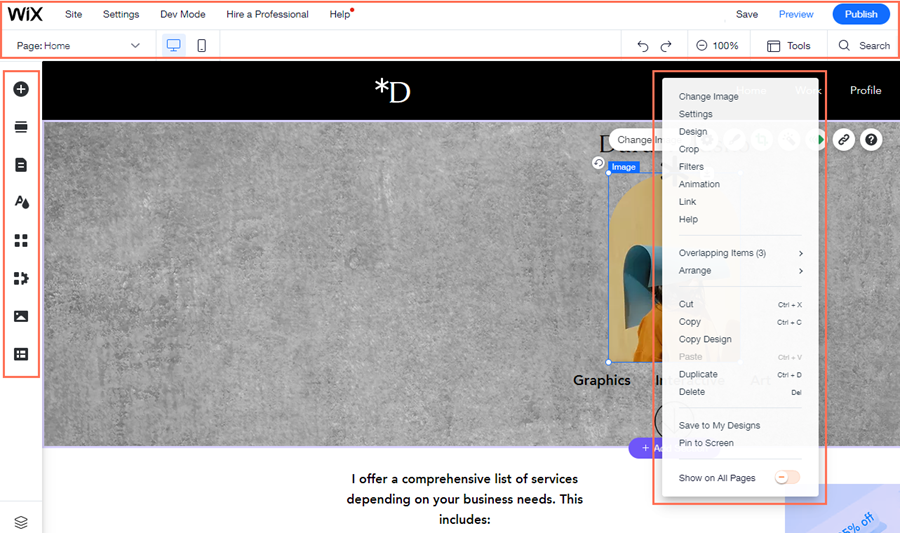
The Wix Editor is the platform you use to build your website. It is packed full of features to help you create a professional, functional website. There are 3 main menus inside the editor, which allow you to perform a number of different actions to build and manage your site.
The left menu
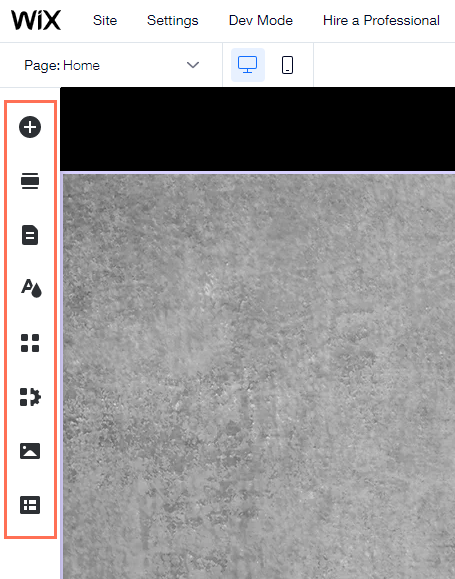
The menu on the left side of the editor contains all the features you need to build your site. Add elements and apps, and manage your pages.
The features available in the left menu are:
Add Elements

: In this panel you will find tons of elements to add to your site. Use the tabs to navigate between the types of elements.
Add Section

: Use this panel to add sections to your pages. There are a variety of pre-made designs available, or you can add a blank section to start from scratch.
Pages & Menu

: From here you can add, delete and manage your site's pages.
Site Design

: Manage your site's colors, text themes, page backgrounds and transitions.
Add Apps

: Browse hundreds of apps in the Wix App Market and find the ones that suit your needs.
Media

: Add media files to your Media Manager or purchase professional images and videos to use on your site.
Note:
Additional icons are added to the left menu depending on the template you choose and when you add certain features such as Wix Stores, Wix Bookings or Velo by Wix.
The top bar menu
The menu bar at the top of the editor contains several tools and settings.

From left to right:
Page drop-down: Navigate between your site's pages for editing.
Desktop and Mobile Editors: Switch between the desktop and Mobile Editors.
Site: Save, preview and publish your site, get feedback or review your site history.
Settings: Connect a domain, change your site's settings, set up a multilingual site and more.
Dev Mode: Enable Velo to start using Velo by Wix.
Hire a Professional: Get help building your Wix site from a professional.
Help: Get immediate help inside the editor. Click Editor Help Center to access thousands of help articles.
Upgrade: Upgrade your site with a premium plan.
Undo: Undo your last action (Ctrl + Z)
Redo: Redo your last action (Ctrl + Y)
Zoom Out: Manage and reorder your page content.
Tools: Show or hide the Editor Toolbar, Rulers, Gridlines and Snap to Object features.
Search: Search the editor for elements, apps, and help.
Save: Save your most recent changes.
Preview: Preview your site.
Publish: Publish your site and/or most recent changes.
The right-click menu
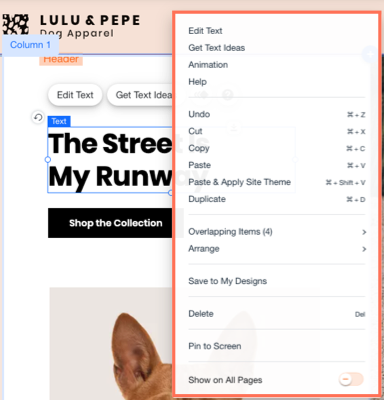
Right-click any element (on Mac press control and click) to open the right-click menu. Here you'll find options and actions that vary depending on the element you click. Learn more about the right-click menu features.
Hiding and showing the editor menus
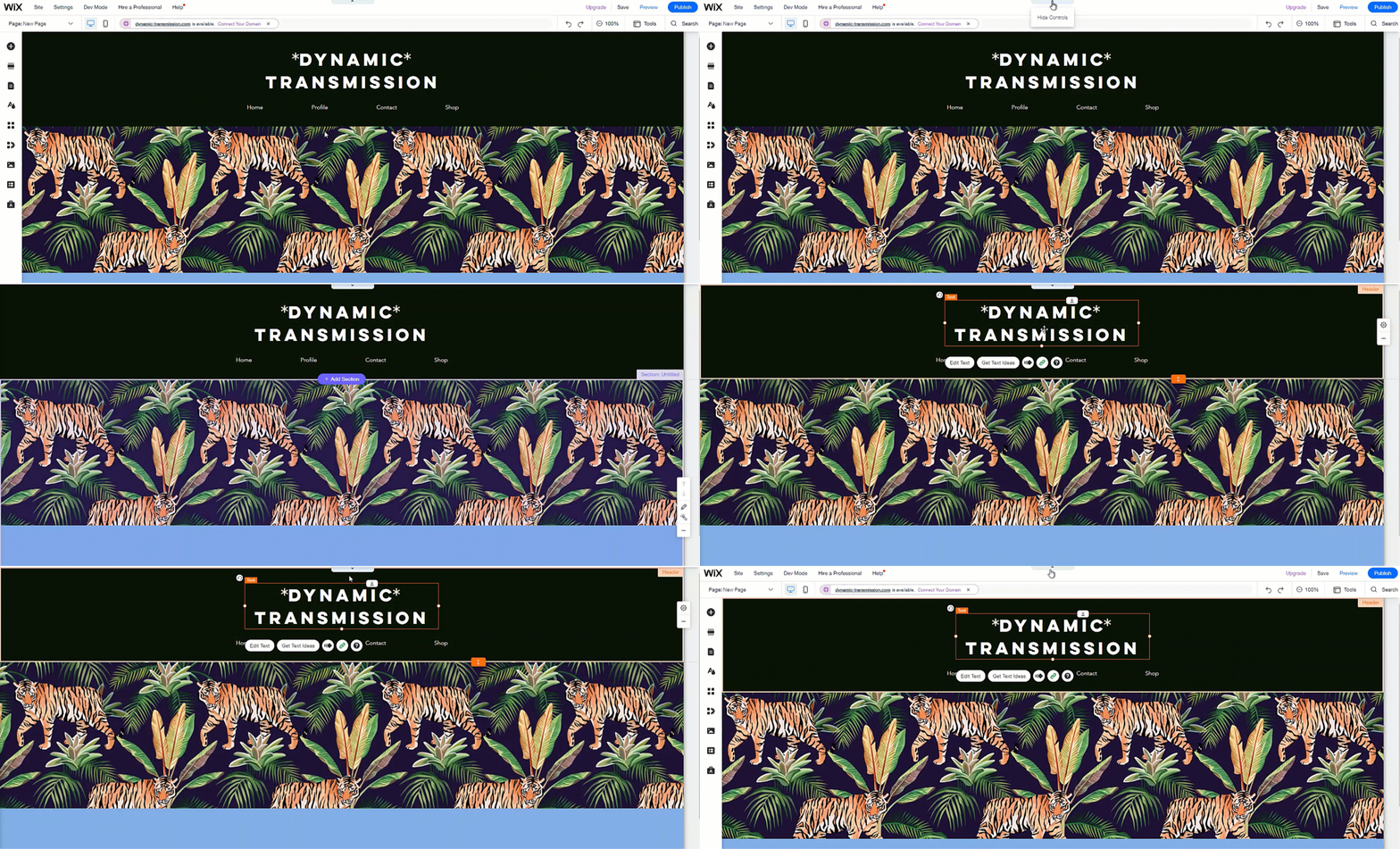
If you want more space to work with in your editor, you can hide the controls, menus, and tools. Hiding these features doesn't affect your element editing options, so you can continue to customize their content and design as needed.
To hide / show menus and tools in the editor:
Click the Hide Controls arrow

at the top of the editor.
Click the arrow again to return to the normal editor view.
Tip:
You can press shift + f on your keyboard to show and hide the controls.
Notes:
Any editor tools you have open (such as the toolbar) are also hidden when you hide the menus.
You can still open and access the right-click menu with this feature.
This article is credited to the Wix team - https://support.wix.com/ and we thank them for that!