The Wix Editor is the platform you use to build and edit your website. It is packed full of features to help you create a unique, sophisticated site.
The website builder allows you to customize and build your site in a variety of ways, such as adding and customizing elements, and choosing a color and text theme.
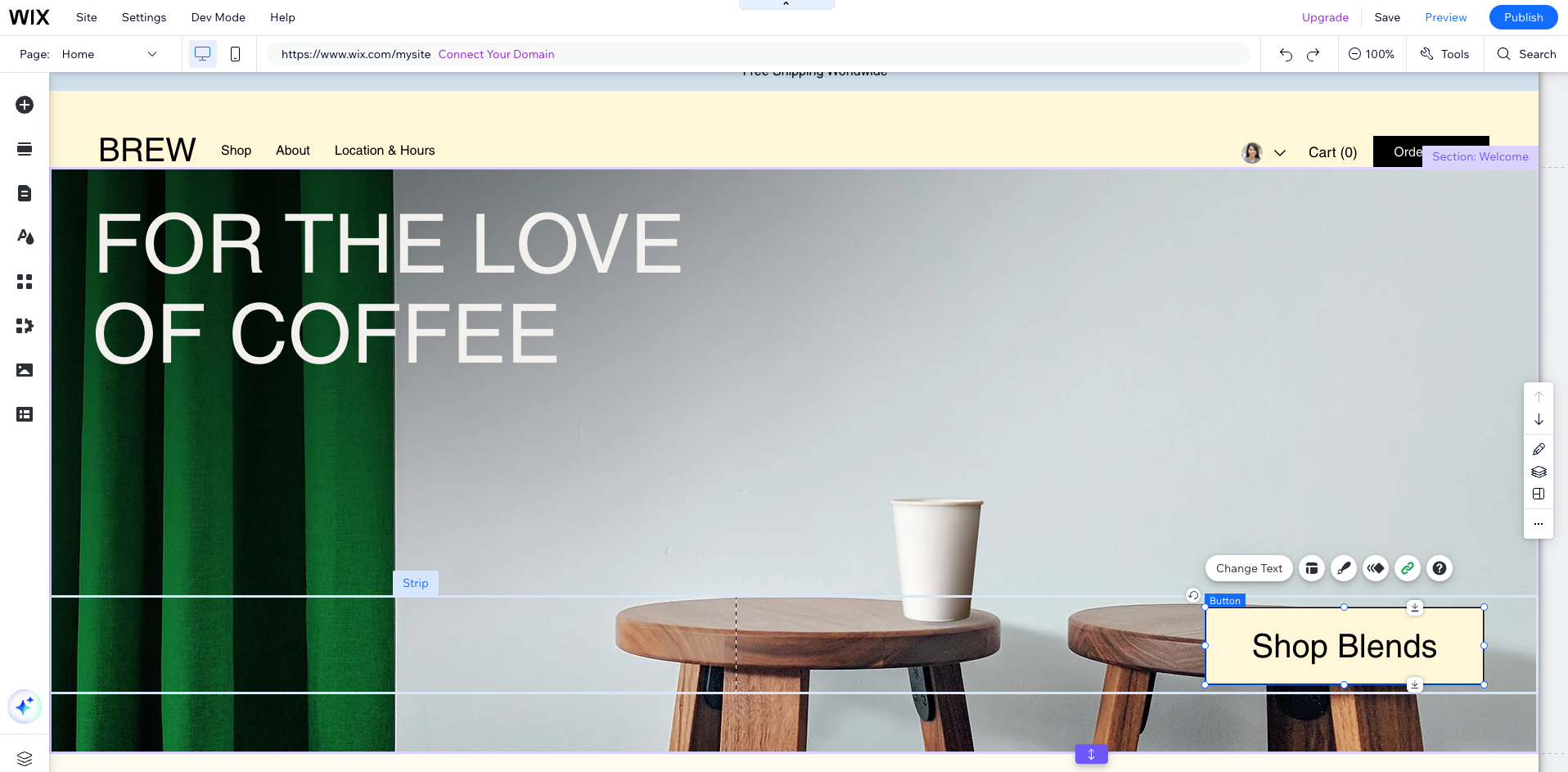
Ready to get started?
Go to your site's dashboard and click Edit Site or Design Site to access to your editor. Learn more about accessing your editor.
Adding and customizing elements
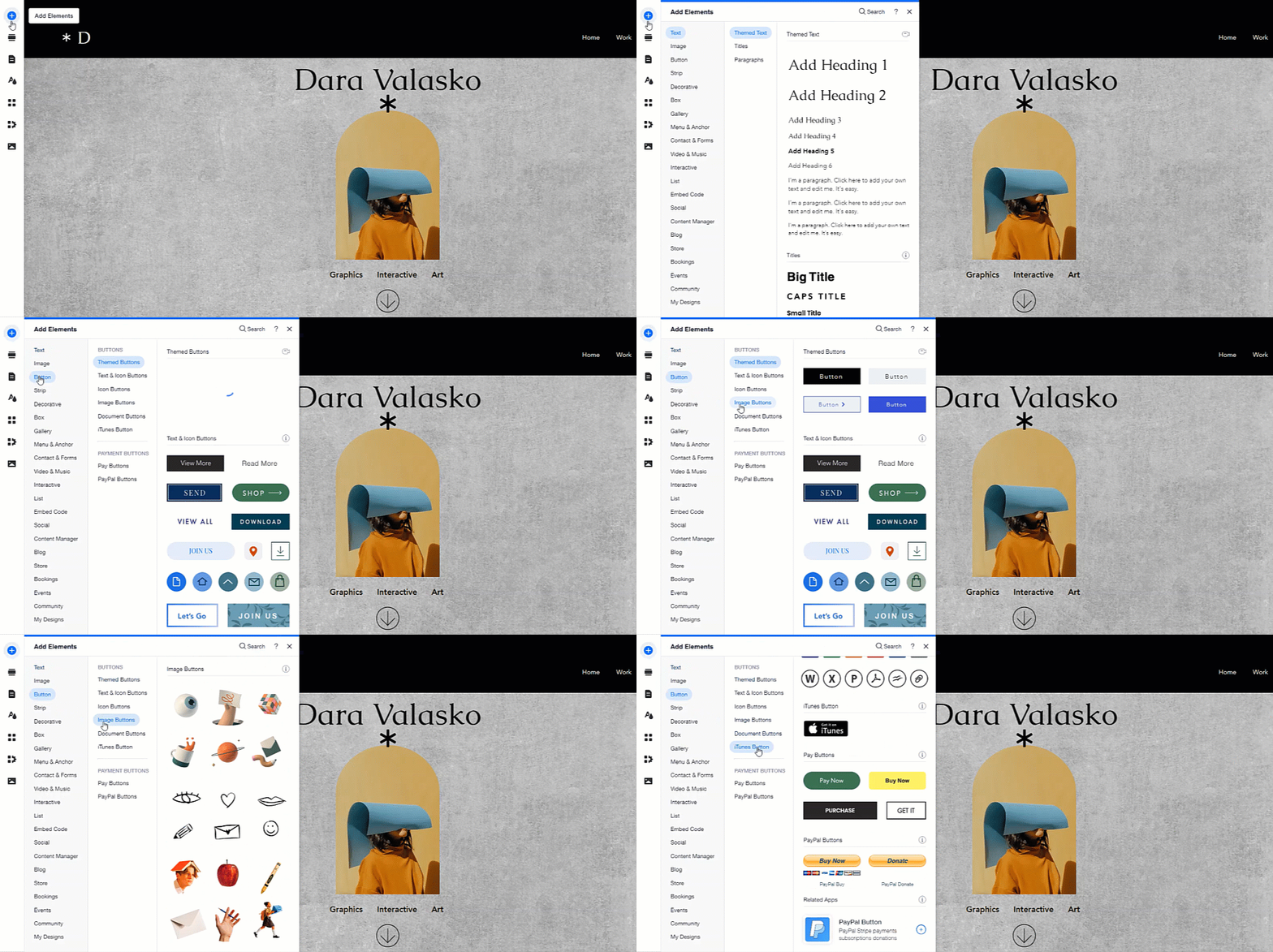
The Wix Editor contains hundreds of stunning, customizable elements that you can use to create your site. Choose from images, text, shapes, strips and more to create your site.
Click Add Elements

on the left side of the editor to start adding elements.
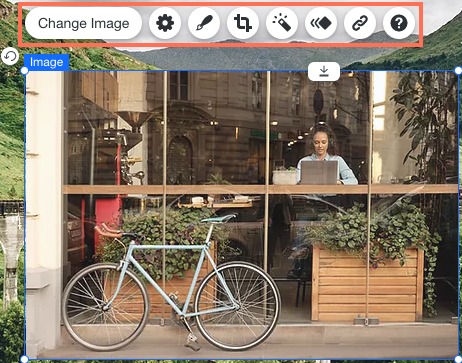
Once you've added elements, you can customize them to suit your site's look and feel. Select an element and click the available options to customize it. Depending on the element selected, you will see different customization options.
Customizing your site's design
Use the Site Design panel to adjust your site's look, theme, and behavior - all from one place. Learn more about the site design panel
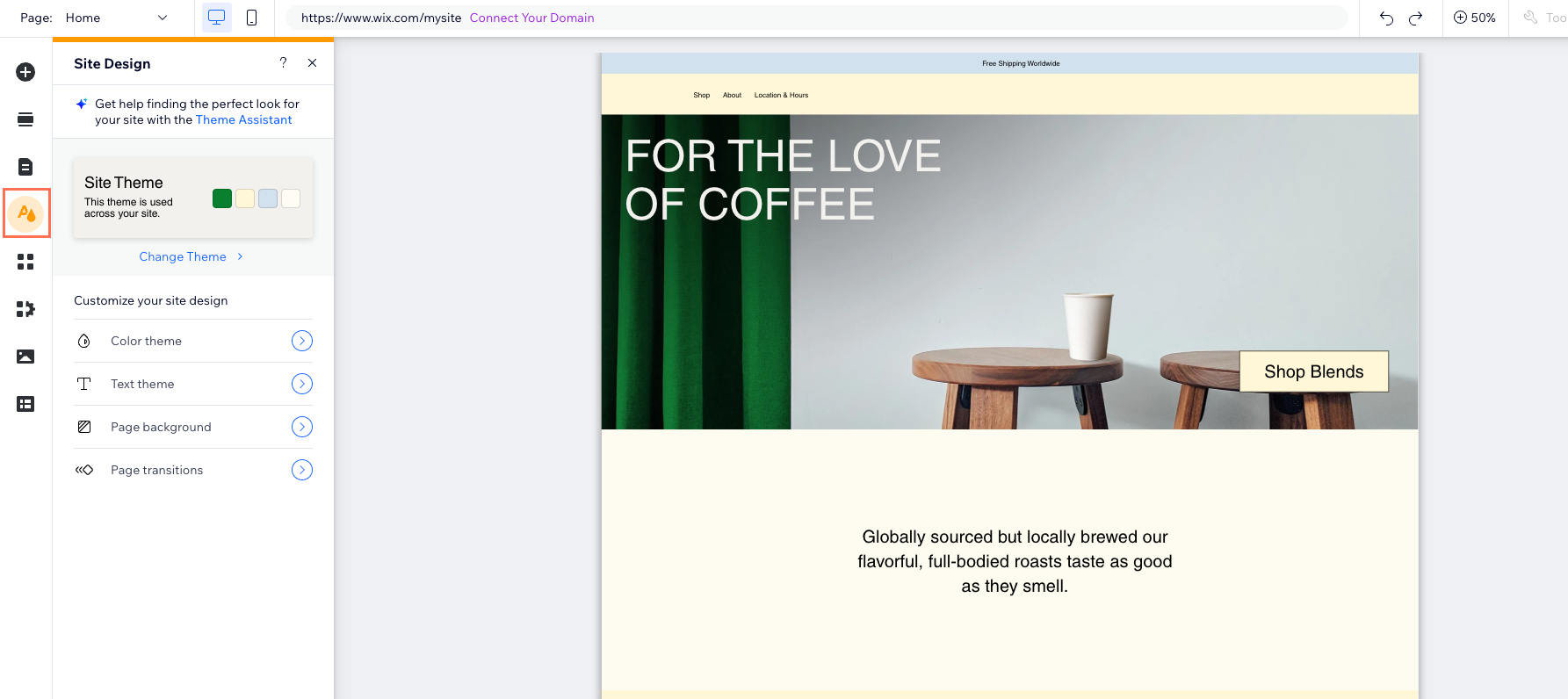
To get started, click Site Design

on the left side of the editor, and customize it with the following options:
Site theme: Select and edit the colors and text styles used across your site.
Page background: Select a background for your site's page. You can choose from a color, image, or video.
Page transitions: Choose how your pages transition when visitors navigate between them.
Optimizing your site for mobile
With more users browsing on mobile, it's crucial to optimize your site for smaller screens. For this you need to go to the mobile editor and adjust how it looks. We recommend you do this after you have finished designing your desktop site.
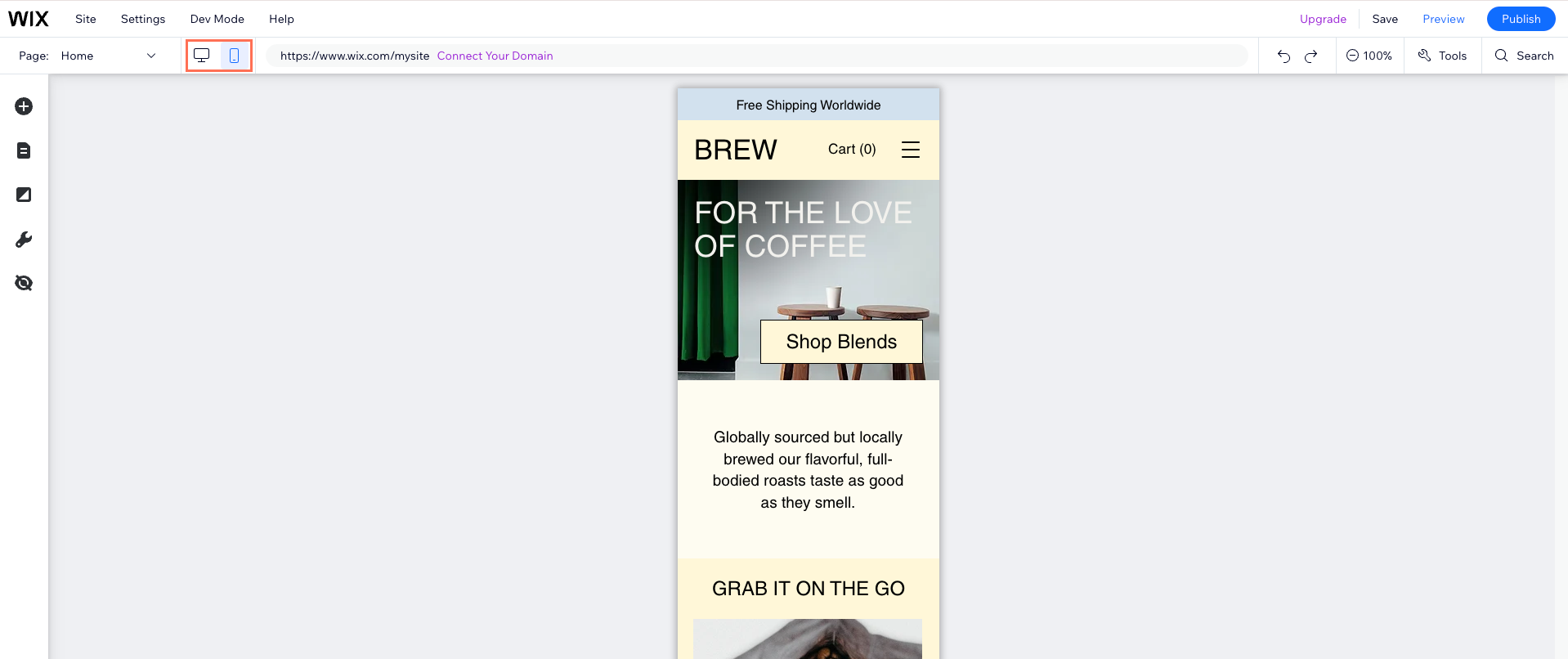
From the mobile editor you can adjust elements to ensure they are mobile-friendly. This might include resizing images and ensuring text is readable. You can also hide any elements that aren't necessary for mobile visitors.
Learn more about the mobile editor.
Saving and publishing
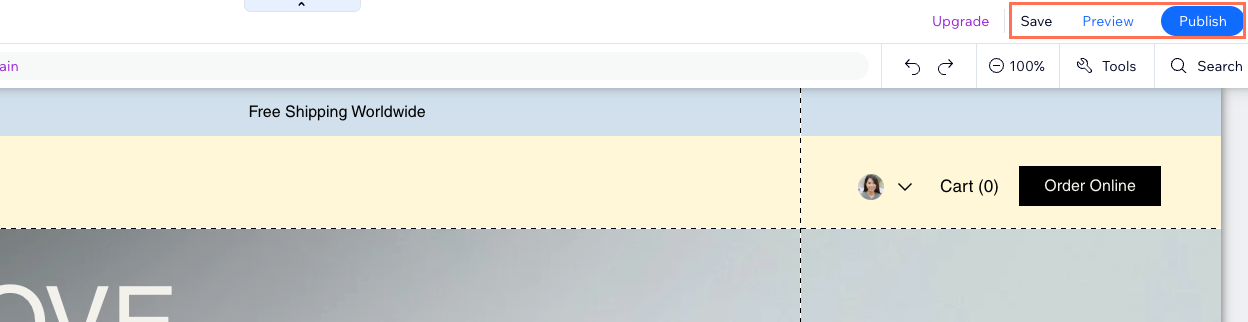
When building your site, make sure to save and preview it as you go along. When you are ready to go live, publish it to make it available on the internet. You can find the Save, Preview and Publish buttons at the top right of the editor.
Save: Click Save regularly so you don't lose any of your work. Keep in mind, saved changes won’t appear on your site until you click Publish.
Preview: Click Preview to view how your site looks live before you publish.
Publish: Click Publish in the top right corner when you're ready for your site to go live.
Tip:
You can save, preview and publish as much as you want. Don't worry, you can always use the Site History if you want to go back to a previous version.
FAQs
Click a question to learn more.
Can the editor automatically build my site for me?
Yes, Wix offers an AI Website Builder that can automatically create a personalized website for you. By answering a few questions about your preferences and needs, the AI generates a custom design that you can further customize using the Wix Editor.
Start using the AI Website Builder
Can a designer help me build or update my site?
Absolutely. You can hire a professional to help you on every step of your journey with your Wix site - from editing to boosting your site's SEO. Learn more about the Wix Marketplace
Can I use the editor offline?
The editor needs to be constantly connected to Wix's servers. Therefore it is not possible to edit your site while offline, or save pages from your site to your computer.
Can I edit my site on different computers?
You can edit your site on any computer with an Internet connection and an updated browser. When you finish editing your site on one computer, make sure to click Save. After saving, you can open the Editor on another computer, and you will see the changes that have been made.
Note: Avoid editing your site on more than one computer at a time. When you have finished editing your site on one computer, make sure to log out of your account before logging in on another computer. This will help avoid saving issues where changes made on one of the devices overrides the changes made on the other device
Tip: Learn how to solve issues if you are accessing the editor from a public computer.
Can I edit my site after I've published it?
You can edit your site at any time from the Wix Editor, even after you have published it. Simply open the editor from your site's dashboard and update it as much as you want.
Can I create a mobile site?
You can design how your site looks on mobile devices using the mobile editor. Hide pages and elements, and add mobile-only elements to create a unique experience for your mobile visitors. Learn more about the mobile editor
Can I print pages from my site?
Absolutely. To print site pages, press Ctrl+P on your keyboard. You can also take a screenshot of the relevant page and print it.
Video tutorial
Watch the video below to learn more about the Wix Editor.
This article is credited to the Wix team - https://support.wix.com/ and we thank them for that!