If you are having trouble importing contacts to your Wix account using a CSV file, see our solutions below. You may encounter different issues depending on how you have set up and saved your import file.
What should I know when setting up my import file?
Keep the following in mind when setting up your import file:
Include a header row in your file and match each column header with a field. You can include values for any of the default fields in your contact list or custom properties.
Make sure each row in your file contains an email address or phone number.
Make sure your import file contains fewer than 20,000 contacts.
Make sure any date fields are in the following format: YYYY-MM-DD.
Make sure your file is a CSV file in UTF-8 encoding.
Make sure your file does not have more than 200 columns.
Note about the supported value separators and escape characters:
The current supported value separators are a comma ',' and a semicolon ';'.
The current supported escape characters are the double-quote character "" and the backslash character '\'. For example, the value the "big" bang will be correctly imported if it appears in the file as the ""big"" bang, or the \"big"\ bang.
Tip: We recommend you download a sample CSV file to learn more about how your file should look.
Troubleshooting specific issues and error messages
Experiencing issues during or after importing a file? Click an issue below to learn the possible cause and how to resolve it.
Receiving an error message about missing email or phone
If you've added your contact's phone number and email address to the CSV file but still receive this error, you should verify that the email address is in the correct format: email@email.com.
Receiving an error message about duplicate contacts
When you receive this error, it means your file includes multiple contacts with the same email address. In this case, we only import the first one on your list. Make sure every email address only appears once to avoid this error.
Receiving an error message about rows with extra values
If you receive the error "Row has extra values that don't align with column headers", check if the extra value should go under a titled column. For example, if a phone number appears in an untitled column, you may want to move it to be under the column titled 'Phone'.
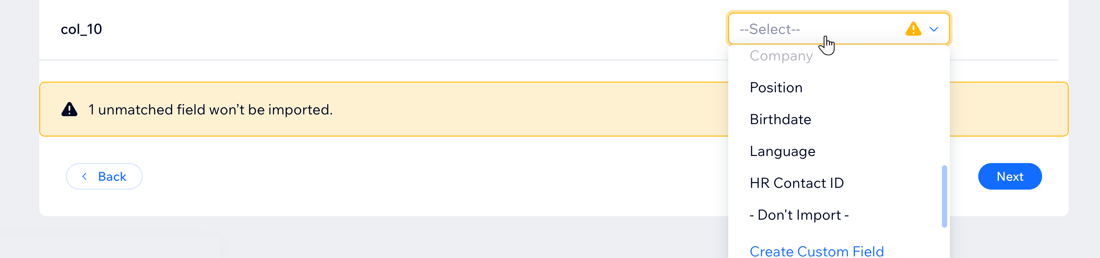
Untitled columns will be flagged in the Match step, so you can choose if to match them to existing contact fields, not to import, or create a new custom field.
Contacts with non-Latin characters imported incorrectly
If your contacts include information in a foreign language with non-Latin characters, such as Japanese, Korean, Hebrew, Hindi, Arabic and others, your CSV file may not upload correctly.
This is often caused by saving the CSV in an incorrect format. To ensure non-Latin characters are properly imported, your file must be saved as "comma -separated".
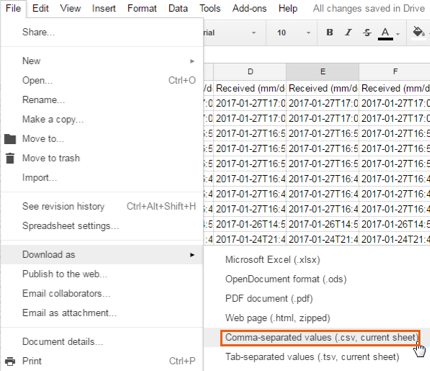
Upload your CSV file to Google Spreadsheets.
Click File, then Download As.
Select Comma-separated values.
Note: Do not open the file.
Import your contacts following these instructions.
Note: Not all Microsoft Excel versions have this option.
Deleted contact information re-appearing in your contact list
If you deleted a contact and imported a CSV file with a field that includes that same contact's email or phone number (which are unique fields), previously deleted information will appear in your Contact list (even if it's not in your file). To resolve this issue, contact Customer Care.
Troubleshooting file formatting issues
Re-saving your file and using the Wix sample file may solve issues that often occur when creating the CSV file in Numbers on Mac, Excel, or Google Sheets.
Common error messages resulting from this transition:
There is an empty field in the first row.
To continue, match the email or phone fields to the correct Wix Contact fields.
Unable to Download Your File. File must be spreadsheet in CSV format.
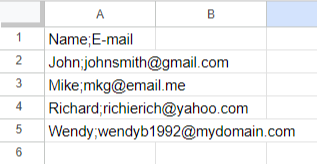
You may also notice that your file looks like this when you open it - your data is not separated into columns, but separated by a semicolon:
Try any of the following to resolve formatting issues in your file:
Download a CSV file from Google Sheets
Go to Google Sheets.
Click File, Open, then select your current CSV file from your computer.
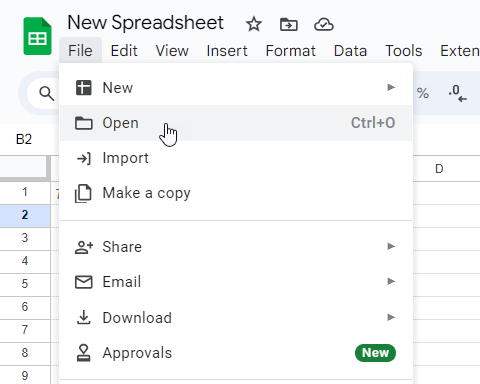
3. Once your existing file is loaded (each column should be divided into correct columns), click "File", "Download", "Comma Separated Values (.csv)".
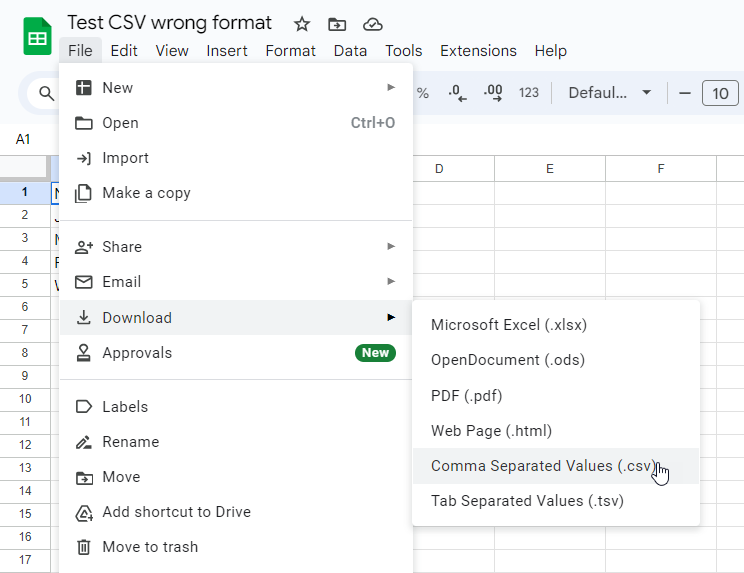
You can now use this CSV to import your contacts.
Copy your contact information into the Wix sample CSV file
1. Download the Wix sample file.
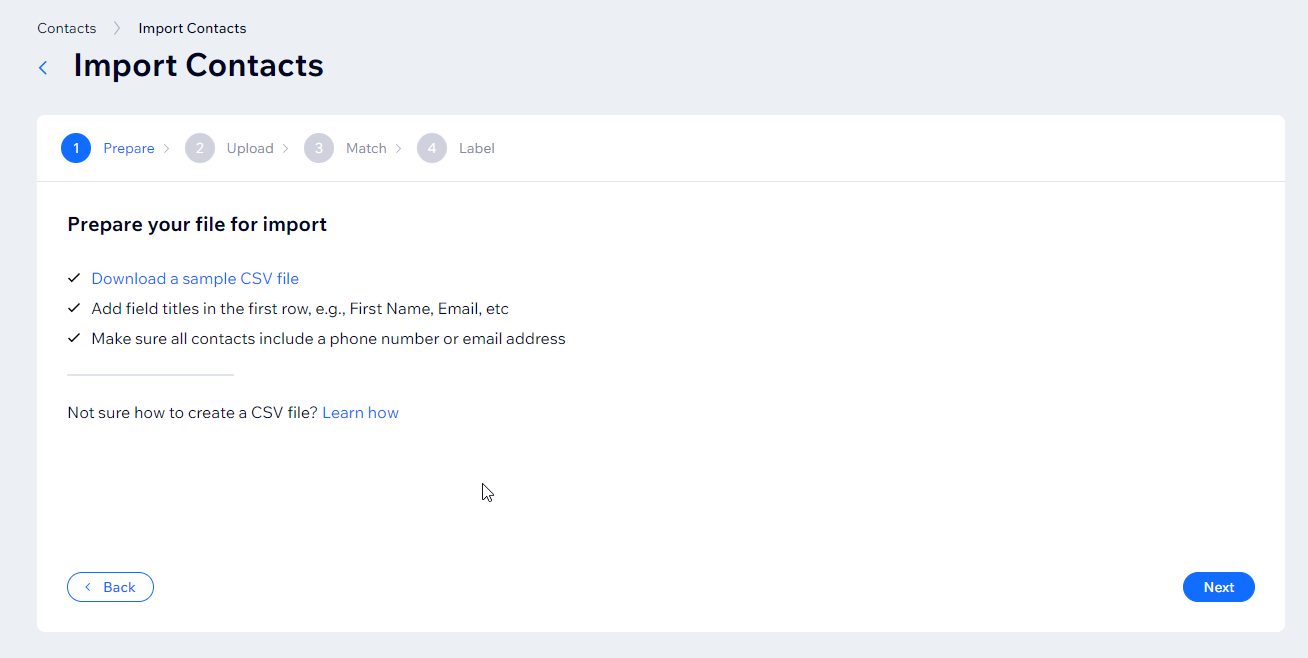
2. Open the file in Google Sheets.
3. Copy-paste information from original file to sample file.
4. Download file as Comma Separated Values (.csv).
This article is credited to the Wix team - https://support.wix.com/ and we thank them for that!