After creating a class, schedule your class sessions at times that suit you, your staff, and most importantly, your clients. For each class, set the start date and time, choose the duration, decide if you want the class to be a one-time or recurring session. This way you offer the most flexible service possible.
For example, you can offer a 90-minute yoga class once a week on Tuesdays. The same yoga class can be scheduled on Mondays and Wednesdays, for only 60 minutes. You can also choose which staff member leads each session.
Before you begin:
Create the class service that you want to schedule.
To schedule classes in your booking calendar:
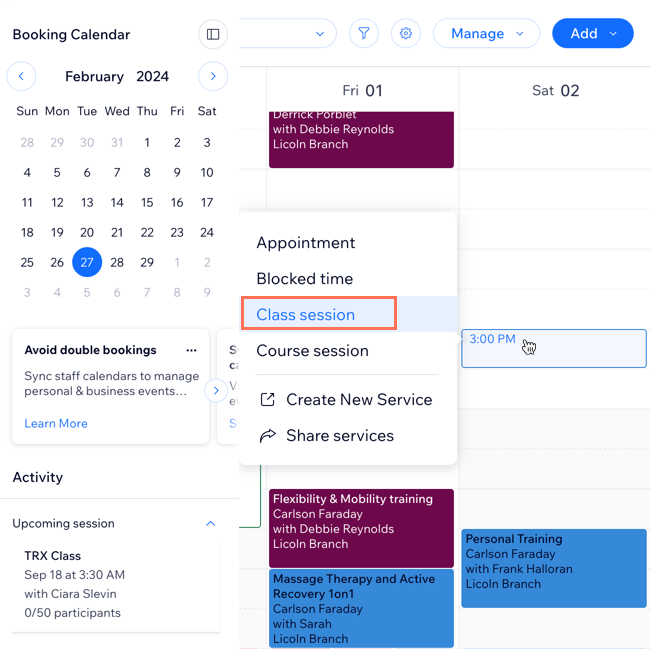
Go to Booking Calendar in your site's dashboard.
Click the time slot in which the class meets for the first time.
Select Class Session.
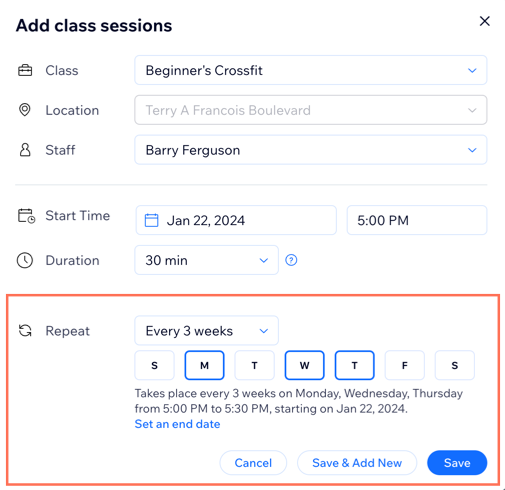
Add the class session details:
Class: Select the service you want to schedule.
Location: (If you have more than 1) Select the location of the class.
Staff: Select the staff member giving the class.
Start Time: Edit the date and start time of the class.
Duration: Select the duration of the class.
Repeat: Click to select the relevant option from the Repeat drop-down:
Doesn't repeat: Choose this option to only offer the class session once.
Repeats: Choose this option to offer this class session multiple times:
Select the relevant option from the drop-down: Weekly, Every 2, 3 or 4 weeks.
Select the day(s) of the week the class takes place.
(Optional) Click Set an end date and choose the date of the last class.
Choose a saving option:
Save & Add New: Save the session and start scheduling another one.
Save: Save the session and return to your calendar.
What's next?
Go to the Bookings Servicestab and click Show Schedule next to the relevant service to view a summary of its schedule.
Go to the Booking Calendar and use the Schedule view to check the list of sessions on a selected date. View the time, type, number of participants, staff member in charge and the location. Use the Staff view to check the upcoming sessions for the selected date. The sessions appear in columns based on the staff member in charge. Sessions are automatically color coded by staff members on the calendar.
Need help getting started?
Try our fitness website builder for templates, scheduling tools, and gym management features.
This article is credited to the Wix team - https://support.wix.com/ and we thank them for that!