Offer clients packages (for example, a six-class "punch card") with reduced rates. Clients enjoy the discount and you gain increased customer loyalty.
You create a package while creating a new Wix Bookings service or editing an existing one. You can control all aspects of the package, including:
Benefits: Create a package that gives access to all your sessions or only to specific classes.
Duration: Limit the time clients have to use the package (for example, 5 sessions per month) or make the package unlimited.
Pricing: Choose from recurring payments, a one-time payment, or offer your plan for free.
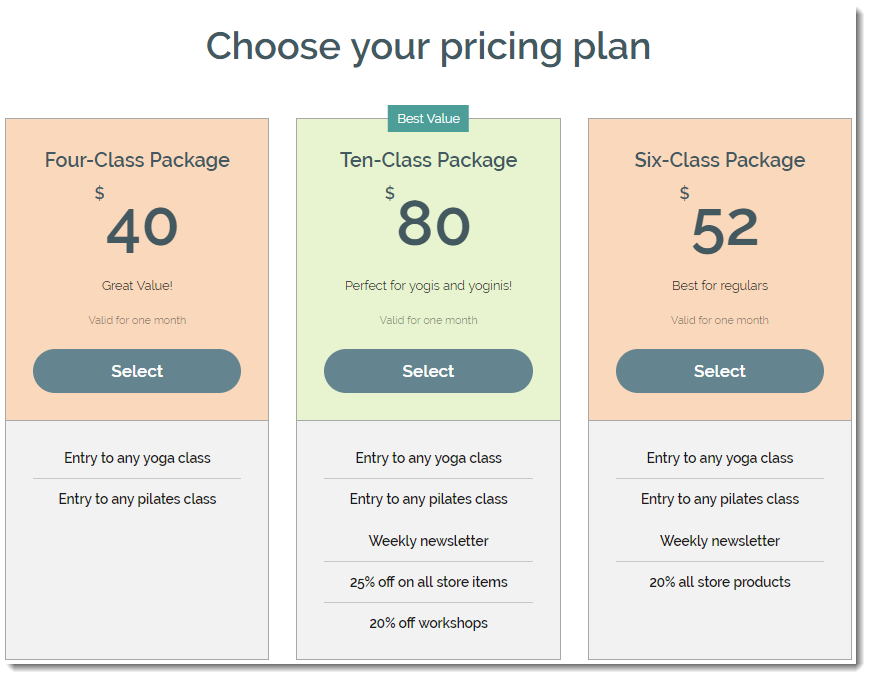
Creating a package for your service
As you add new services to your site, you can offer them as part of a package. This is a great way for new clients to experience the full range of services you offer at a discounted rate.
For example, clients can book different types of yoga classes offered in a package to see which one is right for them. You choose which services you offer in the package, how many sessions clients can book and how long the package is valid for.
To create a package:
Go to Booking Services in your site's dashboard.
Create a new appointment or class, or edit an existing one.
Click the Pricing & payment tab on the left.
Choose one of the following options to start creating a membership plan:
With a plan: Clients must purchase a plan to book. They can choose a membership or a package. Learn more about the difference between memberships and packages.
Per session or with a plan: Clients can choose to pay per session or use a plan. Define the price type (e.g. fixed price, varied pricing), amount and payment preferences for those who will pay per session.
Click Save at the top right.
Create the pricing plan and connect the booking service to it:
Click Create New Plan under Memberships & packages.
Click Package.
Click Next.
Set up your package:
Add your package details
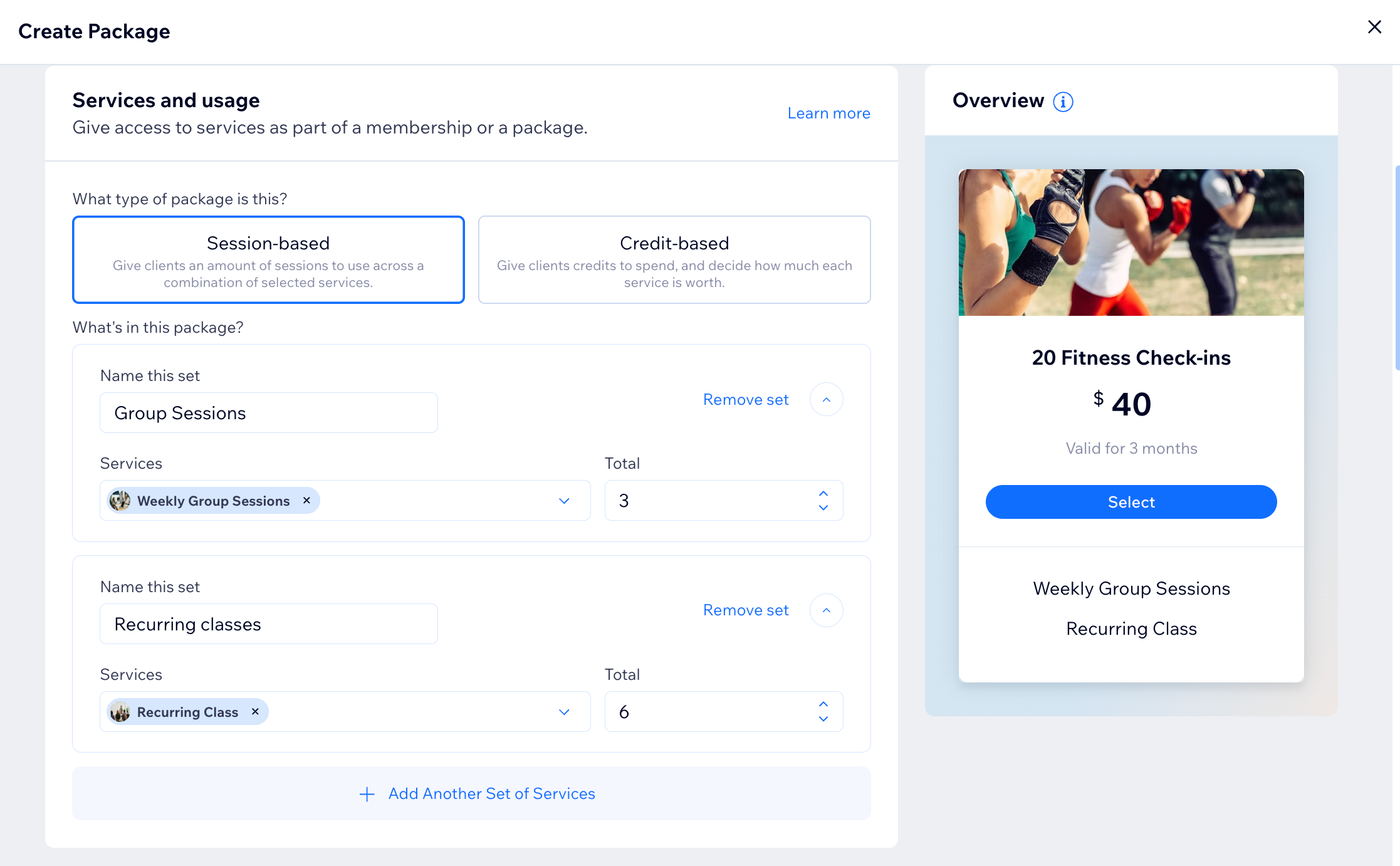
Offer booking services as part of a membership or package. You can create session-based or credit-based plans, group services into sets, and choose whether unused sessions or credits roll over to the next billing cycle.
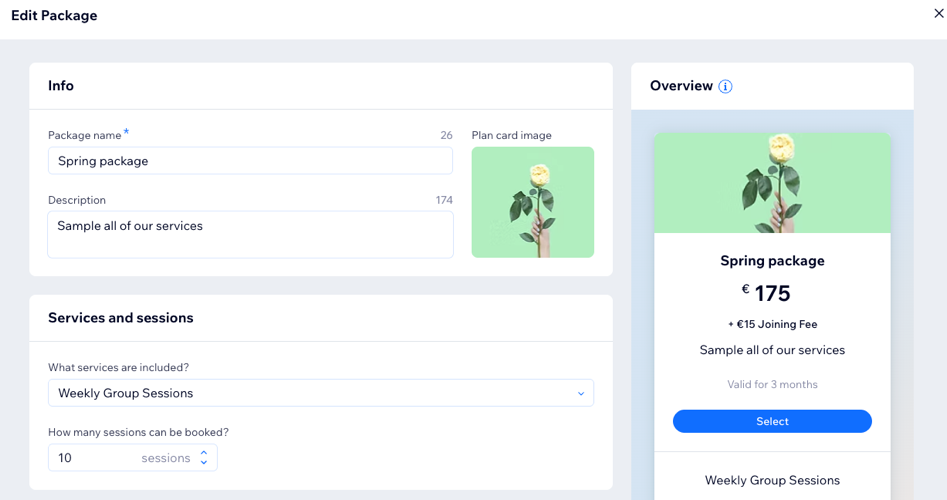
Under Info enter the Package name and Description and click the Add image icon

under Plan card image to upload an image for your package.
Under Services and sessions choose the service(s) included in this package and how many sessions can be booked:
What services are included?: Click the dropdown and select the checkbox next to the services you want to include in the package. Or click Select All Services to create an all-inclusive package.
Note: The service you are creating is already linked to this package.
How many sessions can be booked?: Enter the number of sessions included in this package, or use the arrows to adjust the number.
Set the package price and duration
Under Pricing Strategy choose how clients pay and how long the package lasts.
One-time: Your clients pay for the package as they check out.
Enter the cost in the Price field.
(Optional) Enable the Charge a setup fee toggle to add a one-time onboarding or registration fee and set the price and name in the fields provided.
Free: Clients won't be charged for the package.
Under Plan duration select how long the package remains active from the Package is valid for dropdown. Options vary depending on what you selected in previous steps.
Add custom pricing rules
If relevant, apply discounts or custom rates for specific customers or groups. With custom pricing rules, you can give each customer the price that fits their circumstance.
Scroll down to Custom pricing rules and click Add Rule.
Choose the type of rule you want to create and click Continue:
Custom price for selected customers: Give specific customers or groups a different package price.
Discount for returning customers: Offer a lower price to customers who buy another package.
Limited-time discount: Create a temporary discount for all customers.
Custom setup fee for selected customers: Set a custom setup fee for specific customers or groups.
In the pop‑up, enter the details for your rule (for example, the discount and any dates), then click Save.
Click Save at the bottom right.
Tip: After you save the rule, it appears as Active in the Custom pricing rules section. Click the More Actions icon

next to the rule to rename, edit, delete, or deactivate it.
Set the start date
Set when the plan starts for clients who purchase this package.
Scroll down to Start date.
Choose when the package starts:
Specific date: Set a start date that customers cannot change. Click Change to choose when the package starts.
Chosen by customer: Let customers choose a start date before checkout. Click Change to set the available date range.
Set extra benefits
Add extra perks to make your package more valuable. Scroll down to Extra benefits and choose the benefits you want to include:
Video Channels: Select the checkbox to give members access to a video channel. Then click Add Channel and select the relevant channel.
Events Memberships: Select the checkbox to offer event-related benefits, such as ticket discounts and limits.
Note: Make sure to create a ticketed event first.
Customize the settings
Customize the settings to control how clients can buy and manage their package.
Scroll down to Settings and choose what you want to customize:
Limit to 1 per person: Enable the toggle to make sure clients can only purchase the package once.
Let clients cancel: Enable the toggle to let clients cancel their package on your site. Only disable this option if you’re sure it complies with all relevant rules and legislation.
Add a policy:
Click Add Policy.
In the pop-up window, enter the relevant terms and conditions in the Plan policy field.
Click Save.
8. Click Save at the bottom right.
9. When ready, click Save at the top right to update this service.
Note:
If your service allows group bookings, clients can use a package to book a spot. Each person who joins the session uses 1 session credit from the package. The Limit to 1 per person toggle controls how many spots a client can redeem from the package in a group booking.
What's next?
Make sure you customize the look of the plans to suit your brand and business.
Why not create a membership plan to offer your clients more value for money? Membership plans are great for committed clients who plan on coming back for weeks or months at a time.
Adding an 'Explore plans' button to the Service List
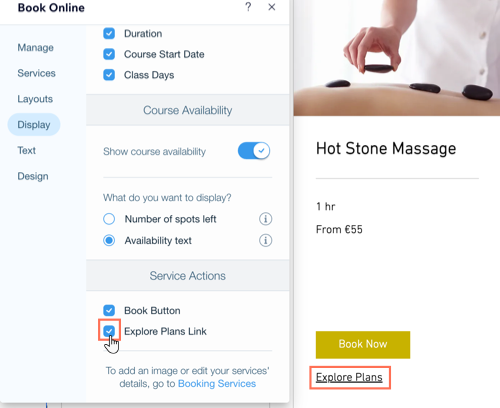
From your editor, you can add an "Explore Plans" link to the Service List on your site. Clients see this option just below the "Book Now" button before they book a service. The link takes them to your Plans & Pricing page.
Wix Editor
Go to your Book Online page:
Click Pages & Menu

on the left side of the editor.
Click Bookings Pages.
Click the Book Online page.
Click the Book Online element on your page.
Click Settings.
Click Display.
Under Service Actions,select the Explore Plans Link checkbox.
Studio Editor
Go to your Book Online page:
Click Pages

on the left side of the editor.
Click the Book Online page under Bookings Pages.
Click the Book Onlineelement on your page.
Click Settings.
Click Display.
Under Service Actions,select the Explore Plans Link checkbox.
Wix Harmony Editor
Go to your Book Online page:
Click the Page dropdown at the top left of the page.
(In the Site Pages panel) Select the Book Online page under Bookings Pages.
Tip: Jump to the page you need by clicking the dropdown next to Site Pages and selecting Bookings Pages.
Click the Service Listelement on your page.
Click the Display Elements icon

on the action bar.
Click Services to see more options.
Select the Explore Plans Link checkbox.
FAQs
Here are some frequently asked questions about offering packages for Bookings services:
Can I include all types of services in the packages I offer?
Packages work with appointments and classes but are not available for courses.
Can clients carry over sessions from a package if they don't use them?
If your client doesn't use the sessions within the amount of time you set, the sessions don't carry over. If a client buys a four-session per month package but only attends two sessions, they have access to four sessions the next month, not six.
Can clients pay for group bookings using a package?
Clients can pay for group bookings using their purchased packages on both desktop and their member apps. Each participant in a group booking uses up 1 session in the package.
For example, if a client buys a 10-session package and makes a group booking with 2 friends using their package, it counts as 3 sessions used. They then have 7 sessions remaining.
You can make a group booking on behalf of your client on desktop or using the Wix app. When you book the client in, you can add guests to their booking and redeem all sessions from your client's package.
This article is credited to the Wix team - https://support.wix.com/ and we thank them for that!