When clients book, cancel, or reschedule a service, or when you need to review a booking request, Wix automatically sends email notifications to you, your staff, and your clients.
When one of your clients books or cancels a service, Wix emails you and the staff member providing the service. You can choose which notifications you want to receive.
Notes:
Email notifications are not sent in preview mode while your site is unpublished or under construction.
When using a merchant account (e.g., PayPal or Stripe), notifications are sent to the email address linked to your payment account.
Type of email notifications you get
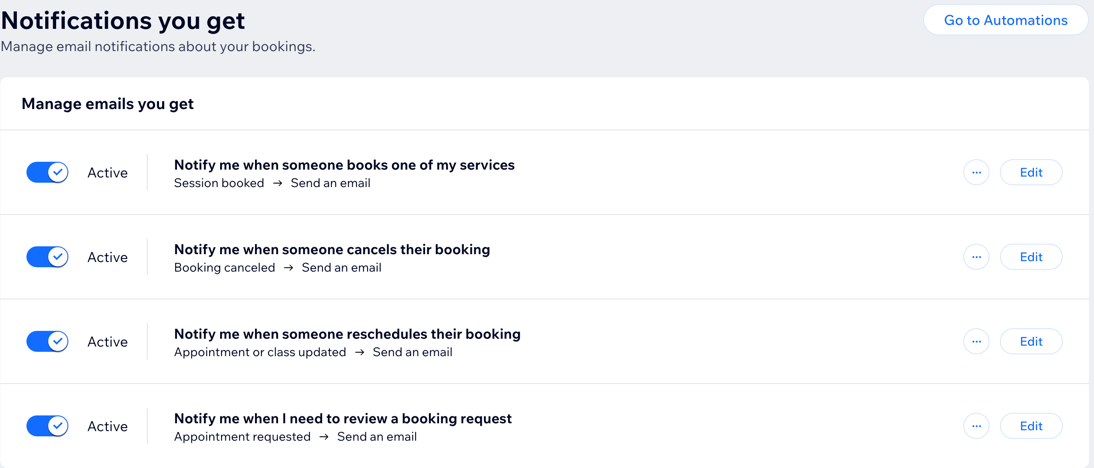
There are several types of automated emails to keep everyone informed about bookings and changes. These emails are active by default, but you can deactivate the toggle next to any automation to stop sending them.
Notify me when someone books one of my services
Notify me when someone cancels their booking
Notify me when someone reschedules their booking
Notify me when I need to review a booking request
Want to know more?
Read more about Wix Automations.
Managing your inbound emails
Make sure you and your team never miss a booking by managing email notifications in the dashboard.
Note:
Emails are sent to the business and staff email addresses listed in the business info and staff tabs in your dashboard. Make sure these addresses are accurate and up-to-date.
To manage your inbound emails:
Go to Booking Settings in your site's dashboard.
Click Notifications you get.
Click the toggle next to the relevant email notifications to enable or disable the automation.
Customizing the content of your email
You can customize automated emails to create a professional and personalized experience for your team. Automatically include client-specific details like the client's name, booking info, or service price to keep everyone informed and enhance communication.
To customize your emails:
Go to Booking Settings in your site's dashboard.
Click Notifications you get.
Click Edit next to the automation you want to customize.
In the automation flow, click the Send an email action to open the panel.
Choose which section you want to update:
Sender details
Click Edit to change the sender's name and reply-to address.
Sender's name: Edit the name that appears in the recipient's inbox and click Save.
Reply-to email: Edit the email address people reach when they hit reply and click Save.
Create an email
Edit the content of the automated email. Under Create an email, select the relevant option:
Edit:
Edit your chosen email template:
Customize existing elements in the email.
Note: Some pre-installed automations offer the ability to edit the elements attached to multiple states in the email. Learn more in the FAQ section below.
Add more elements to the email.
Add personalized content to the email.
When ready, click Save & Continue/Publish at the top right.
Switch template: Use a different email template from a different automation or email marketing campaign.
More Actions: Click Preview & test tosee and test the email, or Reset to default template to reset the edits you made to the original email template.
Set email type
Select the purpose of the email:
Promotional: Non-essential business information or marketing content. Recipients who have unsubscribed or muted the selected notification topic will not receive this email.
Note: A promotional email will deduct from your monthly email balance. To revert to transactional, reset the automation to default.
Business transactional: Essential information to your customers, directly related to their activity on your site. Recipients who have muted the selected email notification topic will not receive this email.
Business critical: Only meant for critical cases. Recipients cannot mute these emails and they will be sent regardless of any unsubscribe preferences
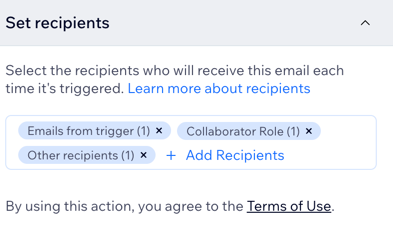
Set recipients
Under Set recipients, select all who will receive this automated email when it's triggered:
Include trigger contact: Recipient who triggered this automation.
Note: Depending on your trigger, you can select an alternative address where the email will be sent once triggered (e.g. sending an email to yourself or your team).
Include additional recipients: Additional recipients who didn't trigger this automation
6. Click Apply.
7. Choose what you want to do:
Save: Save your changes without publishing.
Publish Changes: Make your changes live.
Notes:
Only certain parts of the pre-installed email automations can be edited to maintain the delivery of essential service updates.
The main image in these emails matches the image selected when creating a service.
Read more about customizing your automated Wix emails.
FAQs
Click a question to learn more about email notifications you get.
How do I test my customized email notifications?
After customizing your email, click Save & Continue at the top right. Click the More Actions drop-down and select Preview & Test to generate a preview and send yourself a test version. Enter the relevant details and click Send.
What should I do if I don't receive email notifications?
Make sure that the email addresses in the Business Info and Staff tabs are correct. Also, check your spam or junk folder.
How do I ensure my emails don't go to spam?
To reduce the chances of your emails going to spam, make sure your email content is clear and relevant. Avoid using excessive links or spammy keywords. Updating your email settings and keeping your email list clean can also help.
Can I send email notifications to multiple recipients?
Yes, you can include additional recipients in your email automations. Select the relevant checkboxes under Set recipients to decide who receives the automated email when it's triggered.
This article is credited to the Wix team - https://support.wix.com/ and we thank them for that!