If you add an image to a service you created, it is displayed on your Service List page.

You can choose to hide the service images from your service list if you'd like.

To hide images from the service list:
Wix Editor
Click the service list element on your page.
Click Settings.
Click the Display tab.
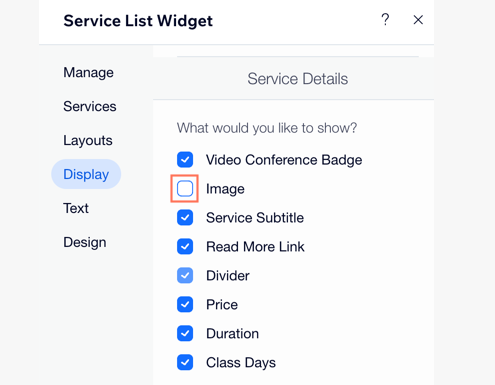
Deselect the Image checkbox under Service Details.
Studio Editor
Click the service list element on your page.
Click Settings.
Click the Display tab.
Deselect the Image checkbox under Service Details.
Wix Harmony Editor
Click the service list element on your page.
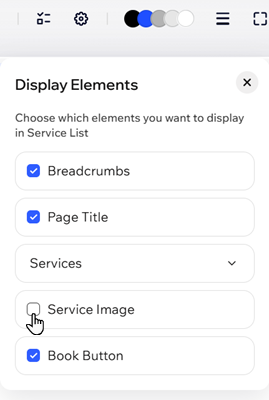
Click the Display Elements icon

on the action bar.
Deselect the checkbox next to Service Image.
This article is credited to the Wix team - https://support.wix.com/ and we thank them for that!