Promote a single service anywhere on your site using the Featured Service element.
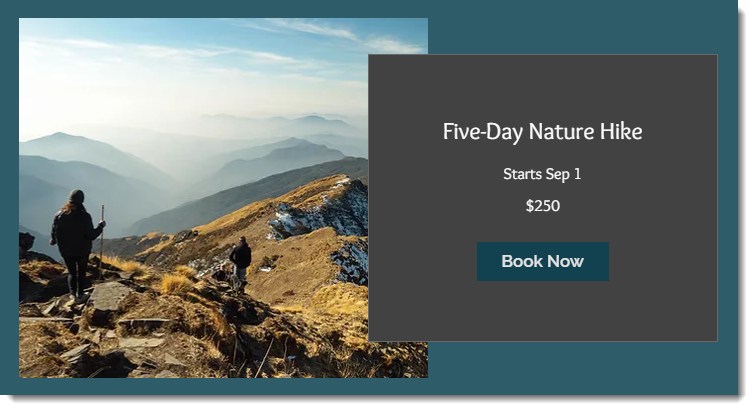
Tip:
You can also display multiple services on any page of your site.
To add and set up the Featured Service element:
Wix Editor
Click Add Elements

on the left side of the editor.
Click Bookings.
Drag the Featured Service element onto the page.
Click the Featured Service element on the page.
Click Settings.
Click the Services tab.
Select the checkmark next to the service you want to display.
Tip: Click Add a New Service to add a new appointment, class or course.
Click the relevant tabs to customize the layout, display, text and design of the Featured Service element.
Studio Editor
Click Add Elements

on the left side of the editor.
Click Bookings.
Drag the Featured Service element onto the page.
Click the Featured Service element on the page.
Click Settings.
Click the Services tab
Select the checkmark next to the service you want to display.
Tip: Click Add a New Service to add a new appointment, class or course.
Click the relevant tabs to customize the layout, display, text and design of the Featured Service element.
Wix Harmony Editor
Click + Add at the top left of the editor.
Select the Bookings category.
Drag the Featured service element onto the page.
Click the Service List element on the page.
Click the Settings icon

on the action bar.
(In the Services tab) Select which service you want to display.
Tip: Click Add a New Service to add a new appointment, class or course.
Click the relevant tabs to customize the layout, display, text and design of the Featured Service element.
Notes:
The Featured Service Element is not a standalone element. It works together with Wix Bookings.
Make sure to delete the element if the service displayed is no longer available.
This article is credited to the Wix team - https://support.wix.com/ and we thank them for that!