Add your staff to your site so they can provide services to clients and help manage your business. You can control each staff member's level of access to your site and business information. Assign staff to specific locations, so they only see and manage what's relevant to them.
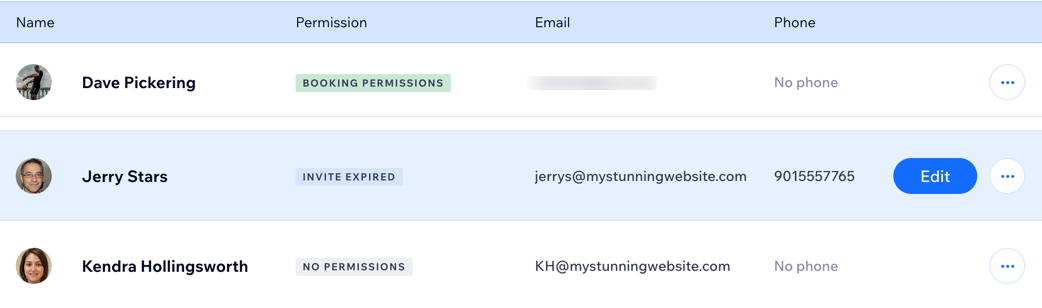
Managing staff hours
Staff hours determine when a staff member is available to provide appointments. To manage your business hours, Wix Bookings offers a two-level system.
First, set your default work hours which apply to all staff. Then you can set individual staff members' hours to offer a more flexible service to clients.
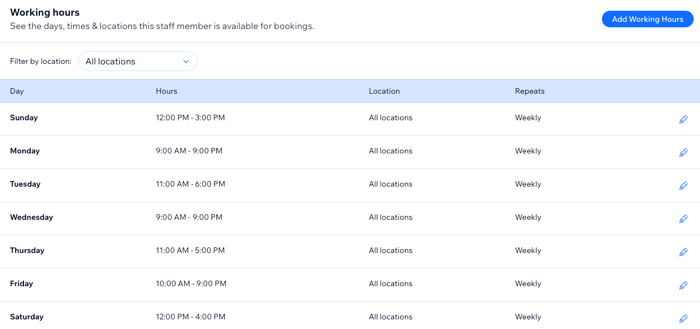
Assigning permission levels
Wix Bookings allows you to assign different levels of permissions to your staff and other contributors, depending on their roles:
Bookings Manager: Handles bookings, updates orders, and views analytics for assigned locations. For example, a salon manager can oversee multiple hair stylists' bookings, make updates orders for services, and analyze customer trends for their specific branch.
Bookings Admin: Has full access to bookings, contacts, and payments. For example, a spa owner who manages all booking schedules, processes payments, and oversees the client database across the business.
Bookings Staff Member: Adding someone as a Bookings staff member gives them permission to book their own clients, access their personal calendar and manage their sessions. Manages personal schedules, clients, and sessions. For example, a personal trainer who books sessions with their own clients, manages their availability, and handles their cancellations independently.
You may also want to invite non-staff members to contribute on your site. For example, if you hire a graphic designer or a copywriter to make changes to your site.
Note:
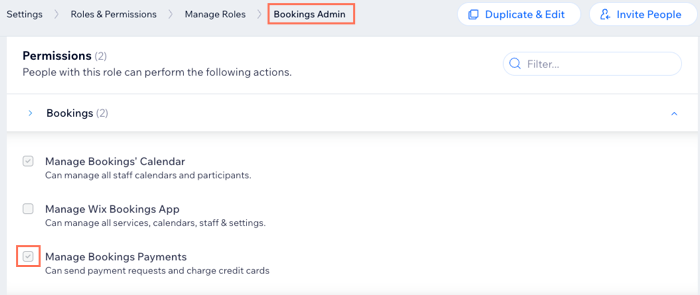
Only Bookings Admins and Managers have permission to send payment requests and charge credit cards.
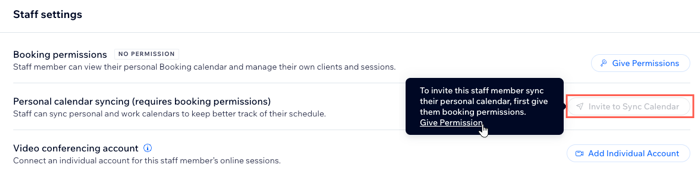
Inviting staff members to sync their personal calendars
To help staff members keep track of their schedule, you can invite them to sync their personal calendars with their Wix Bookings calendar. This helps prevent double bookings and allows staff to see their complete upcoming schedule in one place.
Make sure you assign the relevant permission level, so your staff member can sync their personal calendar (see section below).
Assigning locations for your staff members
If your business operates in multiple locations, you can assign each staff member to specific locations from your roles & permissions page. This ensures that staff only see and manage the schedules, bookings, and services relevant to their assigned location.
For example:
A personal trainer at a fitness chain with branches in New York and Los Angeles can be assigned only to the New York gym.
A regional manager overseeing both locations can be granted access to both gyms.
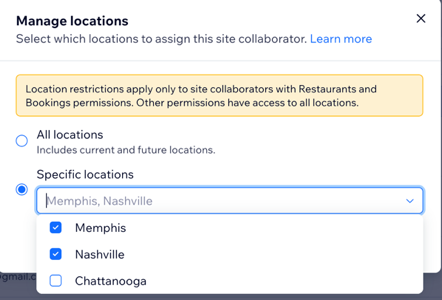
Managing staff by location
Assign staff to one or more specific locations so they and your site collaborators only see and manage the bookings, services, and clients relevant to their assigned areas. For example, a stylist assigned to the Seattle branch can only be managed by collaborators for that location, not for other branches like Chicago.
This keeps your business organized, ensuring that each team member works with the correct location without accessing other branches. Use the location management tab in your booking settings to easily assign staff to business locations.
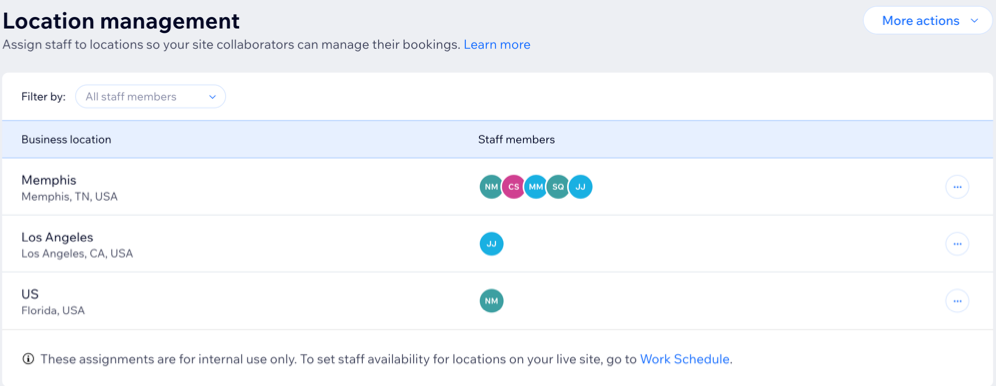
Site collaborators can see only the staff assigned to their approved location(s). They can’t view or reschedule bookings for staff members or locations they don’t manage.
FAQs
Click a question to learn more about staff members.
How do I add a new staff member to my Wix Bookings?
Go to Staff in your site's dashboard, click +Add Staff and enter the staff member's basic details including their full name, a description of their role, their email address. Read more about adding a staff member.
Can staff members manage their own schedules?
Yes, staff members can manage their own schedules if they are assigned the Bookings Staff Member role. This allows them to book their own clients, manage their availability, and handle cancellations independently.
Can I assign different permission levels to different staff members?
Yes, you can assign different permission levels based on their roles.
Bookings managers can handle bookings and view analytics.
Bookings admins have full access to bookings, contacts, and payments.
Bookings staff members can manage their own clients and schedules.
Can I invite non-staff members to contribute to my site?
Yes, you can invite non-staff members like graphic designers or copywriters to contribute to your site. Navigate to the Roles & Permissions page and send an invitation to the person you want to add. Assign them the appropriate role to limit their access to sensitive business information.
What happens if a staff member leaves the company?
If a staff member leaves, you can remove them from your site. Go to Roles & Permissions in your dashboard, find the staff member, and select Remove Collaborator. This revokes their access to your site and business information.
How do I manage staff hours for multiple locations?
First, set the default work hours that apply to all staff. Then, customize individual staff members' hours based on their specific location. Use the location management tab in your booking settings to assign and manage hours for each location.
Is there a way to see which staff members are assigned to which locations?
Yes, you can view staff assignments in the Roles & Permissions page. This section provides a clear overview of which staff members are assigned to each location, helping you manage your team effectively.
Can I change a staff member's role after they have been added?
Yes, you can change a staff member's role at any time. Go to the Staff tab in your Wix dashboard, select the staff member, and update their role and permissions as needed.
How do I handle bookings for a staff member who works at multiple locations?
Assign the staff member to all relevant locations from the Roles and Permissions page. They will then be able to manage bookings and schedules for each location, ensuring they have a complete overview of their commitments.
This article is credited to the Wix team - https://support.wix.com/ and we thank them for that!