Use Wix Analytics to dive deeper into your blog and make smarter content decisions. Your blog reports help you answer questions like 'Which posts get the most reactions?' or 'What day of the week brings in the most views?'.
Want a snapshot of how your blog content is performing?
Learn more about your Blog Analytics page.
The types of blog reports
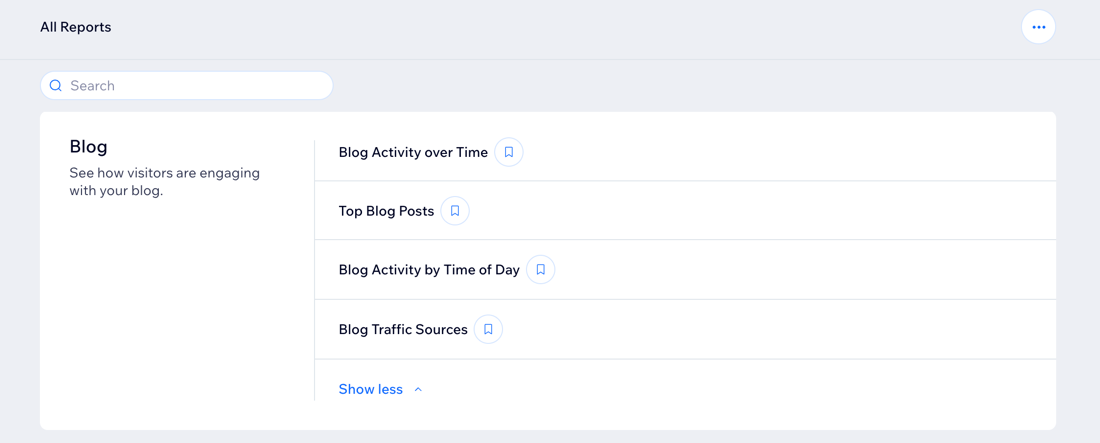
Understanding the different types of blog reports helps you analyze your blog's performance in various areas. Each report provides specific insights, from visitor activity and top-performing posts to email engagement and traffic sources.
Click a report type below to learn more about it:
Blog activity over time
The Blog Activity over Time report shows which days, weeks, or months your blog has received the most post views, visitors, reactions, and more.
Use this report to:
See how many visitors your blog has attracted over time.
View your blog likes, shares, and reactions over specific time periods, and compared to previous periods.
Top blog posts
The Top Blog Posts report displays your best performing posts in terms of views during specific timeframes.
Use this report to:
Understand what your most popular blog posts are in terms of views, likes, shares, comments, and reactions.
See how your blog post views have changed over time, to understand if actions you've taken or new blog posts published have impacted views.
Blog activity by time of day
The Blog Activity by Time of Day report displays shows when your blog receives the most traffic.
Use this report to:
Discover when your blog receives the most reactions (likes, shares, and comments) by day of week and time of day.
See how the average amount of visitors to your blog fluctuates throughout the week.
Blog traffic sources
The Blog Traffic Sources report helps you understand which sites drive traffic to your blog.
Use this report to:
Identify the top sources bringing visitors to your blog.
See how many post views and unique visitors you get from each traffic source.
Note:
When you log in to your Wix account, any visits using the same device & browser to your own sites won't be counted in Wix Analytics reports.
Accessing your blog reports
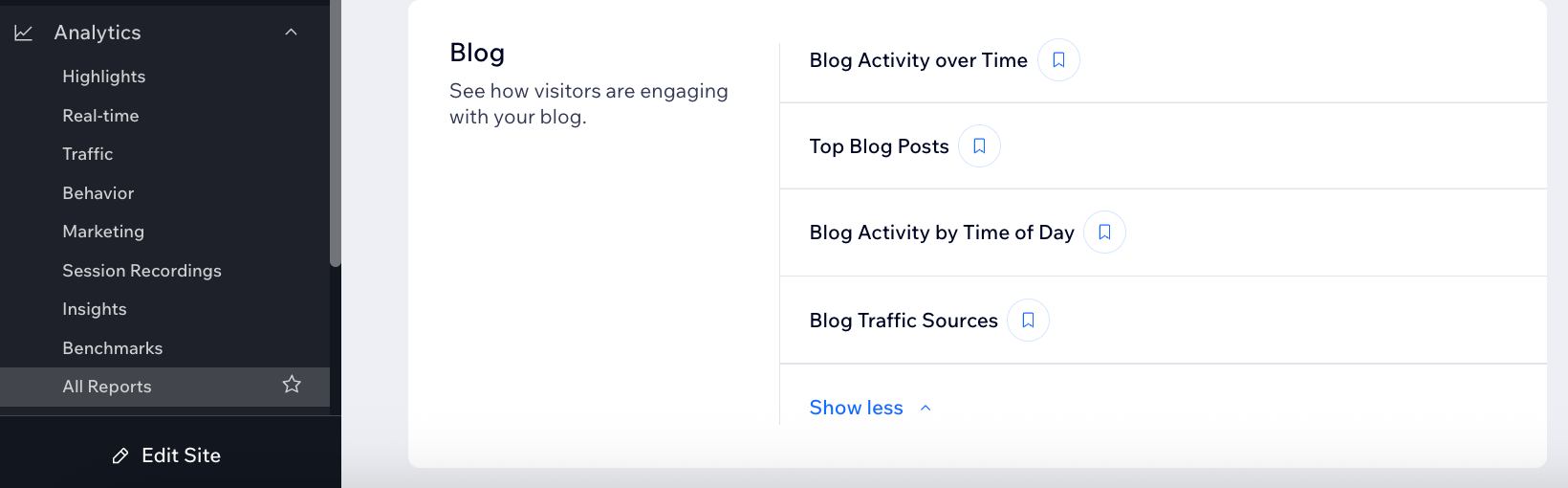
Dashboard
Go to All Reports in your site's dashboard.
Scroll down to Wix Blog.
Click the relevant report to view it.
Tip:
You can also check out your Blog Analytics to track how your blog is performing.
Wix app
Go to your site in the Wix app.
Tap Manage

at the bottom.
Tap Blog.
Tap Analytics.
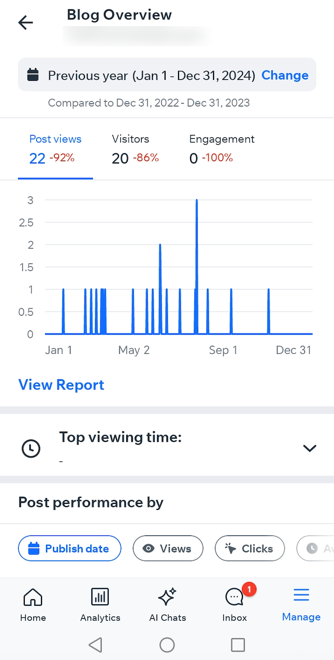
Review your Blog Overview data.
Tip:
Tap Change to select a new time period and view data for that time period, or tap Select Custom Time Range and enter a custom time range and view data from a very specific time range.
This article is credited to the Wix team - https://support.wix.com/ and we thank them for that!