Using blog notifications is a great way to build engagement for your blog posts. Every time you create a new post, you'll automatically send a notification to any site visitors who signed up for them. You can send notifications by email or by push notifications to Wix mobile apps.
Your visitors can sign up for notifications about new blog posts by:
Subscribing to your site through a form on your site
Enabling push notifications in the Spaces by Wix app
After they sign up, they'll receive notifications based on the settings you choose in your blog's notification settings.
Understanding who receives notifications
Active members of your site and subscribers receive blog post notifications. However, they can become inactive if they don't open a number of post notifications in a row. To become active again, they can open any of their recent unopened post notifications.
The following contacts do not receive notifications:
Contacts whose email address is incorrect or out of date in your contacts list.
Contacts who previously marked a notification email from you as spam.
Contacts who Wix previously tried to email, but the address was undeliverable.
Contacts who unsubscribed from your notifications using the link in an email or the Settings page on their Member Account.
Contacts using a different language on your site to the post's language. For example, if you have an English language site but you have contacts who are in a different locale, the email will only go to English language contacts or contacts with no location indicated.
Members you have blocked.
Post authors do not receive notifications for the own posts.
Inactive contacts. Learn more about active and inactive contacts.
Adding a subscribe form
You can add a subscribe form to your site so that your visitors can get notifications by adding their email address. Everyone who signs up using the form is automatically added as a subscriber in your Contact List. Learn more about subscribe forms.
To add a subscribe form:
Wix Editor
Click Add Elements

on the left side of the editor.
Click Contact & Forms.
Click Subscribe.
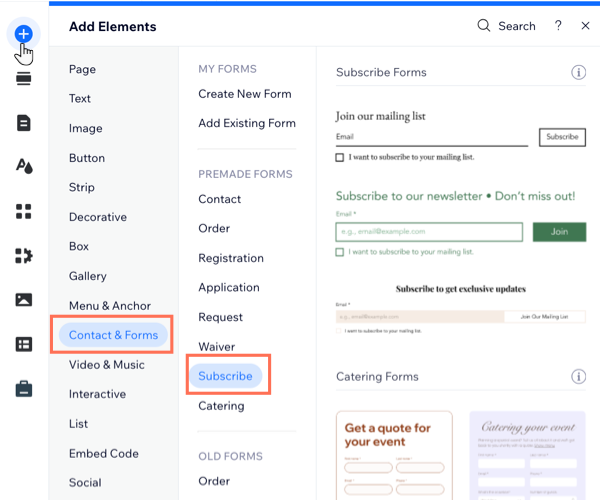
Select a form and drag it onto your site.
Click Publish.
Studio Editor
Click Add Elements

on the left side of the editor.
Click Contact & Forms.
Click Subscribe.
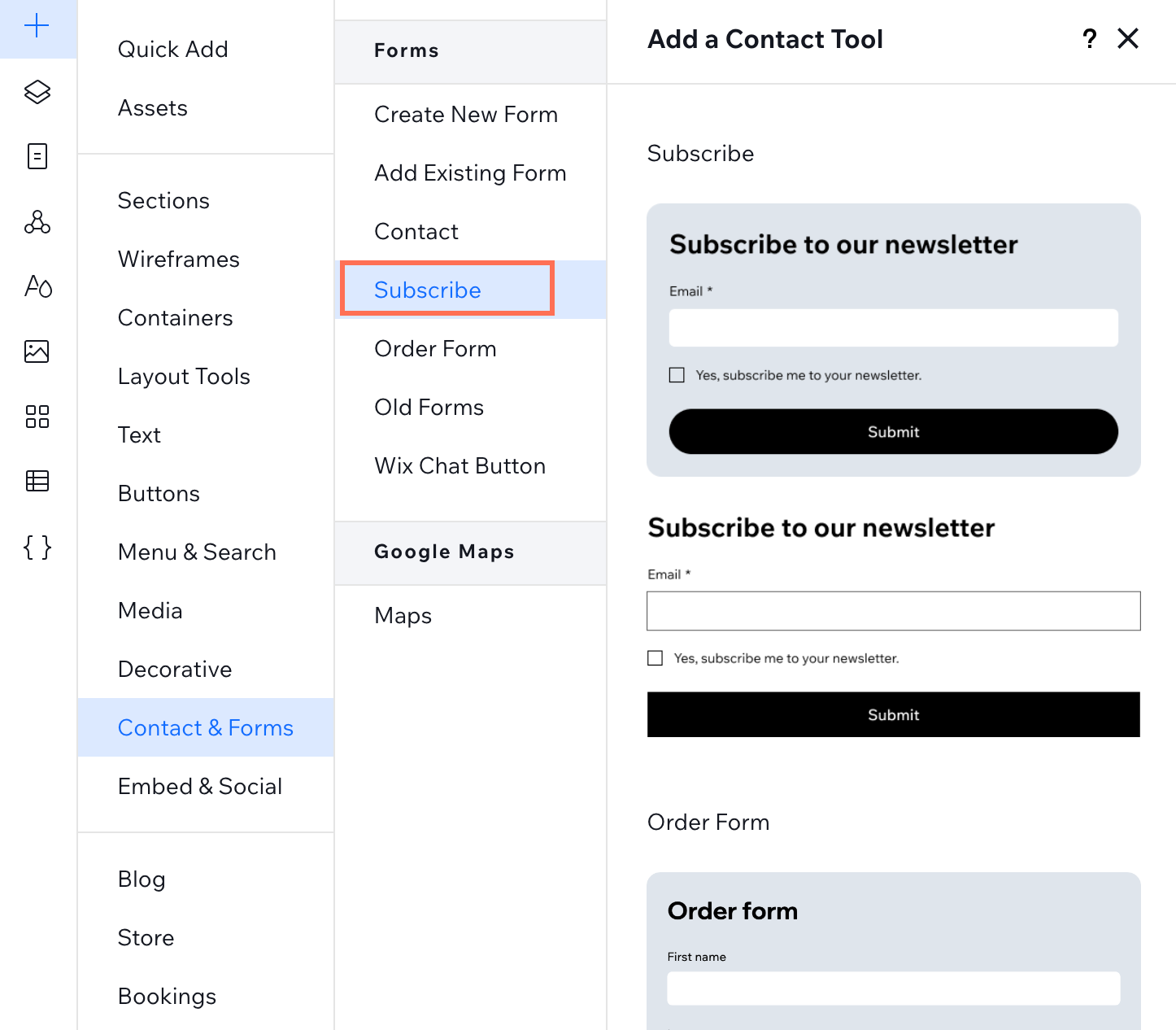
Select a form and drag it onto your site.
Click Publish.
Wix Harmony Editor
Click + Add at the top left of the editor.
Click the Arrow icon

to navigate to the Form & Contact category.
Click the Subscribe form you want to use, or drag it to position it on the page.
Sending automated email notifications
Notify your site members about new posts by sending automated emails directly to their inbox. Email notifications are sent to all site members, or only to members who follow specific authors in the Members Area. You control these notifications through Wix Automations in your site dashboard.
To send email notifications:
Go to Blog in your site's dashboard.
Click the More Actions drop-down and select Blog settings.
Click Manage next to Manage your notifications & emails.
Choose what you want to do:
Create a new automation: Learn how to create an automation.
Edit an existing automation: Learn how to edit an existing automation.
Note:
Because this automation is added for you, parts of the automation cannot be customized. For more customization options, duplicate this automation or create a new one.
Sending push notifications
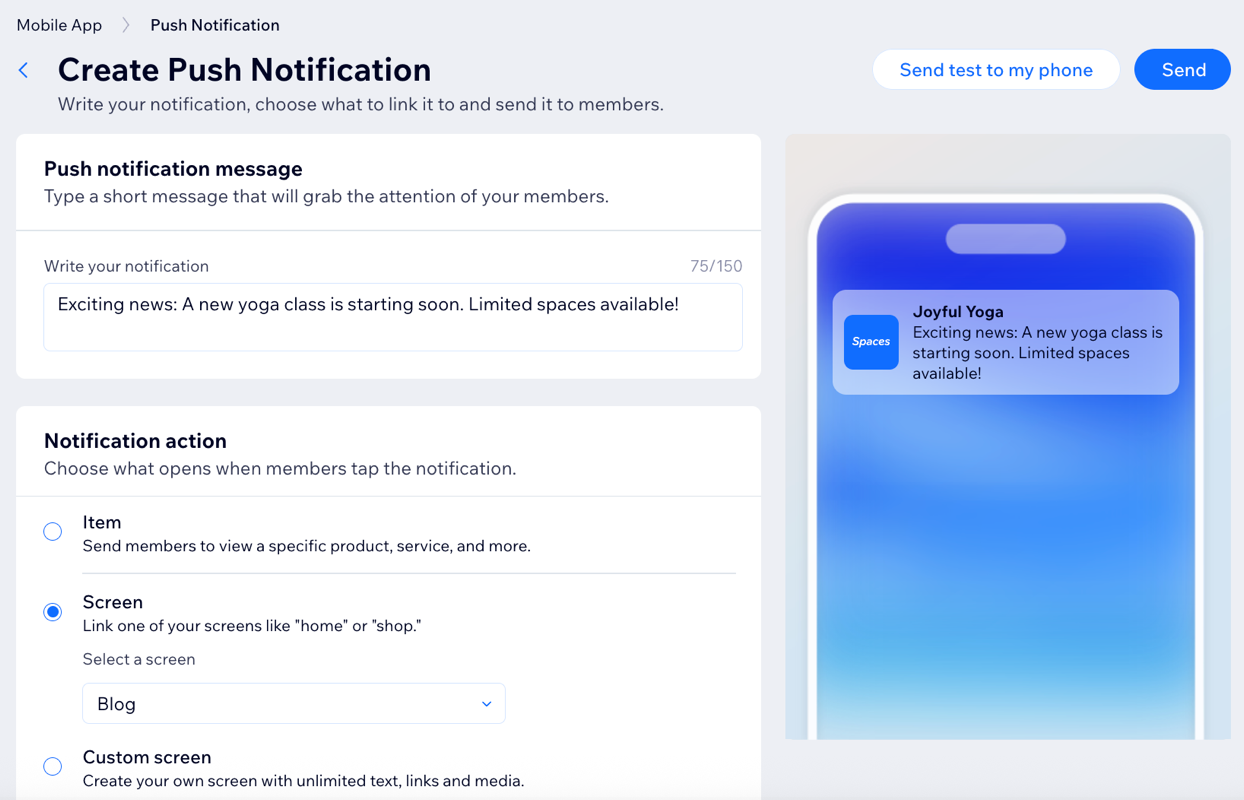
Push notifications are sent as alerts to members who use the Spaces by Wix app or your site's Native mobile app and have enabled notifications on their device. As the site owner, you can choose which notifications are sent to your members. However, individual site members can manage their own notification settings and disable notifications if they prefer not to receive them.
Learn how to create and send push notifications.
FAQs
Click a question below to learn more about managing new post notifications.
Can I send notifications just for specific posts?
No. Currently, it's not possible to send notifications for specific posts. Vote for this feature
Can I send notifications to specific members only?
No. It is not possible to send notifications to specific members only. Any notifications you send, such as blog updates or announcements, are delivered to all members. However, you can reach out to them separately through email.
Can members customize their email notification settings?
Yes. All blog email notifications include a link to unsubscribe in the footer of the email. Members or subscribers can click this link to stop receiving future notifications from your blog. Alternatively, members can log into your live site and go to their account settings to customize their notifications.
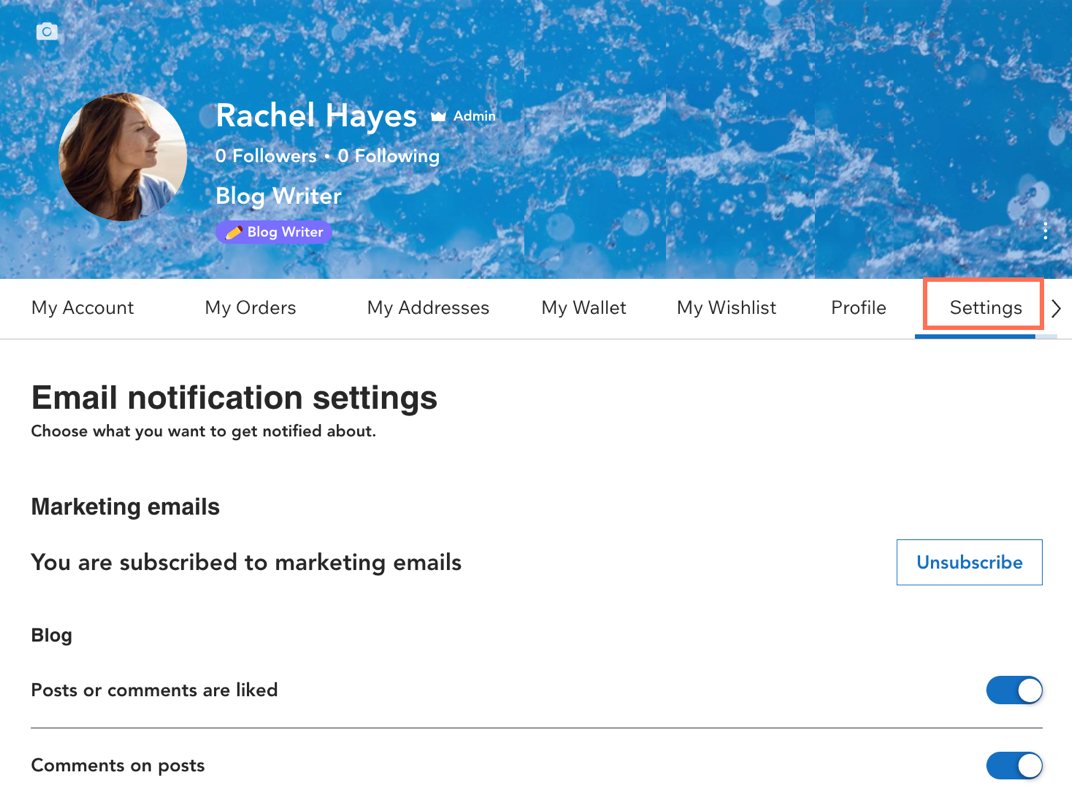
To customize your email notification settings as a member:
Log in to the live site as a site member.
Click your profile image and select My Account.
Click the Settings tab.
Click Unsubscribe.
Enable/disable the relevant toggles under Blog:
Posts or comments are liked: Enable the toggle to receive notifications when your posts or comments are liked by other members.
Comments on posts: Enable the toggle to receive notifications when members add comments to your posts.
Can members customize their push notification settings?
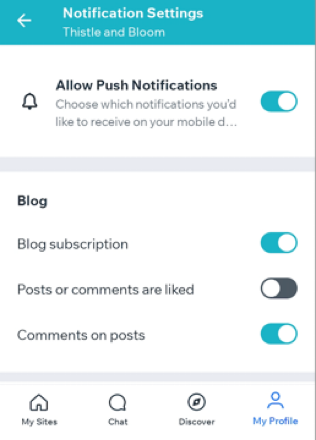
Yes. Using a member app, Spaces by Wix or Native mobile app, members can choose to unsubscribe from notifications completely or stay subscribed but choose what notifications they want to receive.
To customize your push notification settings as a member:
Open your member app.
Tap the relevant site.
Tap My Profile.
Tap Notifications under Settings.
Tap the relevant site.
Tap Push.
Tap the Allow Push Notifications toggle to enable or disable it:
Enabled: Choose what notifications you want to receive by enabling or disabling the relevant toggles.
Disabled: Notifications are muted for a specific amount of time or permanently.
Can I customize the email notifications sent to subscribers?
Yes. You can customize the email notifications that are sent to subscribers.
Why are my blog notifications not being sent to all subscribers?
There could be a number of reasons why this is happening. Checking each of the points below can help you identify and resolve the issue.
Email notifications:
Incorrect email addresses: Look through the list of email addresses in your contact list. Check for addresses that look misspelled, or incomplete for example, missing '@', typos, or blank entries. Correct or remove any obvious errors.
Unsubscribed contacts: Ensure all contacts are marked as 'subscribed' and identify contacts with labels like 'bounced' and 'invalid'. These contacts do not receive your notifications often because of typos, their inbox is full, or the address no longer exists.
Emails are marked as spam: Ask your subscribers to check their spam or junk folder and mark your blog notifications as 'Not Spam' if they find them there.
Email marketing limit: Wix sets a monthly send limit for marketing emails and notifications, depending on your plan. If you reach your limit, some notifications may not be sent. Learn more about your email marketing allowance.
Push notifications:
Ask members to enable push notifications: Some members may have turned off their notifications in their settings. Reach out to your members and ask them to enable push notifications for the members app in their profile settings of their mobile device.
This article is credited to the Wix team - https://support.wix.com/ and we thank them for that!